With the advent of SAP BusinessObjects BI 4.0 came the element link, a short, wizard-driven method for creating links between blocks within the same report. There is no need for a second report to refresh because the first document supplies all data. The link allows a cell in one block to act as a filter for the second table. With this technique, reports can be more interactive — almost dashboard-like from a user’s perspective. The technique is not foolproof, however. There are situations in which this link does not work. Learn the ground rules for creating a successful link and find out the areas in which the link does not work as advertised.
Key Concept
An element link is a new type of input control added in SAP BusinessObjects BI 4.0 that allows one block to control another block regardless of format (e.g., horizontal table, vertical table, crosstab, chart). It converts values from that first block to hyperlinks that can then filter the second block based on the value selected.
SAP BusinessObjects Web Intelligence (also known as WebI) has added many online features since its introduction as BusinessObjects’ first browser-based report writer. One trick that has always eluded the tool, however, is the ability to control tables or graphs from other tables within the same report page. BusinessObjects BI 4.0 has bridged that gap with the introduction of element links.
When properly created, these links allow users to interact with their reports in an almost dashboard-like manner with very little setup. I explain how to best use this new ability through an example that can be created using sample data distributed with BusinessObjects. I provide you with guidance and warnings that highlight situations for which element links don’t work as expected.
Why Element Links?
- OpenDocument technology allows a second document to be refreshed by a prior one, using values from the prior document to filter the results.
- Prompts from the second document are satisfied by values from a row within the first.
- This technique as described requires two documents, and therefore, at least two queries are necessary.
- The second table is displayed in a new window or replaces the first table in the original window. Navigation between the two windows is awkward.
- Preventing the first table from being shown makes it harder for the user to understand the bigger picture because the original table is no longer visible.
BusinessObjects technologies, such as BI Workspaces, allow better navigation between documents at a price: additional development time and yet another tool. Many users like to open reports from their own portals. BI Workspaces are part of SAP’s own report portal interface called Launchpad. To use BI Workspaces, you need to use Launchpad. This practice runs counter to corporate desires to seamlessly integrate BusinessObjects content.
Several OpenDocument features are impractical when sourcing report data from SAP HANA. Theoretically, real-time queries can be run against HANA without the need for pre-aggregating data for performance reasons. HANA can process billions of rows using preprogrammed models that can perform fairly sophisticated operations. Unfortunately, OpenDocument calls to HANA require at least two queries. This means undertaking this complex task at least twice, which is not desirable when one query can grab both summary and detail information.
Element links allow one table or block to filter the results of a second, emulating the navigation capabilities of dashboards, but doing so using a minimum of one query. It accomplishes this on one report page, making it look more like a Web application than an online report, all of which is a good trick for an ad hoc report writer.
Element Link Basics
Setting up an example is simple. All the raw materials are provided by BusinessObjects if you’ve installed the sample universes and databases that come with the software. Let’s start with a simple Web Intelligence query using the e-Fashion universe showing revenue for Texas-based stores. The objects and conditions to use this query are shown in Figure 1.

Figure 1
Revenue for Texas-based stores in the e-Fashion universe
Note
The term block may be used interchangeably with tables and charts.
Blocks and cells are the main reporting structures that organize data
retrieved from a query. Tables and charts are blocks that have been
formatted in a specific manner.
Figure 2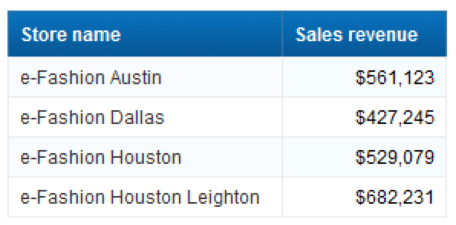
Figure 2
The source of an element link
Add a second table with the product details to be displayed once a store is selected (Figure 3). It can be considered the destination of the element link. You can hide the Store name object from the second table as long as the first block (Figure 2) is visible because that name can be seen from the first table. This is one of the main advantages of element links: showing multiple blocks on the same page.

Figure 3
A destination of an element link (product details for a particular store)
After you define both blocks, you can define the element link. Click anywhere within the first block and choose Report Elements > Linking > Elements. Alternatively, you can right-click anywhere within that first table and choose Linking > Add Element Link. The wizard shown in Figure 4 appears (only a portion is shown for readability).

Figure 4
The element link wizard for selecting an object
Select the All objects radio button to filter the second table by all dimensions listed in the first table, and click Next. The wizard asks for details about the first table (Figure 5). Not much can be done with this screen other than changing the control name or adding a description. Click Next to continue.
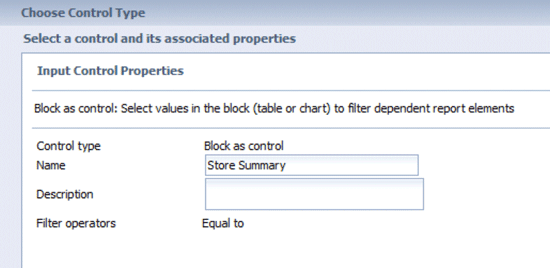
Figure 5
Describe the source block
Finally, choose the table that will serve as the one to be filtered using the value from the source table (i.e., the Store name column in Figure 2). The second block has been previously named as the Detail table. The control table has also been renamed as Store Summary (Figure 6). The name for any block needs to be set using the Properties window for that that particular block. Block names do not affect the element link, but they do make the blocks easier to identify and maintain. Click Finish to complete the link.

Figure 6
Select the destination block
The setup is complete, and now you can activate the newly created element link. Hover over any row within the Store Summary control table (Figure 2). A tooltip box shows the store name to be filtered (Figure 7).

Figure 7
The tooltip box shows the store to be filtered
Select a store name, such as e-Fashion Austin, and watch what happens to the contents of the second table in Figure 8, which is abbreviated for clarity.

Figure 8
The destination table showing results filtered for e-Fashion Austin
Once the element link is set, it appears as an input control on the left-side banner (Figure 9). Notice how the link can be edited or deleted from this area. This is more convenient than trying to select, edit, or remove a link by selecting a table.

Figure 9
An element link as an input control
Playing with Crosstabs
Figure 10
Figure 10
Alter the query to allow crosstab formatting
The original summary table that served as the source for the original element link can now be transformed into a crosstab (Figure 11). Right-click on the source table and choose Turn Table Into > Cross Table. Make sure that the row axis represents stores and the columns axis represent years. If this is not the case, drag the respective objects into their proper places.

Figure 11
A source table formatted as a crosstab
By using the same steps listed when creating a link between two horizontal tables, you can create an element link that controls the detail table with product-level information. There are now two dimensions in the summary table: Year and Store name. Both must be used to filter the destination table (Figure 12). Therefore, Year and Store name must be present in that destination table to be filtered correctly. You can hide those dimensions if desired, but they must be present within the block. As explained earlier, hiding dimensions on the destination table may make sense if the source table is displayed on the same page or report.
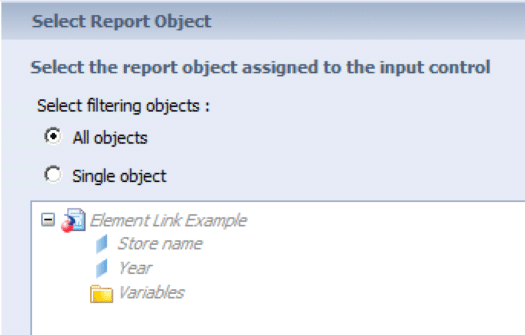
Figure 12
The selection screen for report objects
Hovering over a cell in the Store Summary table now shows selected values for both the Store name and Year dimensions. Selecting a crosstab cell, such as e-Fashion Austin 2005, filters the detail table that contains product information accordingly (Figure 13, which is abbreviated for clarity).
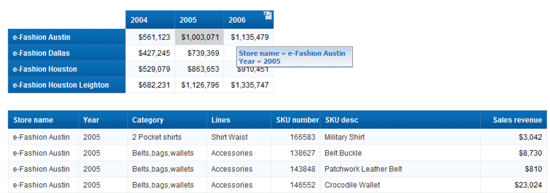
Figure 13
Filter data for e-Fashion Austin for 2005
A more advanced example involves using one crosstab to control a second crosstab (Figure 14, which is abbreviated for clarity). The same procedure is used to create the element link, so refer to previous examples for the step-by-step instructions.
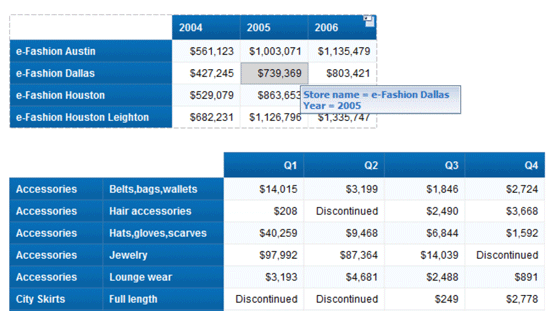
Figure 14
Use one crosstab to control another
Multiple Links
I now add a chart to show monthly revenue by year, month, category, and store (Figure 15). I complete this step by clicking Line Chart under the Report Elements menu and dragging the desired objects into position. The chart is named Monthly Revenue by right-clicking on the chart and choosing Format Table.
However, the graph in Figure 15 is less than stellar; there is too much information combined in a less-than-intuitive manner.

Figure 15
An unfiltered line graph
The chart can be better filtered by a cell from the Product Detail table. Selecting a cell from that table filters the chart by all dimensions in the table (i.e., Store, Lines, Category, Year, and Quarter). The method for filtering the chart is a second element link created between the Product Detail table and the chart.
The steps to create an element link from the Product Details table to the graph are the same as shown in the previous two examples. Right-click anywhere on the Details table and choose Linking > Add Element Link. The element link wizard appears (Figure 16). Select All objects as the source for the link, describe the Product Details table as the source of the link if desired (Figure 17), and select the Monthly Revenue graph as the destination block for the link (Figure 18).
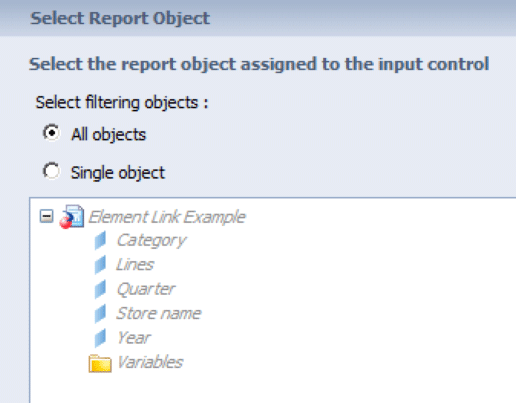
Figure 16
Select All objects from the Product Details table

Figure 17
Describe the Products Details table as the source

Figure 18
Select the Monthly Revenue chart as the destination
Click Finish. The result shows how one cell selected from the Product Detail table filters the chart nicely. The dimensions left in the chart do a good job of showing monthly revenue for that quarter (Figure 19).
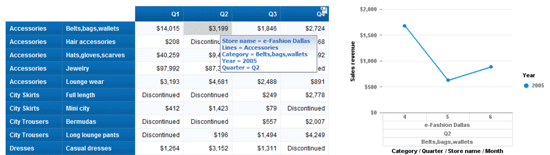
Figure 19
The filtered details table on Q2 for belts, bags, and wallets
Drawbacks to Element Links
Drawback 1. No Continuous Control Between Multiple Element Links
As you choose a cell from the first block, the second block changes accordingly. Choosing a cell from that second block filters the content of the third block. Choosing another cell from block 1, however, does not change what’s displayed in that last block.
In other words, the source block controls the destination block and no further.
To illustrate this problem, let’s try it with my store revenue example. Choose Austin 2004 from the source block and Product Details is filtered as expected. Choose Belts, bags, wallets Q3 from Block 2, and the chart shows the monthly revenue trend as shown in Figure 20.
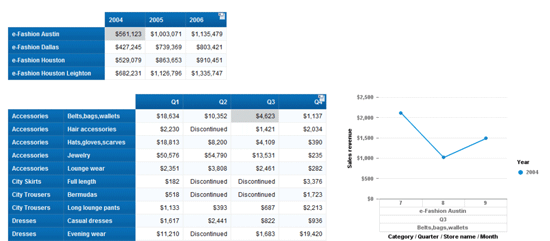
Figure 20
Product Details table and monthly revenue chart filtered correctly
Now change from Austin to Dallas. Notice how only the second block changes and not the entire chart (Figure 21).
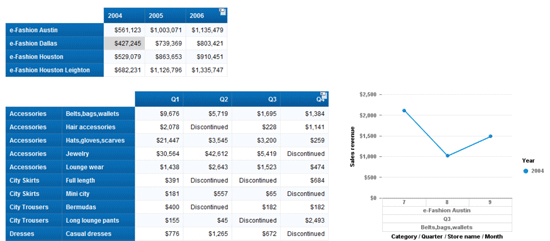
Figure 21
The chart on the right does not change
Drawback 2. A Table with Folded Breaks Cannot Use Element Links
This was a hotly contested issue in a recent project. A Web Intelligence document was set up much like a dashboard, with one crosstab controlling a second using an element link. For business reasons, the first crosstab had to be constructed by folding the horizontal and vertical axes, only showing the footers. If I mock up the same scenario using my example unfolded, the first block looks like the screen shown in Figure 22.

Figure 22
The first block unfolded
Figure 23 shows the same block folded by year and state.
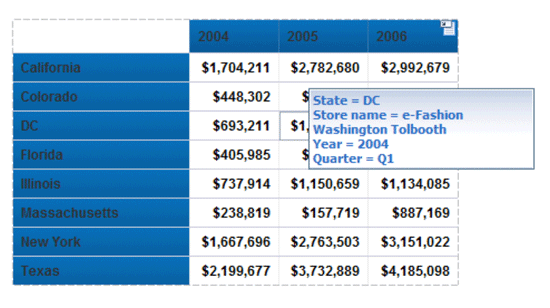
Figure 23
Folding a block by year and state
Look carefully at the tooltip for the element link leading to the second block. Selecting DC 2004 automatically chooses Q1 as well. Your reaction might be the same as mine: How did Web Intelligence decide to choose Q1? What does Q1 have to do with a table showing revenue by State and Year?
It doesn’t. The only reason I can arrive at was that element links do not take context into account. This is a powerful feature behind variables, which can alter their calculation based on where they are placed in the report. Folding a table breaks any previously applied element link.
Alan Mayer
Alan Mayer is president at Solid Ground Technologies, Inc. He has built customer-focused, BusinessObjects-based solutions for the last 20 years. His original company, Integra Solutions, was one of the first BusinessObjects partners that joined the program in 1995. His company provided the first authorized set of training manuals that were later purchased by the software vendor for nationwide distribution. Solutions from his firm have been adopted by a wide variety of industries, from healthcare to banking, manufacturing, and retail.
You may contact the author at alan.mayer@solidgrounded.com.
If you have comments about this article or publication, or would like to submit an article idea, please contact the editor.




 Premium