Discover how to use a setup matrix to reduce changeover time and simplify your production sequence.
Key Concept
The setup matrix is a simple table that determines the amount of time lost when changing the production equipment among different groups of products. Two key elements, setup category group and setup group, define the two levels of changeover groupings. You can use the setup matrix in the SAP graphic planning board to determine an optimum sequence for a mixed group of production or planned orders on a single production line that has a finite capacity and can only make one product at a time.
If you are a project team member responsible for designing or supporting production planning in SAP ERP,
you know that time lost changing processes from one product to another is expensive. Reductions in changeover time can
yield significant dollar savings and business benefits. You can use the setup matrix to help plan your production
changeovers in sequence, thus minimizing configuration time during changeovers and increasing your organization’s
efficiency.
Changeover times can be lengthy when products require careful production sequencing, such as a mix of organic
and non-organic products or when product groups require a complex reconfiguration of the production line. This is often
due to unique size, shape, or process complexity. For example, changing container sizes requires intricate
reconfiguration of the production line and consequently extends changeover times.
Strong colors, such as white and dark chocolate, or strong flavors, such as mint, can also lead to elaborate
changeovers in a production line. By defining a setup matrix, you can logically schedule a set of planned orders
proposed by materials requirements planning or production orders that need to use a particular production line. For
example, production orders could arise automatically from make-to-order sales orders. Based on the product mix of these
orders and the current configuration for the product being made right now, SAP ERP can calculate a sequential
production plan with the minimum total changeover time between the different products. This process is typically
performed with the graphic planning board in SAP ERP.
In this article, I’ll explain how to configure the setup matrix and customize your dispatching strategy
profile to maximize production during changeovers. Using the setup matrix, you can simplify and speed up your
production scheduling processes and improve your asset usage by reducing the non-value-added time lost during
changeovers on critical production lines. Production teams can use information about actual changeover times to justify
capital expenditure for purchasing extra equipment to reduce the burden of worst case situations. This functionality is
available in all SAP releases from 4.0A and beyond.
Note
This article assumes you have a basic understanding of routings and the operation steps involved.
Define the Setup Matrix
Before you establish a setup matrix, you must identify the characteristics of your product that are
critical to the changeover time, such as color or flavor. Then you can create the setup matrix by performing the
following four steps:
Step 1. Map a characteristic to a setup category at the highest level and a setup group at the next level
Step 2. Create the setup matrix with the changeover times
Step 3. Customize the dispatching strategy profile so it uses the setup matrix
Step 4. Link the setup category and group key to the product via the routing
Step 1. Map a characteristic to a setup category at the highest level and a setup group at the
next level. Once you identify your critical characteristics, use configuration to map each characteristic to a
setup category group and then to a setup group. Run transaction SPRO and follow menu path
Basic Data>Routing>Operation data to map the characteristic to a setup
category. In the setup screen that appears, click on the Setup group category button to generate the
overview screen in Figure 1. Click on the Setup group category folder in the
Dialog Structure to begin your configuration.
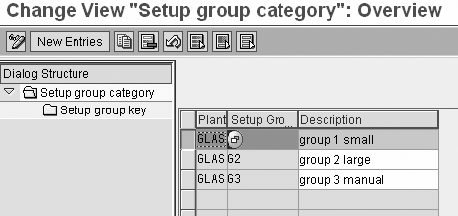
Figure 1
Map a characteristic to a setup group category
First, click on the New Entries button to create setup group categories at the highest
level of categorization. I use the plant level in this scenario because product information might vary for similar
products in different plants. In my example, I identified the product size as the critical characteristic that causes
the most time differential lost during changeover at the GLAS (Glastonbury) plant. Based on this
information, I split the product size into three categories: small, large, and manual, which I specified in the
Description field. Now that I’ve created the high-level groupings of products that have a major
impact on changeover times, I need to configure the setup group keys.
Click on the Setup group key folder in the Dialog Structure to create
the setup group keys within each setup group category (Figure 2). Similar to the category
configuration, click on the New Entries button for each setup group category. As shown in Figure 2,
three setup group categories are linked to three category keys. In my example, the CNC (machine)
setting results in the most time lost in changeovers at the GLAS plant. Therefore, I mapped my three
different product size categories to three types of CNC settings.
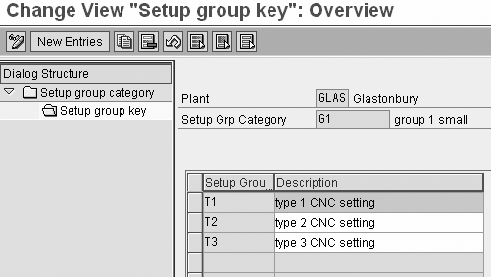
Figure 2
Map characteristic to a setup group key
It is not always necessary to assign categories to keys, but it allows you to drill down on the level of
impact on changeover times within a setup group category. Most companies I’ve worked with, however, have many
variables that affect changeover time, such as product shape, product size, the quantity of product per pallet, product
flavor, and product color. If you must adjust several physical points in a production line when you switch to a
different product, you should consider using setup group keys.
Step 2. Create the setup matrix with the changeover times. After you map the critical
setup characteristics to a setup category group and setup group key, you can create the setup matrix to list the
changeover times for each possible combination in your production line.
Follow IMG menu path Capacity planning>Master data>Routing data to display the
setup matrix overview screen (Figure 3). Click on the New Entries button to create
each entry. It typically requires a lot of time, but it is well worth the effort.
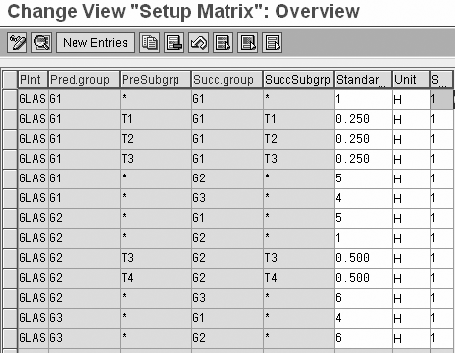
Figure 3
Create the setup matrix
In my experience, this step revealed knowledge that was not captured in SAP ERP, but was in the
production schedulers’ or operators’ heads instead. In addition, you might identify ways to improve your
production line by comparing actual changeover times with the values shown in the setup matrix.
Now I’ll examine the setup matrix table in more detail. The key fields on the table are shown in
blue once you save, including Plnt (plant) because you defined the setup category groups and setup
groups by plant, Pred.group (predecessor group category), PreSubgrp (predecessor
group), Succ.group (successor group category), and SuccSubgrp (predecessor group).
Notice that you can use * as a wildcard in the key fields to indicate any setting at that level. These
wildcard records are used only when there isn’t a more detailed record. For example, if any G1
follows any G2 then the setup time should be adjusted to five hours, but if a G1
follows a G1 then it depends on the setup group, whether it is T1,
T2, or T3.
Routing settings are also important. You have the data part of the records, which contains the standard
time together with its unit of time, followed by an indicator to tell the system which of the six possible standard
values in a routing operation contains the default setup time. In this case I am using a plant, which has a typical set
of three standard values defined via transaction CA02 (Figure 4).
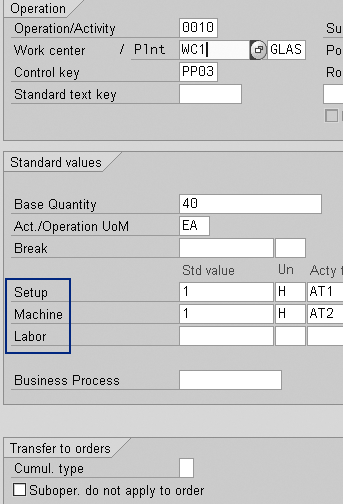
Figure 4
Routing operation details via transaction CA02 include the setup group category and setup group configuration changes
You can see the three standard values for the work center (Plnt WC1 GLAS). The standard
value is 1. Note that the time in the routing operation for Setup is
1 hour, which is the time you’re aiming to improve by using the setup matrix in the planning
board. Therefore, this should be an average, not a best or worst case value.
Refer to the sidebar, “A Detailed Glimpse of One Setup Matrix Record,” for an in-depth view
of a setup matrix record with the settings described in this article.
Step 3. Customize the dispatching strategy profile so it uses the setup matrix. The
third step in defining a setup matrix is to set up a dispatching strategy profile. Follow menu path
SPRO>Production>Capacity requirements planning>Capacity leveling and extended
evaluation>Strategy>Define strategy profile to display, change, or create the dispatching strategy
profile, which determines how items are sequenced and placed into the free time on the production line (Figure
5).
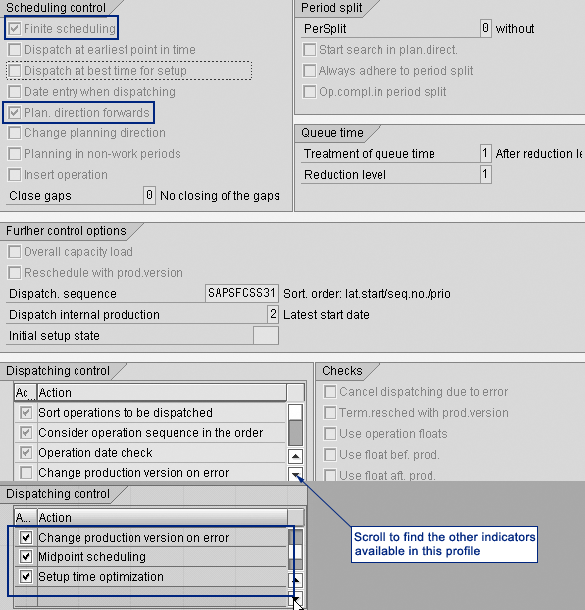
Figure 5
New dispatching strategy profile ZAP_T001
I recommend creating a custom copy of the profile before customizing your sequencing settings. In the
ZAP_T001 profile, select the following settings.
- Finite scheduling: Select this indicator to ensure that there is no overlapping of
orders against a particular work center, so you get a constrained plan
- Plan direction forwards: This indicator forces the orders to be added after the last
order in the existing plan, and to continue adding more orders into the future
- Midpoint scheduling: This indicator ensures that if you have several operations in
one routing and only one operation is based on this critical work center (the bottleneck) then the other operations
will be re-scheduled around the critical operation
- Setup time optimization: This indicator tells the system that you wish to use the
setup matrix to calculate the best sequence and automatically reduce the defaulted setup times based on the preceding
product’s setup characteristics
The four indicators can help you create a first pass or a rough-cut plan. You can use them to tell SAP
ERP that you wish to take a group of unconstrained and un-sequenced planned or production orders, toss them up in the
air, and sequence them in a finite time window using the setup matrix. This gives you an improved sequence, added on to
the end of the existing plan.
Do not select Insert operation or Change planning direction. These
settings are not required in a draft dispatching profile. You can create an alternative dispatching profile (e.g.,
ZAP_T002) to use these two additional settings (and deselecting the last of the original four
settings) as a second pass, where you manually fine tune the plan proposed by SAP ERP via dragging and dropping orders
individually in the planning board and shifting the rest of the plan to the right or left, based on whatever criteria
you wish. Criteria can include shorter shift patterns on particular days or known line cleaning times, for example.
You can select the dispatching strategy profile dynamically within the graphic planning board so you can
do a rough-cut first pass, then switch the profile to the manual fine-tuning to complete your production schedule.
Now that you’ve seen how to create the setup group categories and group keys, build them into a
setup matrix, and use a dispatching strategy profile in the graphic planning board, you’ll notice several
benefits in production scheduling. Most importantly, you can use these tips to distill knowledge about critical
processes and the characteristics that drive those processes, which you might otherwise overlook, and increase the
visibility of your production process by streamlining your production scheduling.
Step 4. Link the setup category and group key to the product via the routing. In the
routing change transaction CA02 shown in Figure 4, scroll down to the bottom of the screen to find the
setup group category and setup group settings circled in Figure 6. To link your setup group category
and setup group key settings to a product, enter the Setup group category and Setup group
key in the General data tab of this screen. Save your settings.
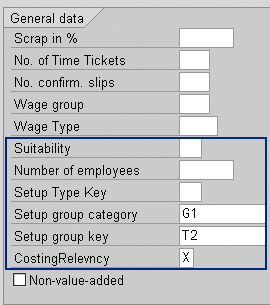
Figure 6
Updating the routing operation in transaction CA02 links the setup group and setup group key to a product
Once you have completed this step you are ready to run material requirements planning, to allow it to
create and schedule planned orders for your graphic planning board, or you can create production orders manually, and
you can use the optimization functionality in the graphic planning board.
A Detailed Glimpse of One Setup Matrix Record
Select a line in the setup matrix table to display details or double-click to view the details of each individual line in your setup matrix, as shown in
Figure 1.
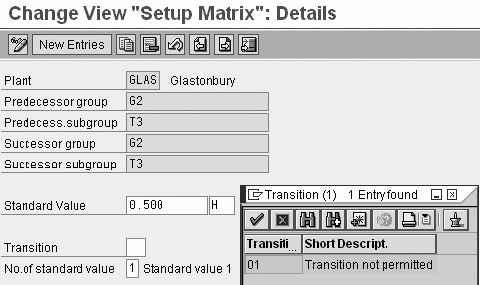
Figure 1
Detail of a setup matrix record
This is the same information you can see in the table in Figure 3 in the main article but you have an opportunity to see and change some of the settings that are on the right side of the setup matrix table. The Transition field is another useful field in the detail screen that I have shown with the pop-up window. This field is only available when you go into this detail screen. Click on the transition field and press F4 to display the pop-up window. The transition value 01 setting effectively configures the system so that production never runs in a particular sequence, (e.g., you may never want to make white paint directly after black paint, as the changeover would be too big to be acceptable in any automated planning process).
You may still decide to sequence your production in this way manually using the planning board. For example, you could switch to the alternative dispatching strategy profile while you are in the graphic planning board by clicking on the Strategy button and selecting another strategy. Then manually use drag-and- drop to complete your production sequence. This task is similar to switching your car from automatic to manual gear for the last part of your journey.
Figure 1 shows that any product in my example category G2 and group T3 following any other product in the same group and category requires only 0.5 hours of setup time. The setup category and group are linked to the product in the routing at the operation level as described in step 4 of this article. You can create routings or rate routings in transaction CA01 or CA21 respectively.
David Newick
David Newick has nine years of experience as a PP and QM consultant and currently is a lead consultant at Morse. Morse is an international consulting company, offering clients specialist business and IT advice and helping them execute for maximum benefit. David lives in Glastonbury, Somerset.
You may contact the author at editor@SCMExpertOnline.com.
If you have comments about this article or publication, or would like to submit an article idea, please contact the editor.