Learn how to implement custom scripts in SAP Manufacturing Execution (ME) to influence decision making on factors other than just non-conformance scripts that come documented with the product.
Key Concept
SAP Manufacturing Execution (ME) supports the use of routing scripts to help in decision making when a branch exists to multiple next possible operations. The ME user needs to be given permission to manage and execute scripts by referring to the Security Guide. The Security Guide is provided to all ME customers. It is part of the documentation that comes along with ME and is also available on the SAP Service Marketplace (SMP) for customers to reference.
Note
Shop floor control (SFC) is a part of ME. SFC is a common term used on the shop floor. On an actual shop floor, each individual component, such as bikes, handles, frames, engines, and bolts, are all SFCs. A completed SFC with all the inventory assembled to it and finished on the last operation of routing that is now ready for delivery is termed a product.
After the component is completed at assembly, it needs to be checked before moving further, to avoid non-conformities. If assembled, it moves to the next operation. Otherwise, SFC puts it back to the assembly operation. Use of custom scripts is helpful in this scenario for checking the component and then moving it to the appropriate next step. (For more information on custom scripts in ME, read the sidebar "Custom Scripts in ME.") Custom scripts, which give access to the ME database in real time, do not come with how-to-implement documentation. Based on my interaction with clients, while providing support and seeing the complex routing scenarios customers use to complete SFC on the shop floor, I provide instructions to make routing scenarios less complicated by adding intelligence to routing steps.
Custom Scripts in ME
Custom scripts in ME are limited to the scope of ME only. Assembly workers can change the routing steps or order (optional) from what was initially sent from ERP. Certain steps that are marked for reporting back to ERP (via SAP Manufacturing Integration and Intelligence [MII]) shouldn’t be changed. MII is completely different from what ME custom scripts offer. MII is an interface for communication and sending or receiving data between ME and ERP, whereas ME custom scripts only help ME routing function better and efficiently. ME custom scripts will always remain valid.
One of the major concerns on the shop floor is the flexibility of product. Flexibility refers to the different functionalities available in a manufacturing product. Different manufacturing plants or companies have different processes, and any manufacturing product should support those scenarios. The shop floor uses SAP ME with many different use cases. I have seen a lot of companies using intensive branching in routing because of the many processes involved before an entire product is assembled and ready for shipment. With the non-availability of any usage documentation for ME custom scripts, they have no option except to keep adding branches among operations. New features add complexity, and routing is the backbone for SFC completion, so use of custom scripts is imperative.
ME routing scripts are like any other scripting code (such as JavaScript). Shop-floor operators can write script or code in between two operations on the assembly line to influence decision making about which operation should be the next one for shop floor control (SFC). The difference here is the scripts in ME are really powerful because they have access to the ME database in real time. These ME scripts can also access the ME database (which is why the user needs the security roles) on the fly to check for current status and decide on the next course of action.
ME routings are complex, especially in the robotics and aeronautics lines of engineering, and to keep adding more and more operations becomes tedious for shop floor workers. Therefore, adding scripts between operations provides intelligence to the routing system to decide which operation is most suitable to be next for SFC based on routing rules defined in scripts by an operator or engineer.
An SFC goes through many routing steps before being completed in the last step. It’s not necessary for each SFC to go through the same steps. For example, an SFC without any nonconformances does not need to go to repair operations or steps in routing. Therefore, instead of relying on the operator to decide which operation should be executed next when there is more than one, these scripts or rules can be added to routing steps as intelligence to decide whether SFC should be processed in this operation or another.
Consider a scenario in which the router has operations START > ASSEMBLY > PAINT > Done as shown in Figure 1.

Figure 1
ME routing
Note
The prerequisites for use of this functionality are functional knowledge of ME and permission for the operating user to manage and execute scripts. These two actions need to be assigned to the appropriate role by referring to the Security Guide.
The assembly operation has two possible outcomes: Go back to the assembly operation or move further to paint. Here, custom script has been added on each branch. The script code is saved to a database. Each assembly line between operations (for example, one between ASSEMBLY and PAINT) can have its own script that is saved to a database. When an SFC reaches this point on the assembly line, the scripts are executed to evaluate which of the next possible operations suit best for SFC based on status. It checks for assembled components on SFC. The script for branch ASSEMBLY > PAINT (Component Assembled) is shown in Figure 2.
stmt="select COUNT(SFC_ASSY.HANDLE) AS CT_ROWS from SFC_ASSY, SFC_BOM where SFC_ASSY.SFC_BOM_BO = SFC_BOM.HANDLE AND SFC_BOM.SFC_BO='"+getSFCProperty("HANDLE")+"'";

res=executeQuery(stmt);
total = res.get("CT_ROWS");
res1 = parseInt(total,10);
if(res1 == 0)
{
  exit(false);
}
else
{
  exit(true);
}

Script back, for ASSEMBLY -> ASSEMBLY

stmt="select COUNT(SFC_ASSY.HANDLE) AS CT_ROWS from SFC_ASSY, SFC_BOM where SFC_ASSY.SFC_BOM_BO = SFC_BOM.HANDLE AND SFC_BOM.SFC_BO='"+getSFCProperty("HANDLE")+"'";
res=executeQuery(stmt);
total = res.get("CT_ROWS");
res1 = parseInt(total,10);
if(res1 == 0)
{
  exit(true);
}
else
{
  exit(false);
}
Figure 2
Complete script to get the total components assembled to SFC NIK755 and return true or false whether SFC has to move on this assembly line next
Let’s go through the script in detail.
Line 1 shown in Figure 3 is the most important line in the code.
stmt="select COUNT(SFC_ASSY.HANDLE) AS CT_ROWS from SFC_ASSY, SFC_BOM
where SFC_ASSY.SFC_BOM_BO = SFC_BOM.HANDLE AND
SFC_BOM.SFC_BO='"+getSFCProperty("HANDLE")+"'";
Figure 3
Get the number of components assembled to the parent SFC (NIK755)
The script queries the database to find the number of rows corresponding to SFC in the SFC_ASSY table. The SFC handle is retrieved using method getSFCProperty(“HANDLE”).
The argument for this method is the column name(s) (comma separated) that you would like to fetch.
Note
The term argument is a technical term and refers to what is being passed within the curly bracket of a function call. In my example, getSFCProperty is the function name and HANDLE is the argument. HANDLE is the column name of the database table. If a user wishes to fetch another column such as STATUS, then the method call would be getSFCProperty(“HANDLE, STATUS”).
In my scenario, only the SFC handle is required to query the SFC_ASSY table. The complete list of function names you can use in a similar way are print, exit, callEJB, getEJBProperties, getOpenNCs, printAll, getItemProperty, getSFCProperty, getOperationProperty, getResourceProperty, getUserProperty, executeQuery, executeUpdate, getCustomItemProperty, getCustomOperationProperty, getCustomResourceProperty, getCustomSFCProperty, and findSingleParameter.
Figure 4 shows lines 2, 3, 4. These lines execute the database query and get a count of assembled components.
res=executeQuery(stmt);
total = res.get("CT_ROWS");
res1 = parseInt(total,10);
Figure 4
Execute the query and get the components assembled to parent SFC so far
The executeQuery(stmt) method executes and returns a data (vector) object with all the requested column details. I requested the “CT_ROWS” so that the data that corresponds to the CT ROWS can be retrieved using get() as you do for a vector. The total value is by default of the type string in JavaScript. In my example it is total = res.get("CT_ROWS"). You need to convert this total value into integer format (for comparison) using the JavaScript parseInt method with base 10.
Figure 5 shows the rest of the script, which compares the number of components assembled on the parent SFC. If 0 (nothing assembled), then say true to return back to work on the same ASSEMBLY operation, if 1 (reqd. component has been assembled) then return true for assembly line which moves to next PAINT operation.
if(res1 == 0)
{
  exit(true);
}
else
{
  exit(false);
}
Figure 5
Compare the assembled components and return true or false to allow movement on this assembly line
Finally, you need to decide whether to let SFC move on this line to the next operation or not. In the script, if the value of res1 evaluates to 0, then SFC is allowed to move on this link to the adjoining operation.
Note that exit(true) or exit(false) exits the custom script execution and the Boolean parameter (true/false) passed is the outcome that decides whether or not to allow SFC on this link to the next operation.
User Interface (UI) Flow for ME with This Routing
Now, let’s see how the application behaves when a material is configured to use this routing.
Note
ME must be deployed on your SAP NetWeaver Application Server and all necessary configurations per the ME setup guide must be completed. Your SAP NetWeaver server and ME must be up and running before proceeding.
SAP ME is a web-based application, so open version 8 or higher of Internet Explorer and go to the context root https://<host>:<port>/manufacturing/index.jsp. This link has missing host and port details. The <host> and <port> are available with customer. These are the SAP NetWeaver host and port numbers on which SAP ME will be deployed. This is the format of the URL only.
Figure 6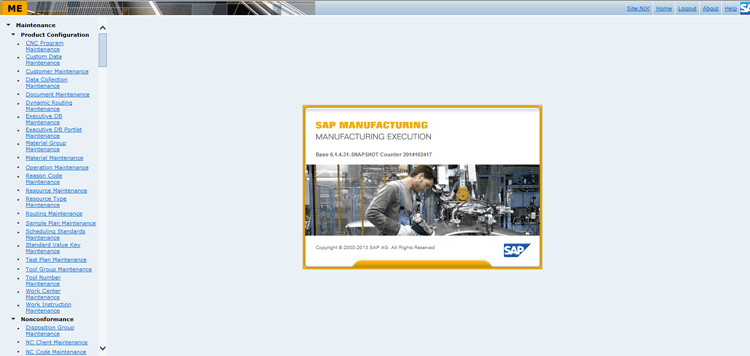
Figure 6
The SAP ME landing page
The ME application has two frames (aka sub-windows).The left frame shows the list of activities with permissions available to the logged in user. The right frame is where each activity user interface (UI) opens. Activities such as Material Maintenance, Operation Maintenance, Routing Maintenance, and BOM (bill of materials) Maintenance serve as master data to create various materials, operations or routing steps, routings with operation or step sequences and BOMs to be assembled to a parent material, respectively.
First, create two materials — PARENT and PART1. PART is a sub-material that can be assembled to a parent material, just as tires, handles, and seats are child materials to a frame of a bike (parent). Click the Material Maintenance link in the left frame (menu) and the associated screen opens in the right frame as shown in Figure 7.
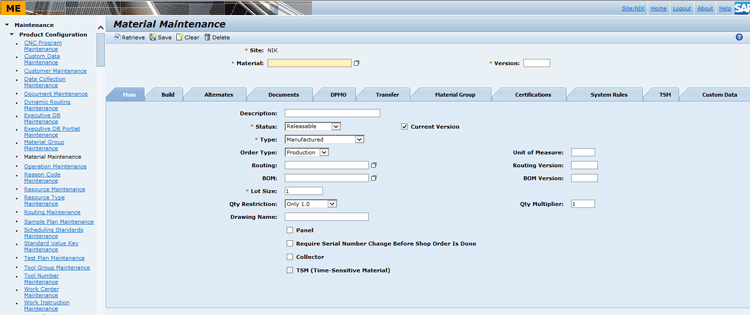
Figure 7
Create materials through Material Maintenance
All fields with a red asterisk are mandatory. Fill in all these mandatory fields first for the child material. Click the Save button at the top of the screen to save material to the database. Your screen now looks like the one in Figure 8.
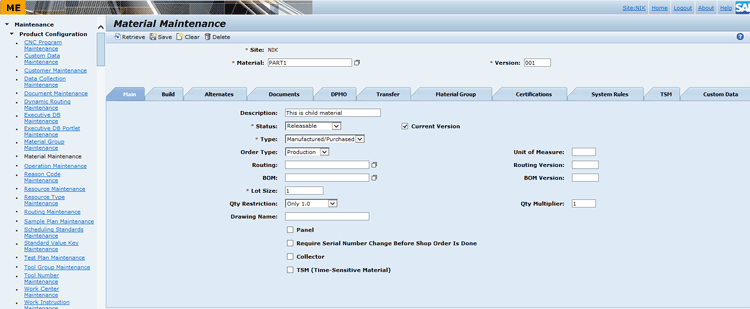
Figure 8
Create child material PART1
After creating the child material, you need to create the BOM that includes the name and quantity of materials that have to be assembled on some parent material. To open the BOM Maintenance UI, click the BOM Maintenance link in the menu in the left frame. The BOM Maintenance screen appears (Figure 9). Enter data in the mandatory fields (Site, BOM, and Version) and click the Save button to save your data.

Figure 9
The BOM Maintenance screen
Now click the Insert New link. This action opens the screen shown in Figure 10. In this screen you specify the child component or material details (name, version, assembly operation, and assembly quantity) as shown in Figure 10.
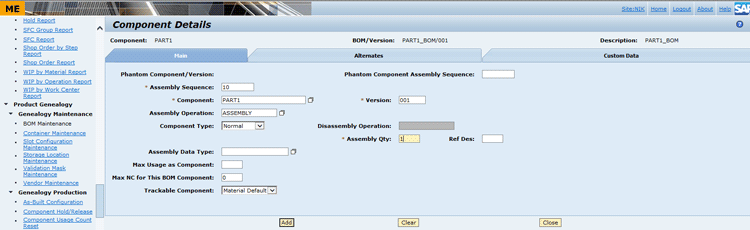
Figure 10
Add details for BOM Component PART1
Click the Add button and then the Close button to return to the BOM Maintenance screen with the added row for the PART1 component. Set the Status field to Releasable and then click the Save button.
Before creating the parent material, you need to create routing for it. To create the routing, click the Operation Maintenance link in the menu in the left frame. This action opens the associated screen as shown in Figure 11.
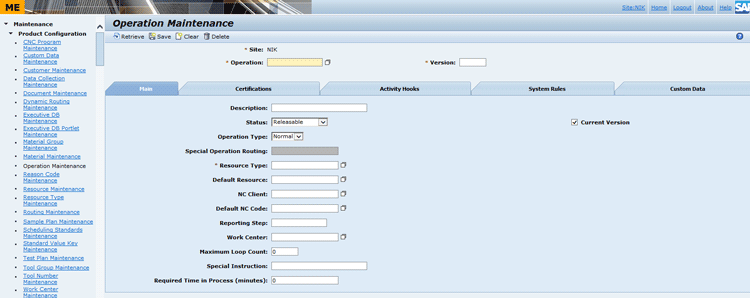
Figure 11
The Operation Maintenance screen
In this screen, create three operations (START, ASSEMBLY, and PAINT) as shown in the routing diagram in Figure 1. In the Operation field enter START and enter 001 in the Version field. Enter DEFAULT in the Resource Type field and then click the Save button. The refreshed screen looks like the one shown in Figure 12.
Repeat this step for ASSEMBLY and PAINT operations. Now, you are ready to create the routing from Routing Maintenance activity. Click the Routing Maintenance link in the left frame of the main screen. In the screen on the right (not shown), specify the name as TWO_STEP (that is the name I use in my example, but you can name it anything) and the version as 001. You can see the list of operations created in Operation Maintenance in Figure 13.

Figure 13
Operations created in Operation Maintenance
You can now create the parent material through Material Maintenance activity. Click the Material Maintenance link. In the screen on the right enter PARENT in the Material field, 001 in the Version field, TWO_STEP in the Routing field, and PART1_BOM in the BOM field. Click the Save button to save the PARENT material details to the database as shown in Figure 14.
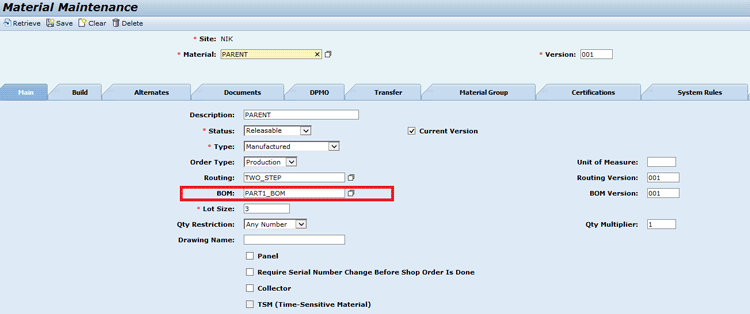
Figure 14
The BOM assigned to the PARENT
The script work comes only when an operator presses the Complete button on an operation. The script checks for the next operation where this SFC needs to be placed. Release the SFC for this material and complete at the START operation to enqueue.
Note
Each SFC goes through a series of operations in the routing. It starts with the first operation, and when that operation is completed, it moves to next operation. START is the first operation in the routing, so after you click the Complete button, the SFC moves from the START operation to the ASSEMBLY operation. On a manufacturing shop floor, the synonym used is that SFC is enqueued to the ASSEMBLY operation (i.e., kept in queue for the next operation).
You need to create master data for Materials, Operations, Routings, and BOM. Basic functional knowledge of ME is sufficient for creating this master data. Once master data is created, the first step is to release an SFC to the shop floor at the first operation. SFC is released through the Shop Order Release activity. After operators log in to the system, they can see the list of activities on the left pane (Figure 15).
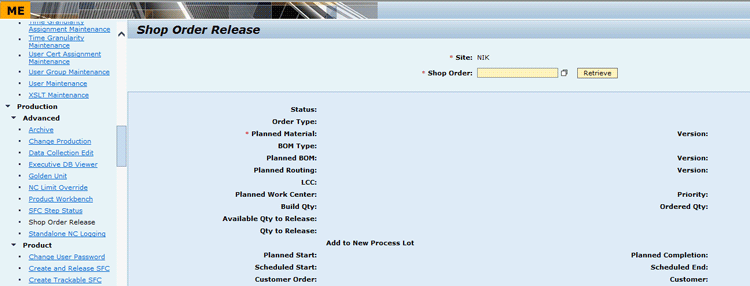
Figure 15
Release SFC for work using this activity
Note
START operation is an actual operation where an SFC operates, whereas the Start button just refers to an activity to perform on each operation.
This means that the work on this SFC has been started on the shop floor. An SFC goes through a series of operations that are defined in routing, and once the last operation is completed, the SFC is completed and is ready for delivery. Therefore, releasing an SFC at the first operation means that now work has started on it at the first operation, which is START in this example (Figure 16). In this screen the fields are automatically populated by the system. Click the Close button after viewing this data.

Figure 16
Release SFC- NIK755
Complete at START operation means that work is completed at this step and now the SFC should be moved to the next operation as defined in routing. In routing, the next operation after START is ASSEMBLY. Therefore, after an operator clicks the Complete button on the ME web user interface, the system puts this SFC on its own at the ASSEMBLY operation after reading from the SFC routing. A message is displayed in the screen as shown in Figure 17. Now after completing at the START operation, the user only needs to click the Start button after entering the operation as ASSEMBLY.
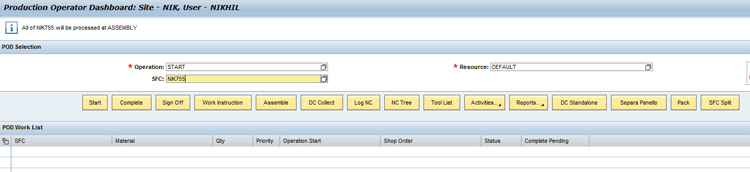
Figure 17
SFC moved to ASSEMBLY operation
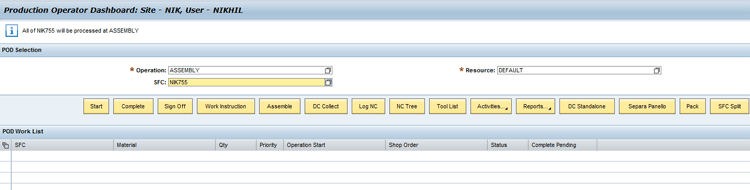
Figure 18
NIK755 moved back to ASSEMBLY
Note
The custom script runs in the background after the Complete button is clicked. Because no component is assembled thus far, the assembly line that returns to the ASSEMBLY operation evaluates to true, and the SFC is again put back to the ASSEMBLY operation.
Now, assemble component SFC at ASSEMBLY operation using Assemble (CT500) activity (Figures 19 and 20).
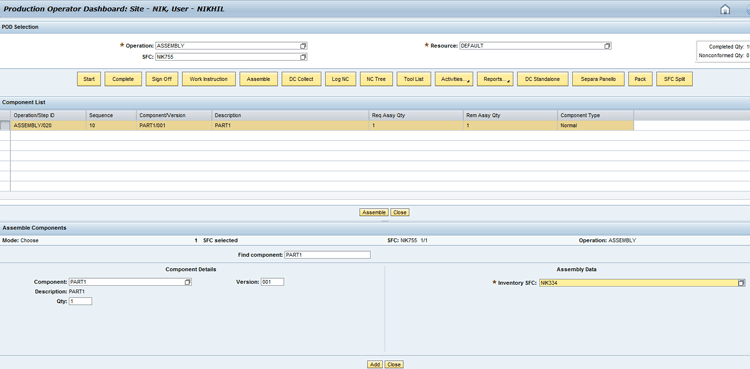
Figure 19
Assemble component SFC to NIK755
In the screen shown in Figure 19, enter ASSEMBLY in the Operation field and DEFAULT in the Resource field. In the SFC field enter NIK755 (this is the name I use in my example) and then click the Assemble button. This action prompts the system to open a new screen that displays the list of components that were specified in the BOM attached to Parent SFC above and any data that you want to input (Figure 20).

Figure 20
All components assembled
In Figure 20, NIK334 is the SFC number for component SFC. It is created directly in the ME system and is not related to the functionality of the custom scripts I show. Basic functional ME knowledge is sufficient for it. After entering details, click the Add button at the end of the screen. The system checks that in BOM it was mentioned that only one component SFC quantity is required. Because you entered that, it closes the Assemble screen automatically and displays the following message at the top of screen: All components assembled at this operation.
Now, it is possible to complete SFC NIK755 at ASSEMBLY and move it to the PAINT operation. This is because the query in the custom script fetches records and the value is not 0 anymore. The link for the PAINT operation exits with ‘true’. The scripts run in the background. You only see the evaluation results on the screen (Figure 21).
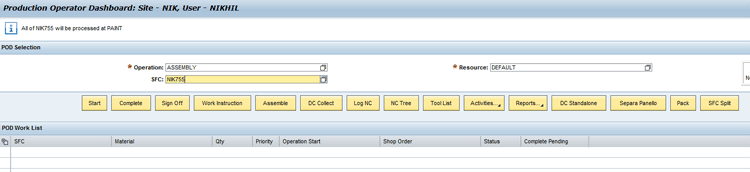
Figure 21
NIK755 moved to PAINT operation
Earlier, when no component was assembled, the script had run and evaluated to true to return the SFC back to ASSEMBLY operation. Therefore, on the screen you only saw that SFC NIK755 was moved back to ASSEMBLY operation. Now, because you have assembled the component, after you click the Complete button on ASSEMBLY operation, you see that a message is displayed on top of Figure 21 that all of SFC NIK755 will be processed at PAINT operation (i.e., SFC is moved to PAINT operation). Now, if you had entered ASSEMBLY against operation and clicked the Start button, the screen would display an error message that SFC is moved to PAINT operation and not at ASSEMBLY operation.
Complete SFC NIK755 now at PAINT. This step completes the process and marks it as done. To complete this step, enter PAINT in the Operation field and DEFAULT in the Resource field. In the SFC field, enter the name of your SFC (e.g., NIK755) and click the Complete button (Figure 22). SAP ME checks the routing that PAINT was the last operation in routing. Therefore, after you click the Complete button, it shows the message that SFC NIK755 is done. This message means that SFC is completed and can be shipped now.

Figure 22
Completing PARENT SFC at the last operation, Ready for Shipment
Nikhil Rana
Nikhil Rana is a developer with SAP Labs Pvt. Ltd. He has approximately five years of experience building enterprise applications development and production support. He has worked on Java, J2EE, SAP HANA, SAP UI5, HTML5, and SAP HANA Cloud-based applications. He has also conducted official trainings and participation toward SAP customer and internal events such as PIS (Product Innovation Summit), TechEd, DemoJAM, and the SAP Public Sector Forum.
If you have comments about this article or publication, or would like to submit an article idea, please contact the editor.



 Premium