See how to map the inbound transportation process in R/3 and mySAP ERP Central Component. Then, walk through the configuration steps necessary to automate how the system calculates and settles inbound freight costs.
Key Concept
A shipment cost document holds the total shipment costs associated with a particular shipment (e.g., freight costs, fuel surcharges, and insurance). You generate shipment cost documents in the transportation solution in R/3 or mySAP ERP Central Component.
When it comes to R/3 or mySAP ERP Central Component (ECC), most companies simply assign the freight charges to the
header or line items of purchase order documents manually. Often this leads to discrepancies and manual overload because
changing these freight charges and assigning appropriate freight vendors become a burden. SAP provides inbound shipment
costing functionality as part of the transportation solution in the Logistics Execution System (LES) module that can
increase the accuracy and automation of freight cost calculation on incoming shipments.
Say you have a scenario that requires you to calculate shipment costs automatically based on the information
maintained in the shipment document. You then must transfer these costs as delivery costs to the original materials
purchase order upon goods receipt so the incoming goods are valuated correctly. You need to account not only for the cost
of the material, but also for the cost of shipping the goods from a vendor to a plant.
Here are five steps I developed to configure your R/3 or ECC system to generate a shipment cost document, calculate
the shipment cost, and settle the shipment costs back to the material purchase order.
Step 1. Define the shipment cost type and item category. First define a new custom shipment cost
type to use exclusively for inbound shipment documents. Proceed to IMG menu path Logistics
Execution>Transportation>Shipment Costs>Shipment Cost Document>Shipment Cost Types and Item
Categories or use transaction code T_56. Click on the New entries button to
create a new shipment cost type. Figure 1 shows an example of a shipment cost type Z002.
The number of settings on the shipment cost type is minimal. You maintain most of the advanced configuration at the item
category level.
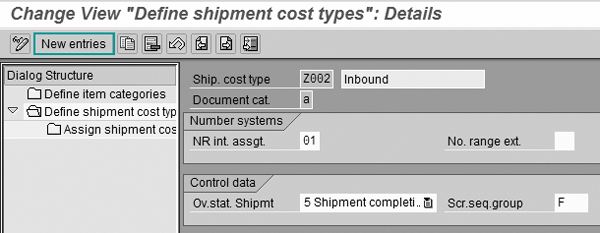
Figure 1
Define the shipment cost type
Next, define the item category that controls how the system settles inbound freight costs. Use the same
transaction code, T_56, and click on the Define item categories node in the
Dialog Structure menu to access item category configuration. You must define a new custom item category
to ensure that the system settles the freight costs to the material purchase order upon goods receipt. You also must
ensure that these freight costs are included in the valuation of the incoming goods.
Click on the New entries button to create a new item category. Provide a four-character
technical name starting with character Z or Y and a useful description. In my example, I named the new item category
Z002 to match the shipment cost type Z002. Maintain the configuration settings as shown
in Figure 2.
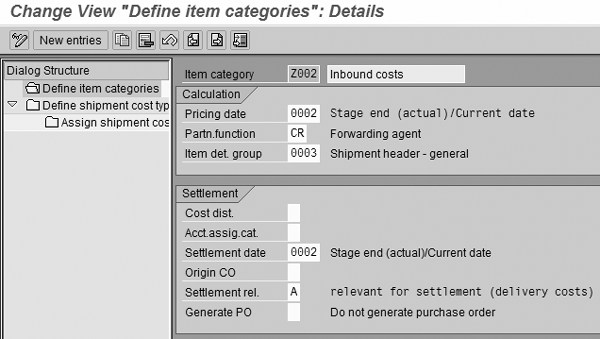
Figure 2
Maintain the item category
Assigning standard date rule 0002 ensures that the Pricing date on the
shipment cost document defaults from either the actual shipment end date from the shipment document or, if the shipment
end date is not available, from the current date. The pricing date is important during the actual calculation of freight
costs, as all of the freight rates have a validity period.
The partner function (Partn.function) assignment ensures that the system determines the
invoicing party from the forwarding agent that you maintained in the relevant shipment document. In the business scenario
I am mapping, the system settles inbound freight costs back to the original material purchase order, so I must set the
Settlement rel. setting to A and the Generate PO indicator to blank.
Save your new item category.
Next, assign the new item category Z002 to the shipment cost type Z002.
Using the same transaction code, T_56, select shipment cost type Z002, and double-click
on the Assign shipment cost type and item categories node in the Dialog Structure menu.
Click on the New entries button and maintain the assignment as shown in Figure 3.
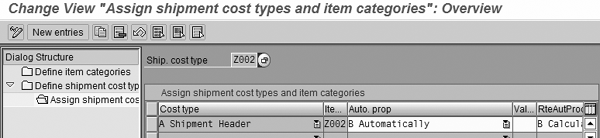
Figure 3
Assign the item category to shipment cost type
One of the most common shipment costing scenarios is the calculation of shipment costs based on the entire
shipment document, as opposed to individual line items or deliveries that are assigned to the shipment. That is why in my
example I assume that I need to generate a single line item on the shipment cost document for every shipment. In the
Cost type column, I assigned A Shipment Header in Figure 3. The rate of automatic
processing (B Calculate) in the RteAutProc column ensures that the system creates the
shipment cost item and calculates the freight costs automatically.
Step 2. Maintain shipment cost relevance. You are now ready to assign the new shipment
cost type to shipment type Z002. Use IMG menu path Logistics
Execution>Transportation>Shipment Costs>Shipment Cost Document>Shipment Cost Relevance and Default for
Shipment Cost Type or transaction code T_57. Assign shipment cost type Z002 to
shipment type Z002 on the original screen. Next, click on the Define shipment cost relevance for
shipment type node in the Dialog Structure menu. Following the previous logic, where the system
creates a single shipment cost line item based on shipment header information, make sure that only the
Header shipment cost relevance is checked for shipment type Z002.
Step 3. Use the condition technique. If you already are familiar with using the condition
technique for pricing in modules such as Sales and Distribution (SD) and Materials Management (MM) the following steps
should be familiar. The transportation solution makes full use of the condition technique capabilities during the
calculation of freight costs. It then takes the process one step further by introducing multi-dimensional scales.
You can use the condition technique to accommodate virtually any freight costing scenario, especially with
the use of ABAP routines. However, I focus on a straightforward scenario of calculating the freight cost based on freight
vendor and departure and destination postal codes.
Begin by configuring the condition type, which represents a specific charge that is part of the overall
shipment costs. Freight by weight, fuel surcharge, split charge — potentially all of these can be separate condition
types in the system. I created a condition type for the basic calculation of freight based on the weight of the shipment.
Use IMG menu path Logistics Execution>Transportation>Shipment Costs>Pricing>Pricing
Control>Define Condition Type or transaction code T_06. Click on the New
entries button. Give the new condition type a four-character technical name that begins with a Z or Y and a
helpful description. Figure 4 shows an example of configuration settings for custom condition type
ZFB0.
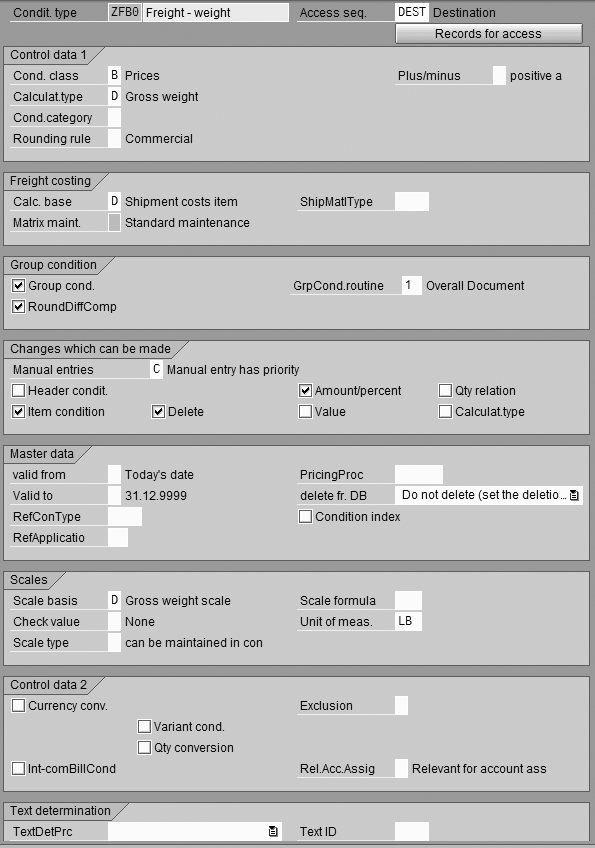
Figure 4
Maintain the condition type
I used the standard access sequence DEST for freight rate maintenance, because it has all
of the necessary tables for my scenario. With DEST, the system calculates freight cost based on the
freight vendor, departure, and destination postal codes. If you need to create a custom access sequence, use transaction
code T_07 to access that configuration.
I set the calculation type (Calculat.type) to D in Figure 4 to ensure
that the system calculates the freight based on the shipment weight. I also allowed users to overwrite the condition type
manually or delete it based on the settings in the Changes which can be made section. Save the new
condition type.
You are now ready to maintain the pricing procedure. Proceed to IMG menu path Logistics
Execution>Transportation>Shipment Costs>Pricing>Pricing Control>Define and Assign Pricing
Procedure>Maintain pricing procedure or use transaction code T_08. Click on the New
entries button to define a new pricing procedure. Provide a six-character technical name that begins with a Z or
Y and a useful description. Select the new pricing procedure and double-click on the Control data node in
the Dialog Structure menu. Refer to Figure 5 for an example of a possible pricing
procedure ZFCS00.
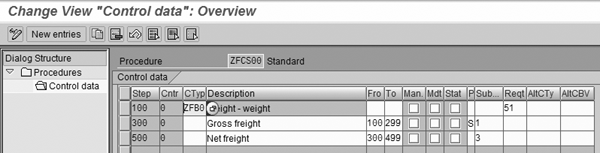
Figure 5
Maintain the pricing procedure
The new pricing procedure has only one condition type (ZFB0) and two subtotals. This
allows you to add surcharges (e.g., fuel or forklift charges) to the pricing procedure between the two subtotals (between
steps 300 and 500). In this case, the charges would affect the net freight subtotal, but not the gross freight subtotal.
Using requirement routine 51 ensures that the system does not calculate freight if you
have set the system to exclude the condition type. Also, it ensures that the pricing calculation is active. The system
assigns the Gross freight and Net freight subtotals to internal subtotals
1 and 3, respectively (fields KOMP-KZWI1 and KOMP-
KZWI3). This is handy if you use custom ABAP routines for Alternative Calculation Type and
Alternative Calculation Base Value because these subtotals will be readily available for reference within
ABAP code. Click on the save icon to save the new pricing procedure.
Finally, assign the pricing procedure to each relevant Transportation Planning Point (TPPt). Follow IMG
menu path Logistics Execution>Transportation>Shipment Costs>Pricing>Pricing Control>Define and
Assign Pricing Procedure>Define pricing procedure determination for shipment costs or use transaction code
T_73.
Select each relevant TPPt, double-click on the Determine pricing procedure node in the
Dialog Structure menu, and click on the New entries button. Specify the item
determination group (It.det.grp) as 0003. (Refer to Figure
2 to see how to assign the item determination group to the item category). Enter the shipping type group procedure
(ShpTyp Grp) as 0001, based on the shipping type that you
maintained in the shipment type configuration. Enter the pricing procedure as ZFCS00 (Figure 6). Repeat this step for each relevant TPPt.
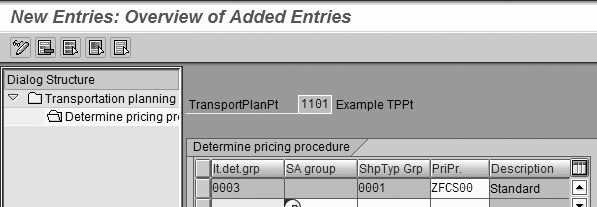
Figure 6
Assign the pricing procedure
Step 4. Maintain the condition type in MM. According to my business scenario, ultimately
the total shipment costs need to end up on the original material purchase order. For that to happen, you need to maintain
a separate condition type in MM that captures the shipment costs and assigns them to the delivery costs on the purchase
order line item upon goods receipt and invoice verification. Again, use the condition technique to ensure that the system
transfers shipment costs to the material purchase order only when they are relevant.
First, define the access sequence for the condition type. Follow IMG menu path Materials
Management>Purchasing>Conditions>Define Price Determination Process>Define Access Sequences or use
transaction code M/07. Click on the New entries button. Provide a four-character
technical name that begins with Z or Y and a useful description. Select the new access sequence and double-click on the
Accesses node in the Dialog Structure menu.
Figure 7 demonstrates how I configured access sequence ZFRB by assigning
standard condition table 50 to it. In my example, I use Incoterms, a standard SAP field
that designates delivery terms, on the material purchase order header to designate whether or not to transfer shipment
costs from the transportation solution. Click on the save icon to save your new access sequence.

Figure 7
Maintain the MM access sequence
Next, create the new condition type that captures the shipment costs on the material purchase order. Use
IMG menu path Materials Management>Purchasing>Conditions>Define Price Determination Process>Define
Condition Types>Define Condition Type or use transaction code M/06 for faster access.
Click on the New entries button. Enter a four-character technical name that begins with Z
or Y and a helpful description for your new condition type. Make sure that the Copy shp. costs indicator
is checked, because this configuration setting enables the MM module and the transportation solution to communicate.
Figure 8 shows how I configured a custom condition type ZFRB.
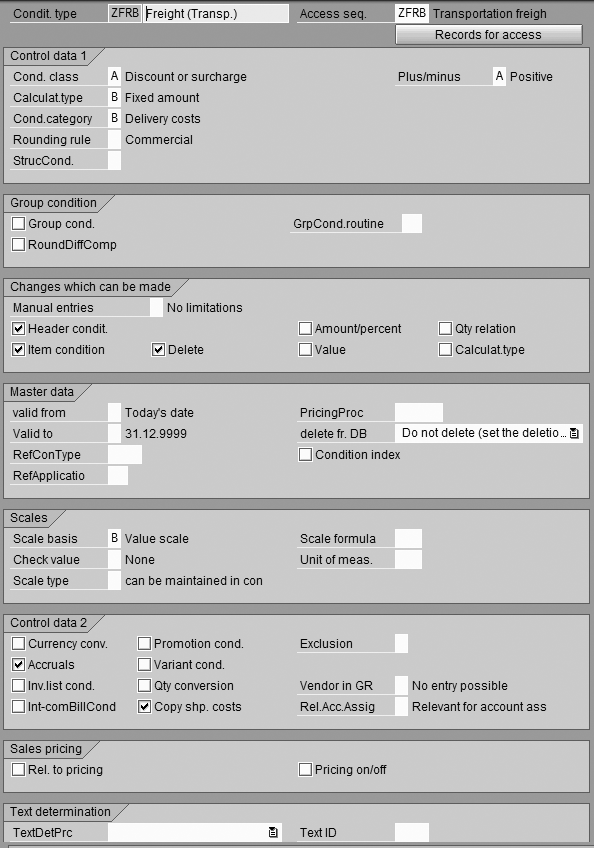
Figure 8
Maintain the MM condition type
I assigned the newly created access sequence ZFRB to the new condition type
ZFRB. I also made sure to set Cond.category to B Delivery costs and
checked the Accruals check box.
Finally, proceed to IMG menu path Materials Management>Purchasing>Conditions>Define Price
Determination Process>Define Calculation Schema to maintain the purchase order pricing procedure. You can also
use transaction code M/08. Depending on your current configuration, select the pricing procedure
(calculation schema) that you use for purchase orders. Double-click on the Control node in the
Dialog Structure menu. Work with your MM functional analyst to pick the best location for the new
condition type ZFRB within your existing calculation schema. Figure 9 shows an example
assignment.

Figure 9
Assign the new condition type to the MM calculation schema
By design, the ZFRB condition type always shows zero dollars on the purchase order line
item Conditions tab. After carrying out the goods receipt, you can view the actual shipment costs from
the Transportation module on the purchase order line item Purchase Order History tab. Thus, it is
important to assign routine 38 to the alternative calculation type (AltCTy). That way,
if you use condition exclusion in MM, your new condition type ZFRB overrides other freight condition
types, even though the value of ZFRB remains zero in the purchase order line item conditions.
The account key (ActKy) and accruals (Accrls) assignments ensure that the
system posts delivery costs to the correct G/L accounts. In Figure 9, I used the standard assignments FRE
(freight purchasing account) for the account key and FR1 (freight clearing) for accruals. Make sure to
save your changes.
Step 5. See it in action. You are finally ready to go through the process of generating
the shipment cost document, calculating the shipment costs, and settling those costs back to the material purchase order.
Begin with a few master data maintenance steps. You must maintain the pricing condition records for your two new condition
types — ZFB0 in the transportation solution and ZFRB in the MM module.
Use SAP Easy Access menu path Logistics>Logistics Execution>Master
Data>Transportation>Shipment Costs Prices>Create or use transaction code TK11. Choose
condition type ZFB0 and press Enter. Choose an appropriate condition table, for which you maintain the
freight rate. In my example, I used the condition table 113 (Service
agent/Dep.cntry/Dep.post.code/Dest.cntry/Dest.PC), which assigns each freight rate to a specific freight vendor with
specific departure and destination information. Make sure to save your freight rate.
Next, use transaction code MEK1 or SAP Easy Access menu path
Logistics>Materials Management>Purchasing>Master Data>Conditions>Other>Create to create
the condition record for condition type ZFRB. Again, in my example the system maintains the condition
record by purchasing organization and incoterms. Make sure to leave the rate of this condition record as
0, because the system transfers the actual freight cost amount from the Transportation module.
After you finish the data maintenance, you are ready to generate the shipment cost document. In my previous
article, I explained the process of creating the shipment document. Now I’ll show you how to use the shipment
document to generate the shipment cost document.
Follow SAP Easy Access menu path Logistics>Logistics Execution>Transportation>Shipment
Costs>Create>Single Document or use transaction code VI01. Enter the shipment document
number and press Enter. Automatically, the system should create a shipment cost line item with item category
Z002 and calculate the freight costs (Figure 10).
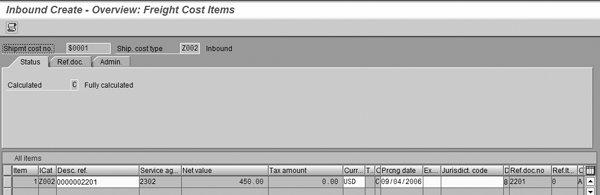
Figure 10
Create the shipment cost document
If you issue a goods receipt for the original materials purchase order (the one that created the inbound
delivery and shipment document), you should see the calculated freight costs transferred to the delivery costs on the
material PO. To do this, proceed to SAP Easy Access menu path Logistics>Materials Management>Inventory
Management>Goods Movement>Goods Movement (MIGO). Enter the material purchase order number, select the
appropriate movement type (normally 101), and press Enter. Select OK for the purchase
order items and click on the save icon.
Use transaction ME23N to go to the original material PO and look at the Purchase
order history tab for the individual line items. You should see the delivery costs that the system calculated
based on the transportation solution shipment cost document (Figure 11). Keep in mind that the system
automatically associates the delivery costs with the freight vendor maintained on the relevant shipment document.

Figure 11
Freight costs transferred to the material PO
Anton Karnaukhov
Anton Karnaukhov is a senior IT manager at Pacific Coast Companies, Inc., in Sacramento, California. He earned an MBA degree at Heriot-Watt University and a BS/BA degree with a specialization in computer information systems at Western Carolina University. Anton has more than eight years of SAP implementation and development experience focusing on business intelligence and logistics modules in the manufacturing and resale industries.
You may contact the author at anton.karnaukhov@paccoast.com.
If you have comments about this article or publication, or would like to submit an article idea, please contact the editor.