Examine the five steps involved in setting up a standard third-party procurement process in your R/3 Enterprise or mySAP ERP Central Component system. Then look at options you have for special orders. A workaround allows you to cancel third-party orders even after the third-party vendor receives the order.
Key Concept
The third-party procurement solution available with standard R/3 Enterprise and mySAP ERP Central Component allows you to ship third-party items to your customers without ever coming in contact with the items. By slightly modifying this standard process, you enable additional logistics processes for third-party items. You can either hold the stock as vendor consigned (the vendor keeps the stock in their inventory until you need it) or book it directly as inventory and hold it at a company warehouse. These strategies are useful when dealing with high volumes of third-party items or if you must ship all of the items in an order in one package.
Say you are a computer company and you produce
laptops. You offer another company’s antivirus
software installed on these laptops. Consumers
can order both of the products from your company’s
Web site. Your company obtains the antivirus software
via third-party procurement. Note that the service
guarantee for the antivirus software remains with
the third party. Your company does not sell it
under your brand name. This is the major difference
between third-party and OEM procurement.
I developed a process to set up the
standard third-party procurement process.
Within this process are logistics options
that you might have to build into the
standard solution, depending on your
business requirements. For example,
if you have a large volume of third-party
orders or if you need to fulfill orders
in one shipment, you might want to
build stock for the third-party items
instead of direct ship-to customers
when orders drop.
Along with the third-party procurement
process, I created a workaround that
allows you to cancel third-party orders
for vendors willing to accept cancellations.
With the standard cancellation process,
you can cancel the order before the
system sends the purchase order (PO)
to the third-party vendor, but not
after the third-party vendor receives
it. With the workaround, you can create
a conditional cancellation that allows
you to cancel the order after receipt
by the third-party vendor.
Third-Party Procurement
Process
First you must configure the standard
third-party process in SAP, which includes
setting up the master data and configuration
linkages to help elucidate the processing
logic in SAP. This enables you to appreciate
the small nuances that you can change
slightly for required modifications
to the standard third-party setup.
I used an R/3 Enterprise system, but
the process also works in mySAP ERP
Central Component (ECC).
Step 1. Link the sales order
type and the general item category
to an item category group (Figure
1). You configure the item
category group BANS (third-party
item) so that the item category TAS (third-party
item) defaults for the sales order
type OR (standard
order for third-party materials).
The default entries are important
because they convert sales orders
automatically from order entry (via
EDI/IDocs) to purchase orders in
R/3 Enterprise.
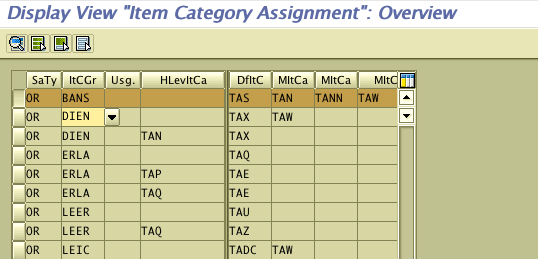
Figure 1
TAS is the default item category
To link sales type OR with
item category TAS and
item category group BANS,
follow IMG path Sales and Distribution>Sales>Sales
Document Item>Assign Item Categories.
Figure 1 shows the result of this configuration.
Step 2. Set up the material
masters for the third-party procurement. Third-party
materials should have the item category
group BANS maintained
in the sales view of the material
master. This helps the system determine
the relevant item category in the
sales order (order type OR)
via the configuration discussed in
step 1.
Enter transaction code MM03 to
view the material master sales org
data view (Figure 2).
This screen shows the relevant fields
you need to maintain so that the system
determines the item category as TAS in
the sales order. Define the general
item category (Gen. Item cat.grp)
as BANS Third-party
item via transaction MM02.
This step along with the configuration
discussed in step 1 helps the sales
order to automatically assign the item
category TAS to third-party
items in sales orders.
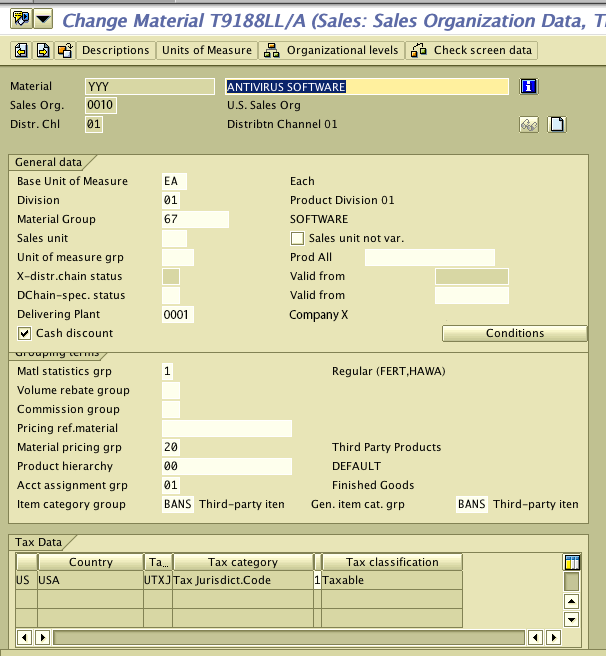
Figure 2
General item category maintained as BANS
Step 3. Link the sales item
category to the schedule item category. The
controls set for the schedule line
item category determine the subsequent
procurement/demand signal, so it
is important to pick up the correct
schedule line category. In this step,
link item category TAS and
schedule line category CS (Leg).
The CS schedule line category creates
a purchase requisition directly from
the sales order. I will discuss the
configuration for the schedule line
category to enable this in step 4.
Follow IMG menu path Sales
and Distribution>Sales>Schedule
Lines>Assign Schedule line Categories to
set up the link between the sales
line item category and schedule line
category. As you can see in Figure
3, I linked the item category TAS to
the schedule line category CS for
all material requirements planning
(MRP) types (as
the Typ field is
blank in the configuration).
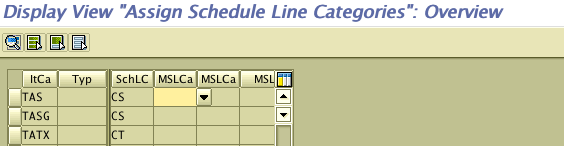
Figure 3
Assign the schedule line category to the item category
Step 4. Set detailed control
factors for the scheduled line item
category. Follow menu path
IMG>Sales and Distribution>Sales>Sales
Documents>Schedule Lines>Define
Schedule Line Categories.
For third-party procurement, as shown
in Figure 4, you
configure the schedule line category CS so
that it automatically creates a purchase
requisition with Order type
NB and with Item
category as 5 Third-party.
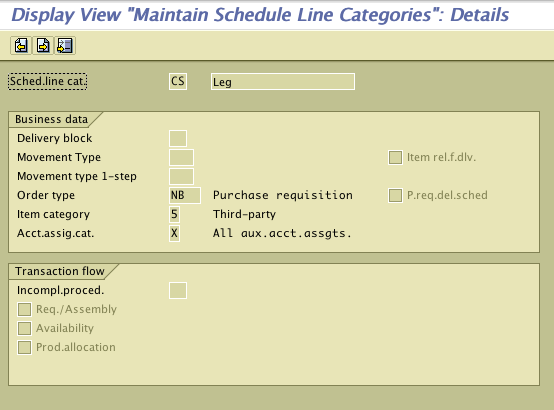
Figure 4
Setup required for schedule line category to determine the purchase requisition parameters
Step 5. Set up the purchase
requisition configuration. In
step 4 I discussed how to set up
the purchase requisition that the
system creates automatically in the
sales order. In this step you specify
the purchase requisition’s
details according to your business
requirements (e.g., whether you want
goods receipt [GR] or account assignment
to be mandatory).
Figure 5 shows the
PO item category configuration for
the Third-party item
category. Follow menu path IMG>Materials
Management>Purchasing>Define
External Representation of Item Categories.
The settings you configure in this
screen determine the PO controlling
parameters, such as whether or not
you may post a GR item. If you do not
want the third-party items to appear
in your books, you can make GR not
allowed. Via this setting the third-party
item moves directly from the third-party
vendor to the customer, and your inventory
management is not affected.
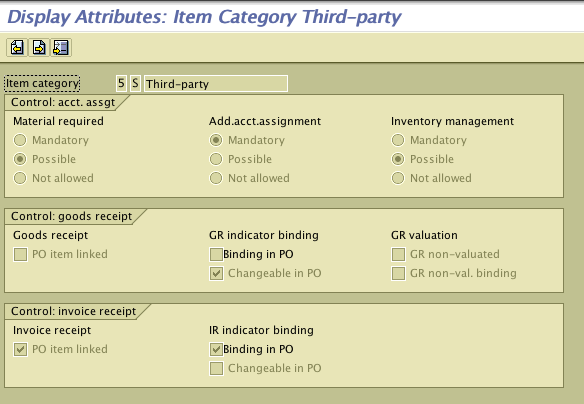
Figure 5
PO item category setup
However, some companies may have a
procurement requirement in which they
must document material movement in
their systems by creating a GR for
the third-party PO. This prevents the
company from making payment before
the delivery of goods. In this case,
you change the standard configuration
for the PO item category. For example,
you can make the GR indicator binding
by selecting the Binding in
PO check box under the Control:
goods receipt tab in Figure
5.
Go to transaction ME23N to
view the PO that the system created
automatically from the purchase requisition
in the sales order (Figure
6).

Figure 6
The PO the system created automatically with the third-party item category and delivery address as the customer address
The last part of the standard SAP
third-party procurement cycle is to
pay the vendor per the vendor invoice.
When the vendor invoice arrives (via
an 810 EDI), you enter the invoice
for the third-party PO in invoice verification
in the same way as an invoice for a
standard PO. If you posted a statistical
GR for the PO, the invoice receipt
(IR) results in an offsetting entry
on the GR/IR clearing account.
This process might not be the only
logistics process that you need to
meet third-party procurement requirements
at your company. Sometimes to deliver
orders in one package or to reduce
the cycle time for fulfilling orders,
companies build up third-party stock.
You can do this using the consignment
stock route or by maintaining company-owned
inventory, which I will explain in
the next section.
Other Logistics Processes
for Third-Party Orders
Next, I will discuss briefly the
make-to-stock scenarios that you might
need to create for third-party orders.
When you require a single shipment
to meet customer demand, you must use
a different logistics process from
the drop-ship process. Sometimes the
huge volume of sales for a third-party
item requires a company to create its
own stock to prevent delays from the
drop-ship process.
SAP provides the flexibility to determine
the logistics process by using the
general item category maintained in
the sales view of the material master.
This helps you set up different logistics
processes for the same third-party
item in different sales areas.
One logistics option to build up
stock is to use the standard SAP solution
to build consigned inventory with the
third-party vendor for the third-party
items. You can plan for the materials
based on a forecasting run and feed
the requirements as planned orders
to R/3. Based on the requirements,
the R/3 system creates consignment
POs during the MRP run to convert the
requirements into demand objects.
Now, how do you get the system to
create consignment POs on running MRP
for an item? A few values that you
maintain in the procurement view of
material master (Figure 7)
are the key to this. To convert demand
elements to purchase requisitions in
the MRP run automatically, you need
to maintain the Procurement
type as F (external
procurement only). To create the PO
as a consignment PO during the MRP
run automatically, you also need to
maintain the Special procurement field
as 10 (Consignment).
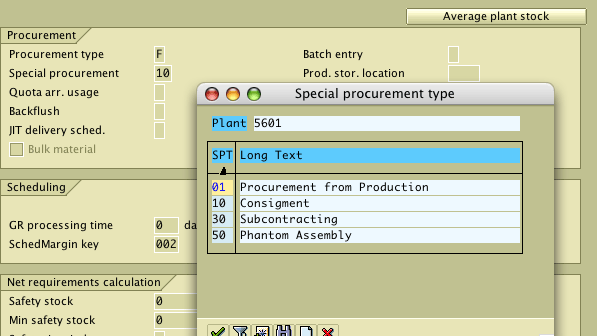
Figure 7
Automatically convert a requirement to a consignment purchase requisition during a master production scheduling run
You cannot consume consignment inventory
to meet the sales orders requirements
because the stock is not legally yours.
You need to bring the consignment stock
into your own company stock. This is
possible via material movement using
transaction MB01 or
through a dummy consignment PO. Posting
individual movement types by requirement
(deliveries created) is not only cumbersome
and time-intensive; in many cases,
it’s impossible.
A custom utility created by using
ABAP can help work around this problem.
This utility needs to run at regular
intervals to check the difference between
the open PO quantities and the open
delivery quantities (created against
sales orders/stock transport orders)
with the available company-owned stock.
In the case of a shortfall, the utility
pulls stock (by posting material movement
documents) from consignment inventory
via movement type 411K (consignment
stock to own unrestricted stock).
You can base the settlement (payments
to third-party vendor) for the consignment
stock on the consignment settlement
that you run at a frequency agreed
on by you and the third-party vendor.
The third-party vendor supplies materials
as consigned stock. The payment to
the third-party vendor happens only
for the quantity of the vendor’s
consigned stock that you move to your
own stock via 411K movements.
R/3 and ECC provide standard transaction MRKO to
settle at regular intervals for all
of the consignment stocks you move
into your own stock. Note that for
a consignment PO, the vendor does not
send invoice documents.
The other method of consuming a consignment
PO when required is to set the system
to create a dummy PO for delivery quantity
when it creates the delivery. This
is a standard PO type NB that
the system creates via a special program
that processes the delivery output.
This program creates the PO per the
delivery quantity for the vendor holding
the consigned stock. In this case,
the vendor fulfills the PO against
the consigned stock and sends an 856
(advanced shipping notification) signal
to the company. An 846 signal triggers
the GR for the PO and the consumption
of the consigned inventory from the
system.
For procurement directly to stock,
follow the same process as for consignment
stock, only in this case you should
not maintain the Special procurement field
for the materials in the material master.
Note the general item category group
in the case of stock consumed from
inventory needs to be NORM (standard
item) instead of BANS.
Tip!
An important point to consider when pulling consignment stock is the reporting to third-party vendors. You might have to communicate to the vendors all the stock movements completed for the day and the stock status in R/3 or ECC at the end of day. You can do this with some development so that a dummy program spawns jobs for each vendor based on a Z table entry. These jobs send the material document list in transaction MB51 (either with a variant that the program determines or a dummy variant with the vendor ID) to the email IDs in the spool recipient list. The email IDs are in a Z table for the third-party vendor.
Cancellation Process
Finally, let me discuss the cancellation
process for third-party orders. Standard
R/3 Enterprise functionality allows
you to cancel the sales order line
item, but does not make any changes
to the procurement in case the system
has released the PO to the vendor.
In this situation, the cancellation
process becomes slightly cumbersome.
Some third-party vendors allow you
to cancel an order, in the form of
a conditional cancellation, after you
release the PO to them. To start this
process, send an 860 IDoc request for
a PO quantity change/cancellation to
the third-party vendor. The vendor
sends back an 865 IDoc to confirm if
it is possible to cancel the order
in its system. You then communicate
with the customer (via auto email programs)
whether the third-party vendor can
accept the request to change or cancel
the line item.
You can also create a Z table to
track the initiation of the request
and the present status of the request
(e.g., if the system sends the request
to the vendor and if the vendor accepts/cancels
the request.) The IDoc processing function
modules for the different IDocs (860/865)
can update the status directly in the
Z table with slight code modifications.
Trilokesh Satpathy
Trilokesh Satpathy, PMP, is a consultant with Infosys Technologies Limited with more than six years of SAP consulting experience spanning automobile and computer manufacturing companies. He holds a bachelor’s degree in mechanical engineering and a post-graduate degree in business management.
You may contact the author at editor@scmexpertonline.com.
If you have comments about this article or publication, or would like to submit an article idea, please contact the editor.