The success of many SAP projects depends on managing how you execute background or batch jobs. Learn step by step how to configure process chains and use them to execute background jobs in SAP Advanced Planning and Optimization.
Key Concept
Background jobs are a critical component of any SAP Advanced Planning and Optimization implementation and also for its long-term sustainability. You can execute background jobs to, for example, load data to an InfoCube, generate a statistical forecast, or execute Supply Network Planning heuristics for a large amount of data. You can create these jobs as batch jobs, using transaction code SM36, or as process chains, using transaction code RSPC.
Since APO 4.1, the traditional way of creating and running batch jobs using transaction code SM36
is less attractive than process chains. Process chains are more efficient because they allow you to define dependencies
and execute steps conditionally based on success or failure of the previous step. For example, you can generate
combinations of characteristics only if the InfoCube data load is successful. However, because process chains are a new
concept in SAP APO, they can be difficult to understand.
I’ll present a common example in APO DP and take you through these six steps to create the process chain:
Step 1. Start to create the process chain with a start variant
Step 2. Add more process variants to continue the process chain
Step 3. Create a program variant to use in a process variant
Step 4. Load data to the DP planning area with a standard process type
Step 5. Perform a logical check of the process chain
Step 6. Execute the process chain
This article assumes that you have a basic exposure to SAP APO functionality in DP and SNP. You can create process
chains in APO 4.1 or higher. To read more about process chains, see “Process Chain Overview” below.
Business Scenario
In this example, a company wants to use APO DP for statistical forecasting. To do so, it must execute a sequence of
steps to load data into an InfoCube, regenerate indices for better performance, generate characteristic value combinations
(CVC), transfer historical data from the InfoCube to the planning area, and generate a statistical forecast. The company
wants to delete the old forecast data using the standard SAP program before regenerating the statistical forecast. You can
run this process in parallel to loading the data to the InfoCube to save batch window time. All of these steps can be part
of one process chain, which I’ll show you how to create.
Steps to Create a Process Chain
Here are the six steps to create the process chain.
Step 1. Start to create the process chain with a start variant. Go to the Process Chain
Maintenance screen by following menu path Demand Planning>Environment>RSPC - Maintain Process
Chains or use transaction code RSPC. Click on the create icon and enter a name and description
for the process chain (Figure 1). The description field allows you to enter a longer text string to
explain the purpose of the chain. This helps you check the logs for errors later in the process. For example, a time stamp
triggers direct chains, but events trigger indirect chains. Also, you can sort all of the DP or SNP processes together in
the monitor by name.

Figure 1
Define the process chain’s name and description
To start the process chain, click on the process type icon  to
display the process types. The Start Process is mandatory, so it’s the first block in any process
chain. You can insert the Start Process by dragging it from the left side of the screen to the right side
of the screen (Figure 2).
to
display the process types. The Start Process is mandatory, so it’s the first block in any process
chain. You can insert the Start Process by dragging it from the left side of the screen to the right side
of the screen (Figure 2).
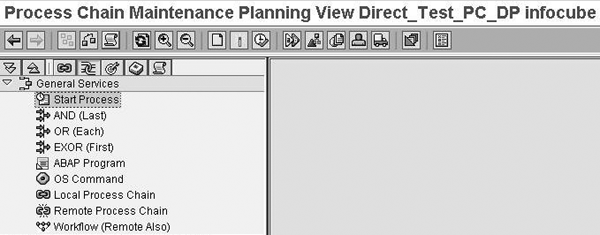
Figure 2
Drag the Start Process to the right side of the screen
Next, create a start variant for direct scheduling or indirect scheduling, which uses metachains —
groups of two or more process chains. For my example, I use direct scheduling (Figure 3). Click on the
change icon to define the time for direct scheduling. For my example, I want to start the process chain on the first day
of the month at 10 am Central European Time (CET). Name the start variant, such as Z_PV_START1.
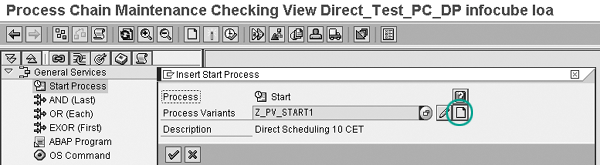
Figure 3
Create the start variant for direct scheduling
You could use immediate scheduling instead of using a later start time, but you need to reactivate the
process chain in the production system after transport. If the start time depends on the finishing of another chain, use
the metachain start option. This can save a company batch window time because the system doesn’t use a hard start
for the batch job.
Save the first start variant created and the system displays it in the main window. You have taken the
first step to create a process chain. You can now link an APO chain to a BW chain or vice versa. You can use a start
variant only once in a process chain, so you need to continue the process chain by adding more variants.
Step 2. Add more process variants to continue the process chain. After the start variant,
add a process type, such as Execute InfoPackage, to load data into the InfoCube. As before, drag the
process type from the left side of the screen to the right side. Then, click on the create icon to add a new variant
(Figure 4). In my example, the system added the process variant for the InfoPackage that contains the
data I want to use.
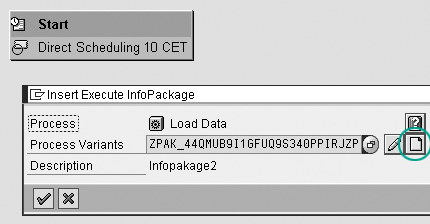
Figure 4
Add the next step in the process chain
Next, add other process types to build the blocks of the process chain. You can execute almost all of the
DP functions in a process chain, such as Initialize (Create Time Series Objects), DP Background
Processing, Calculate proportional factors. I added Load data, Re-
generate InfoCube index and Generate Characteristic Value Combination (CVC) next in my process
chain. I added this step in a series, but you can add a parallel step if it does not depend on the earlier step.
Step 3. Create a program variant to use in a process variant. For example, you need to
generate the CVC using the SAP standard program /SAPAPO/TS_PLOB_MAINTAIN. Define the ABAP program
variants using transaction code SE38. Click on the change icon to define the parameters of variant
ZTEST1 as shown in Figure 5. For the Program variant, enter ZTEST1 for the process variant Z_PV_GEN_CVC.
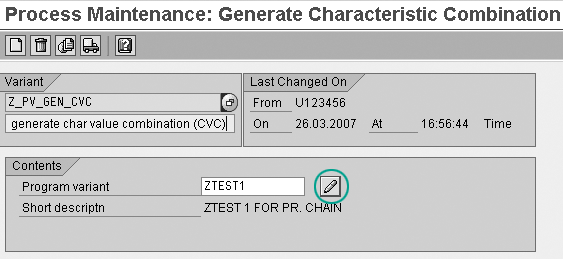
Figure 5
Create the program variant parameters
Return to the process chain planning screen and connect two process variants by dragging and dropping a
line between them. The results of the previous block determine subsequent processing. A green arrow means the tasks in the
previous block completed successfully, which allows the next block to execute (Figure 6). This feature is
useful when designing the logic for a process chain. For example, a step to load data to the planning area should run only
if characteristic combinations have been generated in the previous step.

Figure 6
Link the Generate Characteristic Value Combination variant to the previous block and select … successful
Next, I added the standard process type ABAP Program, which is an important process type
that allows a user to define a batch job with transaction SM36 using just the ABAP process types
(Figure 7). A user can replicate batch jobs or use only custom programs to create a process chain using
the ABAP process type. You can then run new steps in a series or parallel to each other. For example, the next step I want
to add to my example process chain is to delete old forecast runs in parallel to the InfoCube load. Loading data to the
InfoCube and deleting data from the planning area are not dependent on each other. So, to save batch window time, I run
this step in parallel.
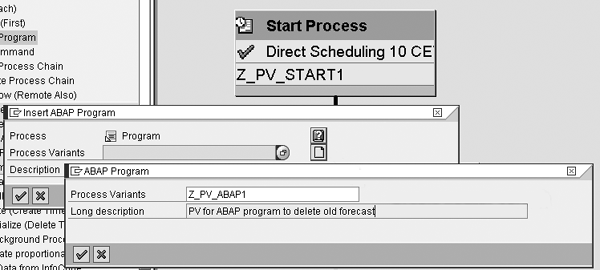
Figure 7
An ABAP program process type is one of the most important process types
Define the program and variant for the ABAP process variant. This is the same as creating a step in a batch
job using transaction SM36. You can add custom or standard programs. The user can then execute this ABAP
program in parallel or series. I ran it in parallel below by linking the start block to the new ABAP program block
(Figure 8). The visual nature of the chain makes it easier to check the logic, too.
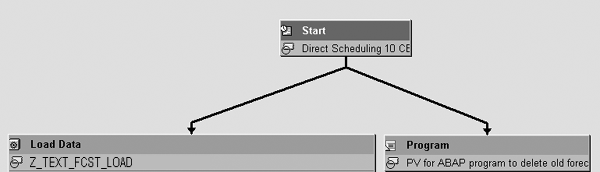
Figure 8
Save batch window time by running the two variants in parallel
Step 4. Load data to the DP planning area with a standard process type. Select
Load Data from InfoCube and DP Process Types. Drag and drop them into the right side of
the screen, then click on the create icon to define a program variant to load data to the InfoCube.
Maintain the source InfoCube’s parameters and target planning area to transfer the data in the
program variant. In this example, I loaded the planning area ZTEST2 with key figures for a specific time
period (Figure 9). Click on the change icon to edit the program variant. In my example, I want to load
historical data from InfoCube ZTEST2 to planning area ZTEST2 from April 1, 2003. The
system can now use this data to generate a statistical forecast in another process chain.
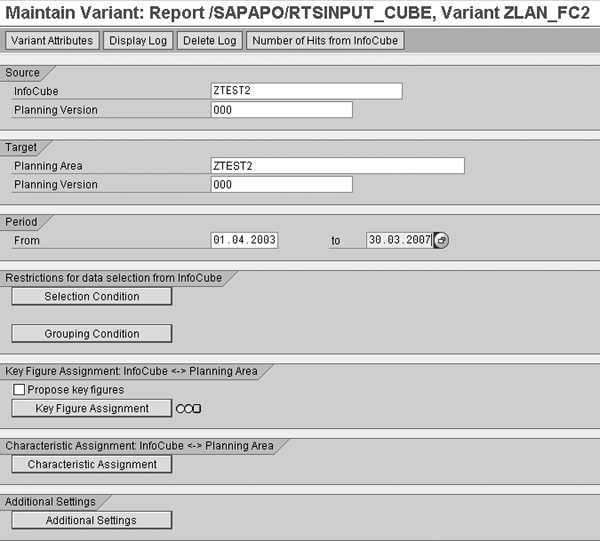
Figure 9
Maintain the parameters for the ZTEST2 InfoCube variant
Another important feature of process chains is the collection process types, such as AND
and EXOR. For this example I’m using the AND process type because the system needs
to generate the CVC and delete the old forecast before loading data to the planning area. You can use an
EXOR process type to save batch window time. It triggers an outcome when the system triggers the first
event it waited for. This process is important when you want to execute parallel processes and schedule other independent
processes after these.
Add the AND process type to the process chain by appending both the Generate
Characteristic Combination Values and the ABAP Program process variants (Figure
10). In this case, the system loads the data from the InfoCube to the planning area only if both steps are
successful. The process is the same for EXOR.
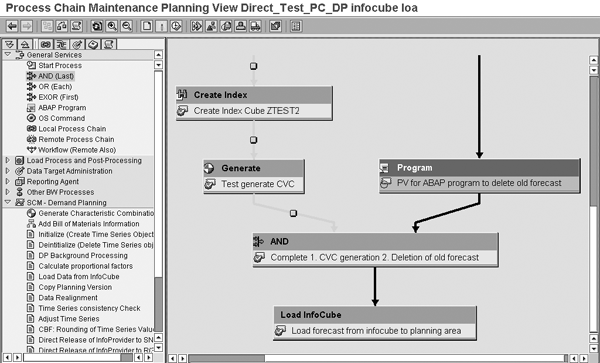
Figure 10
The same AND process variant is attached to both branches
Step 5. Perform a logical check of the process chain. After the process chain is complete,
the user can perform a logical check by clicking on the check icon  . The
check is successful when you see the message Chain is OK in the bottom left corner of the screen. The
complete process chain is aligned to the grid now.
. The
check is successful when you see the message Chain is OK in the bottom left corner of the screen. The
complete process chain is aligned to the grid now.
Step 6. Execute the process chain. Select Process Chain>Activate and
Schedule. You see the message Chain DIRECT_TEST_PC_DP_LOADPA Was Activated And Scheduled in the
status bar. Enter the application server from the drop-down menu. This process chain is scheduled for 10 am CET, which you
can view in transaction SM37 in the same way you’d view a regular batch job.
These steps show you how to create and use process chains in SAP APO. In a future article, I will show you
how to monitor and debug process chains. You can build more complex chains in DP, SNP, or PP/DS to suit the different
business scenarios in an SAP project. APO 5.0 includes additional standard process types so this functionality keeps
getting better and
better.
Process Chain Overview
A process chain is a sequence of steps that runs like a program sequence in a batch job. You can run them directly or with an event trigger from the same system or an external system, such as BW. Process chains help users to include complex logic, such as serial or parallel steps, and use the end status — for example, success or failure of a step — to trigger conditional steps.
You can use the new process chain technology to replace existing batch jobs defined using transaction SM36. It can be difficult to create conditional steps in a batch job sequence or use external events to trigger a batch job with the old transactions. Instead, process chains are GUI-based, which makes it easier to monitor the status of background jobs. You can transport them from development to quality assurance testing, to production systems, unlike background jobs that you create using transaction SM36. A process chain has the following components:
- Process type: Typical activities that the system executes in a module. Different modules, such as DP and SNP, have specific, predefined process types (e.g., Generate Characteristic Combination). General services contain generic process types, such as ABAP Program, that the system uses across modules. The Start process type is mandatory for all process chains for direct or indirect triggering of the process chain. The collection process types (e.g., AND, EXOR, OR) group multiple branches of a process chain to form a logical chain.
- Process variants: Copies of the process type created for the specific process chain. For example, you can use the ABAP Program process type to create two process variants to delete the past forecast and another to generate the statistical forecast.
Process types build process variants that you use to develop the process chain.

Manoj Ambardekar
Manoj Ambardekar has more than 20 years of IT and manufacturing experience with firms such as IBM, Infosys, PricewaterhouseCoopers, and Siemens Information in the CPG, brewing, and process industries. He has more than 14 years of experience with SAP APO and SAP ECC with specialization in logistics. He has played multiple roles as functional and technical lead as well as project manager. He has implemented SAP applications at more than 12 large- and medium-sized projects since 1998. Manoj is a chemical engineer certified in production and inventory management (CPIM) from APICS – USA, and holds a master’s of engineering (industrial) degree from B.I.T.S. in Pilani, India. Manoj works on both large and SME clients to implement SAP as both a configuration SME in APO/ECC PP-MM/Solution Manager and project manager/team lead. He specializes in supply chain management solutions using software such as SAP APO, SAP SCM, SAP ECC, SAP Solution Manager, and business intelligence for North American clients.
You may contact the author at manoj_bits@yahoo.com.
If you have comments about this article or publication, or would like to submit an article idea, please contact the editor.




 Premium