Has your PA report performance slowed down lately? The size of your database might be to blame. The report/report interface provides a way to speed things up by reducing the amount of report data it has to summarize.
You often hear business users complain, "Why does this PA report take so long? It used to work fine." The likely reason for this problem is that the database has increased in size over time to the point where it degrades performance.
You have a few options to improve CO-PA report performance, and FI/CO Expert has previously discussed two of them.1 I want to demonstrate another simple and handy technique: the report/ report interface — i.e., calling one CO-PA report from another. It is perhaps the most useful and under-used method of improving report performance. It has the potential to provide dramatic improvements, especially in big implementations with high volumes and many complex CO-PA reports. Furthermore, you can automatically link reports through the report/report interface using the split reports function.
An Example of a Report/Report Interface
I’ll begin with an example of a typical CO-PA report, Customers Gross Margin Analysis. Let’s say that this report (REPORT) has two drill-down characteristics: customer group and product group. The corresponding report form (FORM) has revenue, costs, and margin as columns. This form has appropriate general data selection criteria of period/year, record type, and company code. Assume that your company has 50 distinct customer groups and 1,000 product groups for the given selection criteria.
For this scenario, your current CO-PA report needs to summarize report data for every combination of customer group and product group. The system has to summarize report information into 50,000 distinct rows2 (50 customer groups x 1,000 product groups) before it can show the initial screen of this CO-PA report.
For the purpose of demonstration, I have taken a simple scenario. But, as you can imagine, in real- life with more complex report definitions and with many more drill-down characteristics, the system takes an unusually long time to retrieve the information, perhaps to the point where it times out.
The trick behind using the report/ report interface is to break this CO-PA report into two separate smaller reports, each with fewer characteristics, and calling the second report from the first one. In the given example, you will have one report (REPORT1) with only customer group as the characteristic. The second report (REPORT2) will have the same two characteristics as that of the original report — i.e., customer group and product group (Figure 1). REPORT2, however, will always be executed for one specific value of customer group. In REPORT2, customer group has a local variable, which is passed from REPORT1. All other report parameters are kept the same; both reports are based on the same form and maintain the same structure, including form layout, general data selection criteria, and so on. Linking REPORT2 to REPORT1 (menu path Extras>Report Assignment) creates a report/ report interface between them.
When REPORT2 is called, it is executed for one customer group, so it has a variable for Customer group. To assign REPORT2 as a report/report interface, change to REPORT1 and click on the Options tab. In the Extras box on the left (Figure 2), click on the Report assignment option and then on Insert Row, Report REPORT2. Finally, confirm and save your settings.
As a result of this report/report interface, the system will be able to return the results for REPORT1 much faster (Figure 3), as in this case it has to summarize report data into only 50 distinct rows (50 customer groups). When you call REPORT2 (menu path Goto>Call up Report) for the specific customer group, the system will again return the results much faster (Figure 4), as it has to summarize report data into only 1,000 distinct rows (1 customer group x 1,000 product groups) instead of 50,000.
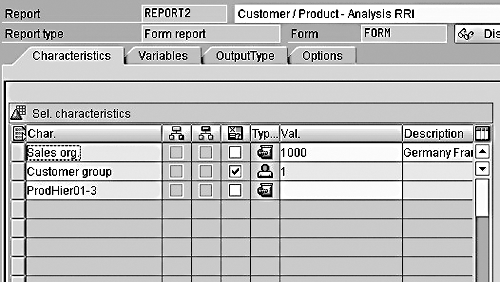
Figure 1
REPORT2 Is Executed for the Selected Customer Group from REPORT1
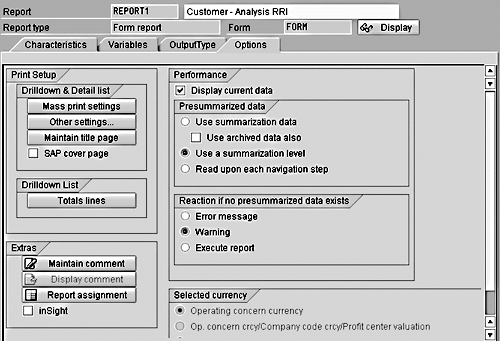
Figure 2
Assign REPORT2 as a Report/Report Interface
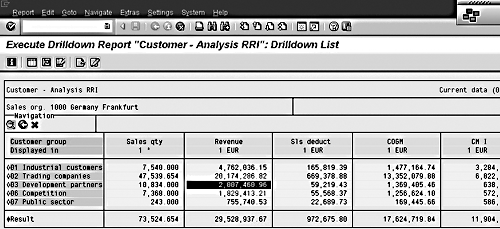
Figure 3
REPORT1 Displays Customer Group Analysis
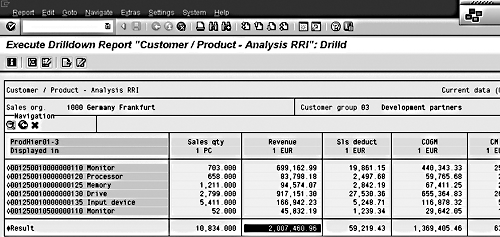
Figure 4
REPORT2 Is Called from REPORT1 for Customer Group 03, the Value of Which Is Passed on to REPORT2
Report Splitting
As an alternative to the steps mentioned above in the report/report interface section, R/3 has a feature to split REPORT1 and REPORT2 for you. The split report function splits a CO-PA report into two new reports: a sender report and a receiver report. Each has fewer characteristics.
The basic steps to achieve this are:
- Define a CO-PA report and include all the characteristics (customer group and product group). In a real-life scenario, you will begin with an already-defined report that is a good candidate for splitting.
- Execute split report transaction code KE3L.
- Enter appropriate values for the operating concern and REPORT1 as the sender report.
- Enter the receiver report name.
- Choose the characteristic product group for the receiver report.
R/3 then automatically links these two reports as a report/report interface.
The example below provides the details of these steps. Note that the screenprints shown here are from IDES 4.6C and results might vary in your system depending on its version.
Step 1. Create a CO-PA report form (FORM) with One Axis with Key Figures (transaction code KE34). Define General data selection as shown in Figure 5:
Plan/actual indicator = ’0’
Record type = ’F’
Period/year = $1 to $2
(The "$" tells R/3 to treat the "1" and "2" as variables.)
Then, as shown in Figure 6, define the product column elements Sales qty, Revenue, Cost of goods, GM (gross margin), and GM%.
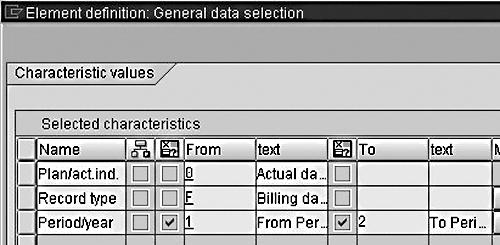
Figure 5
General Data Selection Criteria for FORM
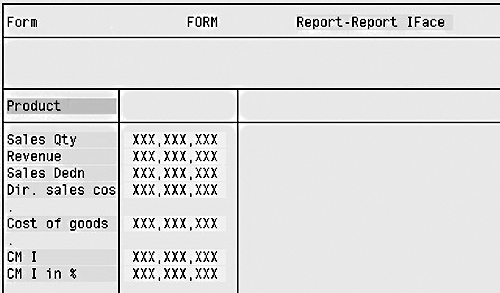
Figure 6
Elements for FORM
Step 2. Create a form report (REPORT) with FORM, which you created in step 1. Select the following characteristics:
Sales Organization = ‘1000’
(fixed characteristic value)
Customer Group
(drill-down characteristic 1)
Product Hierarchy
(drill-down characteristic 2)
Execute REPORT with transaction code KE30 for the given periods that you want to see in the report, and drill down to Product Hierarchy (for a particular customer group). You should have results similar to those shown in Figure 7.
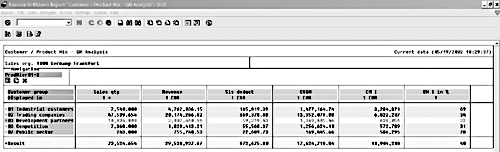
Figure 7a
Drill-Down Report, Product Mix
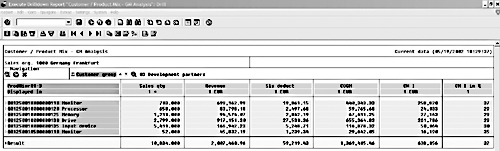
Figure 7b
Drill-Down Report, Product Mix
Step 3. Use split report to split into sender and receiver reports, thus creating the report/report interface. For the sake of demonstration, make a copy of REPORT and call it REPORT1. You can refer back to the original report to compare performance. Change the report description accordingly.
Split the CO-PA report with transaction code KE3L (menu path Information System>Define Report>Split). Enter the names of the operating concern and the report that you want to split (REPORT1). Select the characteristics you want on the new report (product hierarchy). Enter the receiver report name (REPORT2) and description (Figure 8). R/3 will display the message that the report Sender is split (with receiver report as Receiver).
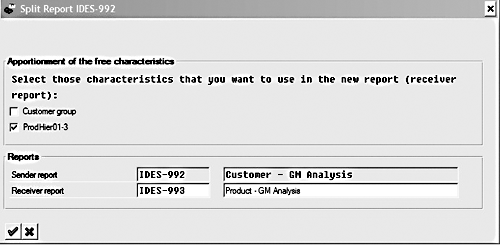
Figure 8
Split Report Screen
Step 4. Execute the new CO-PA report, REPORT1 (created in step 3). When you drill down to the last level (in this example, customer group is the only drill-down characteristic), you will see an additional icon in the navigation area (Figure 9) that you use to call up the report.
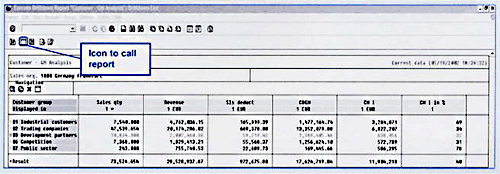
Figure 9
Customer Drill-Down Report
Step 5. Keep your cursor on any customer group row and click on this icon. R/3 will call up REPORT2 automatically and display the corresponding drill-down characteristics for the selected characteristic value from the sender report. Because of this seamless interface between two reports, business users don’t find any difference from an "unsplit" report.
Report Stacking
You can extend the logic of splitting reports to create a stack of reports, each report calling another report. This mechanism of splitting CO-PA reports should follow a top-down approach. Start with the topmost report as most "granulated" and then jump to the next level.
The most important task is to determine the initial report characteristics, as it determines the response to display the report. If the initial report has characteristics C1 and C2, with each having possible values of N1 and N2 respectively, then it will have N1 x N2 combinations to summarize. The number of potential combinations is not always possible to determine by N1 and N2. If both characteristics C1 and C2 are independent of each other, the maximum possible combinations are N1 x N2. If characteristic C2 is dependent on C1, the maximum possible combinations are N1. In real-life cases, the possible number of combinations lie somewhere between these values. You need to look closely at your characteristic values.
Also, when you include a characteristic (e.g., C10) in an initial report, you can also include all the characteristics that can be derived by it (e.g., C11, C12, and C13 are derived from C10). Since the dependent characteristics will not increase the size of data, report performance will not deteriorate.
I suggest that you start with fewer characteristics and then add more drill-down characteristics until the initial report results with acceptable time. Once the initial report is determined, divide the whole report into a stack of sender and receiver reports. Continue stacking these reports until all the drill-down characteristics are covered.
In Figure 10, oval 3 represents all the possible drill-down characteristics for the given CO-PA report. Ovals 2 and 1 represent fewer numbers of characteristics (aggregated characteristics at a higher level). In this example, you should drill-down from customer groups to product hierarchies and to products or customers.
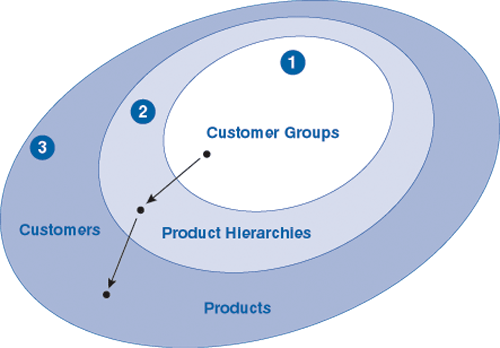
Figure 10
Drill-Down Paths
Summary
In my example, the split report (REPORT1) has only 50 unique combinations instead of 50,000. R/3 can search through them and display the report results much faster. Now when the user wants to drill down to product groups for a specific customer group, REPORT2 only needs to summarize 1,000 unique combinations.
In many cases, I have been able to split complex and time-consuming reports with improvement of performance. The most serious down side to splitting reports is that you lose some flexibility in drilling-down. Consequently, performance optimization might conflict with your business requirements.
1

Mitresh Kundalia
Mitresh Kundalia heads the SAP practice at Quality Systems & Software (www.QSandS.com), a consulting firm specializing in SAP S/4HANA, SAP General Ledger, and complex System Landscape Optimization (SLO)-type reorganizations. Mitresh is widely acknowledged as a leading SAP expert, with multiple publications and an SAP-PRESS book to his credit. He has published more than 50 peer-reviewed articles and white papers, and he has given presentations at various SAP conferences and events. Mitresh is the chief solutions architect of General Ledger Migration Optimizer (GLMO), a leading product to accelerate and jump-start the SAP S/4HANA and SAP General Ledger initiatives; SAP Data Reorganization Optimizer (SDRO), an SLO-type product for managing complex system landscape reorganizations; and Group Currency Activation and Conversion (GCAC), a product suite to manage introduction of parallel currencies and conversion of data in a live SAP system.
You may contact the author at Mitresh@QSandS.com.
If you have comments about this article or publication, or would like to submit an article idea, please contact the editor.



 Premium
