Learn how to configure SAP Business Planning and Consolidation (BPC) 10.1, version for NetWeaver with SAP HANA for planning using any SAP or non-SAP master data. You can use the data in SAP BPC 10.1, version for NetWeaver in real time without any data duplication or replication.
Key Concept
The SAP HANA system handles data such as local tables on the database. Using the Smart Data Access tool, you can map data from databases connected via SAP HANA remote sources to SAP BW InfoObjects.
The current version of SAP Business Planning and Consolidation (BPC), version for NetWeaver, is 10.1. It became generally available in Q2 2014. With this release, SAP offers two model types that can be deployed to meet your business needs, standard and embedded. Prior to this release, there was only one model type available. The architecture and functionality of the standard model is very similar to the model in BPC 10.0, version for NetWeaver, whereas the embedded model type is more like the modeling paradigm of SAP BW Integrated Planning (BW-IP) and the Planning Applications Kit (PAK). In the embedded model type, the master and transactional data from the entire host Enterprise Data Warehouse (EDW) environment is accessible by the application.
I focus on the embedded model type since it uses the characteristics and key figures from the EDW environment. A similar approach can be used for standard model as well but that is beyond the scope of this article. The Smart Data Access (SDA) feature of SAP HANA makes it possible to access remote data without having to replicate the data to the SAP HANA database beforehand. Automatic data type conversion makes it possible to map data types from databases connected via SAP HANA SDA to SAP HANA data types.
I first explain how to connect SAP HANA to the external database using the SDA feature. I then create a virtual table for the physical table in the external database. In the third step I create a calculation view with the master data attributes that you need to bring to BPC on the virtual table created in the earlier step. Finally, I show how to link the calculation view to the characteristic master data. In this way, you can access the master data from external databases in real time in the SAP BW characteristic without duplicating data anywhere.
An Overview of the Features of the BPC 10.1, Version for NetWeaver Embedded Model
Both the standard and embedded models can be used in the SAP Enterprise Performance Management (EPM) web client, EPM web reporting, and mobile reporting in similar ways. Both models make use of business process flows, work status, process chains, and granular transports in similar ways, and both support SAP BW authorizations and customizing using ABAP.
The embedded model, however, is more suitable for use where centralized (IT) governance is more important, as it provides complete EDW integration, leverages SAP BW content, and uses the SAP Business Explorer (SAP BEx) Analyzer. Centralized IT governance is more important when the annual budget process is controlled from a central or corporate planning administration team, and planners are expected to enter their planning data following a corporate planning process. Centralized IT governance may not be required if the planning process is decentralized and the planning models and tasks are administered by local users rather than centralized or corporate planning administrators.
The SAP BW layer provides a wide variety of delivered integration content that simplifies access to SAP and non-SAP systems. Through the use of MultiProviders and virtual InfoProviders, the embedded model of BPC 10.1, version for NetWeaver is in the best position to consume information directly stored within SAP HANA.
Data from external sources can be easily accessed using the SDA tool. This information can be virtualized into BPC or SAP BW for consumption in BPC. I show the details for how to access the external master data through SDA and how to consume the external master data in the BW InfoObjects that can be used in the embedded model type in BPC 10.1.
Configuring SDA to Access an External Database
Before configuring the SDA tool, first make sure that all the prerequisites are met. The detailed prerequisites for realizing SDA can be found here: https://help.sap.com/saphelp_nw74/helpdata/en/bb/df686dc0d94f779b5c11d06753da95/content.htm.
Once you’ve confirmed that the prerequisites have been met, log on to SAP HANA studio to complete the following steps to configure the external database:
- Select the remote source
- Define the properties of the remote source
- Test the connection
I cover each step in more detail in the following sections.
Select the Remote Source
To select the remote source, in the Provisioning node click the Remote Source folder and then select the New Remote Source… option from the context menu. This opens the screen shown in Figure 1 where you can make your selection.
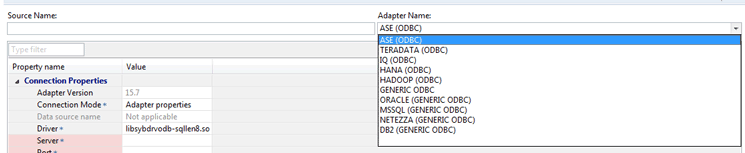
Figure 1
Select the remote source
Define the Properties of the Remote Source
Next, you need to define the properties of the remote source. In the screen in Figure 1 enter the name of the source and select the adapter you want to use depending on the remote source database. Enter the properties of the remote source as shown in Figure 2 (an expanded view of part of the screen in Figure 1). In the Connection Properties section, enter the details for the Server and Port. In the Credentials section, enter the User Name and Password that are used to access the remote source.
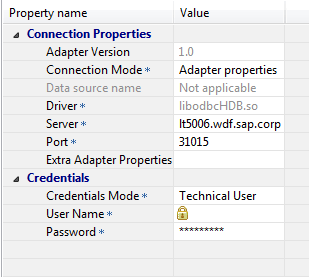
Figure 2
Define the properties of the remote source
Note that only the data that is accessible by the user name that you enter in this step is available for you to use in the rest of the steps outlined in the following sections. Therefore, it is important to make sure that the user name entered here has the requisite authorization for the data that you want to use in your planning application.
Test the Connection
After you enter the properties of the remote source, click the test the connection icon (highlighted in the upper right of Figure 3). If the remote source connection works, you receive a confirmation message like the one shown in Figure 4.
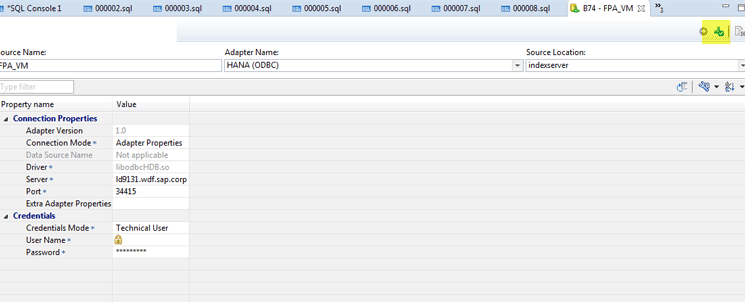
Figure 3
Test the remote source connection

Figure 4
The remote source is connected properly
On the left side of the screen, open the Remote Sources folder and then press F5 to refresh the screen. Now, on the right of the screen (Figure 5), you can see that the remote sources are added. Within those remote sources, you can check the tables that you want to use in the planning applications as shown in Figure 6.
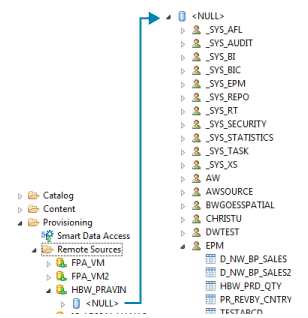
Figure 5
Check remote sources
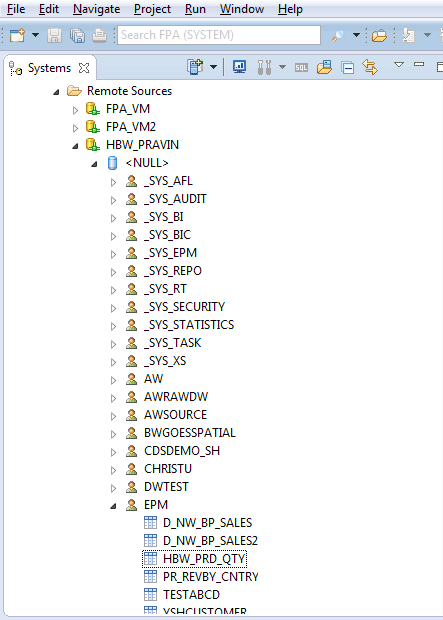
Figure 6
Ensure that the tables from the remote source are added to the list of remote sources
In my example, I use table HBW_PRD_QTY in the planning application. This table is stored in the external database, but is accessible through the remote source defined in the SDA.
Create a Virtual Table
After you ensure that you can access the required table from the remote source, select the table name (e.g., HBW_PRD_QTY) in Figure 6, right-click, and select Add as Virtual Table from the context menu. This action creates a virtual table for the physical table in the remote source.
Check the Virtual Table
To check the virtual table that you just created, navigate to your schema by opening the Catalog folder on the left side of your screen (Figure 7) and opening the Tables folder to see the list of virtual tables.
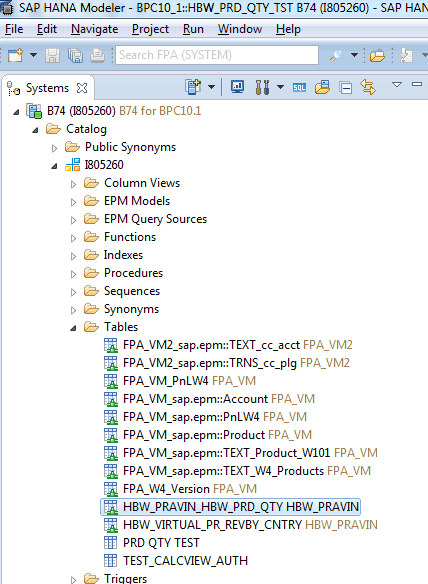
Figure 7
Check the virtual table
Preview the Data from the Virtual Table
To preview the virtual table, select the HBW_PRD_QTY table name, right-click, and select Open Data Preview from the context menu options. The data in the remote table is displayed as shown on the right in Figure 8.
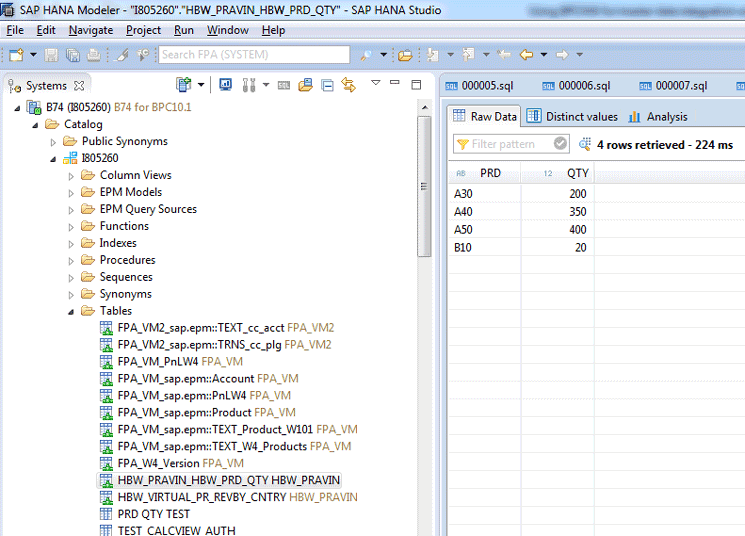
Figure 8
Preview the data from the virtual table
Create a Calculation View
To create a new calculation view for the virtual table you created, you can either create a new package or select an existing package.
To create a new package, navigate to the Content, right-click, and select New and then Package from the context-menu options. In the screen that opens (Figure 9), you are prompted to enter a Name and Description for the new package. You do not have to enter the Delivery Unit, Original Language, Person Responsible, or Logon Locale—these are default options. After populating the Name and Description fields, click the OK button.
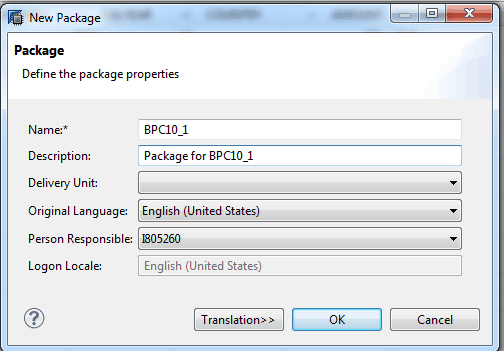
Figure 9
Define the package
This opens the screen shown in Figure 10. Navigate to the left side of the screen and open the Content folder. Select the new package you created (e.g., BPC10_1) and right-click. From the context-menu options, select New and then Calculation View.
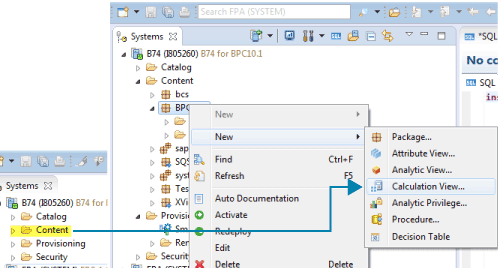
Figure 10
Create a new calculation view
In the screen that opens (Figure 11), you define the calculation view. Enter the Name and a description (Label) for the calculation view. Accept all the other default entries and click the Finish button.
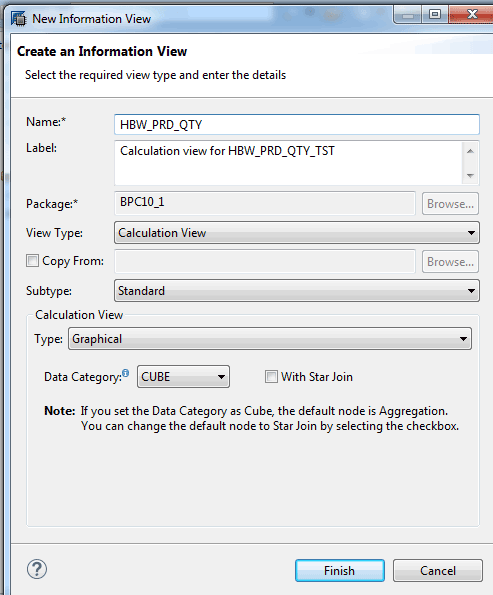
Figure 11
Define the new calculation view
In the screen that opens (Figure 12), you configure the calculation view. Locate the virtual table you created earlier (on the left) and drag and drop it to the Aggregation area on the right.
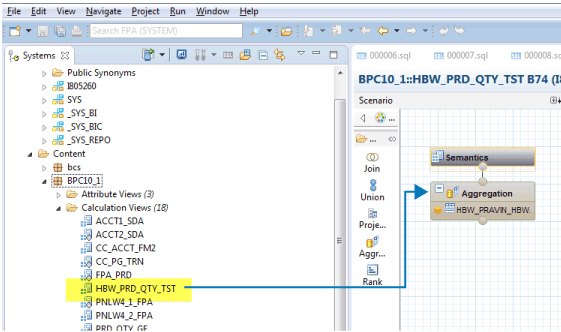
Figure 12
Configure the new calculation view
This opens the screen in Figure 13 that displays all the fields available in the HBW_VIRTUAL_PR_REVBY_CNTRY virtual table. Select all the fields, right-click, and select the Add to Output context menu option.
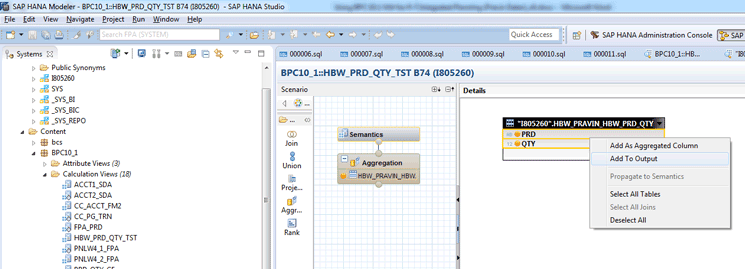
Figure 13
Add fields to output
Activate the Calculation View
In the screen that results (Figure 14) click the Save and Activate button in the edit screen to activate the calculation view.
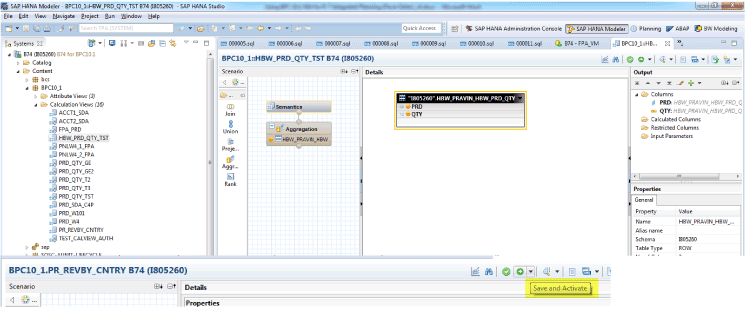
Figure 14
Save and activate the new calculation view
Preview the Data from the Calculation View
After activating, you can preview the calculation view data by right-clicking the calculation view name on the list and selecting the Data Preview option from the context-menu options. In the data preview screen that opens (Figure 15), you can see the data under the Raw Data tab. The data that you see in this preview is now available for planning. This step completes the configuration steps required within SAP HANA studio.
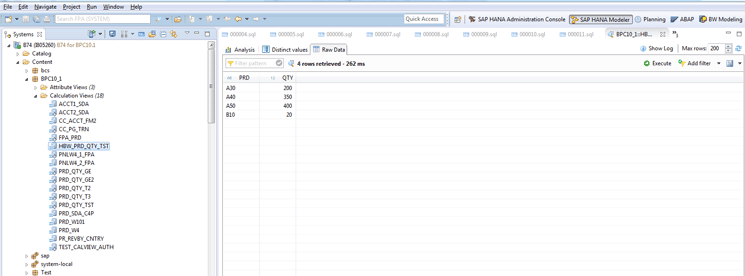
Figure 15
Preview the data in the Raw Data tab
Configure SAP BW to Consume External Master Data in Planning Applications
After you create an active calculation view, you can proceed with the configuration of SAP BW and BPC 10.1, version for NetWeaver to use this data in planning applications. Up to this point, there is no data duplication or replication and all the changes to the data in the remote source are available in the calculation view in real time.
First, log on to the BPC 10.1, version for NetWeaver system with your User Name and Password (Figure 16), and then access the data warehousing workbench by executing transaction code RSD1.
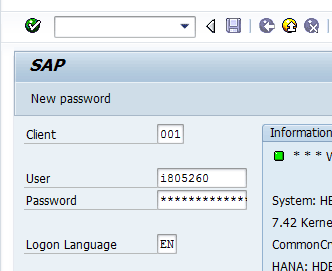
Figure 16
Log on to the BPC 10.1, version for NetWeaver system
In the screen that opens (Figure 17), select the Characteristic radio button as your Type. Enter the InfoObject name (zprod_tst in my example) and click the create icon.
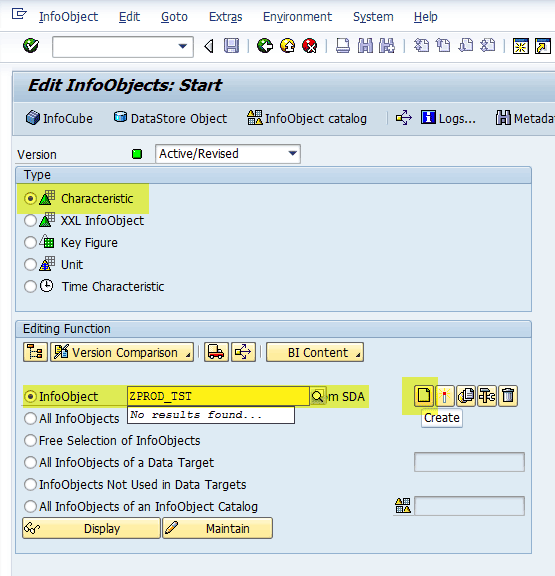
Figure 17
Create the InfoObject
In the pop-up window that opens (Figure 18), enter a Long Description for the InfoObject and click the green checkmark icon.
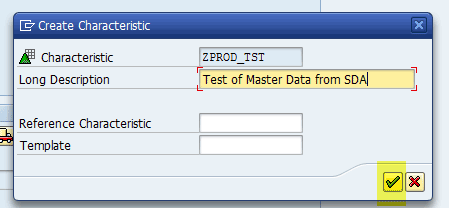
Figure 18
Enter a long description for the InfoObject
This opens the Create Characteristic screen (Figure 19). In the General tab, select the Data type as CHAR and enter the length of the characteristic. In this example, I have entered a Length of 3 as shown in the figure.
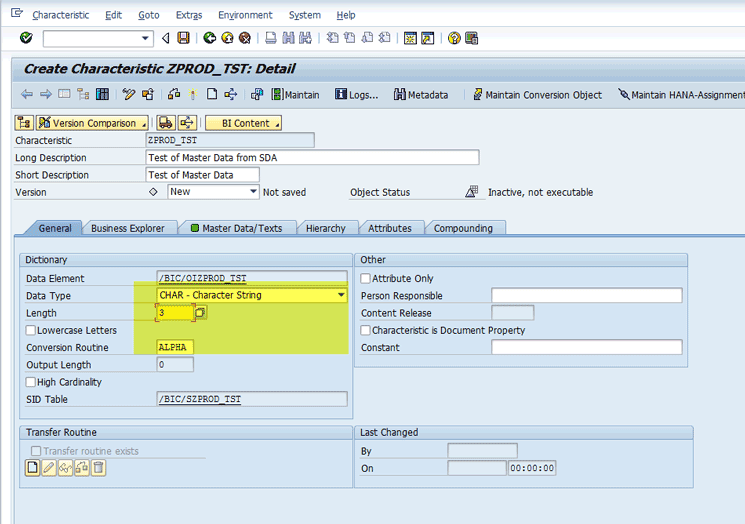
Figure 19
Create a characteristic
Open the Master Data/Texts tab (Figure 20). From the drop-down options in the Master Data Access field, select SAP HANA View.
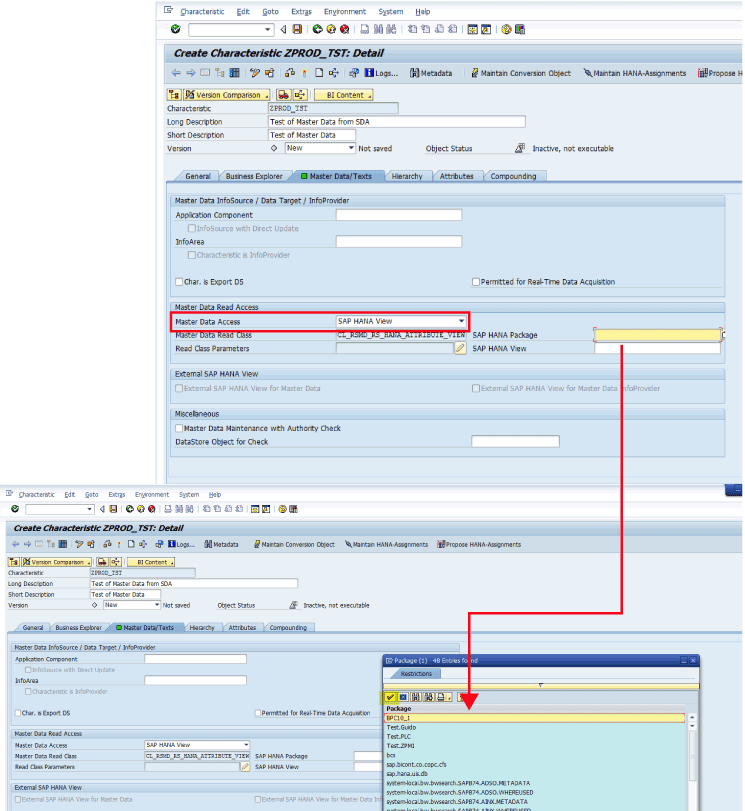
Figure 20
Select the master data access and then the SAP HANA Package
After making the Master Data Access selection, you are then able to select the SAP HANA Package. Select the SAP HANA package that you created in the previous section (e.g., BPC10_1) as shown in the figure, and then click the green checkmark icon.
Once you select the SAP HANA Package, you can then select the SAP HANA views from that package. In this case, select the calculation view you created in the previous section (e.g., HBW_PRD_QTY_TST ) as shown in Figure 21, and click the green checkmark icon.
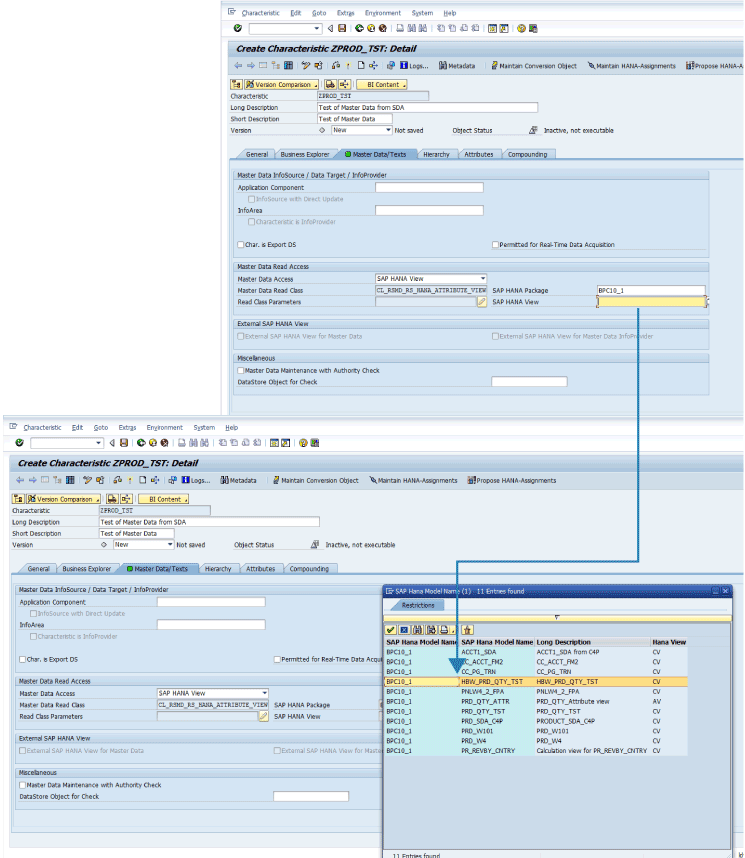
Figure 21
Select the SAP HANA calculation view
After you select the SAP HANA view, the master data configuration should look similar to the screen in Figure 22.

Figure 22
The master data configuration to get data from the SAP HANA calculation view
Click the Maintain HANA–Assignments button at the top of the screen (boxed in red in Figure 22). This opens the Assignments to SAP HANA View Fields screen. Select PRD as the fields for both the InfoObject ZPROD_TST and Text (1TXTSH) categories (Figure 23). Then click the green checkmark icon.
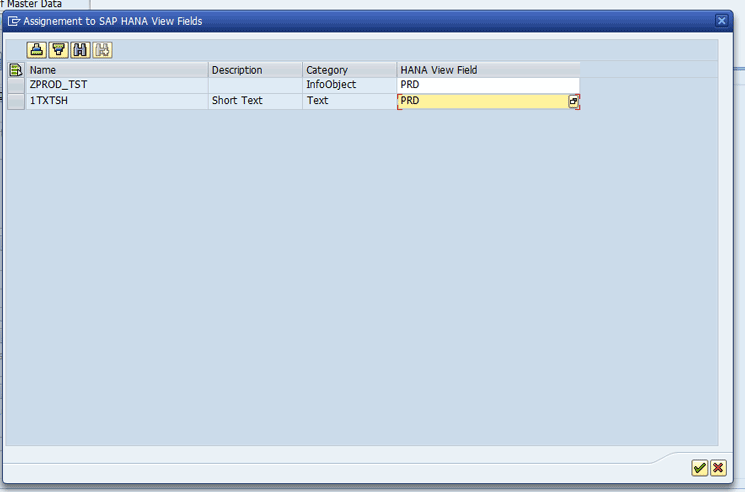
Figure 23
Make field assignments to the SAP HANA view
In the screen that opens (Figure 24) you can see your entries. Click the save icon (highlighted in yellow). If you get any warning messages like the one shown in Figure 25, accept them and continue by clicking the green checkmark icon. You may be asked once again if you’re sure you want to save, in spite of the warning message (Figure 26). Click the Yes button to continue.
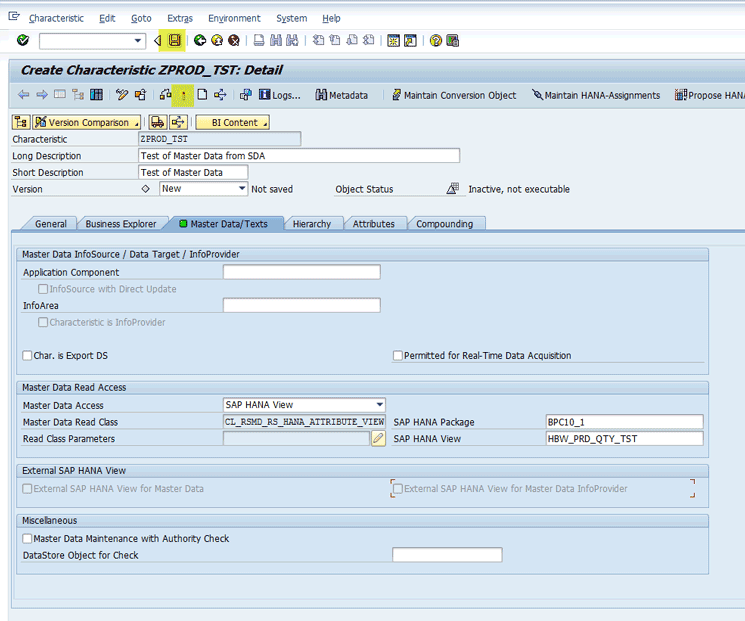
Figure 24
Save the InfoObject
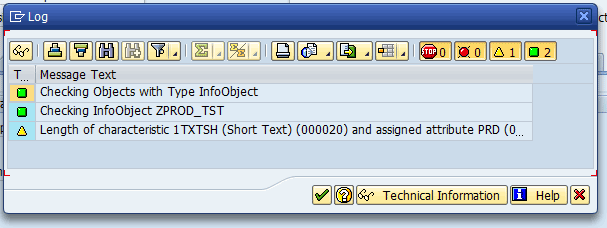
Figure 25
Warning message

Figure 26
Confirmatory message to ignore warnings and save
Back in the screen shown in Figure 23, click the matchstick icon (highlighted in yellow) to activate the InfoObject. You may be asked to confirm similar warning messages as shown in Figures 25 and 26. Again, click the green checkmark icon and the Yes button, respectively, to continue.
Display the Master Data
After activation, you can see that the InfoObject status has changed to Active, executable and there is a message at the bottom that says All infoObject(s) activated (Figure 27).
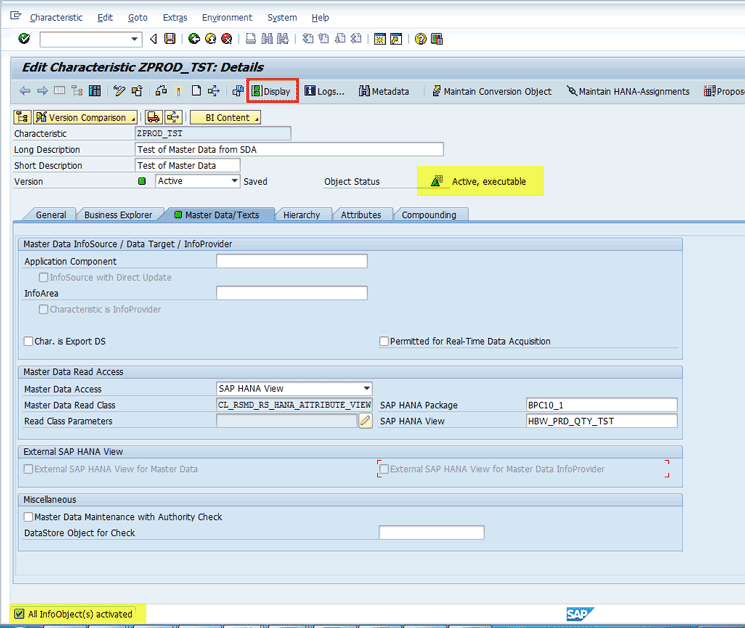
Figure 27
Ensure that the status for the InfoObject is active
Click the Display button (boxed in red in the figure) to see the master data. This opens a screen that shows the master data from the remote table virtualized by SDA (Figure 28).
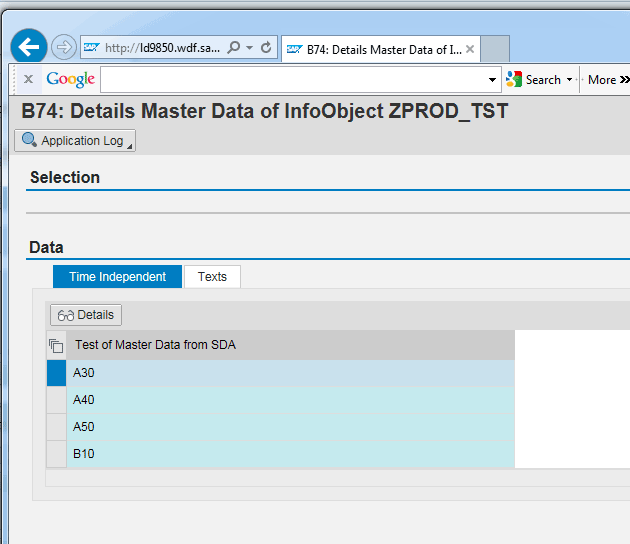
Figure 28
The master data from the SAP HANA view
Open the Texts tab in the figure to see the text associated with the master data (Figure 29).
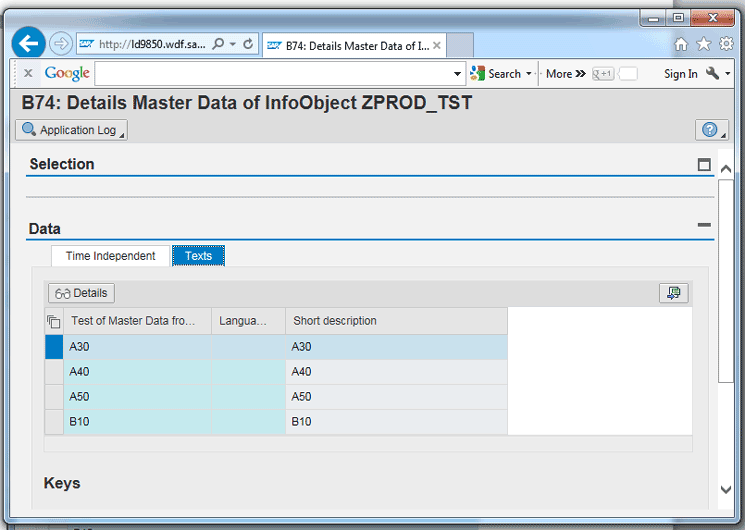
Figure 29
View the text associated with the master data
The InfoObject is now ready to be used in any BPC 10.1 planning InfoProvider and you can plan with these master data attributes. Following these steps, you have successfully integrated external master data into BPC 10.1 without any data duplication or replication.
Pravin Datar
Pravin Datar works as director in the Enterprise Performance Management (EPM) Solution Management team at the SAP BusinessObjects Division. He has more than 20 years of business experience that includes management consultancy, ERP project management, and SAP SEM, BPC RIG, and EPM solution management. He holds a master’s degree in industrial engineering and an MBA from University of California.
You may contact the author at editor@BI-expertOnline.com.
If you have comments about this article or publication, or would like to submit an article idea, please contact the editor.




 Premium