Empower users to troubleshoot missing authorizations error messages with transactions SU53 and SU56. Ensure that users can determine the source of an error message and resolve it with ease.
Key Concept
Authorization checks occur under various conditions in the SAP system. When you run a transaction, SAP ERP executes a series of checks to ensure that you have the appropriate authorizations. First, the system determines whether you are authorized to begin a transaction. Authorization object S_TCODE contains the authorization field TCD. You must have the authorization for the transaction code that you want to run. Next, the system checks whether an authorization object is assigned to the transaction code. If this is the case, the system further checks if the user has an authorization for this object. If any of these steps fail, then the transaction cannot begin and you’ll receive an error message about missing authorizations.
“You are not authorized for this function.” Sound familiar? This system message appears when a transaction is attempted and then terminated because of a missing authorization. You can alleviate authorization headaches and prevent users from wasting time searching for missing authorizations by simply employing transactions SU53 (display authorization check) and SU56 (user buffer).
Authorizations are designed to protect potentially sensitive or confidential HR data, such as an employee’s address or salary. Without the proper authorization, a user cannot perform a desired function. SAP ERP generates error messages automatically to inform users of missing authorizations, which they can submit to an authorization administrator for further clarification.
If you encounter such a message, you must employ transaction SU53 to determine the reason for the error message. Transaction SU53 should be included in all users’ authorizations and is practically the only method of revealing missing authorizations. It is important to keep in mind that missing authorizations might be intentional because that user should not have access to a particular transaction. Transaction SU56 provides a list of all authorizations (authorization objects and authorization values within authorization objects) that are assigned to any user. This simple transaction is especially valuable for users to verify their assigned authorizations.
I’ll explain how to use and interpret results from transaction SU53 to find what is causing a user’s authorization problem. Then I’ll step through an example of an SU53 output so you can gain an understanding of when you should use it, when it’s not helpful, and how to avoid misinterpreting the results. Evaluate a few shortcomings of transaction SU53 in the sidebar, “4 Limitations to Keep in Mind.”
Note
You must implement the Support Packages detailed in SAP Notes 968915, 1008990, and 1033149 to use transactions SU53 and SU56 to their fullest extent.
Tip!
If the user was prevented from executing an action, and the authorization error analysis (SU53 report) shows, “All authorization checks have so far been successful,” it is not an authorization problem. The problem has another cause, so ask your security or authorizations administrator for further details.
What You Need to Know About SU53 and SU56
Users commonly employ transaction SU53 to analyze which authorizations are missing and then send this information to the authorization administrator. Transaction SU53 must be included in one common role, which is assigned to all users. Whenever users encounter a missing authorizations error message, they should be trained to run transaction SU53, save the document, and send the file to the authorization administrator.
If the results of transaction SU53 indicate a missing authorization, use transaction SU56 to view a list of your assigned authorizations. When the error message appears, perform the following three steps to determine the cause of the error message and identify any missing authorizations.
Step 1. Run transaction /NSU53 or follow menu path System>Utilities>Display>Authorization check to display the SU53 error report.
Step 2. In the SU53 error report, find your available authorizations and missing authorizations listed.
Step 3. Run transaction SU56 to display the corresponding authorization objects and values assigned to your user role. This is not a mandatory step, although it is a very useful feature for end users. Now I’ll walk you through a detailed example using these three steps.
An Authorization Scenario
In my example, user TESTUSER logs in to the system and runs transaction PA30 (maintain master data). However, because TESTUSER does not have the appropriate authorizations in place, SAP ERP generates an error message (Figure 1).

Figure 1
An error message appears when you are unauthorized to perform a function
Step 1. Run transaction code /NSU53 to display the SU53 error report. Alternately, you can follow menu path System>Utilities>Display>Authorization check. TESTUSER enters transaction code /NSU53 in the command field and SAP ERP displays the authorization check that failed.
Step 2. In the SU53 error report, find your available authorizations and missing authorization listed. The authorization data is circled in Figure 2. Print the details of your screen or copy the contents of the error into a document to keep a record. Keep in mind that it is the authorization administrator’s responsibility to define which authorizations are missing (if any) from the user’s assigned authorizations.

Figure 2
Authorization data screen displays missing and available authorizations
As shown in Figure 2, SAP ERP displays the authorization object that failed and the user’s available and missing authorizations in the master data record. In my example, TESTUSER is missing value PA30 (maintain master data) in authorization object S_TCODE so he cannot maintain master data records. Instead, TESTUSER is only authorized for PA20 (display master data).
Step 3. Run transaction SU56 to display the corresponding authorization objects and values assigned to your user role. You can use transaction SU56 (user buffer) to view which authorizations are currently in the buffer. Every time a user logs in to the SAP system, the system creates a buffer, which includes all the authorizations assigned to that user the SAP system (Figure 3).
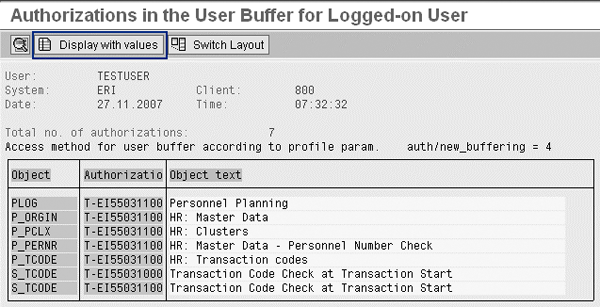
Figure 3
Available authorizations shown in TESTUSER’s buffer via transaction SU56
In the user buffer transaction SU56, TESTUSER can identify the authorization object and the relevant values assigned to the user or role. Click on the Display with values button to generate the detailed values of TESTUSER’s authorization object (Figure 4).
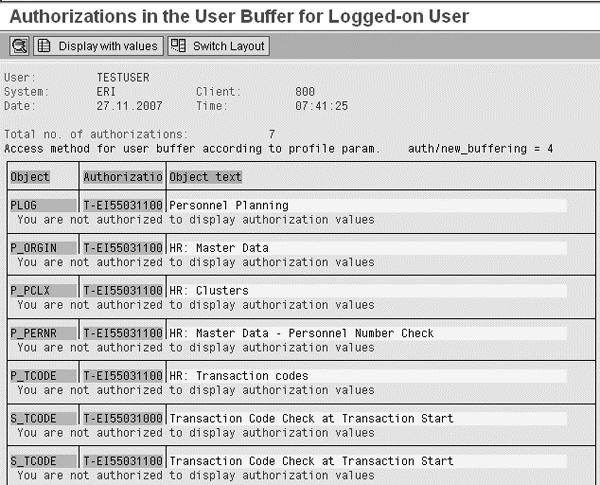
Figure 4
Detailed values of the authorizations assigned to TESTUSER
Once the authorization administrator receives the file with the missing (and existing) authorizations, he or she should take appropriate action. In some scenarios, the authorization checks might be accurate and there are no missing authorizations.
3 Tips for Your Team
Based on my experience, I’ve compiled a few handy tips for troubleshooting missing authorizations with transactions SU53 and SU56.
Evaluate whether transaction SU53 is the best approach. Transaction SU53 is not ideal if the error is caused by missing authorization for 10 infotypes, for example. If this is the case, the authorization administrator must add 10 different infotypes, which can be a redundant and manually taxing process. Often, the authorization administrator decides to employ an alternative problem-solving method, such as the system trace functionality in transaction ST01 which I’ll discuss in a future article. The subsequent authorization steps depend on the organization’s authorization protocol.
Defer to your authorization administrator. The best way to interpret the results is to let the authorization administrator decide the required actions. This person is an expert with authorizations, and he/she should have the required expertise.
Ensure all users are trained in transaction SU53. In addition, all users should be trained on what to do whenever they get an error message. All actions related to problem-solving should be included in the company’s basic security-related SAP training.
4 Limitations to Keep in Mind
Transaction SU53 is the only viable option for users to easily identify missing authorizations. Despite its several benefits, consider these four limitations:
The system displays only the last failed authorization check: For example, a user might be missing 10 infotypes. Transaction SU53 only shows the last failed authorization check (in this case, the last missing infotype). To fix the entire problem, a new infotype must be assigned to the user after each error message. For this scenario, 10 new infotype authorizations are required to fully correct the problem.
The first call can only be started by the user: Only the user receiving the error message can initiate the authorization process. Without his or her input, there is no error message requesting attention.
The display is reset if the user logs on again: Each time the user logs off and on again, the system creates a user buffer with transaction SU56. The system also resets the SU53 report displayed. If the user runs into another problem such as an additional error message, the previous results in transaction SU53 are replaced with the new report instead.
The display is not refreshed if a new error occurs, but only updated if transaction SU53 is called again: The user must run transaction SU53 again to refresh the displayed results containing the data of another missing authorizations error message.
Tero Tukiainen
Tero Tukiainen is the managing partner of SAPORT Consulting Inc, which he founded in 2009. He is an SAP HR-certified consultant who has specialized in SAP security and authorizations since 2000. Tero has spoken at SAP HR conferences in both Europe and the US since 2005.
You may contact the author at tero.tukiainen@saport.fi.
If you have comments about this article or publication, or would like to submit an article idea, please contact the editor.

 Premium