Discover how to use the role upload tool delivered with SAP NetWeaver to generate updated portal pages for your Financials users. You can use your existing roles in SAP ERP as a starting point.
Key Concept
Automatic roles differ from other portal roles in that they are generated based on the folder structure for the roles in SAP ERP rather than being delivered as business packages with SAP NetWeaver Portal. No portal content (pages, worksets, iViews, and so on) is delivered, but only a role upload tool. Organizations can use this tool to upload one of the 300 automatic roles delivered with SAP ERP 6.0 or to generate portal content based on their existing roles, maintained using transaction PFCG.
When organizations have to decide which user groups would benefit most if their applications were moved to the Web, they typically start with their occasional users. They investigate Web applications that were built specifically for use in the portal, such as Employee Self-Service (ESS) and Manager Self-Service (MSS), leaving their “hard core” accounting users to continue to work with a classic SAP GUI.
I introduce you to two new options in SAP ERP 6.0 that might make you consider using the portal to provide system access for user groups other than occasional users. I show you how to use automatic roles to create portal pages for your Financials users that provide access to their existing core transactions using the roles they already use in SAP ERP. In another article, "Use the Report Launchpad to Provide Access to Financials Reports," I show you how to use the report launchpad to provide access to further reports as part of this role — whether in SAP ERP, SAP NetWeaver BI, or composite — that these users might use in the course of their daily work.
If you use SAP ERP or SAP R/3, then you are probably familiar with transaction PFCG (role maintenance) as a way of organizing user access to transactions and reports. Transaction PFCG allows you to define roles that group the transactions and reports used by each user into folders and to generate authorization profiles based on these assignments. Some companies use transaction PFCG to control access authorizations for compliance purposes, but their users may select transactions from the full SAP Easy Menu. Other companies use this transaction to provide a role-based menu, displaying only those transactions and reports that the user has authorization to perform.
Automatic Roles
SAP enhancement package 1 for SAP ERP 6.0 (SAP NetWeaver 7.0, SP 11) includes more than 300 automatic roles that take the area menus for each application (such as area menu KSMN for Cost Center Accounting [CO-OM-CCA]) and create a role for this application (such as role SAP_EP_RW_CO_KSMN for CO-OM-CCA). To find out which automatic roles are delivered, read SAP Note 1000291, which SAP modifies as it adds new roles with each enhancement package. I use role SAP_EP_RW_CO_KSMN as my example, because this is an area of Financials that should be familiar to everybody. The same options are delivered for Accounts Payable (AP), Accounts Receivable (AR), Asset Accounting (FI-AA), and so on. You can copy these roles and use them as a starting point for your own role design.
The delivered roles are useful, but you can also use the role upload tool, delivered with SAP NetWeaver, which allows portal content administrators to generate portal pages based on the roles used in SAP ERP. With minor reworking, you can use these roles to generate portal pages that give a modern user experience for the end user without the need for retraining on the accounting transactions.
The sample role for CO-OM-CCA in Figure 1, comprises the worksets Master Data, Planning, Actual Postings, Period-End Closing, Year-End Closing, Information System, Environment, and Analytics. With the exception of Analytics, these worksets correspond to the menu folders in the SAP menu. The system generates a portal page that provides access to the assigned transactions. Clicking on each link on the page calls the appropriate transaction (e.g., KA01, create primary cost element) in a headerless portal window. All transactions behave exactly as before, so you do not need to retrain any of your users if they are already familiar with the existing transactions. The portal page simply reorganizes the users’ access to their work.
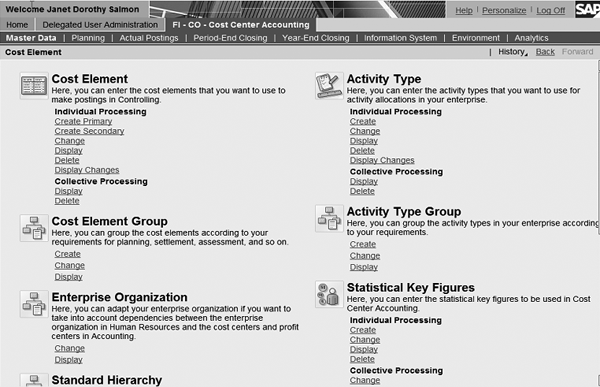
Figure 1
Cost accountant role in SAP NetWeaver Portal
When the portal content administrator uploads the role SAP_EP_RW_CO_KSMN from SAP ERP 6.0 to the portal, the system generates these worksets, comprising a portal page and iViews for each transaction to be called. Figure 2 shows the transactions and folders assigned to this role using transaction PFCG. To achieve an Internet-like experience for the end user working in the portal, some small enhancements have been made to transaction PFCG.
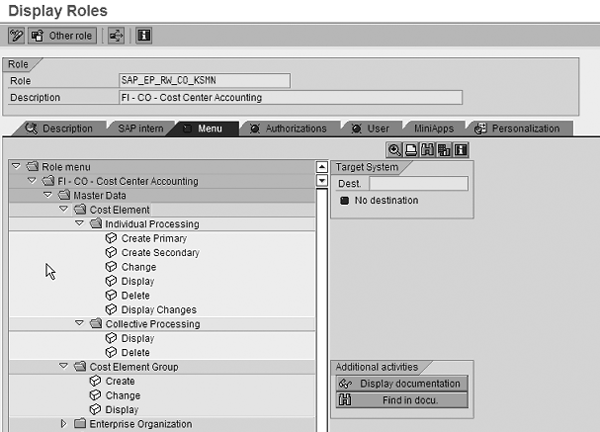
Figure 2
Cost accountant role in SAP ERP
Figure 1 displays icons and a long text for each of the headers in this portal page. You can create these by adding icons and descriptions to the level-three folders in the role (such as Cost Element). To edit these details, select a folder, right-click on it, and choose Additional Details. This takes you to a dialog where you can enter a description and a link to an icon, as shown in Figure 3.

Figure 3
Text and icons for header
Here you can see the Description, which the system uses to generate the long text on the portal page, and the Icon Path. SAP delivers a number of icons that you can use in this context. For an up-to- date overview of the icons available, see the following directory in the file system of the application server: usrsap\j2eeclusterserver0 appssap.comirjservlet_jspirjrootportalappscom.sap.portal.navigation.mimeserviceimages. The icons are stored as files. You should enter the prefix PICTOGRAM_ followed by the file name without the file extension in the Icon Path field (T_account_book, in my example).
If you are working with your own roles rather than the delivered automatic roles, you need to check the depth of the folder structure. You use the top folder (FI-CO-Cost Center Accounting, in my example) to generate the entry in the top-level navigation in the portal. To ensure that the system can generate portal pages automatically, this folder needs to have other folders assigned to it, rather than transactions. For this reason, you may need to assign transactions to a lower level of the folder structure. You use the next-level folders (such as Master Data, Planning, and Actual Postings) to generate the entries in the second-level navigation in the portal when the portal content administrator uploads the role to the portal. In other words, when a user selects Cost Center Accounting, the default workset is Master Data, and the user can navigate to Planning, Actual Postings, or any of the other options. The system generates a portal page automatically for each of these worksets when the portal content administrator uploads the role. You use the third-level folders in transaction PFCG to generate the headers seen on the portal pages (such as Cost Element, Cost Element Group, and Enterprise Organization).
You can create sub-headers by adding level-four folders, such as Individual Processing and Collective Processing in my example. Finally, you can add the transactions and reports on level five. You almost inevitably have to rework the folder structure to adjust your existing roles for use in a portal environment. In my experience, converting the delivered SAP area menus to portal roles took a couple of hours for each menu — including juggling the folder structure and adding texts and icons for the level-three headers — though obviously this depends on the complexity of the role.
Role Upload Settings
Before you use the role upload service in SAP NetWeaver Portal, go over a few settings in the portal with your portal administrator. For further details on this procedure, refer to the documentation under Portal > Portal Administration Guide > System Administration > Upload of Roles from ABAP-Based System.
To view the relevant settings, follow menu path System Administration > Service Configuration > Role Migration > Services in the portal and set the following properties (Figure 4). Set the Best fit leaf level to 3. In Role target folder, enter the Portal Content Directory (PCD) menu path under which you can find the uploaded roles. In Root path for migration objects, enter the PCD menu path under which you can create the uploaded objects (e.g., iViews, pages, worksets). In Use default alias or selected alias as system identifier, enter selected as the default system alias that the system passes to the created iViews as a system property.
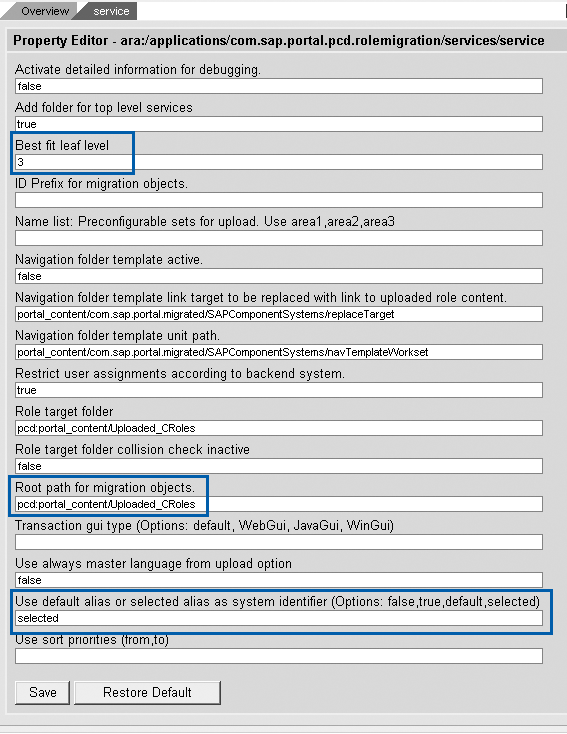
Figure 4
Role upload settings
When you are happy with your role settings, collaborate with the portal administrator to upload your roles on the portal and to assign the correct users to each role. To upload the roles, choose System Administration > Transport > Role Upload (Figure 5). After you have performed the upload, assign the user to the role SAP_EP_RW_CO_KSMN. When the users log on, they can access the portal page structure in the portal. Your users can now do all their work via the portal and no longer need to log on to SAP ERP. However, you should not delete the role in SAP ERP that you used as your starting point, because you need this role to manage the authorizations for each of the transactions associated with it.

Figure 6
Role upload tool
Janet Salmon
Janet Salmon joined SAP in 1992. After six months of training on R/2, she began work as a translator, becoming a technical writer for the Product Costing area in 1993. As English speakers with a grasp of German costing methodologies were rare in the early 1990s, she began to hold classes and became a product manager for the Product Costing area in 1996, helping numerous international organizations set up Product Costing. More recently, she has worked on CO content for SAP NetWeaver Business Warehouse, Financial Analytics, and role-based portals. She is currently chief product owner for management accounting. She lives in Speyer, Germany, with her husband and two children.
You may contact the author at janet.dorothy.salmon@sap.com.
If you have comments about this article or publication, or would like to submit an article idea, please contact the editor.



