This walk-through of the configuration steps for Preference Processing within SAP GRC Global Trade Services Risk Management shows how to address tariff preferences in your trade application and systems. It includes setting up the communication between SAP GRC Global Trade Services and SAP ERP Central Component.
Key Concept
Duty and restriction applies to goods imported into a country. Countries promote goods movement for products with countries with whom they have trade agreements. Duty rates and preference rules apply to a Harmonized Tariff Number, which comes from the Harmonized Tariff System (HTS), a numbering system used by the international trade community as a common understanding for importing and exporting. A duty rate could be a percentage of the price of the part or a fixed rate, tied to the HTS (Number) and the country of origin. These are also delivered as content by the content provider along with corresponding HTS codes. The amount of duty rate, or not, applies to the preference rules that apply to the specific HTS and the country of origin.
Preference Processing in GRC Global Trade Services Risk Management helps exporters fulfill all the legal requirements for customs tariff preferences and show that their goods are eligible for preferential treatment. This enables their customers to import these goods either duty free or at a reduced rate of import duty. By providing evidence of eligibility for preferential treatment, exporters gain significant competitive advantages.
Preference Processing involves maintaining:
- Vendor declarations
- Materials or bills of material (BOMs)
- The result of the threshold value for preferential treatment
- The threshold value of the product as compared to its ex-works price (i.e., the price quoted by the seller for delivery to the predefined location — for example, up to the buyer’s door and there onwards, it is the buyer’s responsibility)
If you have a BOM, the preferential status is set for the main component in the product master. The system determines the results and saves them for each main component. On the sales document, you can compare the determined threshold value with the ex-works price and determine the preference situation for the current delivery. The ex-works price must be greater than or equal to the threshold value. If the system determines a positive preference status, it allows you to print a preferential statement.
Vendor Declarations Management, a part of Preference Processing, provides functionality for requesting vendor declarations and sending reminders. You can request vendor declarations via email, XML, or supplier self-service. You need to update these vendor declarations into the system and the system then allows you to aggregate them. The system also allows you to issue vendor declarations for the customer’s purposes or revoke them.
For declaration to customs, you need to classify the goods according to a numbering schema. The numbering schema for the European Union is called combined nomenclature. You declare imported and exported goods starting under which subheading of nomenclatures they fall. This determines which rate of customs duty applies and how the goods are treated for statistical purposes. GRC Global Trade Services Risk Management provides functionality to configure for North America Free Trade Agreement (NAFTA) and EU Trade Agreement.
I’ll cover the configuration settings and the process steps involved for setting up Preference Processing. I gathered this information based on my working experience with different clients.
Note
GRC Global Trade Services was formerly known as SAP Global Trade Services or GTS. Though it appears in these forms within systems, SAP refers to it as GRC Global Trade Services now.
The Step-By-Step Solution
Preference Processing assumes many steps are being completed in a feeder system for sales, purchasing, and so on. I’ll describe the prerequisite steps in a high level, showing what must occur to make GRC Global Trade Services ready for Preference Processing.
Note that one of the prerequisites of a GRC Global Trade Services Risk Management implementation is that you also need to implement the Compliance Management and Customs Management functionalities within GRC Global Trade Services. As with preferential treatment, you need to have the corresponding master transactional data from Compliance Management or Customs Management.
ECC Setup
Step 1. Set up communication from ECC to GRC Global Trade Services. You need to set up the communication between the feeder system (e.g., ECC) and GRC Global Trade Services for transferring master data (e.g., customer, vendor, materials, and BOM). The system communication between ECC and GRC Global Trade Services uses Application Link Enabling (ALE) for master data transfer and Remote Function Call (RFC) for transactions. You have to set up both ECC and GRC Global Trade Services as logical systems. Then you need to set up system communication in ECC and GRC Global Trade Services. To set up the communication on the ECC side, use transaction /SAPSLL/MENU_LEGALR3 (Figure 1). Go to the Basic Settings tab and in the System Connection to SAP GTS section, you can perform all of the listed processes:
- Define logical system
- Assign Logical System
- Maintain RFC Destination for RFC Calls
- Maintain RFC Destinations for Method Calls
- Maintain ALE Distribution Model

Figure 1
Set up ECC to communicate with GRC Global Trade Services
Step 2. Set up document transfer in ECC. In ECC, configure the documents and transactions that need to be transferred from ECC. This enables the different services check in GRC Global Trade Services when the documents are transferred to GRC Global Trade Services. You can find the configuration by following menu path SPRO > Sales and Distribution > Foreign Trade/Customs > SAP Global Trade Services – Plug-In > Control Data for Transfer to SAP Global Trade Services > Configure Control Settings for Document Transfer (Figure 2). Figure 2 shows an example with application SD0A. You can find documents in the following applications:
- • MM0A: Receipt/Import: Purchasing Document
- • MM0B: Inbound/Import: Inbound Delivery Note
- • MM0C: Receipt/Import: Material Document
- • SD0A: Dispatch/Export: Sales Document
- • SD0B: Dispatch/Export: Outbound Delivery Document
- • SD0C: Dispatch/Export: Billing Document
For Preference Processing, select the Call Up SAP Risk Management Services check box in the Control Settings for Services section and the Set Preference Indicator in Feeder System and Check Configuration Materials check boxes under Preference Processing in the Detail Control section.

Figure 2
Control settings for document types for performing service check in GRC Global Trade Services
Step 3. Maintain BOM transfer settings. Maintain the settings for BOM transfer from ECC at three levels: global, country, and plant. You must always begin by setting the control parameter first at the global level. The system uses the data you select at the global level to propose the data at country and plant level. First, select the BOM category as static or configurable. The BOM application is, for example, production or sales. You select either the cross-plant preference model or plant-specific preference model.
Then select the rule set required for the preference agreement (e.g., EU or NAFTA). Select the type of BOM explosion you want, which is either top-down or bottom-up. Companies might use multiple versions of BOM. If you do, in the alternative BOM, you can enter the name of any alternative BOMs you want to transfer. In the Exclusion of Material Types section, you can select the type of materials from your feeder system that you want to exclude from the transfer if it’s not part of the core product and you don’t want it to be part of the preferential determination calculation (e.g., packaging materials).

Figure 3
Control setting for the BOM transfer to GRC Global Trade Services
Step 4. Define a worklist for vendor-based long-term vendor declarations.The structure of the worklist for vendor-based long-term vendor declarations in GRC Global Trade Services is based on your settings for the transfer of purchasing documents and material documents. In this IMG activity, you can filter out the documents for the worklist structure that are relevant for this process.
Requesting and sending reminders for vendor-based long-term vendor declarations only makes sense for vendors located in the same preference zone. You can record the combinations of your country and other companies in your preference zone in this activity. The system only creates entries in the worklist for vendor-based long-term vendor declarations for documents whose business partners are located in the countries you entered in this activity. The system compares your entry for the vendor country in this IMG activity with the entry from the vendor master record or from the process in Materials Management (partner with partner role Vendor).
If you do not configure any settings in this IMG activity, the system creates an entry in the worklist for every document of a document type and application level for which you have configured the Preference Processing service and structure of the worklist for vendor-based long-term vendor declarations.
To configure these settings, follow IMG menu path Sales and Distribution > SAP Global Trade Services – Plug-In > Preference: Define Worklist for Vendor-Based Long-Term Vendor Declarations (Figure 4). Enter the country where your organization is located. In the Country Organization column enter the organization value and in the Worklist Country column enter the country information. You need to define the countries for the vendors whose documents you want the system to use to structure the worklist for vendor-based long-term vendor declarations.
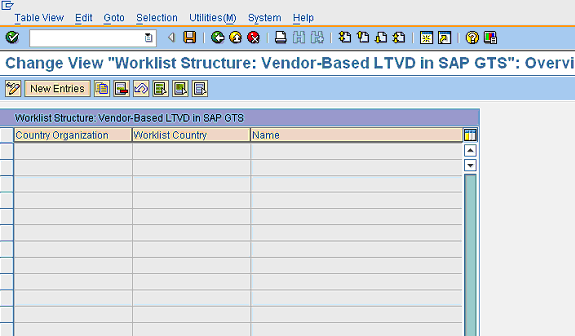
Figure 4
Worklist structure definitions for vendor-based long-term vendor declarations
This is the last step in the ECC portion of the procedure. Now I’ll show you the setup steps in GRC Global Trade Services.
GRC Global Trade Services Setup
Step 5. Define basic settings in GRC Global Trade Services. GRC Global Trade Services is installed in a separate client. After installing it, you need to maintain system time zones. Then synchronize settings between the feeder system and GRC Global Trade Services, including the unit of measure, the ISO codes for the units of measure, country codes, country-specific settings, and currencies.
The units of measure play a key role in the material base unit, both when you transfer products and while using the transaction for item quantity or weight. Country-specific settings are used as part of the address with your partner in the transactions. Currencies play the role for determining the value conversion from one currency to another and the converted value for a specific transaction.
Follow IMG menu path SAP NetWeaver > General Settings, and below that use the Set Countries, Currencies, and Check Units of Measurement options to adjust these settings (Figure 5).
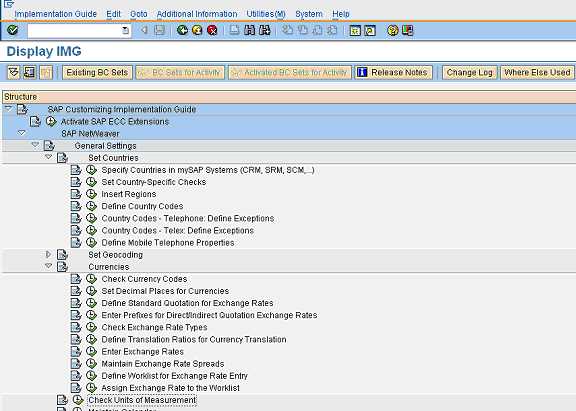
Figure 5
General settings in GRC Global Trade Services to be synchronized with ECC
Step 6. Set up system communication in GRC Global Trade Services. Similar to the communication setup you did with ECC, you also need to set up the communication in GRC Global Trade Services. These setups enable the connection; you can set up configurations specific to the modules later.
To set up the system communication, use transaction SPRO and follow menu path SAP Global Trade Services > System Communication > System Connection to Feeder System. From there, you can perform the following functions:
- Define Logical System for Feeder System
- Assign Logical System
- Define Group for Logical System
- Assign Logical System to a Group of Logical Systems
You need to identify GRC Global Trade Services as a logical system and assign the client to the logical system. The logical system group allows you to group the feeder system and GRC Global Trade Services so that they can share the same common data and configuration elements.
Step 7. Set up number ranges. For master data and the transactional data that are transferred from ECC or R/3 to GRC Global Trade Services, GRC Global Trade Services assigns an internal number. You need to create number ranges for business partners and products as a prerequisite. Then create both internal and external number ranges for business partners. Use internal business partner numbers for mapping the business partner that is transferred from ECC. Use external number ranges for creating organizational data in GRC Global Trade Services.
You also need number ranges for the customs documents, which are created for Compliance Management or Customs Management. Specific to preferential treatment, you need to configure the following number ranges:
- Vendor declarations. The vendor declaration number range is year dependent and client independent. You need to create three number ranges: one for vendor-based long-term vendor declarations, another for long-term vendor declarations for the customers’ purposes, and the last for the revocation of long-term vendor declarations for the customers’ purposes.
- Preference models. You need to create number ranges for different preference models, including plant-based and cross-plant models, as well as the preference model for the configuration of bills of product.
- Bills of product. Also called BOM, the component under the final product helps determine the preference condition. The country of origin and the tariff system influence the final product Harmonized Tariff System (HTS) number and the country of origin determination.
Because the above number ranges are also year specific, you should create the number ranges for future years.
Step 8. Define and assign organizational parameters. You need to map ECC organizational parameters in GRC Global Trade Services. For example, map the ECC company code to the GRC Global Trade Services foreign trade organization and the ECC plant to the GRC Global Trade Services legal unit. You can create the foreign trade organization and legal unit by using transaction SPRO and following menu path SAP Global Trade Services > General Settings > Organizational Structure. Then select Define Foreign Trade Organization, Define Legal Units, and Assignment of Organizational Units from Feeder System to Foreign Trade Org. (Figure 6).

Figure 6
Define a foreign trade organization
You need to pick the right business partner role while creating the foreign trade organization or legal unit. The company code in ECC represents the entity that financially owns the goods or services and the plant represents the physical location from where the products are shipped or received.
Another important organizational unit for Preference Processing is the administrative unit. An administrative unit is responsible for all transactions within the preference program or determination. Choose the partner role SLLMGR and maintain the address data. Use transaction SPRO and follow menu path SAP Risk Management > Preference Processing Services > Define Administrative Units for Vendor Declarations to perform this step.
Step 9. Define the country group. Country groups simplify the process of making license determination settings. This is an option if you have countries with similar or the same legal regulations. You can find this configuration under transaction SPRO and then by following menu path SAP Global Trade Services > General Settings > Legal Regulations > Define Country Group (Figure 7).

Figure 7
Define country group
After this configuration, you can maintain or assign countries to the corresponding country group in the GRC Global Trade Services cockpit. Use transaction code /SAPSLL/MENU_LEGAL and follow menu path GTS Area Menu: Preference Processing Service > Master Data > Preference Zones > Assign County to Country Group (Figure 8).
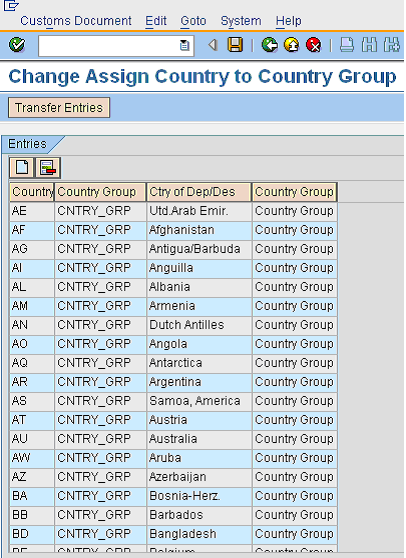
Figure 8
Country assignments to the country group
Step 10. Define and activate a legal regulation. Define legal regulations to represent the preference law of a particular country. Assign the legal regulation to the corresponding country groups of import and export. Then upload the preference rules with reference to the legal regulation. Following the definition of the regulation, you need to activate it.
You can find the configuration to do this by using transaction SPRO and then following menu path SAP Global Trade Services > General Settings > Legal Regulations > Define Legal Regulation (Figure 9).
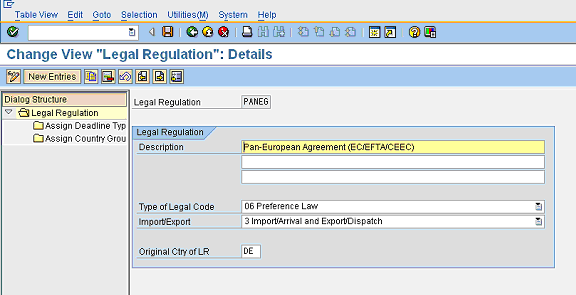
Figure 9
Preferential regulation definitions
The type of legal code determines the kind of regulation and its functionality. You need to define if the regulation applies to both import and export or just export. Every regulation must have an original country. After you define it, you need to activate it. When you need to list the country or country group, this regulation is active (Figure 10).

Figure 10
Activate preference regulation
Risk Management General Settings
Step 11. Activate the document type and item category. Activate the document types for Preference Processing, in which you want to display preference statements in GRC Global Trade Services Compliance Management or Customs Management documents. You can make a provisional preference statement for a product based on order data and a binding preference statement based on sales documents, such as a billing document.
For Preference Processing, activate the document types for billing documents and sales documents. As mentioned earlier, the document is already activated for Compliance Management or Customs Management and the services for preference determination are activated by the document type. To perform this configuration, use transaction SPRO and follow menu path SAP Risk Management > Preference Processing Service > Activation > Activate Document Types (Figure 11) .

Figure 11
Preference Processing activation for document types
You need to map the ECC document types that you defined in step 2 to GRC Global Trade Services customs document types. You can do this in Compliance Management by following General Settings > Document Structure. Here you map the feeder system document types to the GRC Global Trade Services customs document.
Similar to the order types, you also need to activate the item categories for Preference Processing. Use transaction SPRO and follow menu path SAP Risk Management > Preference Processing Service > Activation > Activate Item Category.
Step 12. Define an organizational structure. In step 8, you defined the preferential specific organizational structure. Now you need to update the attributes of the administrative unit in terms of the names and IDs.
You can also define one of two models:
Plant-based preference model. In the plant-based model, you define the parameters for aggregating vendor declarations and for regulating plant-based preference determination. These parameters include the feeder system and the plant from the feeder system for which you want to perform preference determination.
Cross-plant preference model. In the cross-plant model, specify the parameters for aggregating vendor declarations and for regulating cross-plant preference determination. These parameters include the feeder system and the plant group from the feeder system for which you want to perform preference determination. If you want to aggregate the BOM as a basis for preference determination for different plants, use cross-plant preference determination.
If you aggregate the vendor declaration statements for goods from three different plants, and only goods from two of these plants are eligible for preferential treatment according to the vendor declarations, none of the goods are assigned the preference indicator, so they will be determined as eligible for preference. All the plants in a plant group must belong to a group of feeder systems.
You can only group plants from different countries in one group if they have a common legal regulation. For example, due to the EU being a customs union, you can combine plants from different countries within the EU in one plant group. In the free trade zone of NAFTA, for example, you can only group plants from one country in a plant group.
Step 13. Activate the preference agreement. The pre-delivered configuration has the determination procedure LEPRE as the country group activation (Figure 12). You don’t have to change the pre-delivered setting. You can see this screen by following menu path Display IMG (SPRO) > SAP Global Trade Services > SAP Risk Management > ‘Preference Processing’ Service > Assign Determination Procedure for Active Preference Agreements.
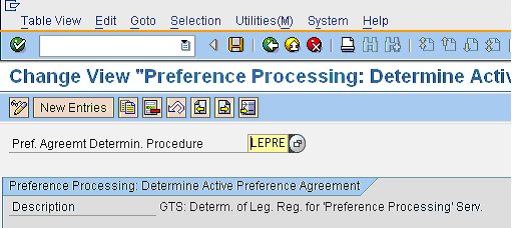
Figure 12
Preferential agreement determination procedure
Under Preference Processing: Activate Legal Regulations, you can activate the preferential service for import and export. Figure 13 displays the preferential agreement activates for different country group for export and import.
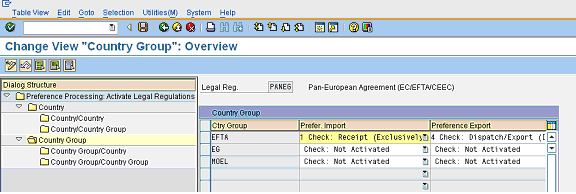
Figure 13
Activate preferential regulation
When activating these preference agreements, specify which processes in the feeder system trigger preference processing in GRC Global Trade Services. You can choose from the following processes:
- Dispatch (Exclusively)
- Export (Exclusively)
- Export (Excluding Domestic)
- Dispatch/Export (Including Domestic)
- Check: Not Activated
Step 14. Define and assign the rule set. These rules sets are combinations of rules of all the preference agreements that are valid for a jurisdiction. This allows you to control the attributes that are defined for preference rules and preference agreements for each jurisdiction. To get to the rule set, use transaction SPRO or follow menu path SAP Global Trade Services > SAP Risk Management > Preference Processing Service > Define Rule Set (Figure 14).
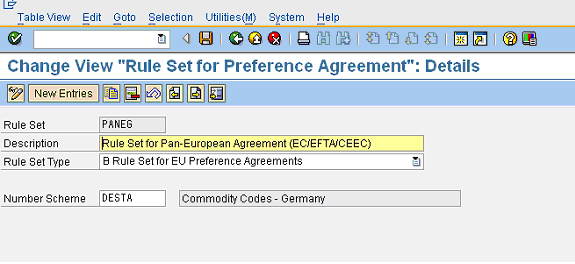
Figure 14
Define a rule set
You need to enter a name, the rule set type, and a number scheme. In a later step, you assign the various preference agreements for a jurisdiction to the corresponding rule set. By defining the numbering scheme at rule set level, you ensure all the preference agreements for a jurisdiction are based on the same numbering scheme.
In case you are uploading data from the data provider (e.g., customs information from NAFTA), the rule sets, preference agreements, country group, and legal regulation are automatically assigned.
In the rule set, decide whether to use the rule set for NAFTA or EU preferential agreements. Enter the numbering schema for the rule set and then assign the rule set to the preferential agreement. In a rule set, you can group all the preference agreements that apply to a specific jurisdiction. You also need to specify a customs currency and an associated exchange rate type. Use the exchange rate type to define the type of currency translation that you are performing, such as translation between the currency of the threshold value and the document currency.
Step 15. Set control settings for the data scope in vendor declarations. Define for each administrative unit whether you can perform the following processes in relation to vendor declarations within Preference Processing:
- Requesting and dunning vendor-based vendor declarations
- Issuing and cancelling vendor declarations for the customer’s purposes
- Issuing detailed declarations for dutiable product components
Based on your indicator setting to activate the vendor-based declarations, the system prepares to send vendor declaration document to your partners (e.g., vendors and customers). If you want to issue your customers with a detailed list of dutiable product components, you set the Detailed Declarations of Dutiable Products (Vendor Declaration for Customer Purpose) indicator. If you don’t set up the indicator, the system issues a negative declaration.
In the partner group, you need to define the specific partner functions for which you want to issue a vendor declaration in Preference Processing. Based on the partner function, the system determines the relevant data from the invoice document in the feeder system to create or cancel a request or dun a vendor declaration. If you define the consignor partner function (i.e., the receiver of goods who is the importer of record) in the partner group, the system issues vendor declarations for the customer’s purpose for the partners who are flagged as consignors and who are shown on the invoice documents.
You can find the configuration steps by using transaction SPRO and following menu path SAP Risk Management > Preference Processing Service > Vendor Declaration > :
- Control Settings for Long-Term Vendor Declarations and Administrative Unit (Figure 15)
- Define Standard Texts and Logo for Printing Documents (Figure 16)
- Control Settings for Vendor-Based Long-Term Vendor Declarations (Figure 17)
- Control Settings for Long-Term Vendor Declarations for Customer’s Purpose (Figure 18)
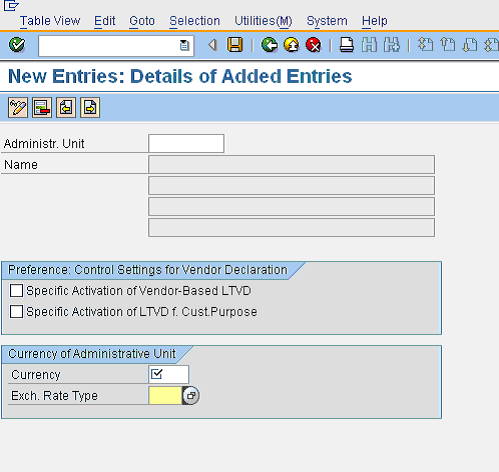
Figure 15
Control settings for long-term vendor declarations and administrative unit

Figure 16
Define standard texts and logos for printing documents
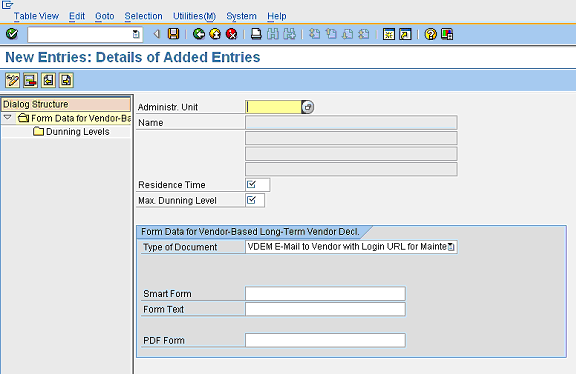
Figure 17
Control settings for vendor-based long-term vendor declarations

Figure 18
Control settings for long-term vendor declarations for the customer’s purpose
Figure 15 displays the setting for the administrative unit, which is responsible for the vendor declaration. Based on the administrative unit that you create, you can define if it is meant as vendor based or customer based, as well as the applicable currency (USD or EUR) and exchange rate.
Figure 16 displays the details that you want printed in the declarations, including header, address, and any company-specific logo.
Figure 17 displays the control settings you can apply to the administrative unit. These settings include the dunning levels (e.g., 1 – request or 2 – warning), residence time for retention, maximum dunning level, mode of communication (e.g., email or regulation mail), and layout of the print form (e.g., Smart Form, form text, or PDF).
Figure 18 displays how the settings for the administrative unit apply to the vendor declarations that are managed for the customer’s purpose.
Rajen Iyer
Rajen Iyer is the cofounder and CTO at Krypt, Inc. Rajen has written several in-depth, best practice articles, white papers, patents, and best-selling books on SAP Logistics and SAP Global Trade Services, including Effective SAP SD and Implementing SAP BusinessObjects Global Trade Services. He is also an invited speaker at industry conferences.
You may contact the author at Rajen@kryptinc.com.
If you have comments about this article or publication, or would like to submit an article idea, please contact the editor.