More customers want to receive quotations, order confirmations, and invoices via email. SAP R/3 and mySAP ERP Central Component (ECC) provide standard functionality to email Sales and Distribution (SD) output documents to customers in the form of Adobe PDF file attachments. You can improve your emailed communications by customizing parameters such as the sender’s email address and subject line.
Key Concept
SAPconnect is SAP’s standard uniform interface for external communication in R/3. It supports various telecommunication services, including fax, pagers, and email.
I will cover the configuration and development steps involved in setting up customer invoices for email. However, keep in mind that you can easily map this functionality to other SD output documents, such as contracts and quotes, following steps very similar to those I detail below.
Step 1. Configure SAPconnect. Your Basis team needs to ensure that SAPconnect is configured properly to allow emailing of documents to your business partners. For example, the team can link SAPconnect to Simple Mail Transfer Protocol (SMTP) to send email.
Step 2. Settle on a communication strategy. You can output a message by various means, known as transmission mediums, including EDI or telefax. Use transmission medium 5 (external send) to send an email message. In the case of transmission medium 5, a communication strategy is necessary to determine the sequence in which the system should search for communication methods.
For example, specify that the system should first attempt to send the invoice via email. However, customers who do not have an email address maintained in customer master data should receive their invoices by regular mail and the invoice should be printed physically in one of their branches.
To model this scenario, follow IMG menu path Sales and Distribution>Basic Functions>Output Control>Determine Communication Strategy. Click on the New entries button at the top of the screen and provide a four-character/digit technical name, starting with either Z or Y, and a helpful description (Figure 1). Then select the new communication strategy and double-click on the Communication Types item in the left menu tree.
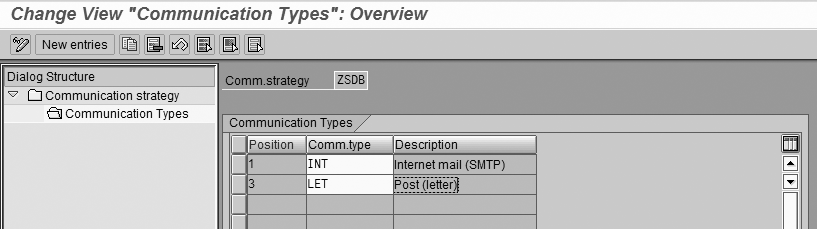
Figure 1
Maintain communication strategy click here to view a larger version of this image
Figure 1 shows an example of a custom communication strategy ZSDB. It is configured to email and print with the assignments of the respective communication types INT and LET. Save your new communication strategy and proceed to the next step.
Step 3. Select an output type. Output types represent various forms of communication with internal and external partners in the SAP system. Examples of output types include order confirmations, delivery notes, and invoices. My scenario uses invoices to demonstrate the emailing capabilities of R/3.
Follow IMG menu path Sales and Distribution>Basic Functions>Output control>Output Determination>Output Determination Using the Condition Technique>Maintain Output Determination for Billing Documents> Maintain Output Types or use transaction V/40. If you don’t have a custom output type already configured for invoices, click on the change display icon in the top left corner to access change mode (Figure 2). Select the standard output type RD00 and click on the copy icon to create a custom output type.
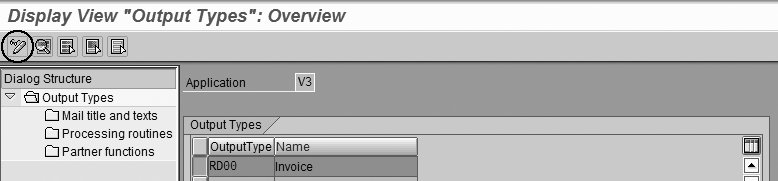
Figure 2
Output types click here to view a larger version of this image
Figure 3 shows an example of a custom output type ZD00 you can use for invoices. Provide a technical name starting with either Z or Y and three other characters or digits. Add a useful description. The complete description of the configuration of an SD output type is beyond the scope of this article, so I will only cover the settings relevant to emailing documents.
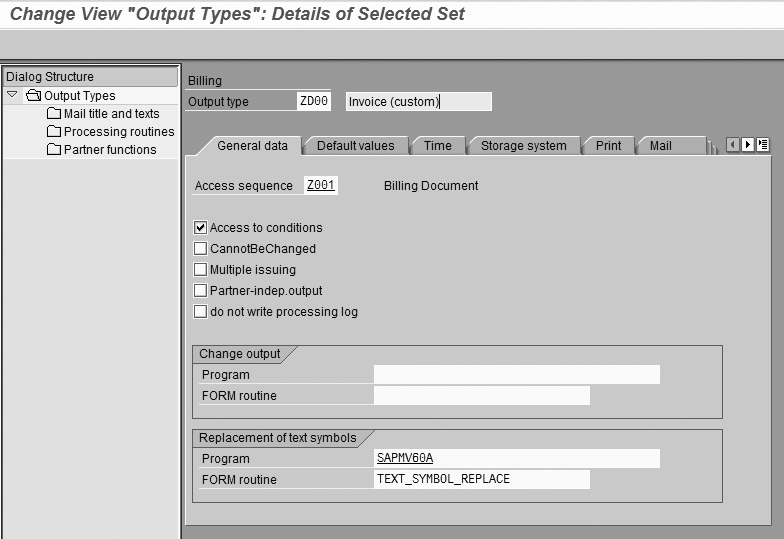
Figure 3
Define an output type click here to view a larger version of this image
On the General data tab, make sure to specify an access sequence and check the Access to conditions option, if you intend to automatically issue output upon billing document creation. You can also specify communication strategy ZSDB on the Default values tab. Do this if you want to default this communication strategy when users are creating outputs manually in a billing document (manually triggering a particular invoice to be sent to a customer). Once you are finished with the output type configuration, click on the green check icon. Click on the Copy all button on the pop-up screen to copy all of the dependent configuration entries.
Select the new output type ZD00 and double-click on the Processing routines option in the left menu to access the print program and SAPscript form assignment. One of your developers will more than likely have to create both of these. Make sure to maintain an entry for medium 5. Figure 4 demonstrates a possible assignment. The print program is important in the determination of the sender’s email address and the subject line of the email.
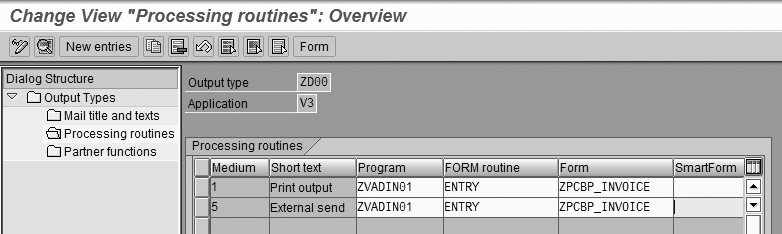
Figure 4
Print program and SAPscript form assignment click here to view a larger version of this image
Step 4. Customize your print program. Most of the guidelines in this step are very technical in nature. They describe the work that an ABAP developer performs. By default the system uses the email address maintained in the address data of the SAP user that is creating/changing the billing document as the sender’s email address. However, this is often unsatisfactory and companies look for more flexible ways of specifying the sender’s identity. After all, this is the email address that is used if the customer chooses to reply to the received document.
To resolve this problem, use ABAP and custom print program ZVADIN01 that I’ve assigned to the output type in the previous step. Figure 5 shows an example of the ABAP code that changes the sender’s email address to SENDER@EMAIL.XYZ. Download the link at the bottom of the article for an electronic version of this code.
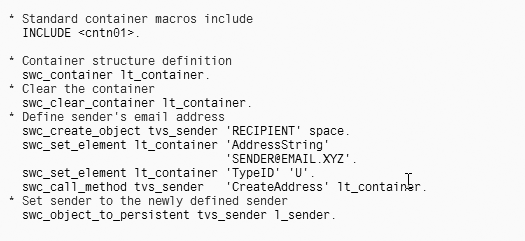
Figure 5
Change sender’s email address
You can enhance this functionality even further. For example, more advanced ABAP logic could determine the sender’s email address dynamically from the sales office address on the billing document. You can use standard container macros that you access via standard include <CNTN01> in the custom print program.
Another aspect of the outgoing email that is often customized is the subject line. Call the OPEN_FORM function module from the custom print program explicitly, and you can specify the subject line of the outgoing invoice under the exporting parameter OPTIONS-TDTITLE. Meanwhile, the sender’s email address captured in the variable l_sender in the example in Figure 5 is passed under the exporting parameter MAIL_SENDER. You explicitly pass that parameter in the function call within the custom print program.
Step 5. Create output condition records. In the example of a business scenario to model, I will use a requirement to email an invoice to the customer based on the email address maintained in customer master data, immediately upon creation of the billing document. To accomplish this you have to create an output condition record for output type ZD00 under the custom access sequence Z001 that was assigned to the output type in configuration (Figure 3). An output condition record is a master data record that stores specifics about how, when, and where to issue a particular output.
I will not go into the details of maintaining condition tables and access sequences in configuration as part of the condition technique configuration process, since this is beyond the scope of this article. Instead, I’ll jump straight to the maintenance of the master data output record itself.
Follow SAP Easy Access menu path SAP menu>Logistics>Sales and Distribution>Master Data>Output>Billing Document or use transaction code VV31 for quicker access. Specify the appropriate output type for invoices (in my example, output type ZD00) and choose an appropriate condition table. The standard condition table 11, Sales Organization/Billing Type, can help create your condition record.
Take a look at Figure 6 for a demonstration of a possible output condition record. Since you’ve chosen the standard condition table 11, you first need to specify a sales organization of your choice, partner function from which to determine the recipient email address (I chose Bill-to partner function), billing document type (standard document type F2 for invoices), message transmission medium 5 (external send), and time 4 (send immediately).
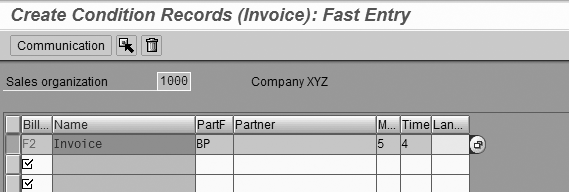
Figure 6
Create an output condition record
Next, select the new record and click on the Communication button in the top left corner. Specify communication strategy ZSDB, printer name (in case customer master data has no email address), and number of messages and check the Print immediately option (Figure 7).
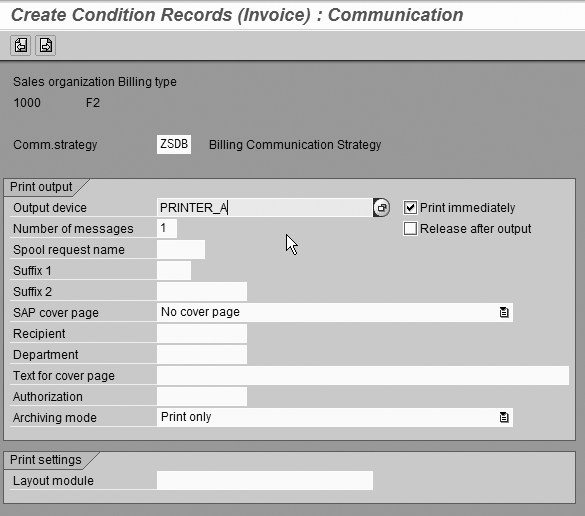
Figure 7
Output record communication
Step 6. Execute and monitor the activity. Following the scenario that I’ve detailed above, every time a billing document with billing document type F2 is created (for example, through transactions VF01 or VF04) in sales organization 1000 and the customer on the billing document has an email address maintained in customer master data, the system sends an email to the customer automatically with the invoice in an Adobe PDF file attachment.
To monitor outgoing invoices, follow SAP Easy Access menu path SAP menu>Tools>Business Communication>Communication>SAPconnect or use transaction code SCOT. From here you can monitor the overall SAPconnect activity. For a more detailed view of the emailed output documents, go to the top menu and select Utilities>Overview of send orders. You can also use transaction SOST to access this report. Specify a valid date range, communication method INT (to limit the report to email activity only), and the statuses you are interested in (errors, sent successfully, in transit, and waiting), then execute the report.
Once executed, the results of the report are similar to Figure 8. The subject line, sender, and recipient email addresses should be displayed together with the status and data/time stamp of the transmission. Double-click on the line to see the actual SAPscript that was sent to the customer in the PDF attachment.
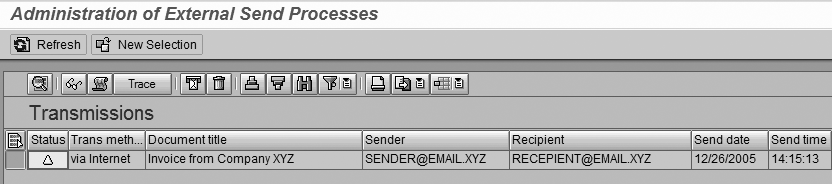
Figure 8
Monitor outgoing email click here to view a larger version of this image
Monitor this report regularly to ensure that customers are receiving their invoices successfully and that the system is working correctly.
Anton Karnaukhov
Anton Karnaukhov is a senior IT manager at Pacific Coast Companies, Inc., in Sacramento, California. He earned an MBA degree at Heriot-Watt University and a BS/BA degree with a specialization in computer information systems at Western Carolina University. Anton has more than eight years of SAP implementation and development experience focusing on business intelligence and logistics modules in the manufacturing and resale industries.
You may contact the author at anton.karnaukhov@paccoast.com.
If you have comments about this article or publication, or would like to submit an article idea, please contact the editor.