Obtaining a better view of your customers by segmenting them allows you to launch targeted marketing programs, promotions, campaigns, and service. You can upload data in a simple format (such as Excel) into mySAP CRM to define customer attributes for effective marketing programs.
Key Concept
An inference dimension refers to a profile you build for a customer based on attributes such as ageand income level. An actionable dimension, on the other hand, refers to a profile you build for a customer based upon behaviors, such as purchasing. You cannot change your customer’s attributes in an inference dimension, but you can create change in your customer’s attributes in an actionable dimension. You cannot change a customer’s age, but you can affect how a customer purchases your product.
From a system implementation perspective, it can take a long time to build a customer segmentation strategy. Companies sell their products to millions of consumers with thousands of attributes per customer. To use these attributes to segment your customers, you would need to manually enter the thousands of attributes and manually link them to the millions of customers, a daunting task that prevents many companies from incorporating this functionality.
However, if you have a data mining process in place, you can use your existing SAP data to create targeted segments and pull out attributes of your customers with a repeatable and maintainable method. In the following example scenario, I will show you how a consumer products company, ABC Industries, segments its customers with mySAP CRM to help with its consumer strategies. First I’ll discuss how you should set up your SAP data to transfer it into mySAP CRM. Then, I will describe how you can upload attributes and attribute sets and use them in mySAP CRM. Finally, I will briefly cover how you can attach these attributes to customers. The setup is a one-time activity and applies to versions of SAP CRM 3.1 and above.
Note
The Environmental Systems Research Institute (ESRI) has an exhaustive list of customer segments called Consumer Tapestry identified for a typical consumer products company. You can view the list at
www.esribis.com/pdfs/ctsegments.pdf.
Note
You can attach marketing attributes to products, customers, consumers, or territories. The attributes can then be used for building segments using Segment Builder. You can find Segment Builder, which is a standard interactive marketing tool that provides a GUI for modeling target groups, by going to Marketing > Segmentation of Business partners > Marketing segments > Segment. This functionality is available in versions of mySAP CRM 3.0 and above.
Example Scenario
ABC Industries is a consumer products company that makes razor blades. The job of the vice president of marketing is to keep a consumer base loyal to the company’s products. The vice president also wants to introduce a steady stream of targeted promotional products and keep the consumer base continually engaged in evaluating upcoming products. In this case, the vice president wants to develop two strategies, one to optimize the relationship with the consumer and one for targeted selling.
The consumer relationship optimization strategy includes the following activities:
- Offer promotions to loyal customers
- Provide returns policy and satisfaction guarantees to churning customers (allows new customers to feel more comfortable about trying a new product, in my example, a razor blade)
- Reduce customer churn (increase the number of customers who convert into repeat customers after trying the ABC razor blades)
The targeted selling strategy includes the following promotions:
- Target teenagers with trendy products, such as offering them music albums as a cross-sell product
- Target baby boomers with cutting-edge products (as they tend to be more technology savvy)
- Target the 50 plus consumer community with a “future purchase” discount
These strategies separate the consumer base into two dimensions because they focus on the loyalty of the consumer (loyalty profile) and the buying behavior of the consumer (buying behavior). The loyalty profile, an inference dimension, segments customers by loyalty attributes that measure consumer commitment to the company’s products. The buying behavior, an actionable dimension, segments customers (such as teenagers vs. baby boomers) as well as products (e.g., music album for targeted sales to teenagers).
Once you have identified the buying behavior (actionable dimension), you can begin to look at your marketing base for customer segments based on the buying behavior to create attributes. You then can use these attributes within mySAP CRM to develop customized marketing strategies based on buying behavior.
Create Attribute Values and Attribute Sets
Most organizations maintain data for their target marketing base using tools such as a homegrown database, Microsoft Excel, or third-party applications such as SAS. (In this example, I use Excel.) They characterize their marketing base with various attributes, such as age group, loyalty, and buying frequency. In this example, the list in Figure 1 contains information about the target market base that I want to upload into mySAP CRM.
| LINE_TYPE (is it a header or detail?) |
| CHARACT_NAME (attribute name) |
| VALUE (attribute value) |
| DATA_TYPE |
| LENGTH (of data type) |
| DECIMALS |
| VALUE_ASSIGNMENT |
| NO_ENTRY |
| NO_DISPLAY |
| ENTRY_REQUIRED |
| INTERVAL_ALLOWED |
| ADDITIONAL_VALUES |
| CHECK_TABLE |
| CHECK_FUNCTION |
| ATDESCR (description) |
| CASE_SENSITIV |
| UNIT |
| UNIT_OF_MEASUREMENT |
| CURRENCY |
| WITH_SIGN |
| Figure 1 |
Target base information |
The attributes in Figure 1 become the column headers for the Excel file in Figure 2. You can then take data from your marketing database to fill in the values for these attributes. In this example Teenagers, Baby boomers, and 50 plus are values for the attribute AGE_GROUP. The LINE_TYPE column has a value of either H or D, which identifies the record as either a header metadata (used for defining the attribute), or as details (which have the attribute value).
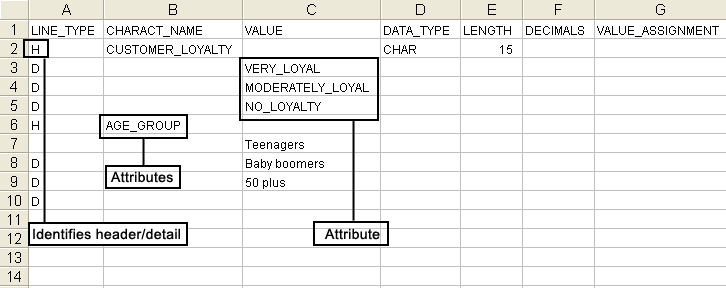
Figure 2
Excel file that contains the values for the attributes click here for a larger version of this image
Once you’ve added the values for your attributes and identified them as either headers or detail, you should save the Excel file in Figure 2 to your local directory (e.g., C:CRM) using the option of a comma separated value (CSV) file so that the automatic attribute creation program (z_load_marketing_attributes) shown in Figure 3 can function properly.
 report  z_load_marketing_attributes.
* The program loads the Excel spreadsheet with attribute and
* attribute values and calls an RFC to load the marketing
* attributes
constants : delimiter(1) value ','.
data : begin of attributes_header .
* Header structure .
        include structure crmt_mktpfchr_char_glob.
data : end of attributes_header.
data : begin of attributes_line occurs 1.
       include structure crmt_mktpfchr_char_val.
data : end of attributes_line.
data : begin of multiple_text occurs 1.
       include structure  crmt_mktprof_charvaldescr.
data : end of  multiple_text.
data : t_excel(1000) occurs 1 with header line.
start-of-selection.
* Clear the variables.
refresh t_excel.
  call function 'UPLOAD'
    tables
      data_tab                      =  t_excel            .
  if sy-subrc <> 0.
* File could not be opened
 message id sy-msgid type sy-msgty number sy-msgno
         with sy-msgv1 sy-msgv2 sy-msgv3 sy-msgv4.
  endif.
loop at t_excel.
* the first character represents "H" -> header
* or "D" -> detail
if t_excel(1) = 'H'.
* Assign each value of the internal table to the structure
* attributes_header
* < Please write your assignment logic here >
endif.
if t_excel(1) = 'D'.
* Assign each value of the internal table detail to the structure
* attributes_line
* < Please write your assignment logic here >
endif.
if t_excel(1) = 'T'.
* Support for multiple languages
endif.
* Call the RFC for creating attributes
call function 'CRM_MKTPFCHR_CREATE'
  exporting
    is_charactdetail          = attributes_header tables
    it_charactval_dial        = attributes_line
    it_charactval_descr       = multiple_text      .
endloop.
|
| Figure 3 |
Use z_load_marketing_attributes code to import data from an Excel file to mySAP CRM
|
The source code in Figure 3 shows how you can upload the data from the Excel file into the mySAP CRM system. (You would code the placeholder text between the <> symbols based on the specific requirements of the project.) The data section of the code indicated by the lines starting with data: specifies an internal structure (in this case crmt_mktpfchr_ char_glob). The structure holds the marketing attributes from the Excel file temporarily (for the lifetime of the program). It reads the CSV file and appropriately assigns the values to the respective fields. The start-of-selection command executes when you run the program. The function module UPLOAD reads the Excel file from the front end and loads the data into internal table T_EXCEL in the mySAP CRM system.
Copy the code in Figure 3, adding in the specific project requirements, and create a program called z_load_marketing_attributes using transaction SE38. After creating and saving the Excel file in Figure 2, execute transaction SE38, then type in the program name (z_load_marketing_attributes) and click on the execute icon or press F8.
The z_load_marketing_attributes program populates the internal structures, ATTRIBUTES_HEADER, ATTRIBUTES_LINE, and MULTIPLE_TEXT with data from Figure 2. ATTRIBUTES_ HEADER consists of the data from row 2 of the spreadsheet. ATTRIBUTES_LINE contains the data shown from row 3 to row 5 in Figure 2. You can use the internal structure MULTIPLE_TEXT for short descriptions that explain the values, such as Customer has high loyalty for the value VERY_LOYAL.
The most important segment of the code is the section where the program calls function module CRM_MKTPFCHR_CREATE. This function module uses the internal structures (ATTRIBUTES_HEADER, ATTRIBUTES_LINE, and MULTIPLE_TEXT) to create the attributes and attribute values. The results are stored in SAP within the classification system module, a standard SAP system that allows you to search for objects to which you have assigned values.
Once you run z_load_marketing_attributes, you can go to the Create Attribute screen (Figure 4) to make sure the attribute create program worked properly. Go to SAP Menu > Segmentation of Business Partners > Marketing Attributes > Maintain Attributes. Under the Search tab select Attributes from the drop-down list for the Find field and select Description from the drop-down list for the By field. Click on the Start button. You can tell the program worked if you see the attributes from the Excel file appear in the Attribute Name section. Click on any attribute, such as CUSTOMER_LOYALTY. The values defined for this attribute appear in the Attribute Value section. You should check several other attributes to make sure that the Excel file has been copied successfully.
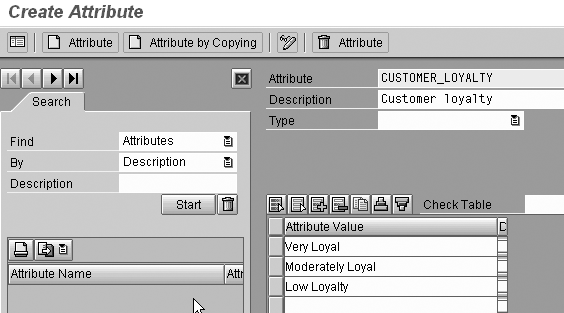
Figure 4
The attribute values defined in the Excel file appear in the Attribute Value section click here for a larger version of this image
You can also go to the Create Attribute Set screen (Figure 5) to create attribute sets. Access this screen by going to SAP Menu > Segmentation of Business Partners > Marketing Attributes > Maintain Attribute Sets. You use attribute sets to logically group attributes together. To link a customer with attributes, you need to create attribute sets. In my example, I grouped together the attributes AGE_GROUP and CUSTOMER_LOYALTY and defined this as a BY_SALEABILITY attribute set.
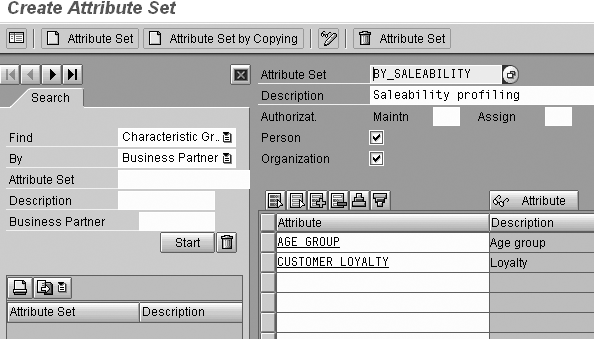
Figure 5
Group attributes together click here for a larger version of this image
Associate Attributes with Customers
The customer attributes make sense only if you associate them with a customer. Once you set up your attributes and attribute sets, you can use standard SAP tools such as Segment Builder to transfer this information to SAP BW to analyze the data for appropriate values to use for market sampling, campaign management, targeted mailings, and targeted consumer programs. For example, you can look at your razor blade price points in BW and have it sort out which is the best price point for teenagers.
For more information on how BW works with customer segmentation, refer to https://help.sap.com/saphelp_crm40/helpdata/en/e4/6edf8efc2c834aae22f1c735e34992/content.htm.
You may need the assistance of your ABAP team to create a code to assign attributes. This code should do the following:
Step 1. Read the internal class number in field CLINT for the attribute set from KLAH (class table). This reads the classification table to get the reference number of the attribute set.
Step 2. Read the GUID for the business partner from BUT000 (partner master). The GUID is stored in field PARTNER_GUID. This reads the customer master table to get the reference number (GUID) of the customer.
Step 3. Call the function module CRM_MKTPFBP_ASSIGN_BP with the parameters derived in step 1 and 2. The CRM_MKTPFBP_ASSIGN_BP function module attaches the reference number from step 1 to the reference number in step 2.
Step 4. Save the records to the database using BAPI_TRANSACTION_COMMIT. The attribute set and values are stored in SAP’s classification system. The classification system provides a generic model to qualify any SAP object. For example, an automotive company may use the classification system to describe a car that it manufactures, (e.g. year, make, model name, and color).
When you assign attributes for customers, you will be able to view the assignments in the Maintain Attributes screen (Figure 6) by using the menu option SAP Menu > Segmentation of Business Partners > Marketing Attributes > Maintain Attribute for Business Partner.
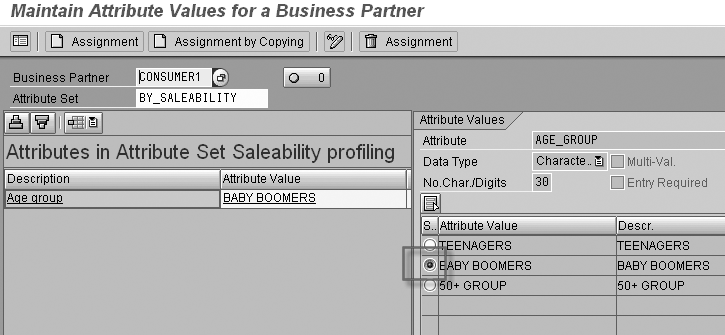
Figure 6
Customer attributes associated with a customer click here for a larger version of this image
Krishna Kumar
Krishna Kumar has been working with SAP systems for more than 13 years. He has a wide range of product development, consulting, and project management experience. He specializes in customer analytics and has experience in mySAP CRM and BW. As founder of Enterprise Horizons, a startup specializing in CRM and BW, he built a product called ABM for optimizing CRM and BW implementations. Prior to joining Enterprise Horizons, he was vice president at Intelligroup where he built the SAP E-Commerce practice.
You may contact the author at kkumar@enterprisehorizons.com.
If you have comments about this article or publication, or would like to submit an article idea, please contact the editor.