Learn how to clean up BW workbooks. You’ll speed up BEx Broadcaster, conserve resources on your BW server and email server infrastructure, and save time, disk space, and cost.
Key Concept
One major side effect of using workbooks in Excel is the history effect, or workbook growth. Excel creates history traces in its files even if you turn off the change management feature. As a result, your files keep growing when you save the Excel file either locally or on the BW server. The problem does not relate to SAP BW, so this applies to all of your Excel files.
A lot of companies use BW for Sales and Distribution (SD) reporting. Imagine a salesperson not connected to high-speed Internet or dial-in connection. When that person executes a workbook report, the BW server first transmits the workbook and secondly refreshes the data. So whenever he downloads a workbook, he has to wait for the data to refresh. Modifying workbooks creates historical data that consumes lots of system resources. I’ll explain how to get rid of that historical data to speed up your system.
First, I’ll show you an example of how the data accumulates. Then I’ll explain how to isolate huge workbooks that don’t contain a lot of data and how to reduce their size using a third-party tool of your choice. This should reduce the strain on your servers and make BEx Broadcaster run faster.
Workbook Growth Example
Create a new Excel workbook and insert a query. Start BEx Analyzer and select Open Query from the toolbar. No matter what query you use, try to use a query that delivers very few result lines. The historical workbook growth occurs with all queries because of the way Excel works. You therefore can apply my tips to all Excel workbooks. Make sure your query only displays a few lines so that you can see the growth effect. In Figure 1, the first query creates 36 lines in Excel.
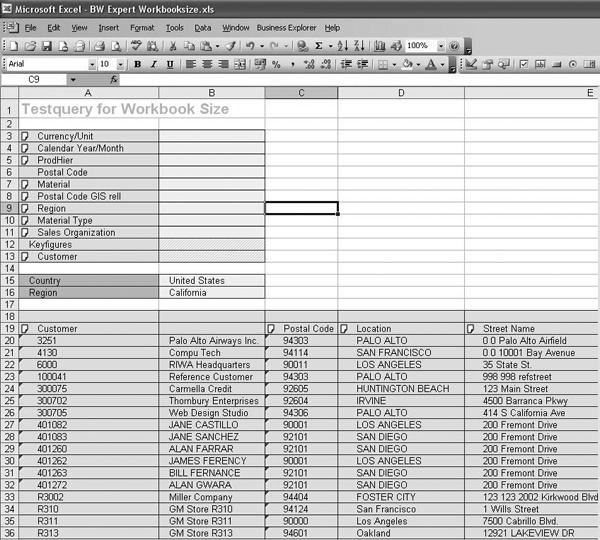
Figure 1
This query creates 36 lines in Excel
Next, save the workbook on your local drive, which has the same effect as saving to the BW server. Check the size by displaying the file in your Windows browser in the detail view (Figure 2). As you can see, my actual test file size is 83 KB.

Figure 2
Display your test file’s size
Now, reopen your file. Create a view or navigate your query so that it displays up to 700 lines of records or even more (Figure 3).

Figure 3
Reopen your file and include up to 700 lines
Save the file with the same file name. You expect a bigger file due to more data? You’re correct! As Figure 4 shows, you can see in my case the file went from 83 KB up to 242 KB.

Figure 4
The file grew from 83 KB to 242 KB
For the last step, go back to the original query definition that displays 36 records. Save the file again. Although you might expect the file size to be 83 KB, in my case the new file size of my workbook (containing the same data except some more empty lines) grew from 83 KB to 105 KB (Figure 5). This growth is about 25 percent.

Figure 5
The file grew from 83 KB to 105 KB even though both files display 36 records
Consequences of Large Workbooks
Note
I suggest that you never save data in your own workbook. It enlarges the size of the workbook due to the stored amount of data. In addition, you transmit a file that might contain sensitive data that hackers can filter. Instead, you should refresh the workbook that accesses data stored in BW.
Large Excel files slow down the system by hindering the initial report distribution. Users who open workbooks on a network with a slow connection consume lots of server resources. In addition, BEx Broadcaster in BW 3.5 and higher can distribute workbooks by email to multiple recipients. Distributing many large workbooks negatively impacts the performance of the distribution. Earlier BW systems can perform similar distribution with the help of BEx Application Programming Interfaces (APIs) and Visual Basic for Applications (VBA). I described VBA in my March 2004 BW Expert article “The BEx User Exit: 22 Functions to Automate and Enhance Your BW Reports in Excel.”
If your system is slow, then you need to analyze its load. In some cases, your Microsoft Exchange server might be experiencing heavy traffic. In other cases, it might be your Lotus Notes server. No matter what email client you use, huge workbooks slow it down. Some companies distribute daily sales reports by email. Some of the reports have an actual size bigger than 5 MB. I bet your company has some workbooks with a file size higher than 3 MB.
In a later section, I will explain two ways to isolate large workbooks (manually and via a query). Then I'll show you how to eliminate the historical data to reduce their file size.
Another effect of large workbooks is their negative impact on your security. Imagine you are a power user or controller with a wide authorization to create and test queries. Whenever you execute queries and save those queries in workbooks, the workbooks contain the data you are allowed to access. The CEO sees everything, but SAP BW authorizations only allow other users to see restricted information based on each employee’s authorization.
However, before individual users refresh the workbook query, they see whatever a user with a high level of authorization such as the CEO has saved so far. Larger workbooks take longer to load. This causes potentially sensitive data to stay on your screen for longer periods of time. I have found security breaches in some systems in workbooks containing sensitive data.
To prevent this security problem, save the workbook without data. From the BEx Analyzer toolbar, select the tool  icon. Choose All queries in workbook>Delete results to remove data. After refreshing the workbook, the client PC only displays the authorization- dependent data.
Note
Not all huge workbooks are related to historic growth. If users run queries containing 60 KB worth of rows, there is no way to shrink the size because real data is causing the size. When dealing with files of this size, consider the security aspect I mentioned above.
Track Large Workbooks
The value of spotting huge workbooks and resizing them relates to the number and age of workbooks and the number of changes. If a company has 1,000 Excel workbooks and each has an overhead of data of 1 MB, this causes an extra load of 1 GB on your email distribution system and a countable delay time for users working with regular phone lines instead of high-speed networks.
I suggest that administrators on your BW team sort workbooks by size. They can contain file size with my suggestion to save the workbook without data.
I’ll share a little trick for users to find out the size. In BEx, select Open Workbook from the BEx toolbar and turn on the property window by selecting the icon in the upper right corner of the dialog (Figure 6). Then, check your actual file size. In my example it’s 2,995,200 bytes or 2.9 MB.
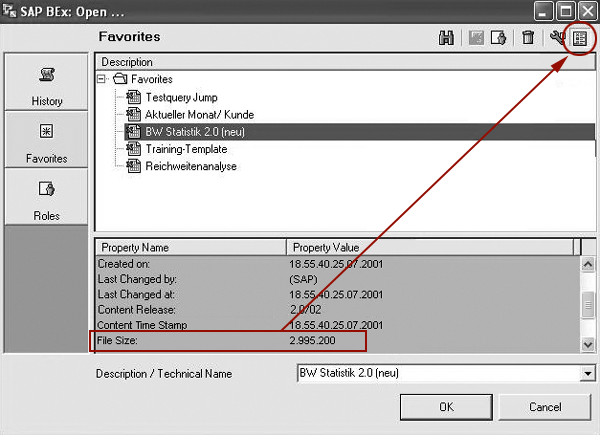
Figure 6
View the file size of your Excel workbook
BW administrators can use a more convenient way to see what workbook might be over the limit. I recommend investigating workbooks bigger than 1 MB. Enter transaction SE16 and type in table name RSRWBINDEX. That table stores information about all workbooks on your BW server. Select version A (active version). Sort descending for field FILESIZE and see how your workbooks behave in terms of file size. Figure 7 displays the largest workbook in table RSRWBINDEX. This table unveils the user in the field OWNER who created that workbook. You might inform that user that he should save the workbook without data, because he might not know this feature.
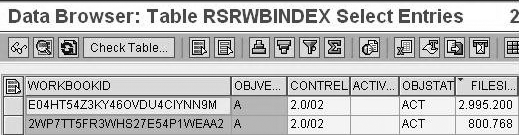
Figure 7
Sort workbooks by their file size
You might also be interested in the workbook name because some companies save workbooks using the naming convention with refreshed data or a similar name to provide a manual user refresh (i.e., for higher management). To look up workbooks by name, use the WORKBOOKID field and create a second mode in transaction SE16 (open another session and enter the transaction again) for table RSRWBINDEXT. This table stores the description of each workbook (Figure 8). Type in WORKBOOKID and version A (active) to find the appropriate language-dependent name by selecting your country-specific language like D for German or E for English.
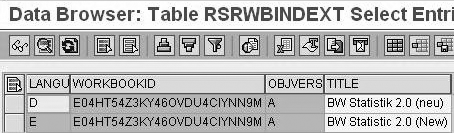
Figure 8
Search for a workbook by name
I added a generic extractor (by view) using transaction RSO2 to those tables. In other words, I created a view and joined the field RWORKBOOKID of table RSRWBINDEX and RSRWBINDEXT to track their growth in BW administrative statistic reporting. I’ll explain how to do this next.
Retrieve Workbook Statistics Automatically
I’ll explain an alternative to the manual ways I’ve explained for looking up large workbooks. You can automate the process of looking up large workbooks by using a BW query. To add workbook size information to enhance statistical reporting in SAP BW, proceed as follows. In my example, I’ll use only the file size. If you choose, you can enhance your statistical content with any information from table RSRWBINDEX. I’ll explain how to populate the attribute to SAP’s InfoObject 0TCTWORKBK. Alternatively, you can create a DataStore object (formerly an operational data store [ODS] object) to store the information described next as transactional information. This allows you to create BW queries to track workbooks greater or less than a certain size.
First, create a DataSource using transaction RSO2 as shown in Figure 9. Next, maintain the parameters for this DataSource. In the Applic. Component (application component) field, enter tct to store the DataSource in technical content (Figure 10).
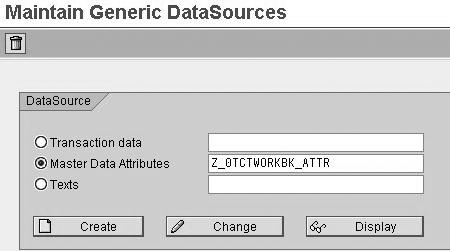
Figure 9
Create a DataSource

Figure 10
Enter tct to store the DataSource in technical content
In the View/Table field, enter table name RSRWBINDEX. Click on the save icon to view the next maintenance screen (Figure 11). Next, select the desired attributes for your workbook as shown in Figure 11. I used WORKBOOKID and FILESIZE as selection criteria and checked these items in the Selection column. Click on the save icon again.
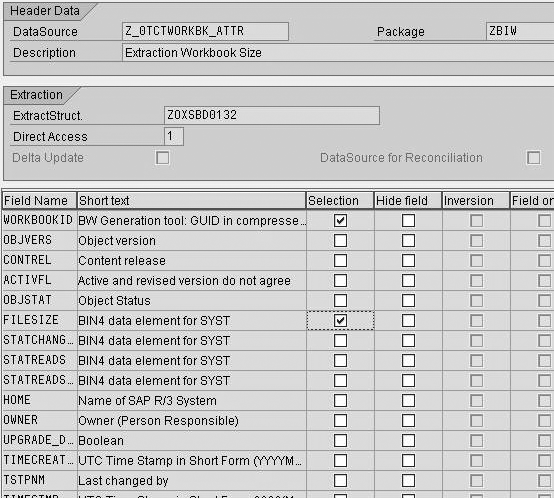
Figure 11
Choose which fields to use as selection criteria
Now, replicate the DataSource in the BW source system. Choose your source system from the list, right-click, and select Replicate DataSources from the context menu.
Create a new InfoObject for the new attribute for InfoObject 0TCTWORKBK. Use Number as the Type/data type (Figure 12). This allows you to assign the value for Filesize next. To do this, add the new generated characteristic as attribute to 0TCTWORKBK and activate the InfoObject.
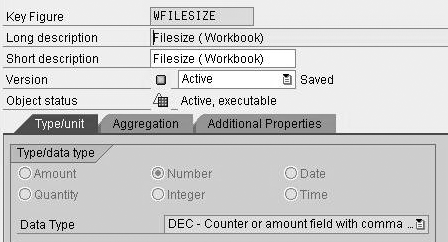
Figure 12
Select Number as the Type/data type
The last step is to generate an InfoSource containing the new InfoObject as displayed in Figure 13. Assign the InfoSource to the DataSource and create an InfoPackage. In SAP NetWeaver 2004s, this step is no longer necessary.

Figure 13
Enhance the InfoSource
Now, define InfoObject 0TCTWORKBK as an InfoProvider (Figure 14) by selecting the InfoObject. Enter change mode and in the Master Data InfoSource / Data Target / InfoProvider tab maintain the InfoArea (Figure 14) to insert the new InfoProvider.

Figure 14
Maintain the InfoObject to become an InfoProvider
Next, create an update rule for 0TCTWORKBK based on the InfoSource you just created (Figure 15) by right-clicking on the newly created InfoProvider and selecting Create Update Rules. Then, create update rules according to Figure 15.
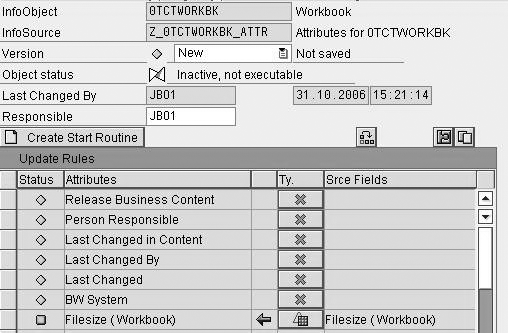
Figure 15
Update rules for InfoObject 0TCTWORKBK
Load the data with the help of the InfoPackage as described in the previous step and include the package in your process chain to automatically reload new information.
Now you can see the file size in BW’s master data for each individual workbook (Figure 16) either in master data maintenance and in case of enhancing the statistical content queries described before in BW reporting. You can use this information in queries to trace workbooks bigger than 1 MB. After you’ve isolated the large files, you can shrink them by following my instructions in the next section.
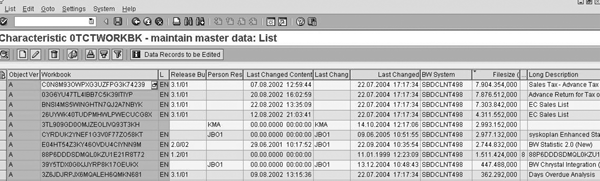
Figure 16
Display of master data maintenance of InfoObject 0TCTWORKBK
Shrink the File Size
After you isolate suspicious files (huge size, only a few rows), you can manually shrink the file size. You can find many tools for this purpose by searching the Internet for “shrink Excel file size” or equivalent text. You can find free shareware tools for manual shrinkage of single files or third-party tools, but no standard SAP tool can control this problem. Download such a tool and run it against one of your workbooks in three steps.
Step 1. Load your workbook from the BW server and save it locally on your PC
Step 2. Run the tool and compare the file size
Step 3. After shrinking the workbook, open BEx Analyzer and the smaller workbook. Save it as the existing workbook’s file name.
I did this with one of my customers and reduced a workbook of 6 MB to 250 KB. This greatly improved the performance, network, and disk space.
Using a BEx API, you can automate such a shrink process, which I’ve explained in my article “The BEx User Exit: 22 Functions to Automate and Enhance Your BW Reports in Excel.”
Note
Check out the SAP class BW360, SAP BW Performance and Administration (for BW 3.5) or BW360, BI Performance and Administration (for SAP NetWeaver 2004s) for more ideas to improve reporting performance. This is an advanced BI class, so be sure to check the course prerequisites. For further details, visit
www.sap.com/useducation
Joerg Boeke
Joerg Boeke is an SAP NetWeaver BW solution architect and senior consultant working with BIAnalyst GmbH & Co.KG, with 19 years experience in SAP NetWeaver BW, having worked on it since SAP BW 1.2A. He offers significant expertise in the SAP NetWeaver BW reporting area, including design, data integration, data visualization, performance optimization, and the cleanup of existing SAP NetWeaver BW systems. He is the author of SAP BW 7.x Reporting - Visualize your data.
You may contact the author at Joerg.boeke@bianalyst.de.
If you have comments about this article or publication, or would like to submit an article idea, please contact the editor.



 Premium