After you create business rules, you need to test them to ensure they work as expected. Find out the best way to test your rules. Then see how you can create Web services from them and run your rules using the Web service navigator. Finally, obtain an understanding about how a rules engine works in detail and how you can influence the rule’s execution sequence.
Key Concept
The Test Scenario tab in SAP NetWeaver Developer Studio allows you to provide input parameters to your rule set by filling out appropriate fields in an XML file. This XML file is automatically generated for you based on the fields you have selected in the Project Resources editor.
In “SAP NetWeaver Business Rules Management: Externalize Critical Business Logic for Enhanced Flexibility” you learned how to model Rete-based business rules using SAP NetWeaver Business Rules Management (SAP NetWeaver BRM). You used the Rules Composer to define a set of IF-THEN-ELSE rules for calculating discounts — a typical example for the use of business rules.
Now that you have your rule set in place, I explain what you need to do after you create it:
Test the Rules
A new tab has been added to the Ruleset Editor named Test Scenario. You can immediately test your rules directly within SAP NetWeaver Developer Studio. To create the XML file, switch to the Test Scenario tab and click the create XML icon in the upper-right corner of the tab. The Create XML dialog opens asking you for an XSD to select. As you’ve imported only one XSD file, just select the entry shown in the list and click the OK button.
The next dialog that appears asks you for a file name and a location in the file system to save the XML file. By default, the dialog proposes the name rulesdata.xml. For the location, the dialog suggests a folder within your rules project. Accept both values by clicking the Next button. Then select the root node of the XML file. You have only one root node, so leave all entries as they are and click the Finish button.
A new tab for the XML file opens containing a table with two columns. The left column contains the fields that made up the XSD file you imported. The right column shows the field’s contents and allows you to set appropriate test values. Change the name field to Tom and the credit field to BAD (Figure 1). Don’t forget to save your changes.
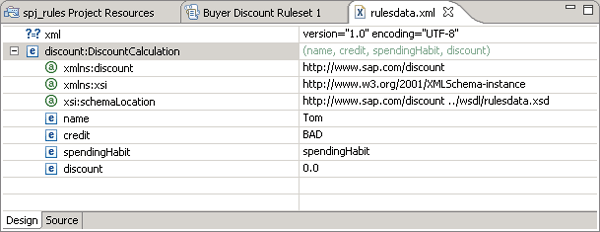
Figure 1
Set the test values in the XML file
Before you can run the rule set against your test data, you have to explicitly add this file to the list of XML files that have to be used as test input for the rule set. Switch back to the Ruleset Editor by clicking the Buyer Discount Ruleset 1 tab. Make sure that you are still on the Test Scenario tab. Click the Add XML button to the right of the XML Documents for Test Input table. In the dialog that appears, select your XML file by activating the check box in front of your XML file’s name and clicking the OK button. Your file should now be listed in the table (Figure 2). As always, save your changes.

Figure 2
Table listing the XML files containing test data for the rule set
Now the time has come to run your rule set against the test data. Click the run test case icon  in the upper-right corner of the Test Scenario editor in Figure 2. As a result, a new tab named Rules Testing Console opens beneath the Test Scenario editor. It contains the output shown in Figure 3.
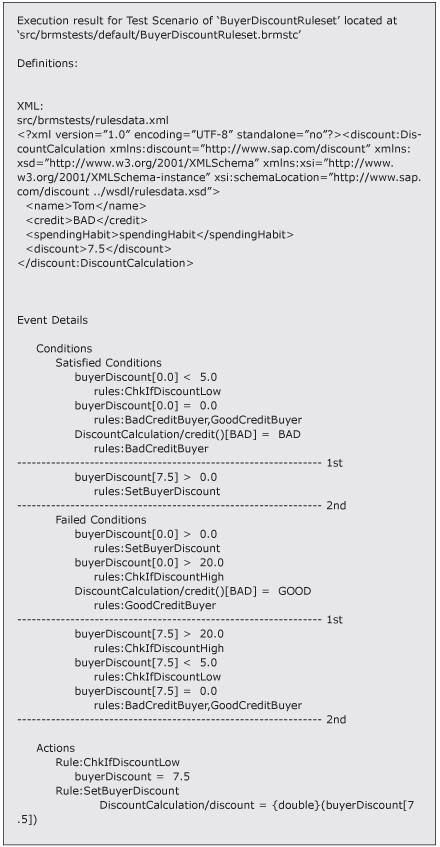
Figure 3
Rules Testing Console output
Interpret the Test Results
To better understand the rule engine’s behavior, let me start with a generic description of the algorithm. The first thing you have to learn is that the engine maintains a firing queue containing all the rules that have IF clauses (the conditions) that have been satisfied. The firing queue is filled during an evaluation phase in which all conditions of the rules are evaluated.
When the rule’s IF clause is true, it is added to the firing queue. Once the evaluation phase finishes, the engine picks the first entry from the queue, checks the condition again (the system might have since executed other rules that affect the current rule’s IF clause), and if the condition is still true, it executes its action.
Note
A rule is fired only once. If the engine has added a rule to the firing queue, the rule is not added a second time.
If a rule is fired, changes on internal variables enforce another round of evaluations, starting the cycle again. Once the firing queue is empty, the rule engine can return the final result.
I’ve added some dashed lines in Figure 3 that separate the engine evaluation phases. You will not find those lines in your trace, but they help as I walk you through the protocol.
Starting at the top of Figure 3, you find the summary of the test run: the input parameters and the final result. Recall from the previous article that buyers with BAD credit receive a 7.5 percent discount, as in the example of buyer Tom. But how was the number derived?
The engine is called with the input values mentioned above. The engine starts with an evaluation phase. In this phase, it looks at all the conditions (the rule’s IF clauses) and figures out which conditions evaluate as true. According to the evaluation result, it separates the conditions in the two groups named Satisfied Conditions and Failed Conditions.
I start with the Satisfied Conditions list and examine the entries above the dashed line with the ending 1st. The line marks the end of the first evaluation phase. The first entry tells you that the buyerDiscount field contains the value 0.0, which is certainly lower than 5.0. This fulfills obviously the condition for the ChkIfDiscountLow rule. As this is the only condition for the rule, you can immediately add it to the firing queue:
Firing queue: ChkIfDiscountLow – end
However, this is not the only rule that depends on buyerDiscount: BadCreditBuyer and GoodCreditBuyer also have this variable as part of their conditions and indeed they are fulfilled as well (buyerDiscount[0.0] = 0.0). You cannot add them to the firing queue yet because you have an AND dependency to the contents of the credit score field. This field is filled with the value BAD, so only the condition of the BadCreditBuyer rule is evaluated as true and added to the firing queue:
Firing queue: ChkIfDiscountLow – BadCreditBuyer – end
All the other conditions are not fulfilled and you can find them in the Failed Conditions list above the dashed line with the ending 1st. After the first evaluation phase, two rules are ready to fire (ChkIfDiscountLow and BadCreditBuyer).
A key question for the evaluation phase is: In which order are the conditions of the rules verified? You cannot predict the evaluation sequence because the Rete algorithm optimizes the order using several techniques. For example, the criteria for this rule include the rule’s creation date and time. It is the timestamp that the system applied when the rule was actually created in SAP NetWeaver Developer Studio. That’s the reason why the ChkIfDiscountLow rule is checked prior to the BadCreditBuyer rule.
Note
This is only true for this particular use case and cannot be guaranteed for other, more complex scenarios. Build your rules in such a way that either the execution sequence doesn’t play a role or use other techniques to ensure a certain evaluation sequence. I talk about such options later in this article.
After evaluating the conditions, the engine continues with the firing phase. The engine removes the first entry from the firing queue (ChkIfDiscountLow), checks the rule’s condition again, which is still true, and executes the rule’s action by assigning the value 7.5 to the internal variable buyerDiscount. The fired rule also appears in the trace as the first entry in the section titled with Actions.
Now something interesting happens. Every time the value of an internal variable changes, a new evaluation phase starts for the rules that have the changed variable as part of their condition. All rules depend on buyerDiscount, so each is evaluated again. Depending on the evaluation result, they are again separated into the Satisfied and Failed Conditions lists. The rules are appended to the existing list entries. In the trace in Figure 3, you can find them between the dashed lines with the endings 1st and 2nd. In this regard, you can interpret the internal variables as the working memory of the rules engine.
Note
An essential difference between internal variables and the fields imported via XSD files: Only changes to internal variables lead to a re-evaluation of rules that depend on the changed variable. This does not apply to imported fields.
Let’s have a look at the results of the second evaluation phase. Only one rule is listed with satisfied conditions: SetBuyerDiscount. You can add the rule to the firing queue because it hasn’t been added before. The firing queue looks like this now:
Firing queue: BadCreditBuyer – SetBuyerDiscount – end
After the second evaluation phase, the rule engine changes to the firing phase and removes the first entry named BadCreditBuyer from the queue. It evaluates its condition again. Recall that I formulated the condition in Figure 4 for the BadCreditBuyer rule.
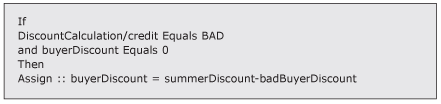
Figure 4
Condition for the BadCreditBuyer rule
When first rule (ChkIfDiscountLow) executed, the value of buyerDiscount changed to 7.5. Therefore the condition is no longer satisfied and the system does not fire the rule. You can verify this with the entries in the Actions section of the trace — the rule is not listed.
Instead, the system ignores it and the engine picks the next entry, the SetBuyerDiscount rule, from the firing queue. Again, verify that the rule’s condition is still satisfied. In this example, the rule is fired and the return field, DiscountCalculation/discount, is set to 7.5, which reflects the contents of the buyerDiscount variable. DiscountCalculation/discount is an imported field and no internal variable. That’s the reason why no new evaluation phase is initiated. In addition, the firing queue is empty after the removal of the SetBuyerDiscount rule, which ends the engine’s evaluation/firing cycle.
Influence the Evaluation Sequence
It is important to understand the inner workings of rule engines to use them correctly — especially if you want to understand how the system arrived at the final result. However, one problem still exists. If you have a large number of rules (e.g., several hundred), it is hard to predict the outcome.
Let me explain this by using another example. In my description above, I mentioned that the sequence in which the rules are evaluated if their conditions are satisfied depends partially on their creation timestamp. Now let’s assume that you didn’t model your rules in the sequence mentioned above. Assume that you create a new rule set called Buyer Discount Ruleset 2 and you first model the GoodCreditBuyer/BadCreditBuyer rules and then the ChkIfDiscountLow/ChkIfDiscountHigh rules. Although both rule sets look exactly the same, the result after firing the second rule set with exactly the same input differs. You receive 5.0 as result and not 7.5.
How can you ensure that, for example, the GoodCreditBuyer/BadCreditBuyer rules are always evaluated before the ChkIfDiscountLow/ChkIfDiscountHigh rules are fired? The answer: Use priorities, which you can set in the Rules Editor (Figure 5). A higher number reflects a higher priority. In my example, I’m increasing the priority of the BadCreditBuyer rule. With priorities you have the chance to influence the evaluation sequence, ensuring stability in the results you receive.
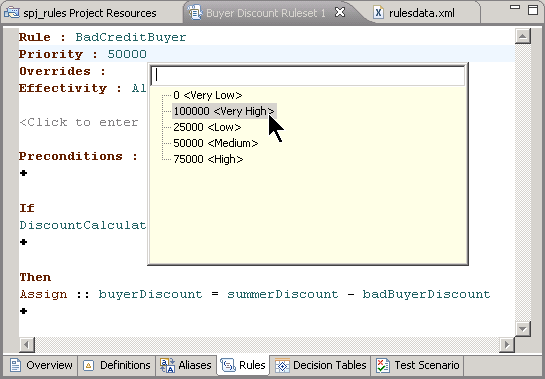
Figure 5
Set the rule priority
In this regard, another important feature has to be mentioned: overrides. With priorities, you simply determine the evaluation sequence in case several rules have satisfied conditions. However, what if you want to avoid having other rules with equal or lower priority added to the firing queue once a high priority rule has been added?
In essence, only one rule (out of two or more) should be added to the firing queue, although several rules could potentially be added as a result of the multiple satisfied conditions. Here overrides come into play. If you define for a high priority rule A that it overrides rule B, this means that rule B is not added to the queue when rule A is added before it.
Let’s take the example displayed in Figure 6 to explain more details. In this figure, rule BadCreditBuyer overrides rule ChkIfDiscountLow. The consequence of this setting is simple to explain: If the conditions of both rules are evaluated to true in the same evaluation phase, only the BadCreditBuyer rule is added to the firing queue.
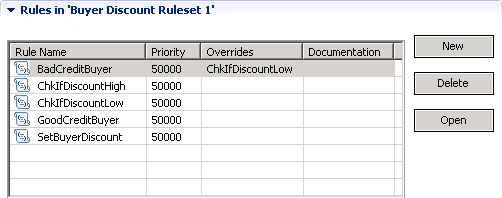
Figure 6
Overrides for rules
You can easily add an override on the Overview tab of your rule set. Right-click the BadCreditBuyer rule and select Override Rule… from the context menu (Figure 7).
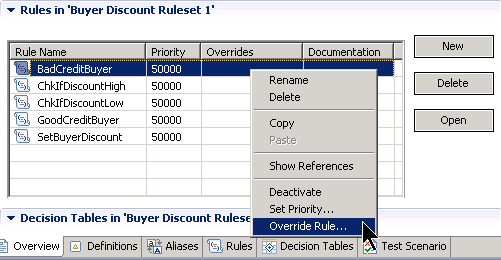
Figure 7
Select Override Rule… from the context menu for the BadCreditBuyer rule
As result, a dialog opens listing all the rules you can override. The list reflects rules with a priority that is lower or equal to the priority of the selected rule (Figure 8). Select the check box in front of the rule you want to override — in my example, this is the ChkIfDiscountLow rule. The asterisk at the top of the list is a wildcard and stands for override all rules. Close the dialog by clicking the OK button and save your changes.
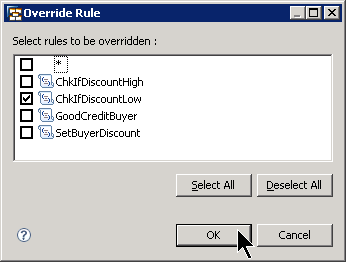
Figure 8
Select the rules to override
Create and Test a Web Service for the Rule Set
Now that you have defined the rules, you can run the rule set on your SAP NetWeaver Composition Environment (SAP NetWeaver CE) server. The most convenient way to achieve this is by calling the rule set via a Web service. With SAP NetWeaver CE 7.2, you can do this with just a few clicks. Right-click your rule set in the Project Explorer view and select Web Service > Create WSDL Artifact from the context menu (Figure 9).
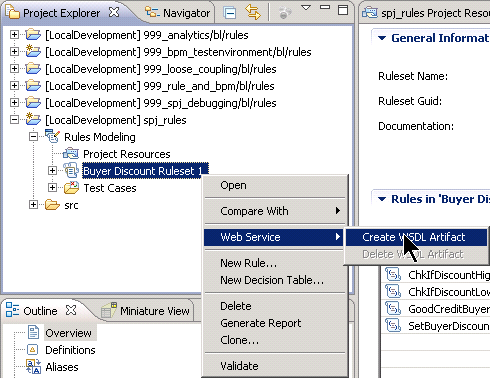
Figure 9
Create a Web service for a rule set
A dialog opens that guides you through the Web service generation process. My recommendation is to leave all settings and names as they are and walk through all the wizard steps by clicking the Next buttons. At the end, click the Finish button.
Now you are ready to deploy and run your rule set. Right-click the rules project named spj_rules in the Project Explorer view, select Development Component > Deploy…, and confirm all the subsequent dialogs. The system compiles and deploys your project.
Next open your Web browser and call the Web service navigator. The URL for the Web service navigator is https://<server>:<port>/wsnavigator. On the first screen, select Provider System and enter buy* as the search criterion. Click the Search button (Figure 10).
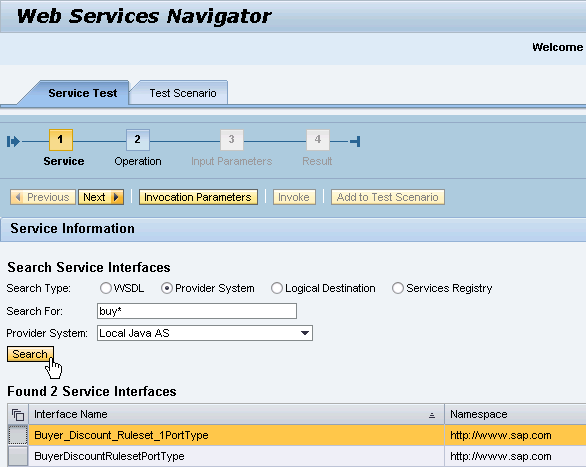
igure 10
Search for the rule set
In the table of found service interfaces, select your rule set (Buyer_Discount_Ruleset_1PortType) and click the next two Next buttons to reach the dialog for entering the input parameters. Fill the fields as shown in Figure 11 and click the Next button to call the rule set. The result you receive should be similar to what is shown in Figure 12.
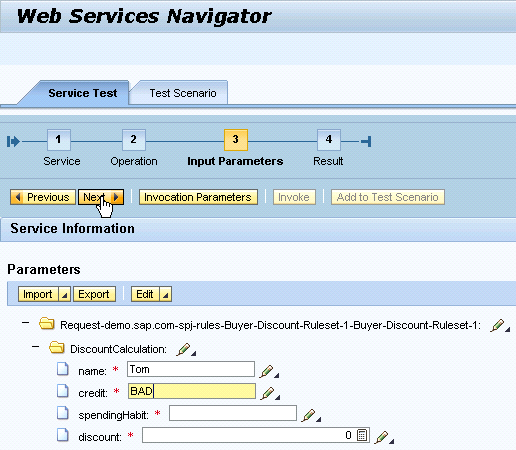
Figure 11
Enter the input parameters for the rule set

Figure 12
Return values after invoking the rule set
With that you have successfully created a Web service out of your rule set and tested it within the Web service navigator. You know enough now to start your own investigations: Play around with rules and learn how the engine behaves.

Dr. Volker Stiehl
Prof. Dr. Volker Stiehl studied computer science at the Friedrich-Alexander-University of Erlangen-Nuremberg. After 12 years as a developer and senior system architect at Siemens, he joined SAP in 2004. As chief product expert, Volker was responsible for the success of the products SAP Process Orchestration, SAP Process Integration, and SAP HANA Cloud Integration (now SAP HANA Cloud Platform, integration service). He left SAP in 2016 and accepted a position as professor at the Ingolstadt Technical University of Applied Sciences where he is currently teaching business information systems. In September 2011, Volker received his Ph.D. degree from the University of Technology Darmstadt. His thesis was on the systematic design and implementation of applications using BPMN. Volker is also the author of Process-Driven Applications with BPMN as well as the co-author of SAP HANA Cloud Integration and a regular speaker at various national and international conferences.
You may contact the author at editor@SAPpro.com.
If you have comments about this article or publication, or would like to submit an article idea, please contact the editor.