SAP developers and development managers can increase their programming skills by familiarizing themselves with the new ABAP Data Dictionary enhancements introduced in SAP NetWeaver 7.0. These new enhancements enable IT administrators to reduce costs because objects are enhanced instead of modified.
Key Concept
The enhancement concept allows you to add your own functionality to SAP’s standard business applications without modifying them. The enhancement technology not only enables you to add the additional functionality into the system, but also allows you to reduce your cost of ownership in maintenance and adjustments during version upgrades. Before the enhancement functionality, companies that wanted to add their own functions to SAP software had to modify standard SAP objects.
The release of SAP NetWeaver 7.0 introduces three new ABAP Data Dictionary enhancements:
- Fixed value appends to domains
- Append search helps
- Secondary indices
I’ll walk you through each of these new features and explain step-by-step how to enable them in your system. For each new ABAP Data Dictionary enhancement, I provide a typical business problem and then show you how to solve the problem by using the new enhancements.
Note
One point to remember is that these enhancements are not part of the
Enhancement Framework, which you use to organize enhancements other than ABAP Data Dictionary enhancements.
Fixed Value Appends to Domains
Fixed value appends are modification-free enhancements. These appends are copied over automatically during upgrades. With fixed value appends, you can enhance a fixed value range at the domain level. The fixed values restrict users from entering values that are not part of a pre-approved list, such as selecting the type of fare for a flight. To explain how to set up this new feature, I use the example of adding two new flight classes (e.g., Business Plus and Economy Plus) to an airline schedule.
Step 1. Use SE11, select Domain, and enter the name of the domain you want to enhance (Figure 1). For this example, I am using the S_CLASS domain. Click the Display button.
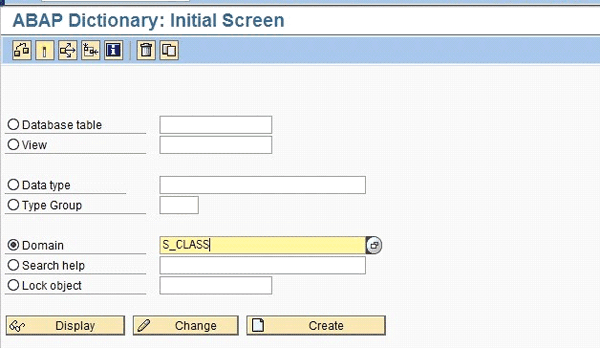
Figure 1
Enter the domain name you want to enhance
Step 2. The screen in Figure 2 appears. Click the Value Range tab, then follow menu path Goto > Fixed Value Append. A pop-up dialog box appears. Enter the name of the fixed value append, which must start with Y or Z, and click the OK icon. In my example, I’m using ZNEW_CLASS (Figure 3).
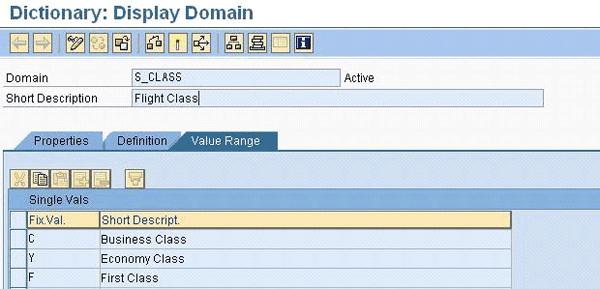
Figure 2
Value range of domain S_CLASS
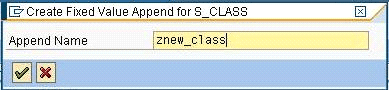
Figure 3
Enter the name of the fixed value append
Step 3. Enter a suitable short description for the new fixed value append. Then click the Value Range tab and enter the new fixed values and their descriptions (Figure 4).
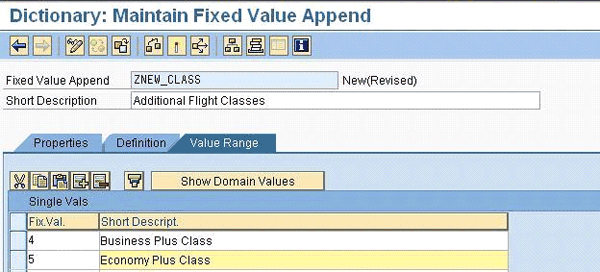
Figure 4
Enter the new values for the Fixed Value Append list
Step 4. Click the save icon to save your work and then click the activate icon to activate the fixed value append. You have now successfully created a fixed value append for the S_CLASS domain. To display the changes you have made in the S_CLASS domain, click the cancel icon. You should now see your two new classes (Figure 5).
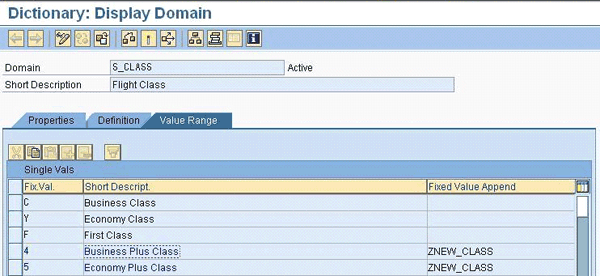
Figure 5
Domain S_CLASS with the new values after activating the fixed value append
Append Search Help
An append search help enhances a collective search help, which is a combination of several elementary search helps. Append search helps are common in country versions and special developments that SAP partners and clients create. Often, standard search helps do not meet business requirements. These business requirements may vary from one business process to another, so users typically need additional search help paths. You can fulfill these requirements using append search helps.
Append search helps can also be used as input help. In this case, they are used like collective search helps.
To illustrate how to set up append search helps, I use the example of a business requirement to include a search help Materials of MPN (manufacturer part number) - MRP Sets (technical name: MAT4MPN) in the standard collective search help Find Material Number (technical name: MAT1).
Step 1. Use transaction SE11, select Search Help, and enter the search help name you want to enhance (Figure 6). In my example, I chose search help MAT1. Click the Display button to view MAT1 (Figure 7).
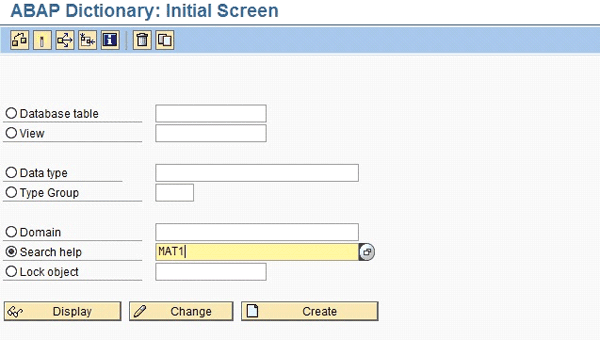
Figure 6
Enter search help MAT1
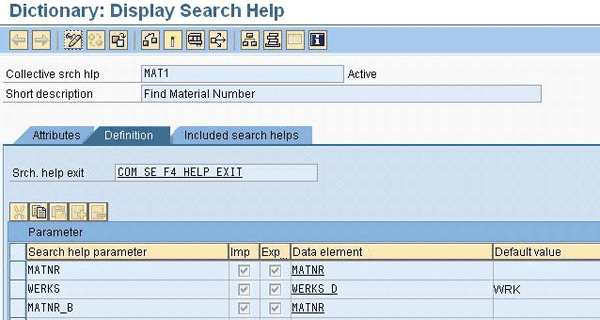
Figure 7
Search help MAT1 in display mode
Step 2. Follow menu path Goto > Append Search Help. In the pop-up window that appears, click the create icon to create a new append (Figure 8).
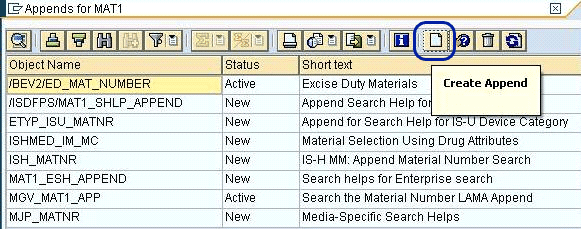
Figure 8
List of appended search helps
Step 3. Another pop-up window appears. Enter the append search help name, which must begin with Y or Z. For my example, I chose ZNEW_SER_APPEND (Figure 9). Click the OK icon.
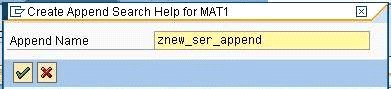
Figure 9
Enter the name for the new append search help
Step 4. The maintenance screen for the append search help appears. Click the Included search helps tab. Enter the search help name and add some short descriptive text. In my example, I named my new search help MAT4MPN (Figure 10).
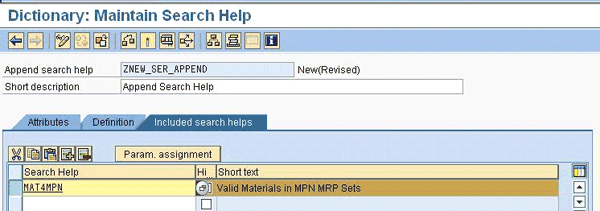
Figure 10
Enter the search help name and description
Step 5. Click the save icon to save your work, and then click the activate icon to activate the new append search help. After activating your work, click the cancel icon, which takes you back to the initial search help screen (Figure 11). Here you can see your newly created append search help ZNEW_SER_APPEND in the Included search helps list for standard search help MAT1.

Figure 11
Search help MAT1 after activating appended search help ZNEW_SER_APPEND
Secondary Indices
Table indices speed up the performance of reading data from a database. A program or a report that reads records from a database table with a large amount of data (more than 50,000 records) takes a long time to process. You can reduce these time delays by using table indices.
There are two types of table indices: primary index and secondary index. The system creates primary indices automatically. These indices are composed of key fields. Conversely, users create secondary indices, which contain non-key fields (table fields that are not marked as primary key fields) to improve performance. Secondary indices come in handy in programs that read data from Financial Accounting (FI) tables.
I have encountered situations in which companies have performance issues with customized ABAP reports that read FI data based on document types. You can solve this problem by using secondary indices. For this example, add the BLART field (document type) as the secondary index in the table BKPF (accounting document header).
Step 1. Use transaction SE11, select Database, and enter the table name for the secondary index. In my example, I chose the BKPF table for secondary index. Click the Display button and on the next screen, choose Indexes. A pop-up window appears (Figure 12).

Figure 12
Table indices for table BKPF
Step 2. Click the create icon, and then choose Create Extension Index. A pop-up window appears. Enter the index name, which must begin with Y or Z. For my example, I chose ZIX (Figure 13). Click the OK icon.
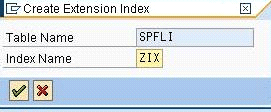
Figure 13
Enter a name for the index
Step 3. The Index Maintenance screen appears (Figure 14). Enter a short description for the new index and click the Table Fields button. I have selected Non-unique index because I do not have a requirement to uniquely identify each record of the table. I also selected Index on all database systems, which makes sure the index is created in the database.
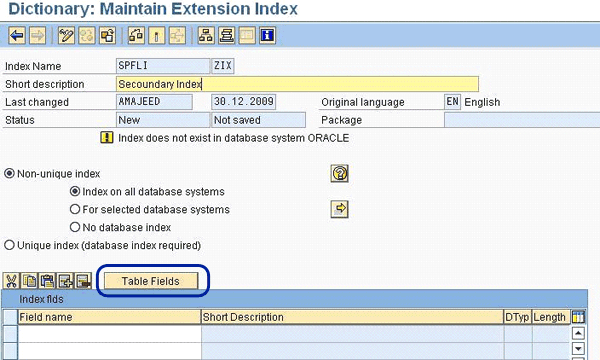
Figure 14
Set up the secondary index
Step 4. A pop-up window appears (Figure 15). Here you can see the list of available fields for table BKPF. Select fields that are used in the secondary index ZIX from the list. In my example, I want to add an index for the field BLART. Now click the Copy button.
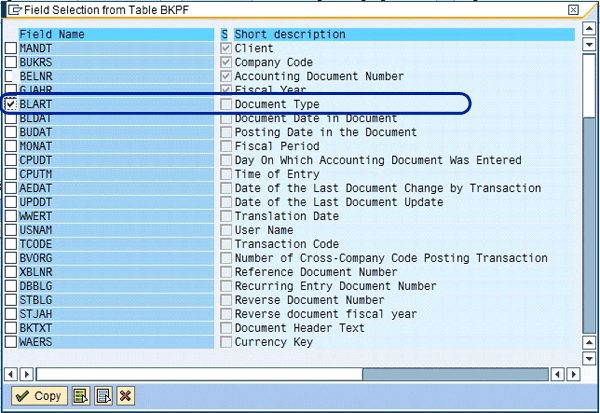
Figure 15
Select the fields for the secondary index
Step 5. The Index Maintenance screen appears (Figure 16). Here you can see the newly created index ZIX with the index field BLART in the index list. Click the save icon to save your work, and then click the activate icon to activate the secondary index ZIX for table BKPF.
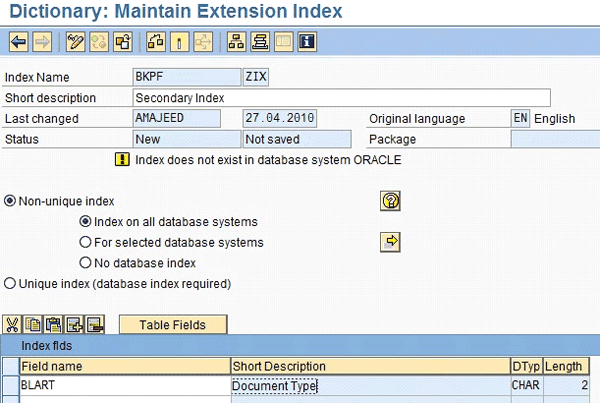
Figure 16
Secondary index ZIX
Ahsan Majeed
Ahsan Majeed is a certified senior development consultant. He has more than eight years of development experience and currently works with Descon Engineering Limited, (implementing SAP EC&O) in a team lead role. Ahsan’s areas of interest are ABAP, workflows, and SAP BusinessObjects. He has been involved in the development of industry-specific solutions and interfacing of SAP with third-party systems.
You may contact the author at ahsan.SAP@gmail.com.
If you have comments about this article or publication, or would like to submit an article idea, please contact the editor.





 Premium