Discover how to enable HR auditing in your SAP system using these step-by-step instructions as your guide. Also learn the simple configuration steps to take to track and report changes in your HR data.
Key Concept
SAP table views V_T585A, V_T585B, V_T585C, and T77CDOC_CUST enable you to capture infotype audit logs in SAP Personnel Administration (personal data and organizational data). Your HR and compliance departments can monitor changes using SAP standard report RPUAUD00 (logged changes in infotype data) to display personal data and report RHCDOC_DISPLAY (display change documents) to display organizational data.
Audit functionality in the SAP ERP HCM system is configurable, flexible, and easy to use. I show you how to enable audit tracking in Personnel Administration (PA), Organizational Management (OM), and reports. You are able to report on who changed what, when, and where. This article outlines two types of audit logs, how to enable capturing changes to your HR master data, how to display and delete audit logs, best practices for setting up change documents, and finally, things to keep in mind while configuring and executing audit reports.
HR data by nature is extremely sensitive and needs to be tracked and protected. Government regulations, statutory requirements, and company policies all determine how to track and protect this sensitive data. I show how you can enable capturing changes to your company’s sensitive HR data, and how you can track the changes, report them, and modify who can access or make changes to HR data.
Using step-by-step instructions, I explore how you can audit your HR master data. I also show you how to take advantage of the enhanced auditing functionality available in your SAP system by using a few configuration steps and standard SAP reports.
Here are seven points to help you achieve your goals:
- Why you need HR audit logs and change logs in your SAP system
- The different types of logs and what they’re used for
- Enable capturing changes to your HR master data
- Display changes made to HR master data using standard SAP ERP HCM reports
- Delete logged changes (any undesired changes logged into the system) in infotype data
- Enable to capturing changes to your OM data
- Tips to consider during configuration and execution of the report
Why You Need HR Audit Logs and Change Logs
Audit functionality provided by SAP for HR data is simple to use and enables you in tracking accessing and maintenance of infotype data. It is also a good practice as part of an overall governance, risk, and compliance (GRC) strategy. Your HR business will be able to audit who did what when and how. This helps with HR data compliance and identifying any sensitive HR data risks. This data (change logs that are created after you complete a report) is used for audit purposes, as it provides a definite audit trail showing who created, changed, or deleted what data, and when.
This data is also used to link the SAP system to external systems. For example, you can use custom programs that you have developed to suit your business needs to evaluate results in short-term documents and then transfer the changes to the external system. This can be achieved using simple configuration steps that use infotype audit logs and by running SAP-provided standard reports to display infotype changes.
Note
Make sure you audit only certain infotypes. Configuration does not restrict what infotypes you can add for auditing, but if you add all infotypes for auditing, you adversely affect the performance of your SAP system. In addition, the large volume of data from the log generates long reports that are difficult and time consuming to read.
Log Types
HR audit data is stored in two types of documents — long-term and short-term documents:
- Long-term documents: Changes logged in long-term documents hold more detailed information. Any changes that are displayed in the output are sorted by personnel number. Long-term logged changes are primarily used for audit purposes, providing a definite audit trail showing when the changes were made, and who created, changed, or deleted the data.
- Short-term documents: You can use short-term documents to link SAP systems to external systems. Output is sorted by the date on which the last change was made. You can use custom programs to evaluate the results in short-term documents and then transfer the changes to the external system.
Enable Capturing Changes to Your HR Master Data
To enable capturing changes to your HR master data infotypes, you need to maintain these infotype fields in three configurations table views:
- Table view V_T585A > HR Documents: Infotypes to Be Logged
- Table view V_T585B > HR Documents: Field Group Definition
- Table view V_T585C > HR Documents: Field Group Characteristics
You can do this by using transaction code SM31 (Figure 1) or by following IMG menu path Personnel Management > Personnel Administration > Tools > Revision > Set up change document (Figure 2).

Figure 1
Timesheet look-up icon
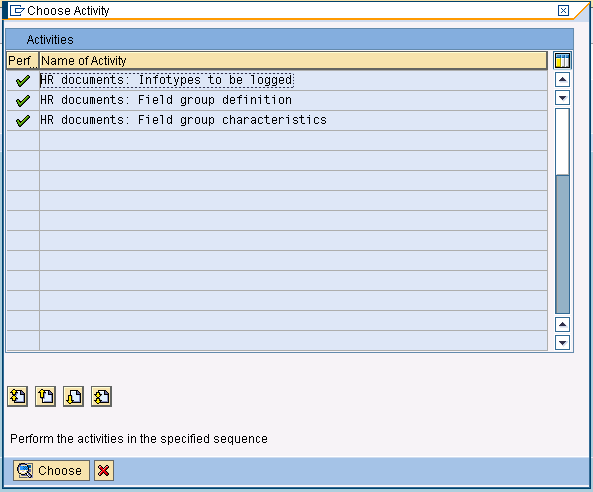
Figure 2
Set up the change document
I discuss these below in more detail.
Best Practices for Setting Up Change Documents
Step 1. Determine the infotypes to be logged via table view V_T585A (Figure 3). Enter the infotypes for which you want to activate automatic logging when changes are made (e.g., deletions, updates, or inserts). By defining infotypes in this table you are triggering data to be logged. If the infotypes are not defined in this table, changes made to the infotypes are not logged. Transaction class A is used for documents in HR master data management and transaction class B is used for documents in recruitment. After you have determined which transaction code to use, you can add the infotypes for which you want to enable logging. In Figure 3, I enabled logging for infotype 0002 – Personal Data.
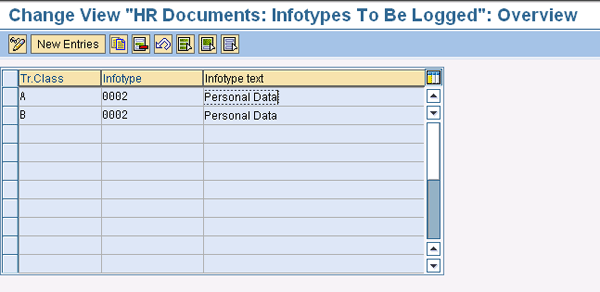
Figure 3
Infotypes to be logged view
Step 2. Determine the field groups using table view V_T585B (Figure 4). You can capture changes made to an infotype that is logged per field, and you have the flexibility to choose which fields are to be logged. In this example, I want to capture auditing for six infotype 0002 fields. Within any given infotype, you can specify all the fields that are to be logged. For infotype 0002, I added fields GBDAT (date of birth), MIDNM (middle name), NACHN (last name), NACH2 (second name), PERID (personnel ID number), and VORNA (first name). You can also group the fields into different field groups within any one infotype.
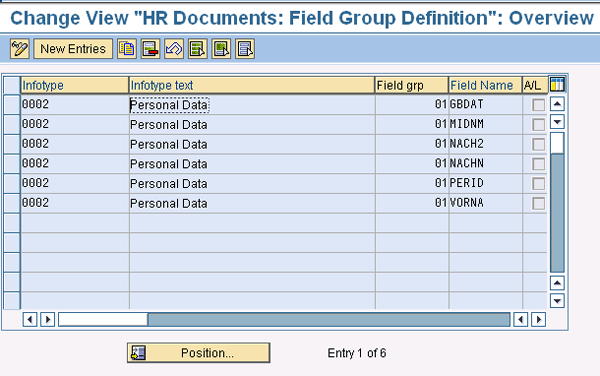
Figure 4
Field group definition view
When the infotype log is created, all the fields belonging to a field group are treated as one entity and are, therefore, logged together. An asterisk in the field name enables logging for all fields for the infotype.
Step 3. Determine the characteristics of the field group using table view V_T585C (Figure 5). You can define dependencies between the field groups (i.e., you can specify a supplementary field group for each field group in the SupFldGr column). You tell the system which field groups are to be logged. In addition, you can define supplementary field groups for every field group. Supplementary field groups are always logged if a field within this triggering field group is changed. You must also determine whether the document type is to be recorded as a long-term document (L) or a short-term document (S).
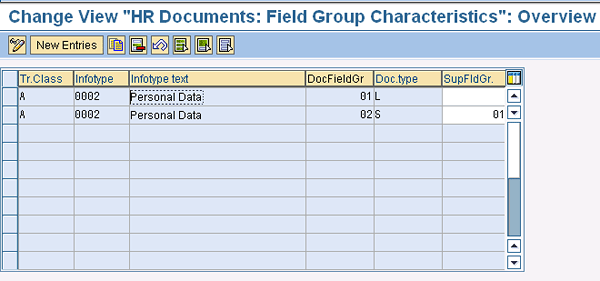
Figure 5
Field group characteristics
Display Changes Made to HR Master Data Using Standard SAP ERP HCM Reports
Using standard SAP report RPUAUD00 (logged changes in infotype data), you can display the infotype log. Access this report using transaction code SE38 or SA38. When you execute the report for specific users and infotypes, the system displays the output shown in Figure 6, which displays the output for long-term and short-term documents. The SAP List Viewer (ALV) display of this report is shown in Figure 7.
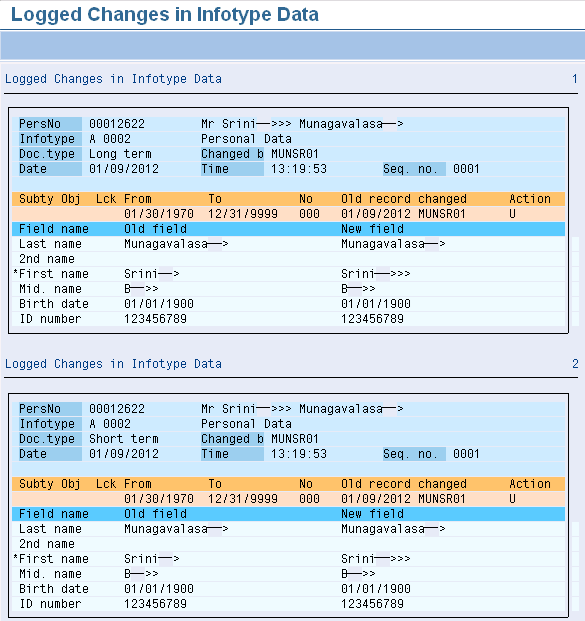
Figure 6
Output of logged changes for long-term and short-term documents
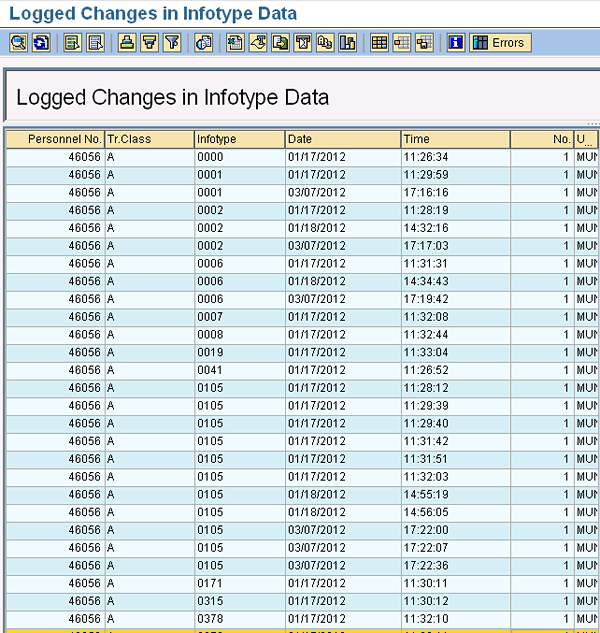
Figure 7
ALV display
Delete Logged Changes in Infotype Data
If any undesired changes were logged into the system you can use the standard SAP report RPUAUDDL to delete logged changes in infotype data (Figure 8). Execute it through transaction code SE38 or SA38, and choose the data you want to be deleted from the log. The Password in Figure 8 is your user name.
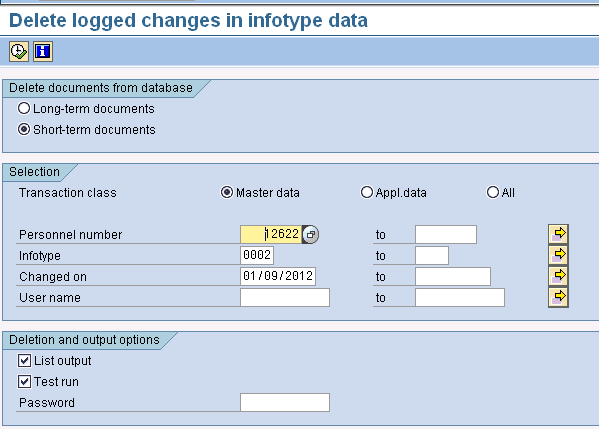
Figure 8
Delete logged changes in the infotype data selection screen
You can run the actual deletion by executing the report with the Test run box unchecked. Run it in test mode first to verify the results (Figure 9). In this example, I deleted a specific Personnel number for a certain infotype for a specific date.
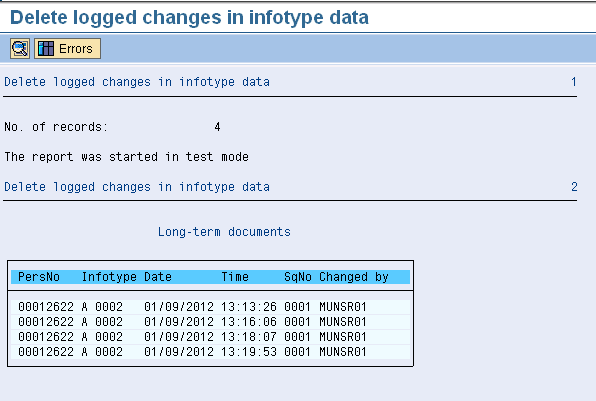
Figure 9
Output of delete logged changes in test mode
Enable Capturing Changes to Your OM Data
As with HR master data, you can have audit logs enabled for OM infotypes. To capture changes to OM infotypes 1000, 1001, and 1002, configure standard SAP table T77CDOC_CUST (Figure 10). There is only one table to configure and you have the option to capture infotypes or subtypes for OM data.
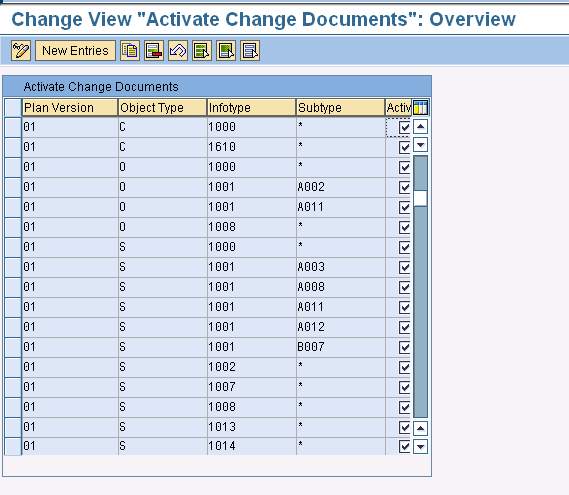
The personnel development (PD) audit log can track changes to infotypes 1000, 1001, and 1002. The results are displayed with program RHCDOC_DISPLAY, which does not currently have a standard delivered transaction attached. The output of the audit log is displayed in Figure 11.

3 Important Considerations When Configuring and Executing Audit Reports
Logging data for auditing is critical, but you need to know what data to log as there are some serious implications. When configuring and executing audit reports, keep these three important points in mind:
- You need to do a complete and proper analysis of what fields your company wants to consider for your audit. Do not audit all fields from a given infotype, and never audit all infotypes as this degrades overall system performance. Based on which audit strategy you use, the audit logs may be too large, which can create performance issues on your system. Because of this, it is critical that you limit the number of infotypes and infotype fields you choose to avoid adversely affecting the efficiency of your SAP system.
- Always schedule audit reports in the background and try to maintain an optimal frequency. Execute the report in background and the system load balances workload and captures logs. Also, as these audit reports run for a long time based on size of your company, frequent execution affects your system performance.
- Audit logs take up a lot of space on your database. Archive or delete logs on a regularly scheduled basis to free up space and optimize performance.
Note
You can enable auditing logs for reports by configuring table V_T599R. In this step, you can define the reports. If you activate this functionality, a record is created on the database each time you start a report. You can also specify whether this record should be created for online or background reports, or for both. You can display this data using report RPUPROTD.
For more details about this topic, refer to the article, “Report Audit Tool Refines Data Security,” by Raghavendran Parthasarathy.
Srini Munagavalasa
Srinivasa (Srini) Munagavalasa has 14 years of experience in various SAP modules. Srini has worked on multiple SAP global implementations at major clients. He has experience as a project manager, deployment lead, build manager, and technical development manager.
If you have comments about this article or publication, or would like to submit an article idea, please contact the editor.
Sunanda Devireddy
Sunanda Devireddy has more than 10 years of SAP experience in the SAP HR Payroll, Time Management, Compensation, and ESS/MSS functional areas. Sunanda worked on multiple global implementations at Micron Technologies and Walt Disney Company. Sunanda joined her current company four years ago and works as a principal business analyst in the SAP team.
You may contact the author at editor@hrexpertonline.com.
If you have comments about this article or publication, or would like to submit an article idea, please contact the editor.




 Premium