Running a setup job through the Logistics Extraction Cockpit requires that you to turn off your logistics application. It is therefore important that the job run as quickly as possible. The fastest way to complete the setup job is to break it up into parts and run those parts in parallel. The authors show how and explain the setup tables that are involved.
One of the ways you can take advantage of BW's tool for extracting data from R/3 logistics applications, the Logistics (LO) Extraction Cockpit, is by executing setup jobs parallel. This significantly speeds up the process and reduces downtime in your production system while maintaining a high level of data integrity.
Setup jobs execute in the R/3 system to initialize data for the respective logistics application (such as Material Management, Production Planning, or Sales and Distribution) in preparation for loading into BW. You must run setup jobs with the application turned off. It is important, therefore, to execute these jobs as quickly and accurately as possible to minimize downtime in your production system.
As a single job running in the background, the setup process might take a few minutes or as long as a few days to complete depending on the data volume for that application. This isn't your only worry when running setup jobs. They can only be run when no documents are posted in the logistics application for which the setup job is run. Depending on the physical update strategy of the R/3 kernel and the underlying database system, the setup job might not capture updates that have been run in parallel, making it impossible to securely delimit the initial load from the first delta load. Finally, it is often difficult and time-consuming to secure downtime in production systems for running setup jobs.
Running setup jobs in parallel using the LO Extraction Cockpit will help you address all these issues. We will show you the steps you have to follow to run the setup jobs in parallel to one another and provide advice based on our experience on how to avoid pitfalls and minimize the downtime for the application. In addition, we will explain the basic concepts of the LO Extraction Cockpit, the meaning and use of setup tables, and the prerequisites for running the setup jobs.
Understanding the LO Extraction Cockpit
SAP introduced the LO Extraction Cockpit as part of Plug In (PI) 2000.1 to replace the former logistics extraction functionality, which was based on SAP's Logistics Information System (LIS) and its statistics tables. Available in SAP R/3 for use with BW 2.0B and later releases, the LO Extraction Cockpit provides significant advantages to the SAP BW community, including a revamped extraction process, the enhancement of extractors, a common platform for data extraction and transfer across all logistics applications, and multiple delta-extraction options. The Business Content for most logistics areas now leverages the functionality provided in the LO Extraction Cockpit.
The LO Extraction Cockpit provides a uniform means of carrying out both initial and delta loads from different logistics application areas such as Sales and Distribution (SD), Purchasing, and Shop Floor Control. The cockpit can be accessed in the SAP R/3 system using transaction code LBWE (see Figure 1) or through the BW IMG (transaction code SBIW): Settings for Application-Specific Datasources>Logistics.

Figure 1
LO data extraction: Customization Cockpit
Logistics data in the SAP R/3 source system is stored in the underlying tables used by the respective application area. In the logistics applications in SAP R/3, new documents are posted, changes are made to existing documents (this could be new line items or line items deleted in a document or status changes), document status is updated, and items are marked for deletion.
It is important to capture such documents and document changes in the SAP BW system for analysis and reporting. You enable this by following these steps:
- Activate the required DataSources in the LO Extraction Cockpit
- Replicate the DataSources to BW
- Attach the appropriate DataSources to the InfoSource
- Run the setup jobs
- Carry out the initialization load in the SAP BW system
- Activate the V3 update in the LO Extraction Cockpit and schedule the V3 update periodic jobs
- Carry out the delta loads in the SAP BW system
Figure 2 shows the extraction process using the LO Extraction Cockpit. The extraction process for the delivered logistics DataSources and extractors guarantees that every record and every change to the record is captured only once and that the data made available to the SAP BW system is consistent with the data stored in the tables for the respective logistics application in SAP R/3.

Figure 2
Extraction process for sales data using hte LO Extraction Cockpit
Setup Tables and Jobs
To carry out an initial data load from a logistics application area to SAP BW, data has to be collected from the original SAP R/3 logistics document tables —such as VBAK and VBAP in SD — and made available in setup tables by carrying out a process called a “setup run” (or “refresh”). The setup run reads data from the document tables and fills a corresponding setup table assigned to each logistics DataSource, implemented as cluster tables in the ABAP Dictionary. The names of setup table are defined as the name of the extract structure of the corresponding DataSource concatenated with the suffix “SETUP.” You can find examples of the extract structures and corresponding setup table names in Table 1.
| DataSource |
Extract Structure |
Setup Table Name |
Setup Table Description |
| 2LIS_02_HDR |
MC02M_0HDR |
MC02M_ 0HDRSETUP |
Storage BW setup for MC02M_OHDR |
| 2LIS_02_ITM |
MC02M_0ITM |
MC02M_ 0ITMSETUP |
Storage BW setup for MC02M_OITM |
| 2LIS_02_SCL |
MC02M_0SCL |
MC02M_ 0SCLSETUP |
Storage BW setup for MC02M_OSCL |
| 2LIS_04_ MATNR |
MC04P_0MAT |
MC04P_ 0MATSETUP |
BW file reorganization for MC04P_0MAT |
| 2LIS_11_ VAHDR |
MC11VA0HDR |
MC11VA0HDRSETUP |
Storage BW setup for MC11VA0HDR |
| 2LIS_11_ VAITM |
MC11VA0ITM |
MC11VA0ITMSETUP |
Storage BW setup for MC11VA0ITM |
| 2LIS_11_ VASCL |
MC11VA0SCL |
MC11VA0SCLSETUP |
Storage BW setup for MC11VA0SCL |
| 2LIS_11_ V_ITM |
MC11V_0ITM |
MC11V_ 0ITMSETUP |
Storage BW setup for MC11V_0ITM |
| 2LIS_11_ V_SCL |
MC11V_0SCL |
MC11V_ 0SCLSETUP |
Storage BW setup for MC11V_0SCL |
| Table 1 |
Sample setup table names and corresponding DataSources and extract structures. The numbers in the DataSource represent the number of the applicatoin. For example, the application area Purchasing is identified with application number 02. |
The setup job can be started by entering the transaction code corresponding to the logistics application area or through the SAP R/3 IMG (transaction code SBIW), following the navigation path Settings for Application-Specific Datasources>Logistics>Managing Extract Structures>Initialization> Filling in the Setup Table> Application-Specific Setup of Statistical Data.
Running multiple jobs extracting data from the same table in parallel requires an accurate and complete definition of the setup jobs' selection parameters.1 You would carry out the following preparatory steps before running your setup jobs.
- Identify number ranges
- Define setup job parameters
- Identify background processes
- Create variants for setup jobs
- Delete setup log
- Check availability of database space
- Switch off the logistics application
After completing the preparatory steps, you can execute the setup jobs. Then, you carry out the tasks below:
- Perform data validation
- Execute the initialization run in the SAP BW system
- Schedule V3 update jobs in the SAP R/3 system
- Switch on the logistics application
- Perform delta extraction in the SAP BW system
Let's examine the preparatory steps in detail.
Step 1. Identify Number Ranges
Look up the number ranges defined for the application from which you want to load data either by using transaction codes directly (see Table 2 for examples) or by going through the SAP R/3 IMG (transaction code SPRO). The number ranges are defined in customizing in SAP R/3 for each application area to segregate and classify the documents generated based on business processes. An example of a number range definition for SD is shown in Figure 3.
| Application |
Transaction Code |
| Sales Documents |
VN01 |
| Outbound Deliveries |
VN01 |
| Billing Documents |
VN01 |
| Purchasing Documents |
OMH6 |
Inventory Management
(Material Documents) |
OMBT |
| Production Orders |
CO82 |
|
| Table 2 |
Transaction codes for finding number ranges |

Figure 3
Number ranges for SD documents
Now, identify the documents that you need to extract to the SAP BW system from the number ranges you located. Remember that you may want to report information only for certain processes or even subsets of those processes and not for others.
For example, when extracting from SD, the documents are read from tables VBAK, VBAP, and VBEP. From these tables, you may want to read documents, say, only with respect to certain distribution channels or divisions or only for documents with certain order types. In such a situation, you have to identify and tabulate the ranges of document numbers required to be loaded in the SAP BW system as shown in Figure 4. This will also help you to reconcile the data count after you run the setup jobs. Our experience has shown that with an increase in the complexity of data selection, the effort to identify the document number ranges increases.
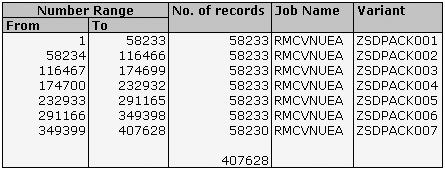
Figure 4
Number of ranges for the parallel run
Tip!
We recommend that SAP R/3 configurators consider the data requirements for SAP BW reporting when they define number ranges.
Step 2. Define Setup Job Parameters
After determining the number ranges required for SAP BW, the next activity is to define the actual setup jobs that are to be run in parallel to fill the setup tables. Figure 5 shows the screen where you fill in the parameters for the setup job run for sales documents originating in SD. You access this screen by running the appropriate transaction code for the setup job. (In this case, the transaction code is OLI7BW, or menu path Business Information Warehouse> Settings for Application-Specific DataSources>Logistics>Managing Extract Structures>Initialization> Filling in the Setup Table>Application- Specific Setup of Statistical Data> Perform Setup>SD Sales Orders).
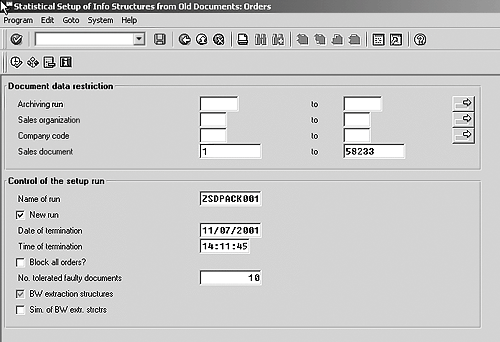
Figure 5
Setup job parameters for sales documents
Note
You cannot run the setup job unless the corresponding extract structure related to the setup job is active. You can carry out the activation in the LO Extraction Cockpit.
In addition to the selection parameters, you are required to enter control parameters such as Name of run, Date of termination, and Time of termination. If you want the job to be started as a new run — as opposed to restarting a terminated setup job — select the New run checkbox. A new run reads all available documents according to the number ranges specified; a restarted job reads all documents not processed by a terminated run. Check the Block all orders? checkbox if you want to prevent any document posting in the application, or if there could be anyone on the system for the number range where document changes are possible. Enter a number against No. of faulty documents if you want the setup run to bypass or ignore faulty documents.2 We recommend that you do so only in a test system and when you want to run test loads. Leave this field blank in a production run.
One of the controls for the setup run is the BW extraction structures checkbox, which was selected automatically by the system when the transaction code for the SAP BW setup job was executed. Simulation runs can be scheduled by selecting the Sim. of BW extr.strctrs. option. Simulation runs allow for run-time examinations of the setup job, for checking the log file for possible error messages in the log, and for verifying data volume estimates.
Step 3. Identify Background Processes
You can only run as many jobs in parallel to one another as there are free background processes available. So, it is important to establish how many background processes will be available to the setup jobs. If more jobs are scheduled in parallel than the number of free background processes available, several jobs would have to wait for available processes before they can be executed, defeating the purpose of running setup jobs in parallel. Consult your Basis team to determine the appropriate number of background processes to enable you to run the setup jobs quickly.
Step 4. Create Variants for Setup Jobs
After you enter the parameters based on the tabulation of the number ranges as mentioned earlier, you can save the parameters entered as variants. This enables you to subsequently run the setup jobs in parallel. You would create only as many variants as the number of background processes you have established for the setup run. This is to ensure that you obtain the highest possible efficiency in completing the setup jobs that you plan to run in parallel. You can also define the variants for the ABAP report that fills the setup tables using transaction code SE38. Enter the program (report) name and click on Variants. In the next screen, enter the variant name and click on Create. You can then enter the parameters as shown in Figure 5. Alternately, you can use third-party tools like WinRunner for the creation of variants, which helps you to eliminate manual errors that may arise in the creation of job variants.
Step 5. Delete Setup Log
Before you actually start the job, make sure that the corresponding setup table is empty by executing transaction code LBWG, or menu path Business Information Warehouse>Settings for Application-Specific DataSources> Logistics>Managing Extract Structures>Initialization>Deletion of Setup Tables Content (Figure 6). This is to ensure that the setup table does not contain records from a prior run. Note that you delete setup tables by application area.
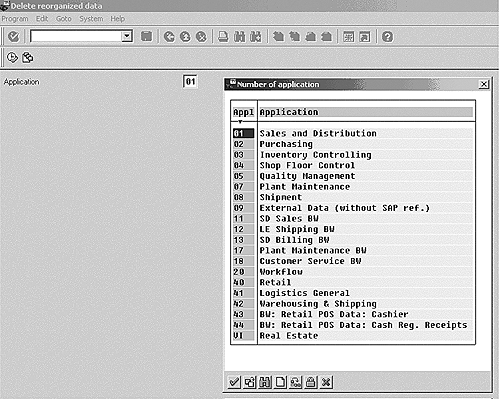
Figure 6
Deletion of data in the setup table
If there is a previous init, you must make sure that no delta is available (use transaction code RSA7). If a delta is available, it must be loaded into SAP BW first (starting the load at least twice, so that RSA7 goes to zero for the corresponding DataSource). In addition, if a delta exists and the delta is not required, then the delta can be removed in the SAP R/3 system after deleting the data in the SAP BW system and deleting the initialization for the source system in the SAP BW system.
Step 6. Check Availability of Database Space
It is important to ensure availability of sufficient database space for the setup table and temporary tables. For example, if you are using an Oracle database, you must ensure that sufficient space for the temporary tablespace (required for sorting), the rollback segments (required for logging), and the tablespace used for the setup table is available. You base your space estimate on the required data volume and the results of simulation runs. Inadequate database space will result in a termination of the setup jobs, wasting precious production time made available for running the setup jobs. While such a termination might be acceptable in a development system, it is rarely tolerated in production systems.
Step 7. Switch Off the Logistics Application
No data records should be posted in the application for which the setup run is carried out. This is to ensure that documents that are posted during the setup run are not lost. Typically this is carried out by the Basis team, who locks out users from accessing the application while the setup jobs run. In addition, no background jobs are run that might affect the application for which the setup run is carried out — for example, statistical setup jobs to fill LIS tables.
Now that you have completed all the procedures outlined earlier, you are ready to run the setup jobs. You can schedule these jobs to run in parallel to one another with the variants you have defined. After running the setup jobs, you can examine the log in the Job Monitor or via transaction code NPRT.
With the setup jobs run, you have the following tasks to carry out.
Step 1. Perform Data Validation
Once the setup run completes successfully, you may carry out an initial check of record count in SAP R/3 by entering transaction code RSA3 (Extractor Checker). This confirms whether the data in the setup tables reflected in the log of the Extractor Checker matches with that of the underlying tables of the application for which the setup run was carried out. In addition, carrying out checks for record count and correctness of data using the Extractor Checker prevents the carrying out of further tasks in the SAP BW and SAP R/3 system if the record count or data is found incorrect. It also provides the opportunity to modify the data selection or rectify the incorrect data read in the SAP R/3 system.
Note
You might encounter situations when the number of records in RSA3 does not directly match with that of the underlying tables. This is because the extractor can bring in multiple records for the same document. This can happen when several changes have been made to a single document in the logistics application, and these changes are reflected in the extraction process as multiple documents that reflect the original document and documents with changes. Keep this situation in mind when you carry out record count and data validation in RSA3.
Tip!
This is an optional step. However, we recommend that you carry out checks for data count and for correctness of data using the Extractor Checker before executing the initialization load in the SAP BW system.
Step 2. Execute the Initialization Run in the SAP BW System
Once you have carried out the data validations, you can extract the initialization data in the SAP BW system from the SAP R/3 system. You do so by defining an InfoPackage under the source system that you have defined for R/3 for the corresponding InfoSource. In the InfoPackage, select the option Initialize delta process under the Update tab. The process of carrying out the initialization load is beyond the scope of this article.
We recommend that you delete the contents of the setup tables after you carry out your initialization load in the SAP BW system and validate the data. This would help avoid redundant data storage and consequently save database storage space.
Tip!
You can run the setup jobs whenever there is a need to carry out a new initialization in the SAP BW system. This means that you run these jobs even though they were run earlier and an initialization load was carried out in SAP BW. In such a situation, you then delete all the data in your PSA with respect to all prior initialization and delta loads, since you would carry out a new initialization load anyway after the setup run. However, you would delete the PSA data only after the new initialization is successfully loaded into your PSA and InfoProviders.
Step 3. Schedule V3 Update Jobs in the SAP R/3 System
After carrying out the initialization in the SAP BW system, you may schedule the V3 update jobs to run periodically in the SAP R/3 source system. From the LO Extraction Cockpit, click on Job Control against the logistics DataSource for which you want to schedule the V3 job (Figure 7) . In the pop-up box, maintain the parameters for the job and schedule the job to run periodically. (See Figure 8). The periodicity of the V3 update job depends on the volume of data that is generated in the logistics application in SAP R/3.

Figure 7
Select the Job Control option for the appropriate logistics DataSource
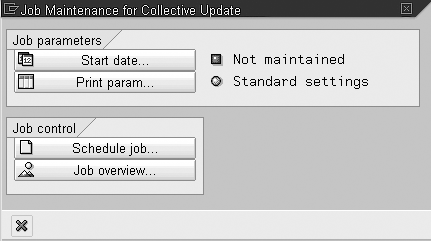
Figure 8
Job maintenance for the V3 update
Step 4. Switch On the Logistics Application
Once you have successfully extracted the initialization data in the SAP BW system (into the PSA), you can switch on the logistics application in the SAP R/3 system and resume the posting of documents. The V3 update jobs will now collect the new documents and the changes to the existing documents in that application in a delta queue. The delta queue can be accessed using transaction code RSA7.
Tip!
You can also schedule the V3 update jobs and switch on the logistics application while the initialization run is carried out in the SAP BW system. This is enabled through a process called "early delta initialization," which is available only for DataSources that support this functionality delivered from PI (-A) 2002.1.
Step 5. Perform Delta Extraction in the SAP BW System
The data that is collected as a result of the V3 update run can now be extracted into SAP BW as delta loads. You create a separate InfoPackage for the delta load and schedule it to run as a batch job on a periodic basis.
By following the seven easy preparatory steps explained in this article, you can execute your setup jobs in parallel efficiently and at the same time minimize your system downtime for the logistic application for which the setup job is run.
Hari Srinivasan
Hari Srinivasan is an SAP NetWeaver BW specialist with more than a decade of experience in implementing SAP FI/CO, IS Retail, and SAP NetWeaver BW. Hari specializes in implementing SAP NetWeaver BW solutions including the SAP BusinessObjects suite of products and planning applications. Hari has also conducted numerous BW data warehousing and upgrade assessments, conducted reporting strategy assignments, and developed migration strategies from SAP NetWeaver BW to the SAP BusinessObjects suite of products. Hari is now focusing on working with the EPM and SAP BusinessObjects suites. Prior to working with SAP systems and applications, Hari worked in several managerial positions in accounting, finance, project acquisitions, and infrastructure investment. Hari is a chartered accountant from India and a certified information systems auditor.
You may contact the author at hari.srinivasan@inforte.com.
If you have comments about this article or publication, or would like to submit an article idea, please contact the editor.
Andreas Wilmsmeier
Andreas Wilmsmeier is a managing director of Compendit in Germany. He was a member of the initial SAP BW core development team, where he was responsible for designing and implementing parts of the staging engine (specifically the Staging BAPI). Andreas has been managing multiple SAP BW implementations from the early days of the SAP BW 1.2A first customer shipment to today's SAP BW 3.0B release. He is a co-author of
Mastering the SAP Business Information Warehouse (McDonald, Wilmsmeier, Dixon, and Inmon; Wiley 2002).
You may contact the author at andreas.wilmsmeier@compendit.com.
If you have comments about this article or publication, or would like to submit an article idea, please contact the editor.