Learn how to exchange or replace a product and have both on the same sales order, enabling a quicker response to the customer that results in lower costs and enhanced customer satisfaction.
Key Concept
The consolidated exchange process is an exchange process that combines many steps of a typical SAP functionality. It consolidates these typical SAP processes: return order, return delivery, goods receipt, free of charge order, free delivery, and goods issue.
Consumers sometimes tend to rethink or revisit a decision after buying a product. More than one option can put consumers in a tight spot when they are trying to decide which product meets their needs. On the other hand, sometimes a product has a problem or a defect, or there is a wrong shipment that needs a replacement. Such situations can arise in retail, software, or any distribution industry.
For instance, a retail product comes in different colors with the same price. One color is ordered, and the customer changes his mind and wants another color instead. Another example is a software product that was shipped for Windows 7 compatibility, but the order really was for Windows 8 compatibility. Both products have the same price, but different attributes.
Both the scenarios above require an exchange. The purposes in both scenarios can be different, however. The first scenario relates to customer choice and the company’s return policy, whereas the second one relates to the company’s reputation to replace a defective or wrong product. However, both are related to customer service, which is the key.
For achieving an exchange, a standard SAP system allows for returning a product and subsequently shipping another product free of charge to the customer. This is a standard sales and distribution (SD) order-to-cash (OTC) functionality that essentially involves two processes:
However, with changing business scenarios and the desire to offer a quick exchange mechanism, a more efficient exchange order process may be required. The standard process consists of two separate processes (both in SD): returns and free delivery. I explain how to combine these two processes in a single sales order.
This combined approach is helpful for any industry process that requires a compact and integrated exchange or replacement. Combining returns and free delivery into a single sales order yields the following benefits:
- Consolidation: Reduces the number of orders and deliveries and provides a compact visibility of the process as a whole.
- Transparency: Both the items (returned and replacement) are on the same order and provide a quick reference as to what was returned and exchanged, without having to go through document flows and different screens.
- Customer service: Customer service representatives can save time by executing the process much faster owing to fewer transactions and processes.
- Cost: This process limits the number of keystrokes required due to lesser transactions, thereby increasing speed and helping enable fewer representatives to handle more customers. This results in reducing manpower costs.
The idea is to be able to do the exchange process and have both the returned item and the new or replacement item on the same sales order. Almost this entire process is achieved by standard SAP configuration. In addition to ensuring a consolidated method for exchanging an item, it is convenient for tracking purposes. It provides a single window for customer service and customers to view and process exchanges, improving process efficiency and reducing cost.
The Process
The exchange process essentially replaces a product and does not involve any credit, debit, or invoice. However, exchange of products with credit and price can also be achieved. The sales order contains both items – the return as well as the replacement item. Both the line items have a separate item category. For delivery, there are two options based on the requirements and business process:
- Option 1: Create two different deliveries: one for return and one for replacement. This is like having two business processes (return and free of charge) on one order and fully controlled by the item category. Both update the inventory, create a goods receipt and goods issue document, and update document flow. The downside to this option is that, during delivery creation of the second delivery, the delivery type has to be entered manually as there can only be one default delivery type for a sales order type.
- Option 2: Create one common delivery for both line items: one line item for return and another one for replacement. The movement types are different based on item categories and the accounts are posted accordingly.
Note
One way to control both items so they are not on the same delivery is to use a status profile or delivery blocks based on business needs. For example, you would not ship a replacement product until the return is complete.
How to Configure the Exchange Process
The exchange process can be addressed using a single sales document. The configuration depends on business needs for pricing and billing. The configuration is to be done in standard SD.
To define a sales document type, execute transaction code VOV8. Follow menu path SPRO/IMG > Sales and Distribution > Sales > Sales Documents > Sales Document Header > Define Sales Document Types.
In the Change View screen enter ZEX in the Sales Document Type field (Figure 1). ZEX is a copy of the standard return order (RE). Enter a description for the sales document type (e.g., Exchange). Enter H in the SD document categ. field. Click the save icon to save your entries.
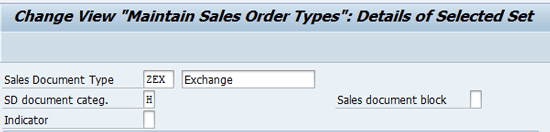
Figure 1
Define a sales document type
Now you define an item category ZREX for an exchange return item. Follow menu path SPRO/IMG > Sales and Distribution > Sales > Sales Documents > Sales Document Item > Define Item Categories. Scroll to the bottom of the screen (not shown) and click the Position button. Select the item category REN. Type REN in the Item category field and press Enter. Select this item category and click the copy icon. ZREX is a copy of the standard return item category (REN).
In the Change View screen (Figure 2) enter ZREX in the Item category field and add a description on the right side (e.g., Exchange Return item). In the Business Data section select the Sched.Line Allowed and Returns check boxes. After you press Enter, the system sends the following message: Is this entry also relevant for copying control? Click the Yes button. Press Enter and click the save icon (not shown).

Figure 2
Define item categories
Now define a new item category ZEXC for an exchange free item. ZEXC is a copy of the standard free item category (TANN). To configure this item category follow the same configuration steps outlined above. As long as the product price is the same, do not select the check boxes for Billing Relevance and Pricing (Figure 3). Click the save icon.

Figure 3
Define item categories (billing and pricing fields)
If the return and replacement item is charged, then enter values in the Billing Relevance and Pricing fields in Figure 3. Click the save icon.
Now you are ready to assign item categories. To complete this step, follow menu path SPRO/IMG > Sales and Distribution > Sales > Sales Documents > Sales Document Item > Assign Item Categories. In this step you assign the default item category (Item category) as ZREX and the manual item category (Manual item cat) as ZEXC to sales document type (Sales Doc. Type) ZEX as shown in Figure 4. Click the save icon.
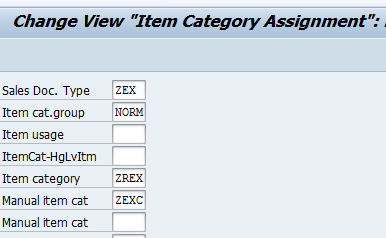
Figure 4
Item category assignment
To specify copy control for Deliveries (order to delivery), follow menu path SPRO/IMG > Logistics Execution > Shipping > Copying Control > Specify Copy Control for Deliveries.
For option 1 (create two different deliveries for an exchange order), copy control from the ZEX order type to the return delivery type LR (e.g., RE to LR copy control) as shown in Figures 5 and 6. Press Ctrl and F1 to go to change view. Click the Position button (not shown) and LR in the Delivery type field and RE in the Sales Doc Type. Press Enter. In Figure 5 Select the row with LR in the Tgt (target) column and RE in the Source column. Click the copy icon.

Figure 5
Copy control order to delivery for option 1
In Figure 6 change the source (the From SalesDoc Type field) to ZEX. Keep the other values the same and press Enter. The system displays a message (Specify object to be copied). Click the copy all button (not shown).
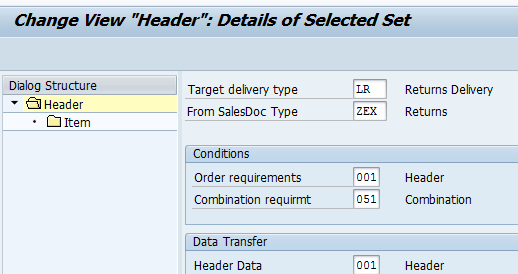
Figure 6
Change the source of the sales document type
To specify the copy control for deliveries, copy control from the ZEX sales order type to standard delivery type LF (e.g., OR to LF copy control) as shown in Figures 7 and 8. Click the Position button (not shown) and LF in the Delivery type field and OR in the Sales Doc Type. Press Enter. In Figure 7 Select the row with LF in the Tgt column and OR in the Source column. Click the copy icon.
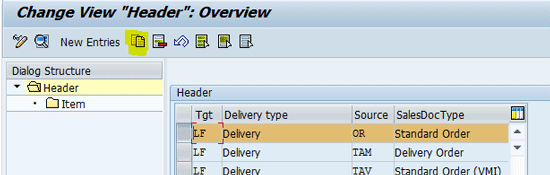
Figure 7
Copy control order to delivery
In Figure 8 change the source (the From SalesDoc Type field) to ZEX. Keep the other values the same and press Enter. The system displays a message (Specify object to be copied). Click the copy all button.

Figure 8
Change the source of the sales document type
For option 2 (create one common delivery for an exchange order – one returned and one free item), copy control from the ZEX order type to new delivery type ZLX (e.g., OR to LF) as shown in Figures 9 and 10.
In Figure 9 click the Position button (not shown) and LF in the Delivery type field and OR in the Sales Doc Type. Press Enter. Follow the same steps that I described to specify the copy control for deliveries (Figure 7). Click the copy icon.

Figure 9
Copy control order to delivery for option 2
In Figure 10 change the target (the Target delivery type field) to ZLX and the source (the From SalesDoc Type field) to ZEX. Keep the other values the same and press Enter. The system displays a message (Specify object to be copied). Click the copy all button.
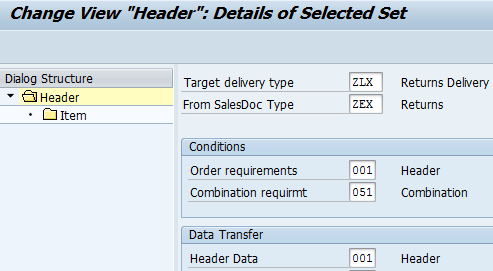
Figure 10
Change the target and the source
Now you need to default a delivery type in the order. To complete this step execute transaction code VOV8 or follow menu path SPRO/IMG > Sales and Distribution > Sales > Sales Documents > Sales Document Header > Define Sales Document Types.
In the screen that appears, go to order type ZEX by clicking the Position button at the bottom of the screen (not shown) and type ZEX in the SalesDoc Type field. Scroll down to the Shipping section (Figure 11). Only one delivery type can be defaulted in any order type. Your business policy either could be to do the return first or send the replacement first. Based on which policy you follow, put the appropriate code in the Delivery type field in the configuration for the order type. In my example I entered LR in this field. Click the save icon to save your entry.

Figure 11
Maintain sales order types – Shipping section
The Process in an SAP System
Once the concept and configuration are clear, you are ready to complete the actual process in the SAP system at the transactional level. The actual transactional process steps that need to be done in the SAP system are as follows:
- Enter the exchange order by executing transaction code VA01 (order type ZEX) with or without reference to the original sales order or invoice. Follow menu path Logistics > Sales and Distribution > Sales > Order > VA01-Create.
- Enter the return item (or paste the return item copied from the source document). The Item category defaults to the return item category ZREX (Figure 12).
- Enter the same material on the next line item and manually select the ZEXC item category, as shown in Figure 12.

Figure 12
Sales order overview screen
For option 1(separate deliveries) create a delivery for this order. The first delivery is for the default delivery type – return item ZREX. Complete the goods receipt for the delivery created by going to the delivery in change mode and clicking Post Goods Issue. Create another delivery for the same exchange order. To complete this process execute transaction code VL01N and in the screen that appears manually select the delivery type as standard outbound delivery type LF. Complete the goods issue for the delivery created by executing transaction code VL02N (change mode) and clicking Post Goods Issue.
For option 2 (single delivery), create one delivery for both line items: one line returns the item, and the other ships the exchanged or replaced item.
In both options above, the return item posts a goods receipt and the relevant accounting document is generated. The outgoing item posts a standard goods issue and the relevant material or accounting document is generated.
The Price or Billing Option
The price or billing process is primarily for free-of-charge exchanges. However, if the exchange process involves credit and a new invoice, or if the price of the returned item and the exchanged item is different, you can mark the item categories according to Billing Relevance (e.g., A for a delivery-related billing document) and Pricing (e.g, X for pricing standard) as follows (Figure 13):
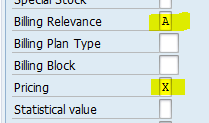
Figure 13
Item category configuration
- Process the return items in a standard manner by pricing them from the reference document or carrying out a return pricing procedure. Mark the item category as a return and use standard pricing. Keep characteristics (such as standard REN) the item category.
- Process the replacement item by carrying out pricing in the delivery-based billing document. Do not use the 100-percent discount condition, as it is like a standard sale.
This is just an overview of the generic procedure. More changes may be required to the pricing procedure depending on your business needs.
Common Pitfalls
Many process improvements and efficiency or cost control efforts have limitations (such as reporting at header level or automatic creation of deliveries) that need to be kept in perspective. Once addressed, the enhanced process delivers as promised. Here are a few pitfalls to keep in mind:
- Reporting: Because a single order has a return and sale item, reporting can be a challenge. Only order types do not help. One method to address this is to exclude the exchange order type from reporting and handle the reporting at the line-item level.
- Delivery due list: If two separate delivery types are used for return and replacement then the delivery due list job has to be enhanced since delivery type is not part of the standard screen selection. If a single delivery type is used, no enhancement is required.
- Price: The returned and exchanged products must have the same prices if the process involves no price adjustment. If products with different prices are to be used in this process, then the document pricing or billing option (discussed above) need to be used.


 Premium