Learn how to set up calibration in SAP Performance Management to rank your employees according to their performance.
Key Concept
HR generalists use calibration in SAP Performance Management to rank employees from a top performer to a bottom performer. In many organizations, the calibration tool is made available to a few HR generalists. It requires training, but is easy to use and is effective for appraising performance.
In this current economic climate, layoffs are an unfortunate occurrence. If you’re a company faced with downsizing, how can you be sure that you retain your top talent? How do you even know who is considered top talent? One process that organizations use is annual performance appraisals, which involve objective setting meetings with employees, 360-degree feedback processes, and identification of development needs.
Despite all the hard work, performance appraisals can be inaccurate. A top rating by one manager does not translate into a top rating among other managers. How can you be sure that your top talent really is the top, that you can help employees to become even better, or identify top performers with high potential for becoming managers? The answer is calibration.
In my implementation experience, I have noticed that calibration is often overlooked despite the fact that setting up calibration in SAP Performance Management is simple. No new authorizations are required (although you can set them up if you prefer). Anyone who has access to create an appraisal document also has access to perform the calibration for the team. Also, no special configuration or customization is required to set it up. The only exception is if you prefer to see the graphical output, in which case your Basis resource needs to configure the TCP/IP connection igs_rfc_dest_mbo (using transaction SM59). You can also have your calibrations made available as a manager portal (formerly called Manager Self-Service [MSS]) iView, which requires work by a portal resource.
I’ll share my experience in implementing calibration and the features that are available in SAP Performance Management, which is a module in SAP ERP HCM that you use for objective settings and appraisals. This article is based on SAP Performance Management in SAP ERP 6.0, enhancement package 3. Calibration works best if you have a fully working appraisal system in SAP ERP.
What You Need to Know about Calibration
To better understand how calibration can help you, let me first explain the limitations of the standard objective settings and appraisals process. Figure 1 shows a typical performance management process. The box on the left is the standard objective settings and appraisals process. The link shows the determined objectives that managers A, B, and C are appraising. The managers evaluate employees against their own benchmarks. The annual performance management process generates the final appraisal. This variance in the appraisal process and the stress points it develops are displayed in the horizontal arrow in Figure 1.

Figure 1
Objective settings and appraisals: managers’ ratings
In a perfect world, the process should be smooth, but it rarely is. Suppose managers B and C are liberal in their appraisals, while manager A holds his employees to a higher standard. With the conflicting views, the organization cannot properly determine the results of its appraisal process.
Calibration can help your organization gain a deep understanding of the current appraisal processes and identify potential improvements. It makes the appraisal process better by removing the varying standards and prejudices that different appraisers use because the manager challenges the rating of her peers in an open, collaboration environment. You can use calibration in each of the quadrants shown in Figure 2. The inner circle shows that for an effective performance appraisal process, the quadrants need to be interlinked. This interlinking and calibration of your appraisals encompass an efficient annual performance management process.
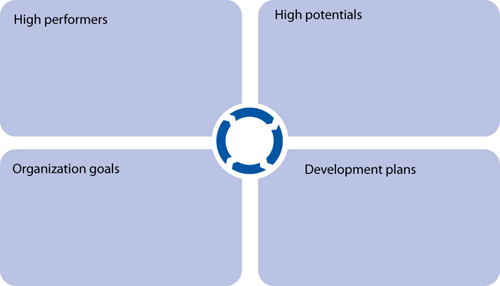
Figure 2
Calibration in the appraisal process
You can implement calibration for multiple purposes:
- Calibrate appraisals of employees in comparison to their peers. This helps the organization receive fair feedback on its performance management processes.
- Calibrate the appraisers to receive a fair feedback on the appraisers
- Calibrate the employees against a benchmark (e.g., the top performer) and understand what development plans might be required
- Calibrate a potential new hire against the employee who used to occupy that particular job. In today’s economic environment, it is even more important to identify development and mentoring needs early because high-potential talent can seek other opportunities when the economy picks up. This is possibly the best time for the company to talk to such high potentials and develop career goals and a succession plan.
You can also use calibration for other purposes, such as:
- Identity your organization’s development needs
- Identify the top 1% talent to mentor and give incremental responsibilities
- Develop best practices
- Determine any positive effects or developments by calibrating the results of the current year against previous years
Note
A Web-based calibration tool is available in mySAP ERP 2004 and later. In SAP Performance Management enhancement package 4, SAP offers functionality to perform team calibration. It provides an easy drag-and-drop feature. If the SAP functionality for the manager portal is not available, you can generate a URL to start the calibration Web page from transaction SE80.
SAP Performance Management Calibration
For calibration to be successful, your company should have a well-defined objective settings and appraisals process. Your company should define how the appraisal process is tied to the employee — is the employee’s compensation for the following year tied to the appraisal she receives? Does your company make decisions on the employee’s development plans, or is succession management based on the appraisal?
The calibration process should also include calibration meetings that take place before beginning calibration. In the calibration meetings, managers share their employees’ preliminary appraisals and make decisions based on what the benchmarks are. They discuss how you make the compensation payouts, how many employees met the enterprise strategic goals, and if discretionary bonuses can be paid to those employees. Based on the outcome of these calibration meetings, the managers can adjust their appraisals and then go back to their employees to conduct the final appraisals.
From my implementation experience I have noticed that enterprises conduct a calibration meeting after the final appraisals to gather feedback and set goals for the future. During those calibration meetings, HR generalists are sometimes present as coaches. Be sure to communicate to the appraisers and the organization that calibration is not meant to monitor employee performance; it is meant to ensure a fair objective settings and appraisals process. With that in mind, I will now explain the steps to setting up calibration.
Step 1. Open the Web Application Builder screen. From the SAP Easy Access screen, use transaction code SE80 (Figure 3). Choose the Business Server Page (BSP) application HAP_CALIBRATION. Click the Pages with Flow Logic folder and click search.htm. Click the Properties tab (on the right side of the screen) and you see the URL at the bottom of the screen. You can either copy and paste this URL in a browser or press F8 to open the BSP in the browser.
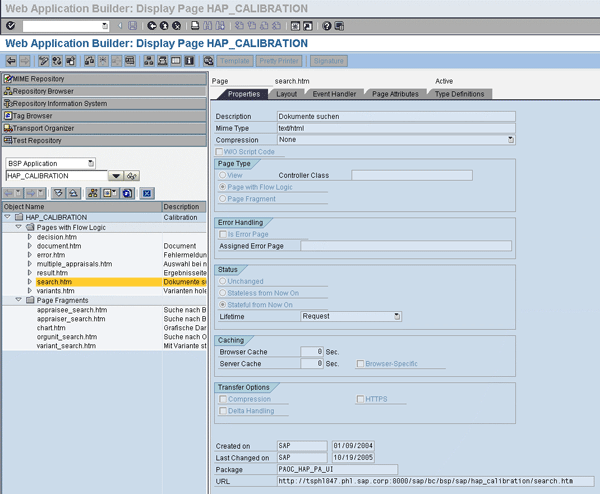
Figure 3
Use the URL at the bottom of the screen to open HAP_CALIBRATION
Step 2. Enter the values. When the calibration page comes up, select the values for the Template (appraisal document), Validity Period, and Appraisal Document Status (Figure 4).
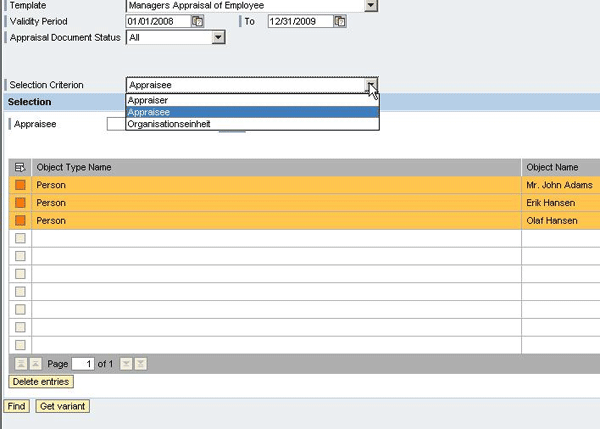
Figure 4
Calibration selection criteria
The values for the Selection Criterion are Appraiser, Appraisee, or Org Unit. You can calibrate on any of these values. When you select Appraiser, you can calibrate all the appraisees who were evaluated. Or you can select multiple appraisers and display all the appraisees who belong to them and perform calibration. In the Selection Criterion, if you choose Appraisee, the text for the next column says Appraisee. If you choose Appraiser in the Selection Criterion, the text changes to Appraiser. If you choose Org Unit, the text changes to Org Unit.
When you select Org Unit, the system displays all the appraisees who belong to the particular Org Unit, and you can perform the calibration accordingly. You can also use this feature to get feedback on the appraisal process for two different org units. If you don’t want to include an employee in the calibration, you can delete the entry from the display list.
Note
If you use Org Unit as the selection criterion, PERS-O is used as the evaluation path. PERS-O is normally defined while configuring the SAP ERP HCM system.
Step 3. Select the group you want to calibrate. For my example, I chose Appraisee. Enter the appraisee’s name in the Selection section. I normally enter the last name of the appraisee. If there are multiple people with the same last name, a pop-up window appears and I make the correct selection. If the appraising manager is performing the calibration, he can choose all the people in his org unit.
Note
Any manager who can create an appraisal document should have access to calibration.
Senior HR personnel (who can look at the org level, for example) need to have authorizations to look at multiple appraisal documents. You can configure this through structural authorizations. Refer to this SAPexperts article “Protect Sensitive Data in Performance Management with Authorizations: Part 2,” by Bianka Piehl, Maurice Hagen, and Martina Schuh.
You can perform calibration in multiple ways. One of my clients used to have mid-year calibration meetings. This calibration meeting coincided with the mid-year reviews. The leadership team used these meetings to review the training budget and get an understanding of the succession plans and the recruitment needs. I’ll now show you other ways you can set calibrations.
Benchmarks and Other Employees
One approach to calibration is calibrating the employees against the selected benchmark employee. In this process, the organization can gain a deeper understanding of:
- The appraisal process in the organization. For example, how does each manager appraise his or her employees against the same criteria?
- The level of talent that is currently available, and what development needs might be required
Step 1. Choose the employee you wish to calibrate. To compare employees against benchmark employees, click the drop-down menu labeled Selection Criterion, and choose Appraisee (Figure 4). In the Appraisee column, select the appraisee who was chosen as a benchmark against whom other employees are to be calibrated.
Step 2. Choose the other employees to calibrate against. These employees can be from the same team, report to the same manager, or even report to a different manager. From my experience, I have noticed that calibration is most effective if employees are calibrated against an employee with a similar job function. After you complete the selections, click the Find button at the bottom of the page. This takes you to the calibration report page shown in Figure 5.
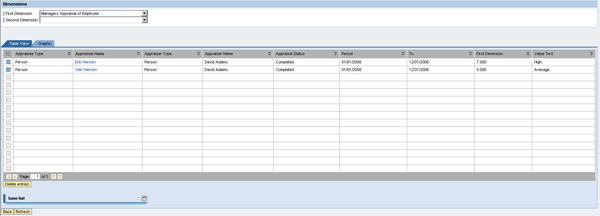
Figure 5
Calibration report page: table format
Step 3. Analyze your calibrations. Figure 5 displays the overall appraisal score where you can read from the values in the First Dimension column. The value in the First Dimension is the same as the value in the Template in Figure 4. The Value Text is displayed in the next column. You can delete the entries that you do not want to include in the calibration by highlighting them and clicking the Delete entries button at the bottom of the screen.
In Figure 5, Person 1 has an appraisal rating of 7, while Person 2 has an appraisal rating of 5. Both employees report to the same manager. When you are in a calibration session, you might be surprised to see that Person 2 has an average rating, especially because you always thought he was an above-average performer. You can calibrate one person against another on the screen just by the rating number. In my example, Person 2 may require development assistance. You might have missed this had you not been calibrated Person 2 against Person 1.
If you want to review the appraisal document or review the rating, you can click the appraisee name, which takes you to the appraisal document. The appraisal document can help you understand what the ratings were for the different objectives. It is useful for calibration/talent management meetings when you make decisions such as the criteria for a bonus, who qualifies for the bonus, and how one appraisee rates against the other.
You can also add a second dimension to your calibration. For example, you can have your calibration display the billable hours of all the consultants in the team with 75% utilization. You can take your calibration further by narrowing the category, such as calibrating how many of the consultants in the team are certified. If everyone is certified then the calibration shows everyone. If not everyone is certified, then the calibration shows all the consultants who are certified and who have 75% & above utilization. Figure 6 shows how you can select a second dimension to your calibration.

Figure 6
Calibration output page: select the Second Dimension
Note
The values displayed in the First Dimension and the Second Dimension are the Appraisal Template (VA), the Criteria (VB), and the Criterion (VC) objects. If the manager wants to carry out performance management, she needs to appraise her employees. To appraise the employee she needs to create an appraisal document, which is the VA object. Once the appraisal document is created, she should identify the top criteria she would like to use to conduct the appraisals. These criteria are the VB objects. Usually the VB objects resonate with the corporate goals — such as “achieve 15% YOY growth” or “develop management skills” for high potential employees. Once the criteria are identified, she identifies the criterion, the VC objects. The criterion can be department specific. For example, for “develop management skills” the criterion VC object can be team building.
In Figure 6, I selected Leadership as my second dimension. Leadership displays the criteria level (VB) score. The values are displayed in the Second Dimension column and the value text is displayed in the column next to it. In this case, you can see that Person 1 has a High overall appraisal rating and an Above average rating in Leadership. Person 2 has an Average overall appraisal rating and a Very high rating in Leadership.
It is important to fully understand these results. It helps to ask:
- What did Person 2 do to achieve a Very high rating in leadership?
- What kind of development assistance would he require to improve his overall appraisal rating?
- Did Person 1 get the same opportunity to display his leadership skills?
- What are the organizational goals and needs currently?
- Does the organization require talent with high leadership skills or does it need an overall performer?
- Normally, somebody with high leadership skills can be a very good fit in a sales organization. Would such a career opportunity interest Person 2?
In a calibration session, you can retain Person 2 and calibrate him against other persons who have a Very high leadership rating and see who has a higher overall appraisal rating. Organizations benefit when a person has a high appraisal rating and also displays high leadership talent.
Now imagine that Person 1 and Person 2 are reporting to different managers. In a calibration session, you can see if Person 1 and Person 2 were appraised uniformly. When discussing their performance with their managers, ask:
- Did both persons have equal opportunity?
- Person 1 might be working on a project that does not require tight timelines. Is this the reason why Person 1 has a high appraisal rating?
- Person 2 might be working in a project that has tight deadlines and he might have missed some of those. Does this reflect on Person 2’s appraisal rating?
- How would Person 1 have performed if he were in the same situation as Person 2?
The managers might end up concluding that Person 1 possibly deserves an Above average rating rather than a High rating.
These are the kind of details and adjustments that come out from a calibration session. One can perform the calibration by changing the First Dimension and the Second Dimension (Figure 7).
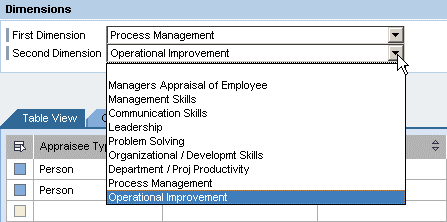
Figure 7
Select the first and second dimensions
By changing the first dimension and the second dimension you can see new data. As an example in Figure 7, I have chosen Process Management and Operational Improvement. This tells me which person excels in these two criteria groups. As always, one can display the report, using the first dimension only. Select the values to suit your calibration needs and requirements.
How do you identify if the objective settings and annual appraisals have met the organization goals and requirements? How do you determine if the organization goals have cascaded? Select the identified corporate objectives, as values in the first dimension and the second dimension. Read what results are displayed in the calibration output page. From my experience, I have seen any value with Above average and above to be a successful, cascading of the corporation goals.
Note
SAP Performance Management enhancement package 4 supports cascading goals. Cascading goals is a top-down approach through which corporate goals are pushed down the corporate hierarchy. Each manager, when he sets the objectives for his team, has to adapt his team and individual employee’s objectives to meet the corporate goals.
Other Ways to Use Calibration
An organization can use calibration in several other ways to assess its appraisal process and its employees. You can compare benchmark employees to one another, compare team members, and even compare managers’ teams against each other.
Benchmarks vs. Benchmarks
In the examples I have mentioned so far, I compared the employees against a benchmark employee. You can also compare the benchmarked employees against one another. This is easy to do because benchmarked employees often work for a different team or a manager than their fellow benchmarked employees. By performing a calibration, HR can identify the higher performers (e.g., the top 2%) for a higher responsibility or rewards.
Manager Calibrations
Managers can be calibrated against their management peers. The team of manager A might have a higher productivity level than the team of manager B, or the team of manager A might have more leaders than the team of manager B (which, in fact, might be a reason for lower productivity). This type of data helps with the reorganization of teams and the calibration of organization goals.
One best practice to make the appraisal process more effective is to add job-specific objectives in the objective setting. The other best practice is to include organizational goals in the objective settings. If the organization has the goal to increase sales by 50% compared to the previous year, include that objective for your team. One of the goals being set for your sales team might be “gain two new customers” and the other objective might include “increase sales revenue by 50%” compared to what the employee achieved in the past year. Organizations need to constantly calibrate their appraisal template to reflect the organization goals and objectives.
You can save the calibration query by clicking the Save list button at the bottom of the calibration report page (Figure 8). You can save the query as User-Specific (that only you can see) or as a Standard variant.
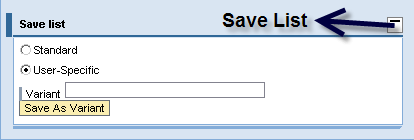
Figure 8
Save the calibration query
Best Practices
Finally, let me share some best practices for you to have the best calibration sessions.
1. Calibration is a controlling mechanism and is not meant to oversee the appraiser’s rating. Calibration encourages appraisers to be constantly challenged by their peers to justify their appraisal ratings.
2. Roll out calibration to experienced and senior HR generalists and managers
3. Conduct a calibration session with the managers and appraisers to understand the current year’s appraisals and plan for the coming year.
4. Identify the dimensions that work well for your organizations. Make sure these reflect your organization goals.

Venki Krishnamoorthy
Venki Krishnamoorthy is an author, speaker, and SAP ERP HCM talent management solutions subject-matter expert. He is currently an independent SAP ERP HCM functional consultant. Venki has over 10 years of experience as a functional lead, project manager, and program manager in the HCM space. Besides implementing SAP HCM solutions, he has implemented and acted as a trusted advisor on SAP ERP HCM talent management implementations, including E-Recruiting, HCM Performance Management, Succession Planning, SAP Talent Visualization by Nakisa, Learning Solutions, and Employee Self-Service and Manager Self-Services. He is the coauthor of three books: E-Recruiting with SAP ERP HCM, SAP ERP HCM Infotypes: Your Quick Reference to HR Infotypes,
and SAP Transaction Codes: Your Quick Reference to T-Codes in SAP ERP.
You may contact the author at krish.venki1@gmail.com.
If you have comments about this article or publication, or would like to submit an article idea, please contact the editor.