The log of report auditing tool, which is not widely used, can enhance employee personal data protection. See how to configure it in your system.
Key Concept
Report RPUPROTD (log of report) is a tool offered in standard SAP R/3 from 4.0B onwards, including SAP ERP. Log of report shows information about the name of the report, the user who ran the report, the date and time on which the report was started, and the report parameters and selection options used to run the report.
The log of report is a much underused but highly useful tool used for tracking or determining critical reports that users have accessed (such as those with personal data information). You can use the report information to determine if the employee who ran those reports did so in violation of HR policy and whether action against the employee is warranted. For example, suppose somebody runs a report that contains employee salary details. The audit or HR department can easily identify the users who ran the report and ask for an explanation.
To activate this log of report functionality, you need to do a small amount of configuration in the IMG, particularly if you need specific reports tracked. Many users think that all reports are automatically tracked, but this is not the case. Configuration to track the use of a specific report isn’t difficult; you just need to configure the HR report attributes table (V_T599R) to include that report name. You can see how to include the report in the attributes table in Figure 1.

Figure 1
Standard SAP R/3 entries in table V_T599R
Set Up the Log of Report
Step 1. Configure the log of report in the IMG. Execute transaction SPRO and follow menu path SPRO > Personnel Management > Personnel Administration > Tools > Revision > Log Report Starts. Activating the log of report functionality creates a record in the SAP R/3 database each time a user starts or executes the report.
You can also customize your reports so that you are only tracking online reports, or tracking both online and background reports. To customize your reports, follow the same menu path as mentioned above. Once you have clicked the Log Report Starts, the Change View “HR Report Attributes”: Overview screen (V_T599R) comes up (Figure 1). Click the New Entries button to begin your customization.
Tip!
Before you begin your configuration, you should work with your auditors to determine which reports require this level of audit. You do not need to track all reports with this program.
Enter the program names. If you need this functionality for both online and batch mode, check the relevant boxes as shown in Figure 2. Record online refers to the log for the online execution of reports, and Prot batch refers to the log for the background execution of reports.

Before running a real report, I suggest that you first test your log of report functionality by running some standard and custom reports (reports configured in step 1 only appear in report RPUOPRTD). Remember, the log of report is only meant for critical reports, so never run all reports because this seriously affects system performance.
I selected the following reports as an example of some tests you can run. Some are standard reports and some are custom reports.
- AQZZ/SAPQUERY/H2DATE_MONITOR (Task monitoring): Standard SAP R/3 report
- AQZZ/SAPQUERY/H2FLUCTUATIONS (employees hired and terminated): Standard SAP R/3 report
- RPTQTA00(generate absence quotas): Standard SAP R/3 report/program
- ZHRABSENCE: A custom report on absences
Step 2. Execute report RPUPROTD. Follow menu path SAP Easy Access > Human Resources > Personnel Management > Administration > Info System > Reports > Documents > Report Start > Log of Report Starts. The transaction code for this is S_AHR_61016381.
Double-click Log of Report Starts to open up the screen in Figure 3. You can run the log of report with the following selection parameters:
- Report: The report in which you want to find this information
- User: The user for which you want to find this information
- Date: Expected date ranges (when this report was run)
- Time: Expected time ranges (when this report was run)
- Sort Report, User, and Date, time refers to the way the report is sorted. It is determined by numerical entries in the report selection screen.
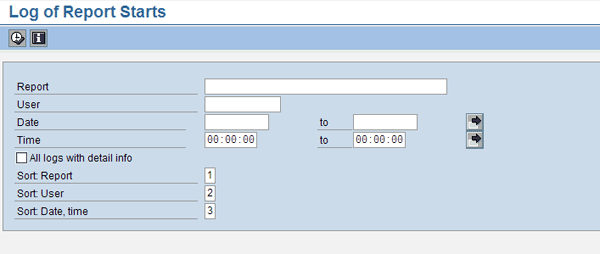
Figure 3
Log of Report Starts selection screen
Step 3. Analyze the report with the audit and HR department. Once you execute the report, you can find the details as captured in Figure 4. Line 1 explains that report (ZHRABSENCE) was run by User RPARTHASARAT on 08/15/2007 at 11:35 AM. The report output values match the order specified in Figure 3. The report name is first, the user is second, and the date and time are third and fourth.
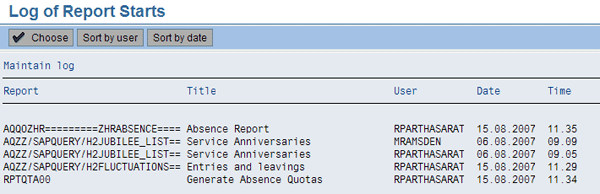
Figure 4
Log of report with details
You can use the Sort by user or Sort by date buttons to help you organize the information. If you double-click a line, the system shows the following details:
- Parameter/Selection option: The user selects this while running this report
- Option: The Range of Values the user applies when running this report
These two options help the audit team to find accurate information about the execution and running of the report or program for the concerned area or group.
Step 4. Delete the information. This step is optional, but since the log of report information takes up so much space on the server, I recommend that you delete the information once the audit is finished. If the audit department wants to delete the information stored in report RPUPROTD, it can run report RPUPROTU, which allows the deletion of stored information. The transaction code for this program is S_PH0_48000151.
In Figure 5, enter your user ID in the Password field. Then, place an X in the Delete check box. In the Report field, enter the name of the report you need to delete, and in the User field, enter the name of the user who executed the report. If you place a check in the All logs with detail info check box, this system shows you all the detailed information about every report.
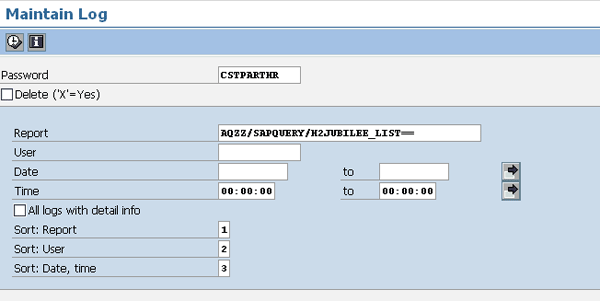
Figure 5
Program RPUPROTU deletes the stored information in report RPUPROTD
You can delete the log for one report at a time or for multiple reports executed by a single user at a time. In this case, you leave the Report field blank. If you want to delete multiple reports by a user on different date ranges, you need to mention the required date ranges in the date field. You must enter the user ID in the Password field. Otherwise the system does not run this program.
Figure 6 shows the output of this report. If you select a line and click the One log button, the system deletes only that line. If you click the All logs button without selecting any lines, the system deletes all the logs available in the report.

Figure 6
Output of RPUPROTU program
Before you delete, be sure to click the lines to open up their detailed information (Figure 7).
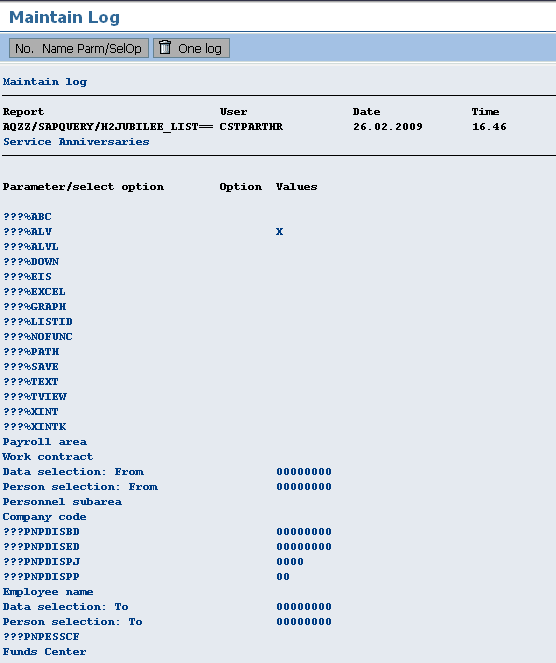
Figure 7
Detailed view of report RPUPROTU
The Parameter/select option refers to the user’s original parameters and selection options used while running the report. This information helps the audit team discover for which company code, employee group, and employee sub group this report was run. For example, if the user ran this report for company code 1000, with selection option 1000, then this company code appears in the option values.
If you click the No. Name Parm/SelOp button, the system shows Parameter/select fields with functional names (such as company code or Payroll area). If you click the No. Name Parm/SelOp button again, the system shows Parameter/select fields as technical names (such as PNP BUKRS or PNP ABKRS).
If you click the Delete button the system gives you the pop-up dialog box asking if you want to delete the log (Figure 8). If you click Yes, the system deletes the log information stored in report RPUPROTD. You can also delete this information by choosing the Delete check box in Figure 5. This screen is captured so you can examine the log before you delete it.
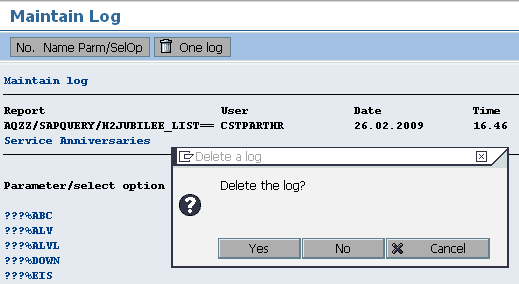
Figure 8
Deletion option in program RPUPROTU
Tip!
Any audit report pertaining to SAP systems refers to large system processes and huge storage space, so it is advisable to use this tool only for critical reports and include only those in the table, as shown in Figure 2. You can run report RPUPROTD on an as-needed basis. With report RPUPROTU you can normally delete the information immediately after the complete analysis of the log and report by the audit team. Authorization should be given only to the audit department/department heads.
Raghavendran Parthasarathy
Raghavendran Parthasarathy works for Hexaware Technologies as a Principal Consultant,where he manages SAP solution design for customers across the globe. He has worked in SAP ERP HCM for over 14 years in various capacities, including payroll projects in the Middle East, Europe, and Asia/Pacific. In addition to payroll, Raghavendran has experience in negative time management, personnel administration, and recruitment. He has also been a part of portal implementations. Currently, he is involved with cloud-based HCM applications such as SAP SuccessFactors and Workday.
You may contact the author at raghs99@yahoo.com.
If you have comments about this article or publication, or would like to submit an article idea, please contact the editor.



 Premium