Find out why real-time data acquisition (RDA) is a better option for real-time reporting than remote providers, and learn how to configure RDA.
Key Concept
Real-time data acquisition (RDA) is a tool for synchronizing data in SAP NetWeaver Business Warehouse (SAP NetWeaver BW) with a transactional SAP system. It allows reliable reconciliation of BW data.
Technical and functional SAP BI developers are always under pressure from finance and sales to provide real-time or near real-time reporting from the data warehouse. A transaction rate that could reach hundreds of thousands per hour presents you with a challenge: how do you ensure that the information in the reports is up to date and on time, especially for critical tasks such as a financial close?
SAP provides two options to pull information from a data warehouse in real time: remote providers and real-time data acquisition (RDA). Remote providers are not a good option considering the data volume. They would tax available resources and might cause the program to abort. Query performance is likely to be very poor as well.
RDA is a better approach. It gives a real-time picture of current business conditions (finances, sales, inventory applications, and so on) with less resource consumption in the source system. You can implement it in a few configuration steps.
We will show you the step-by-step configuration for RDA and provide the different implementation scenarios. We will also make you aware of some pitfalls and limitations of using RDA. The scope of this article is limited to using RDA with SAP ERP Central Component (SAP ECC) DataSources, although you can use RDA with Web services as well.
RDA Configuration
You can configure RDA in a few steps:
1. Confirm that your existing DataSource is real-time enabled by going to table ROOSOURCE and confirming that the field Real-Time Enabled DataSource is checked (Figure 1).
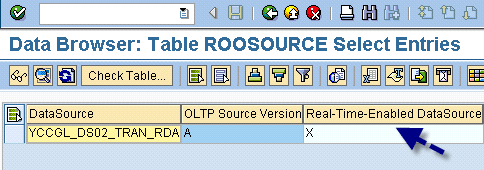
Figure 1
Real-Time-Enabled DataSource box in the ROOSOURCE table is checked
Note that all custom-built DataSources based on a view or table could be real-time enabled. In our example, the DataSource is built based on a view highlighted in Figure 2. Use transaction RS02 to get to the screen.
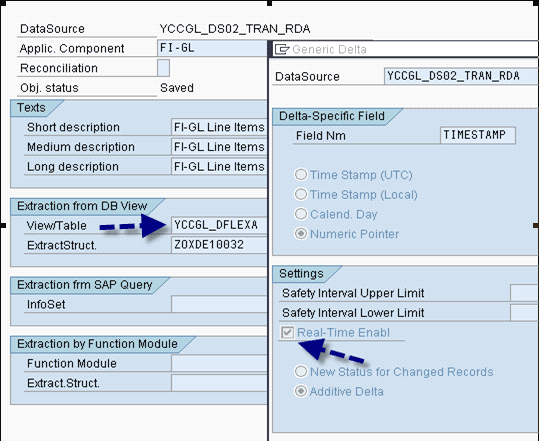
Figure 2
Create the Real-Time-Enabled DataSource by checking the Real-Time Enabl check box
Below are the steps you perform in the SAP NetWeaver Business Warehouse (SAP NetWeaver BW) system.
2. Create a transformation between your DataSource and InfoProvider.
Note
SAP allows you to use only DataStore Objects (DSOs) as InfoProviders with RDA (this includes all types of DSOs, including write-optimized).
3. Create a delta InfoPackage for real-time extraction (Figure 3). We assume that the regular Init (Initial Load [History Data]) was already performed.
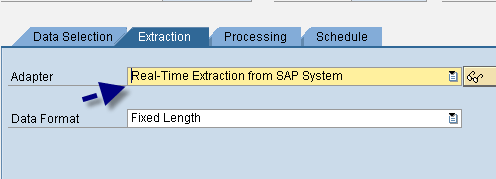
Figure 3
Choose Real-Time Extraction from SAP System from the drop-down menu in the Adapter field
Under the Processing tab, choose your configuration parameters for the condition of closing the request. We’ll discuss all configuration parameters later. In this case, we have chosen default values (Figure 4). Keep in mind that requests also automatically close when you stop the daemon.
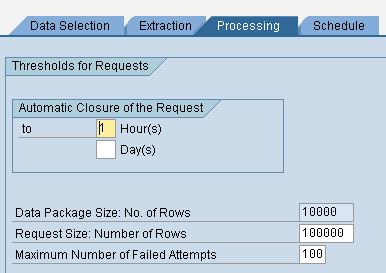
Figure 4
Choose closing request conditions
Go to the Schedule tab, but do not assign the InfoPackage to the daemon yet (Figure 5). Although you can assign the daemon in this step, it is easier to do so in step 6 to avoid multiple assignments for every DataSource. Instead of doing it twice for every DataSource, you can assign it in the RDA monitor using the DataSource that automatically connects the InfoPackage and the data transfer process (DTP).
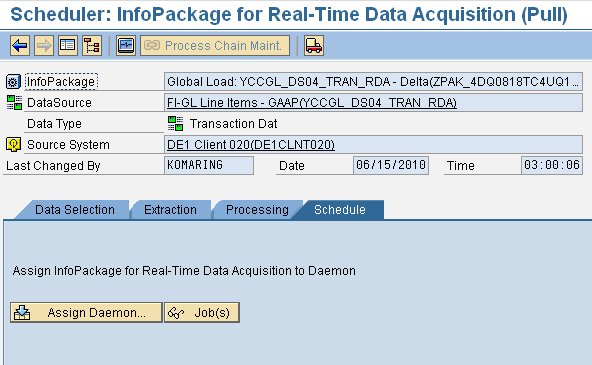
Figure 5
To assign the daemon later, by pass this step and do not click the Schedule tab
4. Create a real-time enabled DTP (Figure 6). Go to transaction RSA1 and follow menu path InfoProvider > Name of the InfoProvider. Right click the name of the InfoProvider and select the option Create DTP from the context menu. Then enter the InfoProvider and DataSource details. Switch the DTP Type field to DTP for Real-Time Data Acquisition.
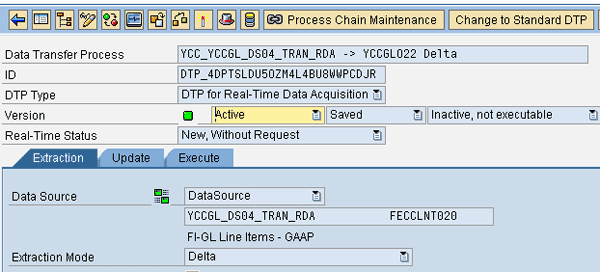
Figure 6
Choose DTP for Real-Time-Data Acquisition
5. Set up the RDA Monitor. Go to transaction RSRDA, which takes you to the Monitor: Real-Time Data Acquisition screen. Find the folder named Unassigned Objects. The folder includes unassigned RDA-relevant objects such as DataSources, InfoPackages, and the DTP. Expand the folder results as shown in Figure 7. The DataSources are not assigned to any daemon.
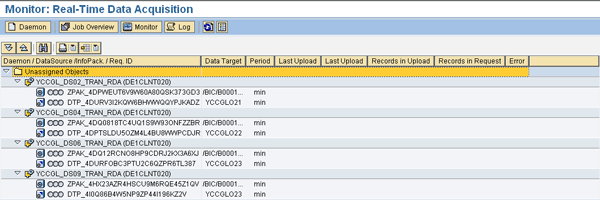
Figure 7
At this step, all InfoPackages and DTPs are in the Unassigned Objects folder
Now you create a daemon. Click the Daemon button (Figure 8) and indicate the period. We discuss this configuration parameter later.
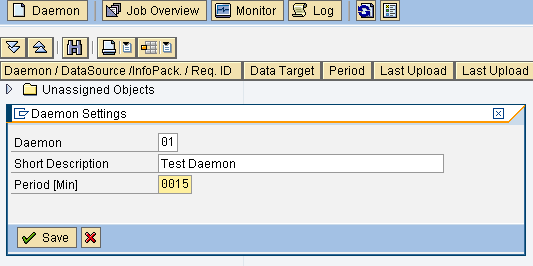
Figure 8
Create and save your daemon
In the upper left corner, you will see the Unassigned Objects folder. These objects were created during steps 3 and 4.
6. Assign the daemon. Right-click the DataSource shown in Figure 9 and choose Assign Daemon from the context menu. Choose the daemon number, 01 in this case (Figure 8). Remember, you did not assign the InfoPackage to the daemon. This step reduces the effort of assigning each InfoPackage and DTP one at a time.
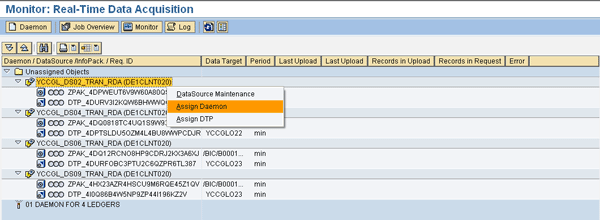
Figure 9
Assign the DataSource to a daemon
Your InfoPackage and DTP will be assigned to a daemon. Repeat these procedures for all your real-time DataSources (Figure 10).
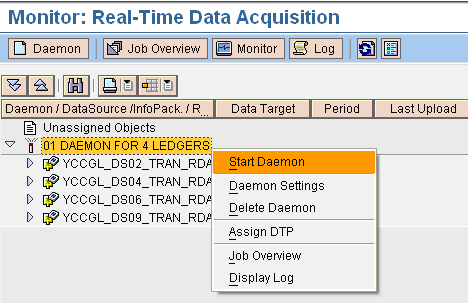
Figure 10
All DataSources are assigned to one daemon
7. Start the daemon. Right-click the daemon (01 in my example) and choose Start from the context menu options (Figure 11).
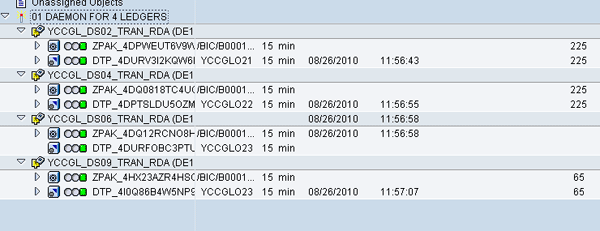
Figure 11
The daemon starts and pulls the records
Configuration Parameters
Following are some configuration parameters that you need to take into account:
1. How many daemons do you need? This is a tricky question. Every daemon runs in the background and processes the InfoPackages and DTP assigned to it at regular intervals from the source system. RDA fetches the data using the pull mechanism through a synchronous Remote Function Call (RFC) from the source system. This means that only one permanent active background job is scheduled to run every 10 minutes in SAP NetWeaver BW and each daemon is using one dialog process in the SAP ERP system. Therefore, you can limit the number of dialog processes RDA uses in the source system by the number of daemons in the SAP NetWeaver BW system. As long as the data volumes are not massive, a single daemon can handle them with acceptable delay (in our example, 15 minutes). Therefore, you should go with the one daemon option.
Another factor you should consider: If you have a few real-time DataSources that are connected to the same InfoProvider, you cannot split them among your daemons. They should all be assigned to the same daemon.
2. Set the daemon period. SAP recommends that this period be between 10 and 30 minutes. This period defines how often your data is pulled from your SAP ECC delta queue. Of course, shorter periods allow you to get the data in your InfoProvider closer to real time. However, as often happens, every advantage comes at a cost. In this case, when the volume of data is significant (thousands of records) the shorter period can degrade performance.
3. Close the request. This parameter may be not so important, because even if the request stays open, the data in your InfoProvider is available for reporting, although it is marked in yellow. It can be confusing when you see your request marked in yellow under the Requests tab in your InfoProvider. However, the Reporting sign (dashed square) shows that you can report the data (Figure 12).

Figure 12
The request is open, but available for reporting
You can limit this parameter by time (hours, days) or number of records in the request. Whichever parameter comes first closes your request and a new one is initiated.
RDA Monitoring and Maintenance
To monitor RDA you can use transaction RSRDA (Figure 13). The layout is simple and informative. It shows the RDA’s status, number of records in the request, and whether you have errors.
Note that while a request is open, the status under the InfoPackage shows as yellow. The InfoProvider request appears as open with yellow status. Once a request is closed, it is activated in DSO automatically.
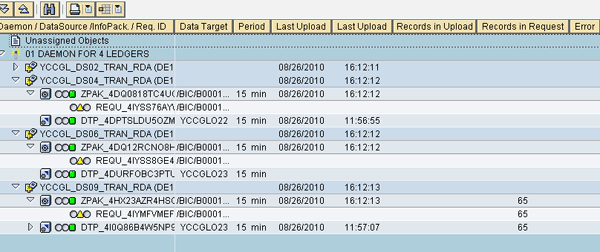
Figure 13
Monitoring RDA
To maintain the RDA, you may need to create two process chains: one to start RDA and another to stop it (Figure 14). To automate the data extraction on a regular basis (with a specific schedule) two process chains are necessary. The Start process chain determines when to start the daemon (extraction). The Stop process chain determines when to stop. You can perform these steps manually depending on the requirements. Both processes exist in the process chain type under the Load Process and Post-processing folder. Using SAP NetWeaver BW transaction RSPC, create a process chain.
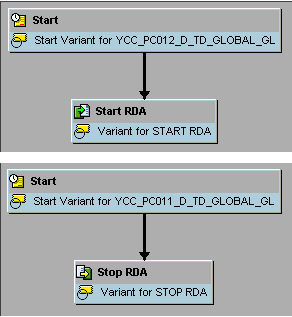
Figure 14
Process chains to start and stop RDA
To automate the RDA process, add Start daemon and Stop daemon process types to the process chain. They can be integrated in a single process chain or in a different chain depending on your requirements. In our case, we have set up two separate process chains.
Resolving Typical RDA Errors
1. Errors in the source system normally happen when the connection with SAP ECC is broken. Once the connection is restored, you have to stop the RDA and delete the red failed request from the Persistent Staging Area (PSA). Create a standard delta InfoPackage and run the delta. This either gets all the records that failed with the previous extract or none. Once the request is green in PSA, you must push this request to the DSO, either by manually changing the RDA DTP to Standard DTP and executing it or by executing a repair process chain, which is generated automatically. This process chain cannot be created or transported.
2. The new request cannot be posted to the DataStore Object (DSO) and the previous request was not posted. You need to stop RDA, switch the DTP type to Change to Standard DTP, and transfer the last PSA. Then change DTP back to Real-Time-Enabled DTP and start the daemon. In general it’s a good practice to verify the number of extracted records to PSA with your SAP ECC DataSource with relevant selections, including a time stamp that can be retrieved from transaction RSA7.
3. When multiple DataSources are connected to a single daemon, you might get errors in the RDA job log that are more like warning messages; for example: “Manual lock cannot be set for InfoPackages.” The records keep flowing into SAP NetWeaver BW without any discrepancies, but the job log shows the message in red, which may create confusion.
Note
If you have not already done so, you should apply the following SAP Notes in SAP ECC. These notes may be helpful during the build phase if the developer encounters problems. Some of the notes may already be part of the Support Pack Level 8.
1494229 - RDA: No data if several DataSources exist for each daemon
1282206 - RDA requests not deleted from RSCRT_RDA_MONDAT
1297928 - MESSAGE_TYPE_X in CL_RSCRT_RDA_DEMON
1390223 - Duplicate records when RDA loading process is stopped
1309984 - Performance of DTPs for real-time data acquisition (RDA)
1410621 - RDA/Web service: Error due to daemon when request is closed
1281935 - Loading process using Web service (push) too slow
The last two are applicable to Web services RDA, which is outside the scope of this article.
SAP Note 1494229 actually resolved our problem created when two DataSources were assigned to the same daemon. It looked as if one of the DataSources wasn’t pulling any records to PSA. We did a time-stamp analysis and our analysis showed that indeed the new records were coming in to SAP ECC.
RDA proved to be a valuable tool for users who need real-time data. This is a very scalable and streamlined process. Of course we assume that the technical architecture configuration is able to support the multiple background processes running continuously.
Balachandra Prathi
Balachandra Prathi is an SAP NetWeaver BW and SAP BusinessObjects consultant with more than seven years of full life cycle implementation experience in different business areas. For the last few years, he has worked in the financial services area.
You may contact the author at chanduinau@yahoo.com.
If you have comments about this article or publication, or would like to submit an article idea, please contact the editor.
Natan Gerner
Natan Gerner has more than 10 years of BI experience and has participated in many full life cycle projects in different business areas (MM, CRM, SRM, APO, DP). For the last few years he’s worked in the financial services area.
You may contact the author at ngerner@optonline.net.
If you have comments about this article or publication, or would like to submit an article idea, please contact the editor.


