Find out how to use program RSCSAUTH effectively to ensure data privacy.
Key Concept
By using program RSCSAUTH (maintain/restore authorization groups), you can easily manage your users’ access to execute programs within your SAP system and avoid a flaw in data privacy protection.
SAP uses authorization groups to determine which users have access to SAP reports and programs as well as their access level. The SAP program RSCSAUTH allows a user to update the authorization group associated with SAP R/3 and mySAP ERP Central Component (ECC) or customer-defined reports or programs. Many people are not familiar with authorization groups or even how the program RSCSAUTH works.
We will discuss how authorization groups work and also show how to perform mass updates. For example, when a user tries to access an SAP program through one of the various reporting tools, be it the SAP reporting tree, the area menu, ABAP program execution (transaction SA38), or Object Navigator (transaction SE80), the system performs an authorization user group check to determine if the user is authorized to execute the report.
The same logic applies when technical team members want to edit a user-defined program via Object Editor (transaction SE38) or Object Navigator (transaction SE80). The system performs a check to see if the authorization group is permitted to perform this function. If a user’s authorization group is not permitted to execute the report or edit the program, then the user is not permitted to perform this process.
Authorization Groups
Let’s examine how authorization groups work by looking at a real example. Your company created a custom report that allows end users to display payroll data called ZP_PAYRESULTS. Business users access this through the ABAP program execution (transaction SA38). One business user indicated that she would like to add an additional column to the report. The technical team member would need to have the authorization group associated with the business user’s R/3 user ID to modify the code in the program to generate the additional data on the report. If the technical team member does not have the same authorization group associated with the business user’s user ID as was required by the program, the technical team member would not have access to add the additional data.
While it is true that companies do not have to associate authorization groups to user IDs and programs, doing so allows companies to further restrict who can maintain changes to a program and who can display the results of that program or report. Based on the example above, say that every team member on the business payroll department has read authorization to the payroll cluster data. You might not want every member of the payroll business team to be able to run the ZP_PAYRESULTS program. A user with access to the ABAP program execution (transaction SA38) functionality as well as read access to the payroll cluster results could run the program.
However, if you associate an authorization group to the report ZP_PAYRESULTS, the system would check the users’ ID to see if they had permission to run programs or reports for this authorization group. If they had the same authorization group associated with the user ID that was associated with the report or program, they could execute the ZP_ PAYRESULTS report. However, if they did not have the same authorization group, then they could not.
The Authorization Group field is in the Attributes section of every program (Figure 1). It is up to your company if you wish to maintain values for this field.

Figure 1
Assign logical database PCH and name your InfoSet
Note
Custom programs that are not assigned to an authorization group are not protected. This means that if an employee has access to HR infotype data and has access to a transaction that allows him or her to run reports (for example, transaction SA38), the employee could run the report. Many SAP programs are supplied with an authorization group that does not correspond with the company’s authorization scheme or are without an authorization group altogether. If you do not change the authorization group information for these programs, certain users could access data that you did not intend for them to see.
System Requirements
When executing reports that have an authorization group associated with them, you need to ensure that the authorization group has been assigned to a user. If they are not associated with a user, then that user receives no results when trying to execute. To do this, you need to know the users’ SAP user IDs. To get this, you can ask them what their user ID is. Or you could use infotype 0105 (communications record) subtype 0001 (system user name) if you associate user IDs with personnel numbers. Another option is to go to User Maintenance: Initial Screen (transaction SU01) and look up users’ IDs by their first and last name.
When an authorization group has been associated with a user, it is stored in the User Maintenance: Initial Screen (SU01) or transaction PFCG (role maintenance). In transaction SU01, the authorization team sets up the user’s authorization roles, password, and validity date for the user ID and system setting defaults. You can also use transactions SU01 or PFCG to assign the user’s ID to a user group (Figure 2). We will focus on transaction SU01 because it’s the most common way of doing this. After you type in the user’s R/3 ID, click on the change icon. Notice the User Group for Authorization Check field in the middle of the screen. This is where you enter the authorization’s group name.
Note
Some companies tie authorization groups to programs without directly stating the authorization group in the object S_PROGRAM.

Figure 2
Assign a user to a group in the Display User screen
Tip!
The Logon data tab in the SU01 screen contains the user group for an authorization check. Normally the authorization team sets up the authorization groups. We have made an assumption that the authorization group has already set up the end users’ authorization group, master data authorization, and transactional data.
Program RSCSAUTH allows you to maintain the authorization groups for SAP standard programs without the need to change the program attributes on each individual report. In addition, the report allows you to restore customer-specific authorization groups following an upgrade.
Determine the Authorization Group
To determine the authorization group for a particular program’s attributes, ask a member of the technical team to enter transaction SE80. Then, follow these steps.
Step 1. On the Object Editor screen, enter the name of the report into the Program field. For our example, we are using the SAP standard H99_SELECT_OFFCYCLE report.
Step 2. Double-click on the report so that you go to the ABAP Editor: Display Report H99_SELECT_OFFCYCLE interface
Step 3. Select Goto>Attributes from the menu. Now the technical team member can see the authorization group associated with this SAP program (Figure 3). The Authorization Group field can contain a specific value or the field can be blank. If it contains a value, then only individuals who have access to that authorization group via transaction SU01 can access this report. If it is blank, then anyone who has access to HR master data and a transaction that allows them to run a report in R/3 could execute this report.
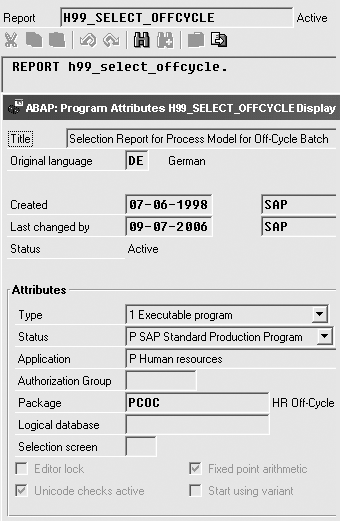
Figure 3
Attributes of a standard R/3 program
How to Use Program RSCSAUTH
The R/3 standard program RSCSAUTH allows a member of the technical or authorization team to update the value in the attributes’ Authorization Group field. This is a mass change operation that updates everyone who has the authorization group. Remember the authorization group was already assigned to the user in transaction SU01. By running the RSCSAUTH program, you can automatically assign an authorization group to other programs or reports. Once the RSCSAUTH program has completed its update (associating the authorization group with the program you told it to), then only individuals who have that authorization group associated with their SAP user IDs (via transaction SU01) can access the program.
To execute report RSCSAUTH, a technical or authorization team member performs the following steps.
Step 1. Enter transaction SE80
Step 2. Enter RSCSAUTH in the Program field
Step 3. Double-click on the program name to display the code
Step 4. Click on the direct processing icon  . The system then displays the selection screen for the Maintain/Restore Authorization Groups report. Help text explains each selection field. To access this information, place your cursor on the field and press the F1 key.
The selection screen contains two main partitions: Report choice and Authorization groups. Under the section Report choice, you can make your report selection according to the following:
- Program name
- Authorization group
- Application area
- Logical database name (LDBNAME)
The Authorization groups section is divided into two parts: Maintain and Restore/Transport.
- Maintain: Directly update authorization groups within the productive client. Select the Create/Change check box to maintain customer-specific authorization groups. Then you can propose a value for the new authorization groups by supplying a value to either the default authorization group field or the report tree field.
When using the Default authorization group field, the supplied value becomes the proposed value for all reports for which you have not yet entered a customer-specific authorization group. It is the node authorization that becomes the proposed value for all reports in the report tree. The node authorization does not overwrite existing company- specific authorization groups. If a report exists in more than one node, the system uses the authorization of the first node. The system determines this alphabetically. If you have specified a value for both a default authorization group and a report tree, the system uses the default authorization group value only for reports for which it cannot find a node authorization.
- Restore/Transport: Functions in this box are for transporting, not maintaining, customer-specific authorization groups, as well as for restoring them following an upgrade. The following functions are available:
- Test run: The system lists all reports for which customer-specific authorization groups exist: report name, SAP authorization group, and customer-specific authorization group.
- Restore: You can use this function to restore customer-specific authorization groups (for example, following an upgrade). The system outputs a check list (as with the test run). The SAP authorization groups are shown in the SAP column. The Customer column lists the customer-specific authorization groups that overwrite the SAP authorization groups.
- Restore with transport: You first see a dialog box in which you specify a transport request. Alternatively, you can branch from here into the transport and correction system. The system enters the selected reports with the customer-specific authorization groups in the transport request where the customer authorization group differs from the SAP authorization group. Afterward, the system outputs a check list. This process is similar to the restore function.
Note
You cannot maintain and transport (or restore) authorization groups within the same program run. If you wish to maintain and then transport authorization groups, run the report twice, or you see an error message (E: Make a selection).
Report Selection Output
After you have made your selection, execute the program by clicking on the execute icon. The generated output contains the program name, SAP authorization group, customer authorization group, and title of the program. The value in the Customer authorization group field is the value that the system transfers. If you would like to change the value that is in the Customer authorization group field, it is open for input. To update the program’s authorization group, select the programs by checking the open box to the left of the program name, then click on the save icon (Figure 4). A pop-up window asks if you want to Change TRDIR entries? . Select Yes to continue and you receive a message that Authorization groups were copied. You can rerun the program in test mode to see that the changes have occurred. Otherwise, you could use transaction SE80 and look at the attributes for this program. Remember to update the authorization group of the users who will access this program if you have not already done so.
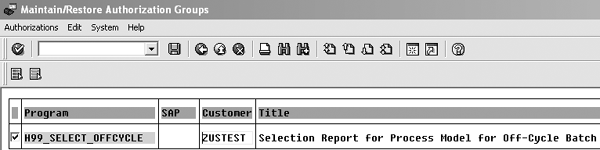
Figure 4
Program output
Tip!
Normally, you do not have to worry about Support Packages or upgrades reverting SAP standard programs’ authorization group values back to blank. However, if this does happen, all you would need to do is to run the RSCSAUTH program once again to associate an authorization group back to the program or report that had its authorization group cleared.
Brad Walters
Brad Walters is a certified SAP HR consultant for Electronic Data Systems with more than nine years of SAP HR experience. His SAP work experience includes configuration and production support of PA/OM, Recruitment, Payroll, and ABAP development.
You may contact the author at walters_brad@hotmail.com.
If you have comments about this article or publication, or would like to submit an article idea, please contact the editor.
Dawn Burns
Dawn Burns is an SAP-certified human resources senior consultant and Quality Assurance Manager and HR Consultant with Howrey LLP. She is a former SAP Human Resources instructor for SAP America and has more than 12 years of experience in human resources and information technology.
If you have comments about this article or publication, or would like to submit an article idea, please contact the editor.




 Premium