In six steps you can set up a custom pricing publishing program that allows users to see the most current prices for the company’s goods. Then see how to customize the program and the output information it provides.
Key Concept
A Business Transaction Event (BTE) triggers processes based on the occurrence of a particular event within R/3 and SAP ERP Central Component. You can combine BTEs with BAPIs and function modules to create a series of process steps that the system executes each time a particular event is triggered.
Industries such as retail, consumer electronics, food, and beverages have frequent price changes. These industries
also operate through multiple channels such as online sales, resellers, self-owned stores, and direct sales. In addition,
these industries tend to have a large number of materials, often in the thousands, each with its own price. In such a
scenario, the ability to keep prices across multiple channels updated in near real time becomes a key requirement. At the
same time, you cannot risk lowering your system performance.
Working with one of my clients recently, we developed a custom program to update pricing without taxing the sending
and receiving systems. The client had a large number of materials for which it needed to publish prices frequently to
multiple resellers and sales channels. Initially, the client was publishing the price for each of the materials every time
it needed to update prices. Although this worked for a while, as the client added more channels and the number of
materials increased, the frequent updates of the full price list created major system performance issues. The receiving
systems also could not process the frequent large volume of price data.
I will explain how we set up the custom pricing publishing program to meet the client’s needs and the
components we used to implement this solution. You can set up the custom program in six steps, using standard SAP features
with minimal additional programming. I’ll then show you how to enter data into your system after you’ve
followed the six steps and demonstrate how you can review the data output. The custom program works with R/3 4.7, SAP ERP
Central Component (ECC) 5.0, and ECC 6.0. It uses standard Business Transaction Event (BTE) and BAPI functionalities.
Overview of the Workaround
My custom program uses the BTE functionality to capture price changes that happen in the system. The BTE allows you
to perform a set of actions specified in a function module, when a certain event occurs. You can also assign a set of
condition types to a watch list. The system captures any changes in these condition types in a custom table, including the
sales organization and material for which the condition type has changed and the date and time of change.
To set up this custom program, follow these six steps:
Step 1. Use a Publish&Subscribe event to create a new product PRICE
Step 2. Assign PRICE to the Update conditions event 00503301
Step 3. Create the custom function module Z_BTE_00503301 and assign it to event
00503301
Step 4. Create the custom table Z_COND_TRACK to list the condition types related to price change
Step 5. Create the custom table Z_COND_CHANGES to track when the conditions related to pricing
change
Step 6. Using data from the custom tables, set up and run BAPI_SALESORDER_SIMULATE to obtain new
net prices
When the custom program is in place, you can capture all the price changes that take place in the system and then
publish them. This allows you to update prices in real time across all sales channels. You can also publish only the
changes to save system resources. Often, prices of only a few materials change in any given interval. Although
republishing the price for those materials is crucial, it is a waste of system resources — both sending and
receiving — to republish the whole price catalog each time that the price of a few materials in it changes. As your
company grows to multiple channels and geographies, you can extend the custom program without additional configuration or
development effort.
Set Up the Custom Program
Step 1. Use a Publish&Subscribe event to create a new product PRICE. Publish&Subscribe
events are BTEs that take over the tasks that user exits previously performed. You use them to implement functionality
that SAP doesn’t provide. You can then attach function modules to these events to perform the actions required each
time that the system triggers an event. SAP provides a list of BTEs for Publish&Subscribe events that you can use. You
can get the list of BTEs under the Events column in transaction BF34. Select
Publish&Subscribe BTE>customer enhancements.
In my example, I used transaction BF24 (create a product) to define a new product
PRICE to group enhancements to the Publish&Subscribe event. I gave it the description Price BTE and selected the active (A) check box, which releases
all the enhancements for that particular product (Figure 1).
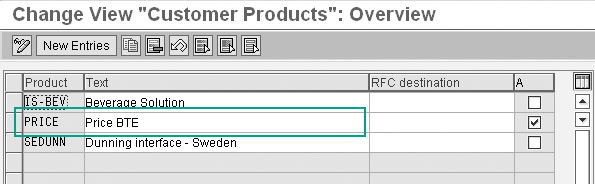
Figure 1
Add the new product PRICE and activate it
Step 2. Assign PRICE to the Update conditions event 00503301. Next, in transaction
BF34 select the event 00503301. SAP has predefined this event to trigger every time
someone changes a condition record. Assign the product PRICE to the event (Figure 2).
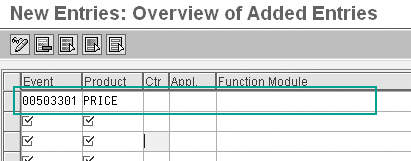
Figure 2
Assign PRICE to the event 00503301
Step 3. Create the custom function module Z_BTE_00503301 and assign it to event 00503301.
In transaction BF34 you need to assign a custom function module that contains the actions that the system
should perform when the system triggers event 00503301. For my example, I developed the custom function
module Z_BTE_00503301. This function module captures the change in the condition type in a custom table,
which the system uses to calculate the price. Using transaction BF34, I assigned it to event
00503301, as shown in Figure 3.
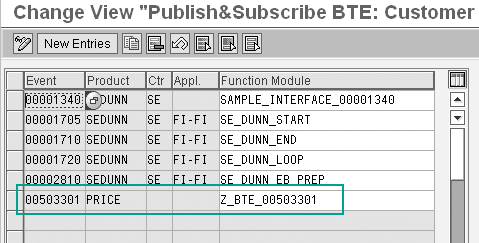
Figure 3
Add event 00503301 and assign the custom function module Z_BTE_00503301 to it
Step 4. Create the custom table Z_COND_TRACK to list the condition types related to price
change. In transaction SE11, create the custom table Z_COND_TRACK to list the
condition types for which you want to capture the change details. Create it as an application table (master and
transactional data) and allow display and maintenance of the table.
This allows you to change the condition types the system should track. For example, the following condition
types have a direct bearing on net price, so you should track them for changes:
- PR00 (price)
- VA00 (variant price)
- KA00, K032, K005, K007,
K004, and K020 (discounts)
You only need to track discounts that are used in your specific implementation. If you use custom condition
types to substitute for PR00, VA00, or any discounts, you should track these as well.
Figure 4 shows an example of Z_COND_TRACK. In this example, I entered the
values so that the system tracks any changes to condition type PR00 in sales org BP01.
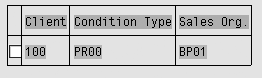
Figure 4
Structure for proposed table Z_COND_TRACK to store the condition types to track
Step 5. Create the custom table Z_COND_CHANGES to track when the conditions related to pricing
change. When the system triggers event 00503301, the system stores the details in the internal
table T_COND_RECS. The custom function module Z_BTE_00503301 records this data. When
condition type PR00 and sales org BP01 are present, you can use another custom table,
Z_COND_CHANGES, to collect this information. Figure 5 shows an example of the custom
table Z_COND_CHANGES.

Figure 5
Structure of the custom table to store details of condition type changes
Step 6. Using data from the custom tables, set up and run BAPI_SALESORDER_SIMULATE to obtain
new net prices. Using this BAPI, the price publishing program calculates the new prices when the condition type
PR00 changes. The advantage of using this BAPI to determine the price is that it reflects any changes
that you make in the sales order creation process, such as through user exits, automatically.
To use BAPI_SALESORDER_SIMULATE, you must provide the BAPI exporting parameters with the
correct values: ORDER_HEADER_IN, ORDER_PARTNERS, ORDER_ITEM_IN, and
ORDER_SCHEDULE_IN.
The following are the fields in ORDER_HEADER_IN that you must fill:
- DOC_TYPE: The order type entered in the selection screen of the program
- SALES_ORG, DISTR_CHAT, DIVISION: The sales org,
distribution channel, and division, respectively, from the selection screen
- PRICE_DATE: The pricing date from selection screen
The following are the fields in ORDER_PARTNERS that you need to fill:
- PARTN_ROLE: The sold-to party (AG)
- PARTN_NUMB: Partner number from the Customer field in the selection screen
The following are the fields in ORDER_ITEM_IN that you need to fill:
- ITM_NUMBER: Item number, generate internally in sequence
- MATERIAL: Material from input screen. One material for each
ITM_NUMBER.
The following are the fields in ORDER_SCHEDULE_IN that you need to fill:
- ITM_NUMBER: Same values as in ORDER_ITEM_IN
- REQ_QTY: Enter value 1
Run the Custom Price Publishing Program
Figure 6 shows an example selection screen for the price publishing program. You can
create this screen easily with basic ABAP programming. The program, which you run as a periodic job, updates the price
changes that occurred since the last time you ran the program. If you prefer, you could set up the program to run as an
hourly job — each run would publish the price changes that occurred in the last hour.
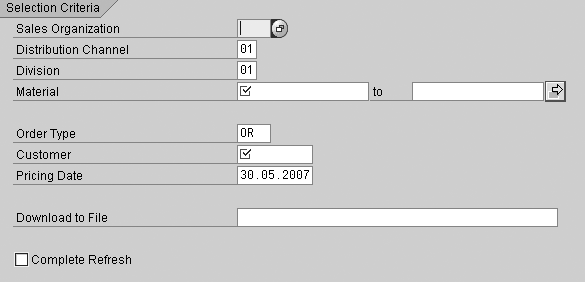
Figure 6
The suggested input screen for the price publishing program
In Figure 6, enter the list of materials for which you want to publish the prices periodically in the
Material field. Then enter the Sales Organization, Distribution
Channel, and Division for the prices you want the program to calculate. Finally, enter the
Order Type and Customer.
The BAPI uses the order type and customer information to get the document pricing procedure. After you
execute the BAPI, the program obtains the net price from the SUBTOTAL3 field in the
ORDER_ITEMS_OUT table. If the desired price is stored in any other subtotal field, you can choose the
appropriate field to publish. Such a situation may arise if, during pricing implementation, you changed the standard
pricing procedures to store the net price in a subtotal field other than SUBTOTAL3. The relevant material
and currency derives from the MATERIAL and CURRENCY fields.
The price available in the field SUBTOTAL3 of BAPI_SALESORDER_SIMULATE,
is the same value that appears in the Net price field of an item in a sales order with the order type,
customer (sold-to party), and sales area (combination of sales org, distribution channel, and division) that you entered
in the input screen of the price publishing program. Therefore, you can publish the net price to a receiving system
without the need for any further calculations at the receiving end.
Selection Variants and Job Scheduling
Create a selection variant for each channel or customer that needs to receive the pricing updates
regularly. To create the variant, go to transaction SE38 and enter the required values in the input
screen. Follow menu path Goto>Variant>Save as variant from transaction SE38 to save the values
entered as a selection variant. Give each variant an appropriate name when you save.
If you want to publish the price for channels, and not individual customers, you can use dummy pricing
customers for each channel while creating the variant for the price publishing program. To create this dummy pricing
customer, use transaction XD01. This customer represents the channel for which you want to publish the
price. Provide the customer pricing procedure that you require for that channel as the customer pricing procedure when you
create this customer. You can then use the variants to schedule jobs for each channel or customer for which the price
changes regularly. Use transaction SM36 to schedule the jobs.
If you have to publish a price for a new channel or customer, all you have to do is to create the
appropriate variant and set up a job, as described above, for that channel or customer.
My client wanted to publish only price changes that happened in a specific time frame. In this case the
time frame was a window of two hours before the program ran. The program is designed to run as a job, so you can store the
last run time of the program in a custom table, which I called ZTTIME, as shown in Figure
7. Each time the program runs, it writes the current system date and time into the fields Last run
date and Last run time. It also writes the sales org into the table, thus providing a log of the
last time and date the program ran, for each sales org.
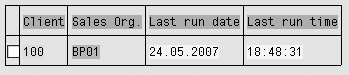
Figure 7
Custom table to keep a log of the last time and date the program ran for each sales org
You use the current date and time as the end of the date range. The program then identifies the list of
materials for which price has changed in the time range you identified by using the price change information stored in the
custom table Z_COND_CHANGES discussed earlier. For my client, we set up this job to run every two hours
because that was the time window for which the client wanted to publish changes.
Custom Program Output
After the BAPI calculates the price, you can then publish the price in a format such as an Excel tab-
delimited file, as shown in Figure 8. The formatting of the output will vary as per the requirement of
each organization, so make sure to gather the output format requirements when you implement this program.

Figure 8
Tab-delimited example Excel output
Most organizations also have a requirement to do a full price refresh during month-end or quarter-end
processing. You can easily add this feature to the price publishing program by adding logic in which the program does not
check for price changes, but publishes the current prices for all the materials provided in the selection screen.
For example, if the Complete Refresh check box is selected in Figure 6, then skip the
program logic where the custom table Z_COND_CHANGES looks for the list of materials for which price has
changed. Instead, the program should provide the full list of materials from the selection screen as input to the
Material field in the ORDER_ITEM_IN table to the
BAPI_SALESORDER_SIMULATE. This gives you the prices for all the materials in the input screen, without
checking whether prices have changed since the last time the job ran for that sales area. You can use this feature at
month end, for example, to provide a full refresh of prices.
Balakrishnan Rajakrishnan
Balakrishnan Rajakrishnan is an SAP consultant with Infosys Technologies Ltd., experienced in working with high-tech and retail companies. His current areas of interest include SAP implementations for small and medium businesses. He holds a master’s degree in business management.
You may contact the author at brajakrishnan@gmail.com.
If you have comments about this article or publication, or would like to submit an article idea, please contact the editor.



 Premium
