During the objective setting and appraisal process, you need to protect sensitive personnel data. By using HR standard authorizations in combination with customizing settings that restrict appraisal document access, you are able to set up a secure system in which only legitimate users can access sensitive data. These customizing settings help you set up a secure objective setting and appraisal process.
Key Concept
The mySAP ERP HCM Performance Management is based on the Objective Setting and Appraisals (OSA) component. You can use it to implement competency or potential assessments or performance feedback processes. The main implementation work is done in the appraisal template catalog where you create the required templates as a basis for the appraisal documents. For each template, you define the required business characteristics and restrict the access to defined parts of the document for defined participants during the objective setting and appraisal process.
Here we explain which customizing settings are relevant for setting up a secure appraisal process. Our explanations apply to R/3 Enterprise HR Extension Set 1.10 and 2.00 as well as to mySAP ERP 2004.
Note
The technical component of OSA is also used in other contexts — for example, for course evaluations in the SAP Learning Solution and for the questionnaires used in SAP E-Recruiting. These aspects are beyond the scope of this article.
Customize the OSA Component
The OSA component is customized in the appraisal template catalog (transaction PHAP_CATALOG_PA). You can also reach it using the SAP reference IMG in transaction SPRO or via menu path Personnel Management > Personnel Development > Objective Setting and Appraisals > Edit Templates.
You can use the appraisal template catalog to depict the objective setting and appraisal processes required in a company. For each process required, you create a template that forms the basis for the corresponding appraisal documents. In the appraisal template, you depict all fundamental business characteristics of the appraisal process — for example, the access rights for involved participants in the process.
Each template is represented in the system as an object of object type appraisal template (VA). An object type criterion (VC) object represents the criteria included the template. You can group the criteria in criteria groups (object type VB), as shown in Figure 1. The required settings for the template are entered into the system on the tabs available in the appraisal template catalog. Technically, these tabs represent the infotypes that describe the object.
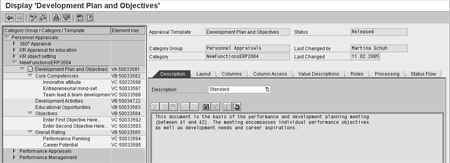
Figure 1
Appraisal template catalog for customizing OSA templates. The relevant tabs for setting up document access authorizations are Column Access, Roles, Processing, and Status Flow.
The following tabs (or infotypes) are relevant for the configuration of the document access:
• Column Access (infotype 5023)
• Roles (infotype 5024)
• Processing (infotype 5025)
• Status Flow (infotype 5026)
Now we’ll explain the settings you can make for these infotypes affecting access to the appraisal documents’ content.
Note
Part 1 of this series explained which standard roles apply for the OSA component and which standard HR authorization objects and structural authorizations are relevant for setting up a secure performance management appraisal process.
Part 2, focused on the OSA-specific structural authorization concepts you can use to control access to appraisal documents for persons from defined areas in Organizational Management (OM). This series assumes the reader has a basic understanding of the data model in OM.
Column Access Infotype
Each appraisal document consists of a set of columns that are relevant during different parts of the performance feedback cycle. For example, you can enter the planned objectives at the beginning of the cycle the Objective Setting column. The part appraisers (e.g., colleagues who enter their assessments before the final appraisal is entered in the Final Appraisal column) use the Part Appraisal column. Define in the Columns tab which columns (e.g., final appraisal, part appraisal) are available in the appraisal document by selecting the column during the template configuration. Once you have selected the columns, you can configure the access to the selected columns during the process on the Column Access tab (Figure 2).
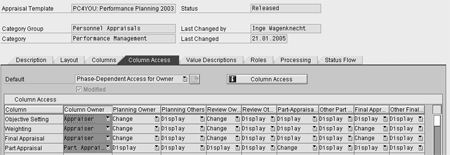
Figure 2
Tab page for Column Access
Usually, each phase of the process requires different access authorizations to certain parts of the document. You can make the related settings in the Column Access tab, where you specify display and change authorizations for the documents based on the template.
When entering your settings on this tab page, you can choose a predefined column access pattern in the field Default. If these settings do not fit your needs, you can change them to meet your requirements. To do that, you can make selections from an input help that provides the possible settings.
In general, the following settings are required:
- Define the columns generally available in the template in the tab Columns. In the Column Access tabs, these are displayed in the column labeled Column and cannot be changed on this tab.
- In the column labeled Column Owner, specify which participant owns each column or column group. In the standard, SAP delivers the owners Appraiser, Appraisee, Appraiser and Appraisee, Part Appraiser, and Further Participant. Using the Business Add-In (BAdI) HRHAP00_COL_OWNER (appraisal document - column owner), you can implement customer-specific owners.
- In the following customizing options, specify who is authorized to perform which activities in each phase of the appraisal process and which columns are to be shown in the appraisal template. You can assign access rights during the various phases to either the column owner or all other particip-ants involved in the appraisal process. Define who has authorization to execute an activity in a particular phase separately for column owners and all other participants.
For example, you depict a part appraisal process with one appraiser (manager), one appraisee (employee), and several part appraisers (colleagues). In the Part-Appraisal (PAPP) column, the Part Appraisers (employee and colleagues) are the default column owner. In the Part-Appraisal phase, you assign the column owner change authorization and define that all other participants do not have access during this phase.
In many cases, you might want the manager to have at least display author-ization. You can provide the necessary authorizations to the manager by using the relevant entry from the input help, for example, Display for Appraiser, Hide for Others. This guarantees that the column is not visible for all other part appraisers and that the appraiser has display authorization for the part apprai-sal columns.
The following column-access patterns are available in the standard system:
- Free access for all: With this setting, you give free access to each column for all participants during the entire appraisal process. This setting defines that all participants can display all part appraisals at any time and make changes to any part of the appraisal document during every phase of the process. This option is usually not suitable for a productive system, but can be helpful in training, implementation, or test situations.
- Maintenance/visibility for owner only: With this setting, you define that all columns can be displayed and changed by the column owner during each phase of the process while the respective columns are hidden for all other participants.
- Maintenance for owner, visibility for all: With this setting, you define that all columns can be displayed and changed by the column owner during each phase of the process, while the respective columns can be displayed by all other participants.
- Phase-dependent access for owner: With this setting, you define a phase-dependent column maintenance access for the owner as well as display access for the other participants. For example, the Final Appraisal column is hidden for all other participants during the planning phase while it can be changed by the owner during the final appraisal.
If you use a standard column access pattern, the field Modified is empty. If you make any changes to a standard column access pattern and save these, the check box Modified is flagged. This makes it easier for you to identify whether the current settings are default entries or not.
The settings you make on the Column Access tab for the Objective Setting column are valid for a group of standard columns that are relevant to the setting of objectives. This refers to all columns with the names OBJ* and QBJ*.
The settings you make on the Column Access tab for the Part-Appraisal column are valid for two columns, the Part-Appraisal Importance (PWGT) and the Part-Appraisal column. This is because the SAP system always processes the relevant columns simultaneously.
If, for a particular phase, a user has change access to the Objective Setting (OBJ0) column, he or she can use the free enhancement or delete function. The free enhancement function allows you to add appraisal elements to the document (e.g., qualifications). If the Objective Setting column is not used in the template, the system checks whether the user has change access to the Final Appraisal (FAPP) column. If this is the case, the user can use the free enhancement function and add the required criteria during the final appraisal phase of the process.
Roles Infotype
On the Roles tab (Figure 3), you determine which roles have authorization to enter a part appraisal for each of the elements in an appraisal document. This allows you to differentiate between the manager’s part appraisal authorizations and the employee’s or colleagues’ part appraisal authorizations in their respective Part-Appraisal column in an appraisal document.
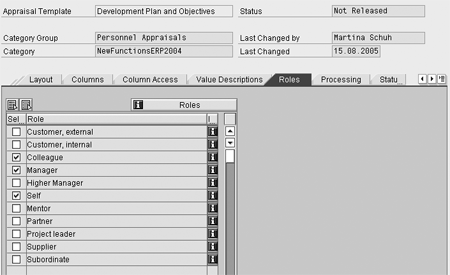
Figure 3
Tab page Roles
Note
A prerequisite is that the roles to be used in the appraisal process must be selected at the category and appraisal-template level.
The roles define the relationship between the part appraiser and the appraisee in the appraisal process. You can store roles explicitly in the SAP system or use the BAdI HRHAP00_SELECTION (appraisal document — object selection [role and to-do list]) to determine the roles from the company’s organizational structure.
If you do not use the role Colleague, for example, for a particular element in the appraisal template, this element cannot be appraised by the appraisee’s colleague. In this case, only the element name is displayed. All values entered by other users are hidden.
The standard system delivers more than 10 roles. We will describe the most important ones. A prerequisite for their use is that OM is implemented and infotype 0105 with subtype 0001 (system user name) is maintained for the people participating in the process.
Colleague: The SAP system uses the organizational structure to identify this relationship between the part appraiser and the appraisee. It interprets all employees located on the same hierarchical level of the organizational structure as colleagues.
Manager: The SAP system uses the organizational structure to identify this relationship between the part appraiser and the appraisee. It interprets the employee with a managerial function who is located one level higher than the employee in the hierarchical structure as the manager.
Self: The SAP system uses the USER name to identify the assigned personnel number in infotype 0105 and compares it with the personnel number of the part appraiser maintained in the document. If these match, the user gets access to the respective column.
Subordinate: The SAP system interprets employees who are positioned on a lower level to employees with a leadership function as their subordinates.
Higher-level manager: The SAP system interprets the employee who has a leadership function and is located a level higher than the manager and has a similar function as the higher-level manager.
Processing Infotype
The Processing tab (Figure 4) provides three settings relevant for authorizations in a performance feedback process.
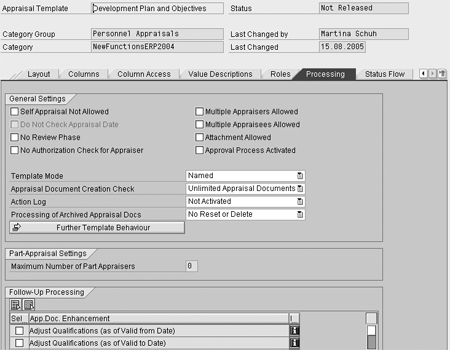
Figure 4
Tab page Processing
Self-Appraisal Not Allowed: If this check box is activated, the documents based on this template do not allow that user accessing the document is appraiser and appraisee at the same time.
No Authorization Check for Appraiser: If this check box is activated, no authorization check is performed for the appraiser. This means that even if a user does not have authorization for the appraiser (as described in part one of this series), he or she can nevertheless display and edit all appraisal documents that include this appraiser as long as he or she has the required authorizations for the appraisees.
For example, an HR administrator has access only to the HR master data of employees in the employee subgroup salaried employees. That is, he or she can display and edit the appraisal documents for these employees. However, an employee from a different employee subgroup for which the HR administrator has no authorizations can appraise these employees. To enable the administrator to evaluate and edit appraisal documents for employees appraised by employees he or she has no authorizations, use the setting No Authorization Check for Appraiser.
Processing of Archived Appraisal Docs: The setting in this field determines whether the user can delete the appraisal document or reset the document status of completed appraisal documents in transaction Change Appraisal Documents (PHAP_CHANGE_PA). To enable the user to delete completed appraisal documents in transaction PHAP_CHANGE_PA, he or she must also have the relevant authorization in authorization object P_HAP_DOC (value 06 – delete).
Note
Regardless of the setting for field Processing of Archived Appraisal Documents and a user’s authorizations via P_HAP_DOC, each user can always delete completed appraisal documents in the administrator transaction (PHAP_ADMIN_PA) if he or she is permitted to use this transaction.
Further Template Behavior
If you cannot implement the required column access based on the standard column access pattern and their user-specific adjustments as described above, you can use the BAdI HRHAP00_COL_ACCESS to define additional company-specific column access settings. This is normally the case when customer substatuses are used in the status flow definition. These settings can then be activated on the Processing tab under Further Template Behavior.
Bianka Piehl
Bianka Piehl has been working as HR Consultant since 1999, joining SAP HR Consulting 2003. Her consulting activities were focused on the areas of Organizational Management, Personnel Development and Performance Management, including related Self-Service scenarios. Since May 2005 she is working for SAP Solution Management, being responsible for Shared Services in HCM.
You may contact the author at bianka.piehl@sap.com.
If you have comments about this article or publication, or would like to submit an article idea, please contact the editor.
Maurice Hagen
Maurice Hagen started at SAP in 2000 as a developer for Dutch Payroll. In 2001 he joined the Performance Management project where he has been involved from the start with the specification, design, and development of the Objective Setting and Appraisals module.
If you have comments about this article or publication, or would like to submit an article idea, please contact the editor.
Martina Schuh
Martina Schuh joined SAP in 1999. She has been dedicated to the subject of HCM Analytics from the outset. Since 2001 she has been product manager for HCM Analytics and Talent Management, including Employee Performance Management and Succession Planning.
You may contact the author at martina.schuh@sap.com.
If you have comments about this article or publication, or would like to submit an article idea, please contact the editor.






 Premium