To make sure that sales quotations remain unchanged after you send them to your customer, you can set up SAP CRM to lock the sales quotation document for changes after the document is released. This ensures that the logistics and billing processes are followed according to the quotation copy sent to the customer.
Key Concept
SAP CRM documents have two kinds of statuses: the system status and the user status. The user configures the user status for each business process in the business transaction. The system internally sets the system status, which can be related to a user status. For example, the system status Released can represent the user status Approved.
Say you have an approval process that takes place before you can release a document to the logistic and billing process on the SAP ERP Central Component (SAP ECC) side. To ensure the process takes place in the proper order, you can block the document replication to SAP ECC. You can also control the changes in a document that has achieved a specific status. For example, you may want to block changes in a document that went through an approval process to ensure that no one modifies it after the last approval.
I will explain how to use status management configuration to control the replication of an SAP CRM sales document to SAP ECC and how to use the Business Add-In (BAdI) CRM_ORDER_FIELDCHECK to control the changes in the document on the SAP CRM side. The example I use is based on an SAP CRM 2005 system integrated with SAP ECC 6.0, but the process is valid for other releases.
Status Management
To employ a user status you need to create a status profile. This defines the initial status of a document, the sequence in which user status can be activated, the related system status, and the allowed and prohibited functions. Imagine that you have to customize the status profile for a quotation document that needs to go through a pricing approval process before you can provide the final price to a customer. In this situation, you would want to have the following six statuses available: Open, In Approval, Approved, Not Approved, Not accepted by customer, and Accepted by customer.
You create these six statuses in the status profile configuration. Through this configuration, you define the sequence in which the system displays each status. You also configure the system status that the system sets internally for each user status.
Use transaction SPRO and follow menu path Customer Relationship Management > Transactions > Basic Settings > Status Management > Change Status Profile for User Status or use transaction CRMBS02 to create your user status profile. Choose Create a new entry and provide a code and a name for your status profile (e.g., STATUS01). Press Enter and the system opens a new window in which you set your user status profile (Figure 1).
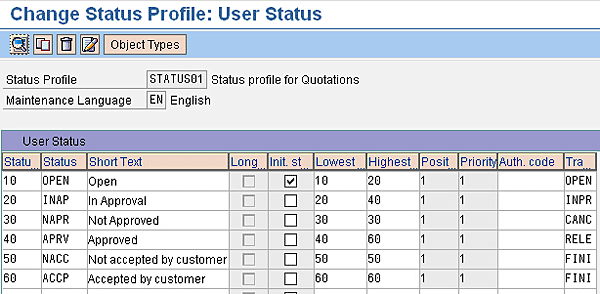
Figure 1
Status profile definition
The first column describes the status order number, which in turn defines the allowed user status sequence. The initial status (Init.st…) check box defines the document’s first user status. When creating a document that uses this status profile, the system automatically sets the Open status as the first user status in the document.
The Lowest and Highest status numbers determine the sequence in which you can set the user status. As a result, when the Open status is set, the user can only change the status from Open to In Approval (status order number 20). Likewise, when the In Approval status is set, the user can only change this status to Not Approved (status order number 30) or Approved (status order number 40). Note that each company and process has specific statuses that depend on the steps that happen from the beginning until the end of a process. You should discuss the setup of this order with the process owner to ensure that the process follows the correct steps.
Depending on the complexity of your status profile sequence, sometimes the configuration is not enough to customize this sequence. In these cases, you can use the CRM_ORDER_STATUS BAdI to prevent a certain sequence of status with a specific code in the BEFORE_CHANGE method.
Before you save your user status profile, click the Object Types button to permit the use of this status profile in CRM documents and order items (Figure 2).
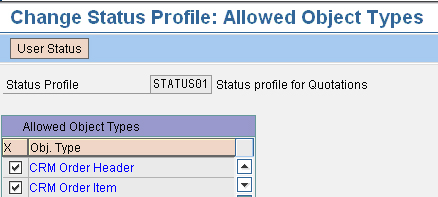
Figure 2
Allowed object types for the STATUS01 status profile
Save your user status profile. You can now assign the status profile to a document or an item category by using transaction SPRO and following menu path Customer Relationship Management > Transactions > Basic Settings > Define Transaction Types or Define Item Categories (Figure 3). After you finish this configuration, you can see your user status in the document Quotation (transaction type AG, in this example).
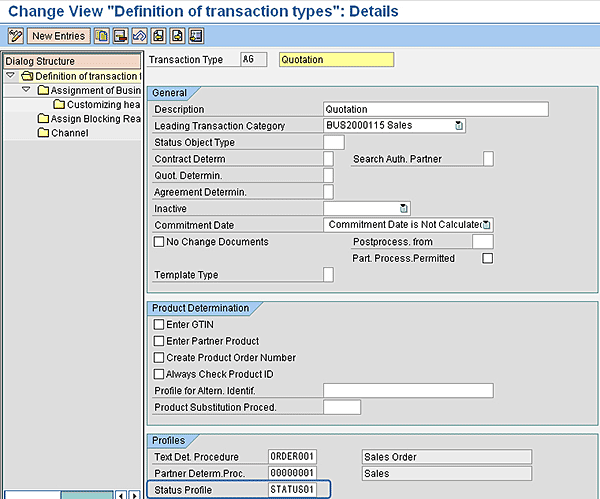
Figure 3
Assign the status profile to a transaction type
Forbid Unwanted Functions
In the status profile definition in Figure 1, the transaction (Tra) column describes the system status the system sets when the user selects the respective user status. In my example, when the user selects the In Approval status, the system status changes to In Process. When the user selects the Approved status, the system status changes to Released. When the user selects the Not Approved status, the system status changes to Rejected.
You can use transaction BS33 to check the details for each kind of transaction. Here you can verify which system status is set for each transaction by double-clicking it or selecting it and following menu path Goto > Follow-up actions (Figure 4).
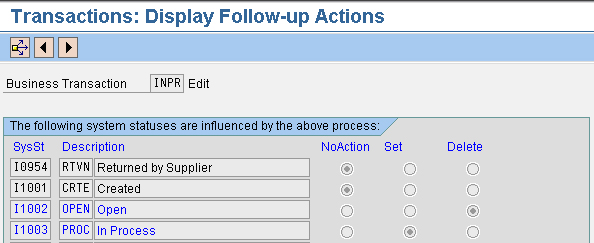
Figure 4
Check each transaction’s details
In the status profile definition in Figure 1, you can also forbid actions when a specific user status is set. You define these details by double-clicking the user status or selecting the user status and clicking the Details button. Click the New Entries button to access the screen in which you can define the allowed and prohibited functions.
In my example, I have a quotation document that follows an approval process. The customer can then choose whether or not to accept it. If the customer does not accept the quotation, you do not need to replicate the document to SAP ECC because no further logistic processes are necessary for this case.
Because the system tries to replicate to SAP ECC any document saved without errors, you have to set up the replication so that all statuses — except for the Accepted by the customer status — should have the function To be distributed marked as forbidden (Figure 5). This prevents the document distribution (replication) until the user status Accepted by the customer is reached.
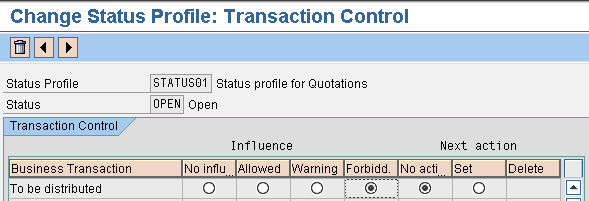
Figure 5
Individual status details
To set that only Accepted documents can be replicated, you have to configure OPEN (as shown in Figure 5), In Approval, Not Approved, Approved, and Not accepted by customer with the transaction To be distributed forbidden. In addition, you must set the status Accepted by the customer with the transaction To be distributed allowed.
Control Changes in a Document Depending on Status
Often it is important to lock a document for changes after the document achieves a given status. In my example, I have a sales quotation that follows an approval process. It is important that when the sales document is sent to approval, no further changes happen in the most important fields, such as partners, products, prices, and validity dates. You can control this with a BAdI implementation.
SAP delivers the CRM_ORDER_FIELDCHECK BAdI for change controls. This BAdI has the method FIELDCHECK. In this method, you can prevent changes in the entire document, or you can allow changes only in a specific structure of information of a document. For example, you can allow changes in the activity structure of a document to allow users to change the document’s status and status reason.
To implement CRM_ORDER_FIELDCHECK, use transaction SE18 and create a new implementation by following menu path Enhancement Implementation > Create. Insert the code shown in Figure 6 for the method FIELDCHECK and activate the method. The code in Figure 6 prevents changes in the document (except on the activity header structure) whenever the status system is Released or Completed.
method IF_EX_CRM_ORDER_FIELDCHECK~FIELDCHECK . INCLUDE crm_direct. DATA: lv_status_released TYPE crmt_boolean,
lv_status_completed TYPE crmt_boolean,
ls_input_field_names TYPE crmt_input_field_names,
ls_gc_mode TYPE CRMT_MODE. * Check Status on Header Level
CHECK is_fieldcheck_com-ref_kind EQ gc_object_ref_kind-orderadm_h. * Initialize
CLEAR lv_status_released.
CLEAR lv_status_completed. * Check Header Status Released or Completed
CALL FUNCTION 'CRM_ORDERADM_H_STATUS_READ_OW'
EXPORTING
iv_guid = is_fieldcheck_com-ref_guid
IMPORTING
ev_status_released = lv_status_released
ev_status_completed = lv_status_completed
EXCEPTIONS
error_occurred = 1
OTHERS = 2.
CHECK sy-subrc = 0. * Refuse 'Edit' when status eq 'RELEASED' or 'COMPLETED'.
IF lv_status_released = true or
lv_status_completed = true.
IF IV_OBJECT_NAME NE 'ACTIVITY_H'.>>> This code is to have an exception
for edition (in this case system allow
changes in Activity structure of doc
header)
ls_input_field_names-changeable = gc_changeable-no.
MODIFY ct_input_field_names FROM ls_input_field_names
TRANSPORTING changeable
WHERE changeable NE gc_changeable-no.
ENDIF.
ENDIF.
CLEAR lv_status_released.
endmethod.
|
| Figure 6 |
Code to enter for the FIELDCHECK method |
When finished, activate the method by following menu path Method > Activate. Then go back and activate the BAdI implementation by following menu path Implementation > Activate.
With this BAdI implementation, users can change any information in the document only while the document is Open. However, when the system status is Released (user status Approved) or Completed (user status Not accepted by customer or Accepted by customer), users can no longer modify the document.
Susana Messias
Susana Messias has an administration academic background and has been a CRM business consultant since 2002. She has participated in several CRM projects implementing interaction center solutions with sales, service, and marketing functionalities, and she is certified in these solutions.
You may contact the author at Susana.messias@gmail.com.
If you have comments about this article or publication, or would like to submit an article idea, please contact the editor.





 Premium