Find out how to use standard Enterprise Compensation Management iViews, without customization, to plan and approve long-term incentive grants using currency amounts instead of stock option units. You can subsequently convert the approved currency amounts into appropriate stock units using a defined formula.
Key Concept
The recent backlash against compensation using stock options and other long-term incentive (LTI) grant vehicles has steered more companies toward planning and approving LTI grants using currency amounts instead of stock units. By planning the grants using currency amounts, companies can effectively control the final cost to the company resulting from the LTI grants. This approach allows managers to have clear visibility into the financial effect of the LTI grants made to employees and can thus afford them greater flexibility in allocating changes appropriately across all compensation plans (such as merit and bonus) for their employees.
Companies are increasingly choosing to plan long-term incentive (LTI) grants using currency amounts instead of stock units. However, standard Enterprise Compensation Management (ECM) iViews only allow for LTI grants to be planned as stock units. This limitation should not be viewed as a significant functionality gap requiring iView customization. By using an innovative configuration approach and a Business Add-In (BAdI) enhancement, you can still use the standard ECM iViews to plan LTI grants as currency amounts. You can then convert the approved currency amounts into stock units. Using an SAP-delivered BAdI instead of iView customization makes the solution easier to implement and maintain going forward.
The conversion from currency amounts to stock units can take place during the activation process after the portal for manager self-services compensation planning cycle has been closed. You can incorporate custom logic into the activation process (by using the BAdI) to create infotype 0761 (LTI granting) records with the appropriate number of stock units. You can determine the number of stock units based on the approved currency amount for the LTI grant available on infotype 0759 (compensation planning) and other variables such as the grant price or the Black-Scholes ratio as needed based on business requirements for your company. In addition, this solution enables you to define and use a standard ECM monetary budget for the LTI grants, if budgeting functionality is required within ECM.
Configuration Approach
The key to this approach is to configure a dummy LTI plan that is used just for LTI planning within ECM iViews. You should set up this dummy plan as a monetary bonus plan (as opposed to an LTI plan). You also need to define the real LTI plans that are used to process an employee’s actual LTI grant as stock units. The real LTI plans typically include stock options, restricted stock, or performance share plans, although that can vary based on business requirements.
Compensation Plans
Understanding the use of the compensation categories within ECM is necessary before getting into the configuration needed for compensation plans. You assign a compensation category to compensation plans within system configuration. Figure 1 shows the available categories, which are predefined by SAP and cannot be changed via configuration. To view this screen, use transaction SPRO and follow menu path Personnel Management > Enterprise Compensation Management > Compensation Administration > Compensation Plans and Reviews > Define Compensation Plans.
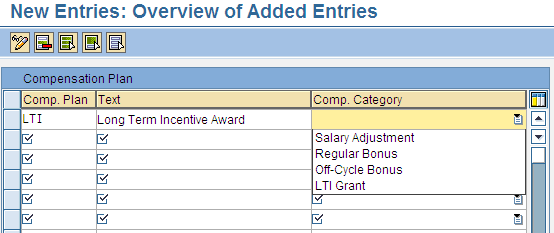
Figure 1
Standard compensation categories
The compensation category serves several key purposes. It helps define the type of compensation plan being created for internal system processing, identifies whether the plan is a monetary (salary adjustment or bonus plan) or non-monetary (LTI grant), and determines the secondary infotype that is created when the plan is activated. The secondary infotypes associated with each compensation category are:
- Salary adjustment – infotype 0008 (basic pay)
- Regular bonus – infotype 0015 (additional payments/deductions)
- Off-cycle bonus – infotype 0267 (off-cycle one-time payments)
- LTI grant – infotype 0761 (LTI granting)
When you define the configuration needed for compensation plans, you need to pay special attention to the compensation category used for each plan. To configure compensation plans, use transaction SPRO and follow menu path Personnel Management > Enterprise Compensation Management > Compensation Administration > Compensation Plans and Reviews > Define Compensation Plans (Figure 2). The LTI compensation plan in Figure 2 is the dummy LTI plan used for manager self-service processing. The other plans shown (SO, RSU, and PSU) are potential examples of real LTI plans based on typical LTI plan design for most companies.
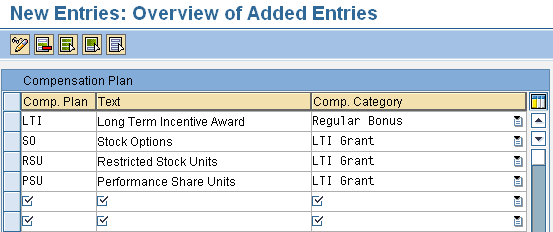
Figure 2
Compensation plan configuration
The assignment of the appropriate categories to each plan in this configuration step is critical. Assign the dummy LTI plan to the Regular Bonus category and the other real LTI plans to the LTI Grant category. Assigning the category Regular Bonus in this configuration step enables the system to treat the dummy LTI plan as a monetary plan within the ECM planning and approval iViews. It also enables you to plan LTI grants as currency amounts instead of stock units.
Note that in SAP standard processing this configuration would also mean that an infotype 0015 record is created when plan records are activated, instead of an infotype 0761 record that is required for an LTI grant. As shown later in the article, I use a BAdI that triggers during the activation process. It overrides the standard activation logic and the creation of infotype 0015 records. It forces the creation of infotype 0761 records with the appropriate number of stock units.
Budgeting
You can create a compensation budget and assign it to the LTI plan if budgeting functionality is needed. Since the dummy LTI plan is used to plan LTI grants as currency amounts and is configured as a monetary plan, the budget used for it should also be configured as a monetary budget (Figure 3). To configure budgets, use transaction SPRO and follow menu path Personnel Management > Enterprise Compensation Management > Budgeting > Define Budget Types.
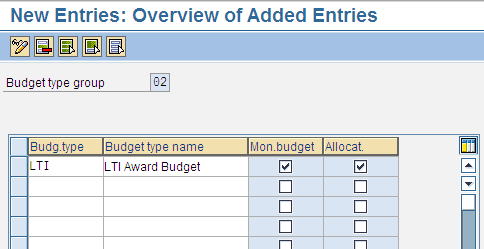
Figure 3
LTI budget configuration
Compensation Reviews and Review Items
You configure compensation reviews and review items for the dummy LTI plan as shown in Figures 4 and 5. To configure compensation reviews, use transaction SPRO and follow menu path Personnel Management > Enterprise Compensation Management > Compensation Administration > Compensation Plan and Reviews > Define Compensation Reviews. To configure compensation review items, use transaction SPRO and follow menu path Personnel Management > Enterprise Compensation Management > Compensation Administration > Compensation Plan and Reviews > Define Compensation Review Items.
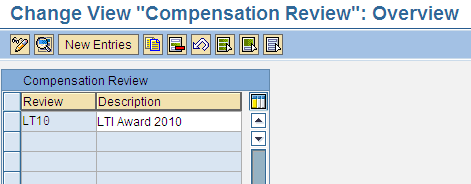
Figure 4
Compensation review configuration
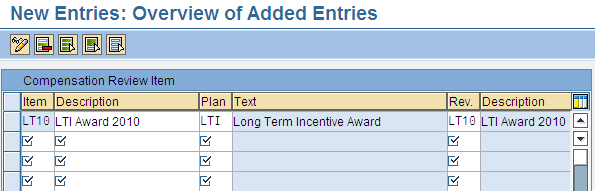
Figure 5
Compensation review item configuration
You should only include the dummy LTI plan within the compensation review that will be used for planning. Do not add the real LTI plans to this review. This ensures that only the dummy LTI plan is visible to managers within manager self-services, while the real stock options (SO), restricted stock units (RSU), or performance share units (PSU) plans are available for use in the back-end SAP ERP system when infotype 0761 is created during the activation process.
In the example shown in Figures 4 and 5, I configured a single review LT10 (LTI Award 2010) that just includes the dummy LTI plan using a single review item LT10. Based on this configuration, only the dummy LTI plan is displayed within the ECM iViews.
Plan Eligibility and Guidelines
You can configure plan eligibility and guidelines based on business requirements for the dummy LTI plan. However, if guidelines are used for the dummy LTI plan, they also need to be set up as monetary amount guidelines because the dummy LTI plan has been set up as a monetary plan. In the example shown in Figure 6, the Default Amount, Minimum Amount, and Maximum Amount have been configured as $20,000, $10,000, and $30,000, respectively. To view this screen, use transaction SPRO and follow menu path Personnel Management > Enterprise Compensation Management > Compensation Administration > Guidelines > Define Guidelines.

Figure 6
Guideline configuration
Plan eligibility and guideline configuration is typically not needed for the real SO, RSU, or PSU plans, given that they are not visible to managers within manager self-services. Infotype 0761 records are only created for them during the activation process based on existing infotype 0759 records for the dummy LTI plan.
Compensation Plan Payroll Data
The step for configuring compensation plan payroll data must be completed for the dummy LTI plan since it has been defined as a monetary plan. You need to assign both the calculation base and the compensation component wage types. The calculation base wage type is an actual wage type used by the SAP ERP system to determine the calculation base for the LTI plan — typically it is CSAL. The system does not use the compensation component wage type, given that you do not create an infotype 0015 record for the LTI plan during the activation process. However, it is a required configuration entry for plans assigned to the compensation category bonus plan. I recommend you create a dummy wage type that you can assign to the LTI plan within this step, as shown in Figure 7. To configure compensation plan payroll data, use transaction SPRO and follow menu path Personnel Management > Enterprise Compensation Management > Compensation Administration > Plan Attributes > Assign Compensation Plan Payroll Data.
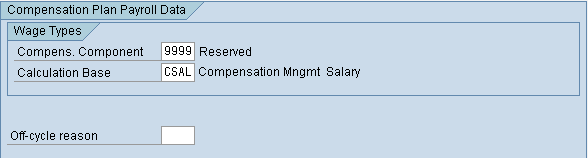
Figure 7
Compensation plan payroll data configuration
You can complete all remaining configuration steps normally for the LTI plan based on business requirements.
SAP ERP BAdI Enhancement
A BAdI enhancement also needs to be defined to convert the LTI grants saved as currency amounts on IT0759 into actual LTI grants for SO, RSU, or PSU on infotype 0761. The BAdI enhancement needs to create infotype 0761 records for each plan with the appropriate number of stock units for each plan as determined by formula during the activation process.
SAP provides a BAdI within ECM called Replace Activation Routines (HRECM00_ACTIVATION) that you can use for this purpose. To access this BAdI from within the IMG, use transaction SPRO and follow menu path Personnel Management > Enterprise Compensation Management > Compensation Administration > Other Settings > Business Add-In: Replace Activation Routines.
Note that all BAdI development requires ABAP development and you need to work with your ABAP developers to code the logic within the BAdI. The logic varies based on specific business requirements. However, at a minimum the BAdI should include logic to:
- Override the standard activation logic for the dummy LTI plan and not create infotype 0015 records for it
- Determine the number of SO, RSU, or PSU stock units based on the LTI plan currency amount approved on infotype 0759. This amount is stored on the Compensation Amount (P0759-CPAMT) field. This formulaic calculation can vary based on your business requirements and typically requires other variables such as the grant price or Black-Scholes ratio to be factored into the calculation.
- Create infotype 0761 records for the SO, RSU, or PSU plans appropriately using the number of stock units for each plan determined in the step above
After this BAdI has been coded with the custom logic needed, it is triggered during the activation process when you execute the Change Compensation Process Status transaction as shown in Figure 8. Use transaction PECM_CHANGE_STATUS or follow menu path Human Resources > Personnel Management > Compensation Management > Enterprise Compensation Management > Compensation Administration > Change Compensation Process Status to access this transaction. It then creates the appropriate infotype 0761 records.
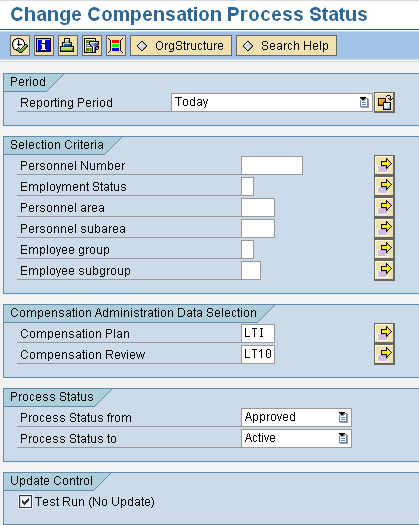
Figure 8
Activation process using transaction PECM_CHANGE_STATUS
Manager Portal for SAP ERP HCM Functionality
Now let’s take a look at the functionality available for the dummy LTI plan within the compensation planning iView. As shown in Figure 9, the compensation review configured earlier (LTI Award 2010) is displayed as a drop-down choice within the Compensation Planning iView selection screen. To access this screen, log on to the manager self-services portal application and navigate to the link for compensation planning. You can select employees for processing from selected organizational units and initiate planning for them as expected by clicking the Plan button.
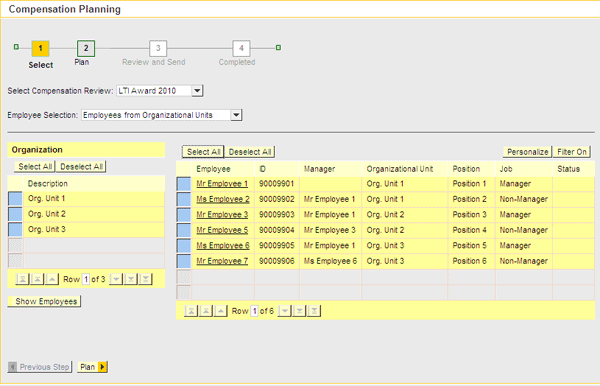
Figure 9
Compensation Planning iView (selection screen)
The planning screen of the iView is shown in Figure 10. To access this screen, select employees and click the Plan button on the selection screen shown in Figure 9. Note that the dummy LTI plan shows up as a single tab and the real LTI plans (SO, RSU, and PSU) are not displayed. Additionally, the dummy LTI plan tab functions like a monetary plan tab. Budget and guideline functionality is also available for the tab as defined in configuration and functions as expected for a monetary plan. Managers can now use the iViews to plan LTI grants as currency amounts for their employees.

Figure 10
Compensation Planning iView (planning screen)
Basant Maheshwary
Basant Maheshwary is a principal and co-founder of MGI Group. He has been consulting in the SAP ERP HCM space since 1997 and has extensive experience in implementing SAP HCM solutions. Over the last few years, he has built a strong focus and expertise in the implementation and rollout of Enterprise Compensation Management and Performance Management solutions for large global organizations.
You may contact the author at basant@mgigroup.net.
If you have comments about this article or publication, or would like to submit an article idea, please contact the editor.