Although many people view troubleshooting as a random process, you can apply a systematic technique to verify data quality. Use these helpful suggestions to locate errors.
Key Concept
During the final phase of BW projects, developers verify data quality. Here, quality refers to consistency and preciseness of the key figure and characteristic values that BEx or Web Application Designer reports display.
BW developers must make sure that data from the source system has stayed consistent through to the final results and makes business sense. The source data travels into BW InfoProvider, through the Extraction, Transformation, and Load (ETL) engine, to BEx or Web Application Designer (Web AD) queries. Often, inconsistencies arise between the source (R/3 or other) and target (BW) figures. Developers must identify, interpret, understand, and — if the data differs from the expected values — correct the data.
Those responsible for development and data quality checking begin by searching for problems. I use a standard procedure to isolate errors. I will discuss my precise, systematic way of checking data quality. Once you’ve located the error, you can fix it yourself or work with your technical team to repair it. You could standardize and transform my procedures into your regular checking procedure. The following checklist helps me to efficiently check my data, especially when problems seem ambiguous.
Define the Problem
The first step is to define the problem. In this context, perhaps the BEx or Web AD report results are incorrect or do not match what you expected. You could subdivide the term incorrect results into three main categories:
- Incorrect, missing, or unexpected characteristic values appear in the report. For example, master data (characteristic values) that appears in your BW report differs when you compare it to your source data within the R/3 system. For example, the 0CUSTOMER master data table lacks the customer number 10007767 in BW, but this number is active in the source system. Another problem might be that one of the attributes of the customer number 10007767 has a different status in BW as compared to the source system.
- Incorrect, missing, or unexpected key figure values show up in the report. For instance, transaction data (from key figure values) differs between your source and target systems. For example, R/3 shows that the amount of sales for customer number 10007767 on February 2006 equals $28,000, while your BEx report shows $25,990.
- The BEx or Web AD report brings no results when you expect data to show up.
Even though each of the three problems above might originate differently, you can locate the problem in a similar way. First, you must understand and imagine the whole data flow process from source to target. Figure 1 depicts the stages and elements of this process.
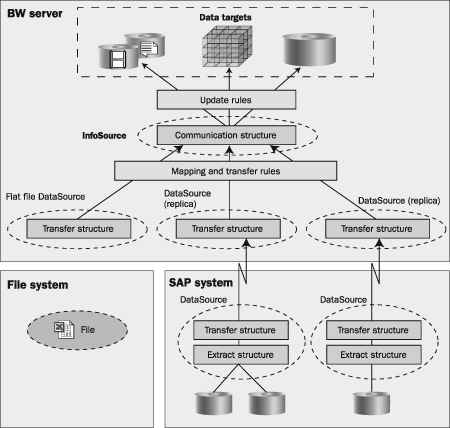
Figure 1
Data flow from source system into BW
As data enters the system, BW transforms it with the following main components: the extractor and extract structure, transfer rules, update rules, InfoProvider, BEx report, and Web AD report. These are the most likely places for data quality problems to occur.
Sometimes you need to investigate elements that do not belong to the data transformation process, but rather serve as part of the overall data staging process. These include InfoPackages, process chains, and authorization issues. I’ll discuss them later in this article.
You should also consider business content extractor logic when investigating data quality concerns. I’ll concentrate on technical aspects of inconsistency problems, but remember that business logic, not technology, can also result in errors. Consultants often use SAP-delivered business content to reconcile an R/3 report to a BW report based on that same data set. Inconsistencies can result when you don’t validate how the extractor picks up data compared to the R/3 report.
For example, the standard extractors for sales orders assume that an order is closed when it is fully shipped and collect and present the data accordingly. However, many organizations don’t consider an order closed until it is invoiced. Such companies often customize their R/3 reports to reflect that status. The BW extractor won’t have that logic built into it, thus showing different information. Many data inconsistency issues boil down to the fact that they are trying to compare what amounts to apples and oranges because the systems look at different sets of data.
Each of the elements in the data extraction process could contribute to data distortion, resulting in incorrect report results. Refer to “The Extraction Process” PDF sidebar I've written at this link for more information. To find the problem, you should ask a number of questions to focus your investigation in the proper area. I use a list of areas where the problem might occur, from most to least common:
1. BEx
2. Web AD
3. Extractor and extract structure
4. InfoProvider
5. Transfer rules
6. Update rules
7. InfoPackage or process chain
8. Authorization issues
In some cases, step-by-step analysis is inevitable. However, you can follow this list to shorten your analysis time. I’ll explain the types of inconsistencies and internal logic that I use for each of these items.
Note
If the source system is not R/3, you have to check the extractor via DB Connect.
BEx
When end users misuse BEx reports, the program may display inaccurate data. Some of the errors result from faulty report navigation, drill-down breaks, filter parameters, and Report-Report Interface (RRI) jumping. One aspect of this functionality allows you to focus on specific characteristic values of a report and jump dynamically to a second report while using those values as filter parameters for the first report. It affects reports with characteristics, key figures, or both.
For instance, your BEx query might apply filters to incorrect characteristic values during the query run. Consequently, BW displays wrong or missing data in its reports.
Improper construction or usage of report elements or properties (e.g., structures, key figures, cells, variables, report structure) often cause BEx problems. The more complicated the structure of report, the higher the probability that you’ll use the query elements incorrectly.
The most common mistake is incorrect sequence of the results calculations, also known as a formula collision. Perhaps your financial statement report presents a balance sheet structured with calculated characteristics in rows and with calculated key figures as columns. For example, you might need to add first, and then divide. By axis X, you need to add figures before they intercept by axis Y, where you must divide the result. Obviously, the results would differ if you performed the steps out of order.
To search for problems in the BEx area, simplify the report as much as possible. While running the query, if the problem pertains to a specific key figure value or characteristic, make sure to present only this characteristic itself, focusing on the exact data slice, not the source. In other words, simulate the data snapshot presented in the source system as much as possible.
To accomplish this, first copy the original report exactly. Next, choose whether you want to simplify the copy of the original report or build a new one that uses the problematic characteristic and key figure. Your decision depends on the complexity of the specific report. In some cases, it might be faster to recreate the problem by building a new report.
If you decide to work with the report copy, remove all elements that might distort the result. I recommend that you remove all of the report’s restrictions first, including filters, variables, and calculated and restricted key figures. Then, depending on the complexity of the query structure, you should delete elements such as data cells, calculated characteristics, characteristic structures, hierarchies, characteristics, and basic key figures until only the problematic elements remain.
If you decide to build the new test report, try to include only those elements that seem to distort the data. For example, if certain key figure values appear incorrectly in conjunction with specific characteristic values, restrict the characteristic by those values only.
Web AD
Web AD is the second most common place for errors because the errors are found here but located elsewhere. If you encounter data distortions while using Web AD templates, you should first rule out the possibility that your problem stems from BEx, because BEx reports feed Web AD templates. Web AD compiles different BEx queries into one Web template; so most of its business logic and data manipulation comes from other areas of the data flow such as extractors, transfer rules, and BEx reports. Your Web AD errors likely stem from these sources.
Each Web item reflects the results of the single or multiple BEx queries or views, so if there are problems with the data consistency, check them first inside BEx. Coding enhancements can often distort report results. First, consider any specific requirements involving ABAP or Java coding that affect the query results directly (e.g., ABAP code using a table interface and business logic to change Web report data).
Extractor and Extract Structure
If you still find inconsistent results after performing the two previous steps, check the extractor. If BEx and Web AD present the data correctly, then the problem lies in BW. I always check the extractor after BEx and Web AD to ensure that the error is not at either end of the data life cycle. While BEx problems are the most widespread, extractor problems are easiest to identify because BW has not yet staged or transformed the data.
To check the extractor, enter your R/3 system and perform transaction RSA3 to open the Extractor Checker screen. Select the data you wish to view.
If you find incorrect data, then your problem might exist in either the extraction program or the source data. In the first case, check the selection criteria of the extractor. Do you use correct parameters? Sometimes errors arise because of incorrect date formats.
In the second case, check your source data consistency. It might be necessary to look directly at the output of your RDBMS tables or views that feed your extractor using specific RDBMS view tools. Are you seeing the correct part of the data? If so, you should investigate the elements of your BW chain. I would first examine the InfoProvider.
InfoProvider
Once you’ve checked BEx, Web AD, and the extractor, there’s a good chance that your problem is incorrectly uploaded data. I’ll list some frequent causes.
Perhaps your InfoCube’s structure is faulty. For instance, if the fact table definition contains redundant or an insufficient number of key fields, then that leads to improper data granularity and potentially incorrect aggregations. You should check for correct key figure definitions (such as aggregation type) or insufficient granularity of the InfoCube (e.g., lack of certain characteristics). For example, if you locate incorrect results based on a key figure, check the aggregation definition of the InfoObject that represents this key figure by double-clicking on the InfoObject inside Administrator Workbench (transaction RSA1).
You should also see if you uploaded the same data more than once accidentally. In this case, the system adds the same key figure values again, doubling the result. To check for and avoid the problem, use the reserved characteristic 0REQUID that calls the request ID inside the BEx report. If you see that the data from request 1001 is exactly the same as data from request 1000, then you’ve probably uploaded the same portion of data twice accidentally.
If the InfoCube carries aggregates, problems related to the change run of time dependent master data attributes and the aggregate rollup process can exist. You could check for this error by right-clicking on the InfoCube, choosing the Rollup tab, and clicking on the Logs button (Figure 2).

Figure 2
Click on the Logs button
BW prompts you to choose to display logs for different functions; choose the Rollup option. For the change run problem, examine the process chain that defines the change run process. Use transaction RSPC and choose the relevant process chain. BW displays specific error messages if the change run failed.
The above problems, faulty structure and uploading the same data more than once, may affect ODS objects. Structural problems may also lead to incorrect data. For instance, the ODS key must have a unique combination of values. To avoid the error, you must understand fully the structure of the specific ODS based on the data that comes from the source system. An incorrect ODS structure, along with inappropriate key figure or characteristics update types, distorts the figures, although you don’t notice the problem until the data quality check.
As you probably know, InfoObjects can represent three types of master data: attributes, texts, and hierarchies. Info-Objects represent only dimensional (non-transactional) structures. They store data by replacing it with new data from the source system with the same key fields. No aggregations or other key figure saving methods are allowed, although key figures can be a part of the master data attribute structure.
Because of the limited data storage and upload methods, the only type of InfoObject problems that could happen here is related to time or version dependency. Time dependency issues apply to all three types of master data, while version dependency relates to hierarchies only. When dealing with time or version-dependent data (e.g., master data attributes, texts, or hierarchy structures subject for change over time), you must use a proper key date or hierarchy version while running a BEx query.
Virtual InfoProviders are different types of SQL queries based on physical InfoProviders. Usually, virtual Info-Providers contain multiple types of physical or virtual InfoProviders.
To resolve data quality problems in virtual InfoProviders, first check each InfoProvider for the above-mentioned InfoCube and ODS problems. Then, if needed, investigate the structure of the virtual InfoProvider itself.
The way you check for and avoid the problem depends on the type of the virtual InfoProvider. Consider the three main types:
- Virtual InfoCubes are InfoCubes that represent a logical view. They derive data from SAP, non-SAP systems, or user-defined function modules.
- MultiProviders are InfoProviders that combine data from several InfoProviders for reporting. A MultiProvider contains no data; all data comes from the Info-Providers on which it is based. Multi-Providers combine data on a union basis. You must fully understand their construction to check for related data quality problems.
- InfoSets are InfoProviders that combine data from a combination of ODSes and InfoObjects. InfoSets combine data on a join basis. Again, you must understand their construction to understand the related data quality problems.
Transfer Rules
One cause of incorrect data in transfer rules is incorrect InfoObject mapping. In this case, you must find an appropriate InfoObject to deliver data properly into the InfoSource. For instance, BW must translate data presented in Universal Time Converted (UTC) format from the source system into “normal” date and time format using an appropriate InfoObject (0CALDAY in this example) with an internal routine that automatically translates. Certain InfoObjects are equipped with the appropriate conversion routines, but you could end up with raw, incorrect data if not.
You could check for a conversion routine by double-clicking on the InfoObject in Administrator Workbench and entering the appropriate conversion routine in the Convers. Rout. field on the General tab (Figure 3). Press F4 while in the conversion routine window to see the full list of routines with explanations of what they do. However, the explanations are not always satisfactory, so you might have to consult ABAP programmers to investigate the underlying code of the routine.
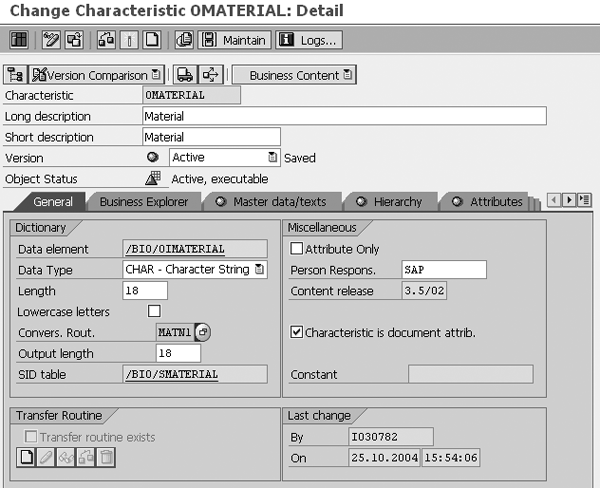
Figure 3
Enter your conversion routine in the Convers. Rout. field on the General tab
BW delivers DataSource fields to the InfoProvider via ABAP routines or formulas. An incorrect ABAP routine or formula might be to blame for your data errors, so check their consistency. To go to the Transfer Rules screen of Administrator Workbench, enter RSA1, select the InfoSources tab, and double-click on the Transfer Rules tab of the specific InfoSource. Here you should check an appropriate transfer rule of the suspected InfoObject, or click on the create start routine icon to see the code. As I said before, BW applies the start routine to the whole set of delivered data, while specific transfer rule ABAP routines relate to the specific InfoObject data delivery. Click on the rule to go to the formula or routine (Figure 4). Depending on the makeup of your BW team and each person’s responsibilities, ABAP programmers or BW consultants should check the code. Also, remember to watch for incorrect start routines.
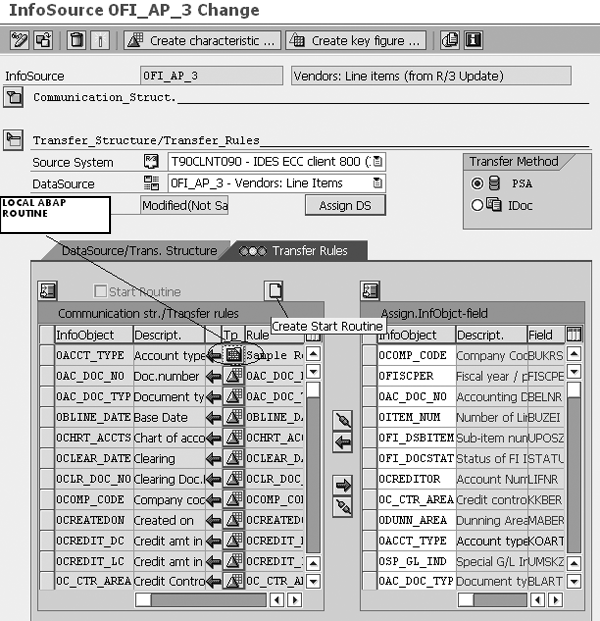
Figure 4
Check the ABAP routine
Update Rules
If the transfer rules present accurate data, you check the update rules of specific InfoProviders. Many problems that relate to the update rules include improper update type (while performing consistency checks for key figures). Depending on the InfoProvider type, check that you’ve selected the proper update method. For ODS, this could be addition, overwrite, or no update. For InfoCubes, select addition or no update only.
While performing consistency checks for characteristics (relevant for the data part of the ODS structure only), check the update method, which could be overwrite or no update. In the ODS settings, check the Unique Data Records check box in Administrator Workbench to implement an appropriate upload scheme. To do so, enter transaction RSA1, go to the InfoProviders tab, double-click on your chosen ODS, expand the Settings tab, and check Unique Data Records. If you check this box, BW posts only unique data records in the ODS object, making it impossible to load data records into the ODS object if the key combination already exists. You should also check for incorrect start routines, ABAP routines, or formulas using the procedure described in the “Transfer Rules” section.
BW might read attributes of an InfoObject’s master data incorrectly, so check that the attribute data arrives from an appropriate InfoObject. Examine the update method for InfoObject inside the update rules. In some cases you see incorrect data because an inappropriate attribute appears instead of the correct InfoObject from the transfer rules.
InfoPackage
InfoPackage is a program containing parameters for data extraction. It defines the conditions for requesting data from a source system (for example, selection conditions, start conditions for data requests, options for updating data, and types of error treatment).
It’s important to check InfoPackages to make sure you’re uploading the right portion of data. Verify the correct update method (full, initial, or delta update, and, in the case of time dependent master data, time interval). These factors might affect whether BW uploaded the right records into data targets.
Also, check what data targets are updated using a specific InfoPackage. Sometimes, you might expect to see a certain portion of data uploaded and presented in your BEx or Web AD report, when in reality, that data arrived in the wrong InfoCube or other target. Inside Administrator Work-bench, double-click on the InfoPackage and choose the Data Targets tab. You see a list of the data targets updated by the InfoPackage. Check what targets are chosen for update.
Process Chain
A process chain is a logical grouping of linked processes (or jobs) scheduled in the background that you can trigger based on specific events. The dependencies that exist between each process dictate the order in which BW executes them. When activated, BW assigns each process to a system-generated event. You could check them by clicking on each job, observing what it should perform, and how it is performing it. Sometimes, the problem lies in the wrong sequence of the jobs and sometimes in the definition of the job itself. For example, the InfoPackage with the wrong selection criteria is part of the chain. In this case, you either change the criteria or the InfoPackage itself.
Factors that could contribute to data distortion include attribute change runs, ABAP programs, deletion of overlapping requests, InfoPackage execution, aggregate rollup, and many others. If your process chain controls data flow process, check those jobs.
Authorization Issues
Authorization restrictions on BEx/Web AD objects could result in missing data. Generally, authorization restrictions use roles in concert with BEx elements such as authorization variables to prevent users from seeing undesirable master data values or certain key figures. In most cases, BW provides an error message relating to the authorization problem. In rare cases when an error message is not informative enough but still shows an authorization problem, you should check the BEx authorization variable definition and the role restrictions via transactions RSSM or PFCG.
Iliya Ruvinsky
Iliya Ruvinsky is a managing partner at Skywind Consulting Ltd., Israel. He is an SAP-certified BW consultant and instructor with more than 12 years of experience working with SAP BW and SAP BusinessObjects. He is an implementation and project management expert, serving for more than eight years as a trusted advisor to a wide range of Israeli enterprises, including in the insurance, energy, sales, and logistics industries. He is a graduate of the University of Tel Aviv, Israel, holding an MBA in information systems analysis.
You may contact the author at iliya.r@skywind.co.il.
If you have comments about this article or publication, or would like to submit an article idea, please contact the editor.