Discover a way to implement SAP’s Catalog Content Management functionality to help streamline your procurement process, boost productivity, and improve the accuracy of your purchasing records.
Key Concept
A procurement catalog simplifies the searching and selection of items to be purchased with its similarity to online shopping in SAP ERP Central Component (SAP ECC). Selected items can then be added to the shopping cart which brings them to the SAP purchase requisition or purchase order. The materials management (MM) module is part of SAP ERP ECC 5.0 and 6.0 software packages. SAP practitioners with knowledge of the MM and Purchasing submodules and the e-Procurement process in diverse industries can use this and SAP Catalog Content Management (SAP CCM) to streamline the process for requisitions or purchase orders.
If your company, client, or users find the line-by-line item search and entry in SAP’s requisition and purchase order transactions to be too time consuming, procurement catalogs might be a solution worth considering. SAP’s Catalog Content Management (SAP CCM) functionality allows the use of standardized procurement catalogs to support purchasing. The selection of items resembles online shopping rather than a more arduous line-by-line entry process. You can select multiple items in a similar category simultaneously and click the “add to the shopping cart” button to bring them into SAP ERP Central Component (SAP ECC) purchasing transactions.
Part 1 of this series, which was posted to the SCM hub of SAPexperts in November 2008, covered the functionality, components, and landscape required to use SAP CCM's catalog functionality with the purchasing transactions in SAP ECC. It also explained the detailed SAP ECC configuration settings to invoke the catalog from the purchasing transactions and the security profiles needed to manage the catalogs.
In this article, we explain a way to create, manage, and publish the SAP CCM catalog that can be enabled for SAP ECC 5.0 and 6.0 to support purchasing functions. All steps described are performed from within SAP CCM. In addition, we provide some SAP notes to help fix issues you might encounter.
Catalog Management Process
The catalog management process involves uploading comma separated value (CSV) files for setting up catalogs and uploading items. These files contain the structure of the catalogs as well as the items to be uploaded. Catalogs then need to be mapped, approved, and published by users responsible for these tasks. Here are some important terms regarding the setup of catalogs:
Schema: The overall structure of a catalog, containing categories and characteristics. SAP CCM supports standard schemas, such as the United Nations Standard Products and Services Code (UNSPSC).
Category: Sections of a catalog or grouping of items, which can be based on material groups (such as computer displays or scanner accessories). Categories logically break down a catalog and make browsing for items easier.
Characteristic: Properties of items with descriptive and differentiating values. It is possible to have complex characteristics consisting of multiple simple characteristics and also multiple value characteristics. (For example, dimensions can be a complex characteristic containing the simple characteristics length, width, and height. Each item would then have its own values for these characteristics.)
You can maintain catalogs by following the three steps below:
- Step 1. Initialize the master catalog: setup of catalog to be used for procurement
- Step 2. Create and map the supplier catalog: used to transfer data to the master catalog
- Step 3. Publish the master catalog: allows changes to the master catalog to take effect
Once you have completed these steps, the procurement catalogs will be accessible from within SAP ECC’s purchasing transactions.
Steps to Maintain Catalogs
Before starting with these steps, you need to complete the technical setup of the SAP CCM module. Refer to our November 2008 article for those instructions.
Step 1. Initialize the master catalog. Once you’ve completed the SAP ECC configuration described in our previous article, initialize the master catalog in SAP CCM. Access the Catalog Authoring Tool (CAT) through its Web-based interface.
With the assignment of the /CCM/Catalog Manager role to your SAP ECC user profile, you can log into the Catalog Authoring Tool using a link provided by the Basis team similar to this one: https://sapxepa.xyz:8000/sap/bc/bsp/ccm/cat?sap-client=500. Log in with the user name and password you already have for the SAP ECC client. The initial screen is shown in Figure 1.
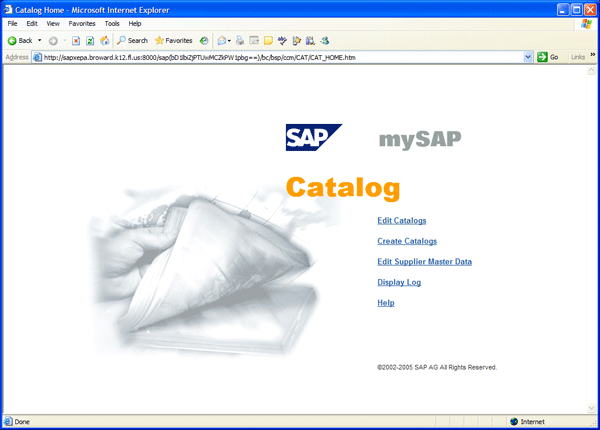
Figure 1
Initial screen of Catalog Authoring Tool
The system automatically creates the master catalog (/CCM/MASTER_CATALOG) when you access the authoring tool for the first time. In this step, the master catalog schema uploads to populate catalog categories and user-defined characteristics. You only need to upload once for initialization and afterwards only if there is an update to the categories or characteristics. Uploading the master catalog schema after the initial setup deletes certain formatting changes made to the master catalog such as the display options for the user-defined characteristics under the master schema. You have to reset them after each upload.
Click the Edit Catalogs button to proceed. The next screen lists all the available catalogs and should only have the master catalog at this point. The name of the catalog was entered in SAP ECC configuration as explained in our previous article. Select the master catalog and click the Upload button. Browse for the CSV file that contains the master catalog schema. Once you click the Upload button, the process takes place in the background. To display the log, click the Start button and select the top log. Click the Update button to see the progress. Once the Catalog is successfully updated message appears, the upload process is complete.
Figure 2 shows a sample CSV upload file for the master catalog. The file only consists of the Model section that builds the structure of the catalog with categories and characteristics. This file cannot contain a content section with items. Items have to be mapped from a supplier catalog. For more detailed information on the CSV upload file structure, see https://help.sap.com/saphelp_ccm10/helpdata/en/44/f0da41e09b6324e10000000a1550b0/frameset.htm.
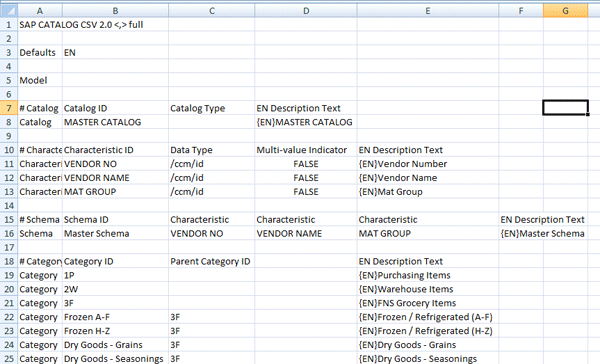
Figure 2
CSV file for master catalog schema upload
Navigate back to the Edit Catalog page, highlight the master catalog, and click the Edit button. In the Content tab, the schema and categories you uploaded are now displayed. In the Edit Display Sequence section of the Schema tab, you can set the order in which the characteristics appear in the master catalog. By going into a characteristic to view the details, you see whether the values of the characteristic will transfer to the SAP ECC purchasing document (OCI - Open Catalog Interface - field), whether the characteristic allows sorting of its values, and whether it is relevant for a text-based search as shown in Figure 3.

Figure 3
Characteristic details
Step 2. Create and map the supplier catalog. Supplier catalogs are intended to be unique per supplier. However, when the files are not provided by the supplier and content from a large number of suppliers needs to be added to the catalog, there is a workaround to have a single supplier catalog. We added two user-defined characteristics to the supplier catalog and master catalog – vendor number and vendor name. By using these two fields along with a dummy supplier we created for the actual catalog, we were able to have items from multiple vendors on a single supplier catalog and to map this information to the master catalog.
To begin, click the Edit Supplier Master Data link on the initial screen of the Catalog Authoring Tool. If you combine items from different vendors on a single supplier catalog, you create a dummy supplier. From the initial screen of the Catalog Authoring Tool, click the Create Catalogs link and select the Supplier Catalog type using the drop down. Enter the ID, description, and supplier ID for the catalog on the following page and use the selection to indicate whether changes to the catalog need to be accepted (approved).
You can now upload a CSV file for the supplier catalog, similar to the upload for the master catalog. However, the file now has a content section with the item information to be uploaded (Figure 4). The content can be uploaded with the model section of the file described in Figure 2 or separately. You need to use the readily available International Organization for Standardization (ISO) codes for the unit of measurements in the upload file as these are the standardized units used for the data upload. You can search online for these if they are not readily available.
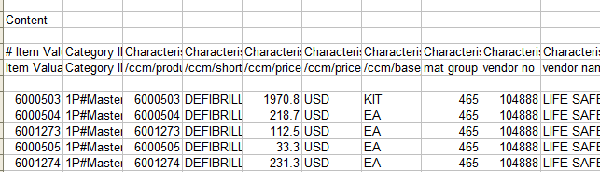
Figure 4
Content section of supplier catalog
The supplier catalog needs to be mapped to the master catalog to allow item data transfer. This is done through the Mapping tab of the supplier catalog. Categories are assigned from the source (supplier) catalog to the target (master catalog). To map schema-level user-defined characteristics such as the custom vendor fields we added, select the master schema on both the source and target catalogs and click the Edit Characteristic Assignment link. If the same characteristics were added to both the master and supplier catalogs, you can map them in this area. Once both category and characteristic mapping are complete, click the Map Content button to transfer information to the master catalog.
Transaction MECCM (send purchasing data to catalog) transfers material-related data from info records and contracts to SAP CCM. You can look into this as an alternative to the manual process described here. The limitation to the standard transfer transaction MECCM is that it is not flexible enough to allow the workarounds we have used here to simplify the catalog management process.
Step 3. Publish the master catalog. You can confirm whether data transfer from a supplier catalog was successful by going into the Content tab of the master catalog and selecting the different categories. To publish the master catalog for end users, highlight it on the Edit Catalogs page and click the Publish button. You have the option of publishing changes or the entire catalog.
Helpful Settings and SAP Notes
We faced a couple of issues during the implementation. For example, when a user tried to select more than 10 items from the catalog to be brought into a purchase requisition, only the first 10 items would show up in the requisition. The system created and erroneously saved blank requisition lines. To resolve this problem, we clicked the Personal Settings button in transaction ME51N (create purchase requisition) and unchecked the box for Item overview as grid control. This has to be performed once by each user. Although this removes functionality to sort, search, sum, and arrange the layout, it removes the 10-line limit to the blank lines initially being displayed. Therefore, the issue of the number of lines being adopted from the catalog no longer exists.
Another issue was that we wanted the contract price uploaded into the catalog to overwrite the moving average price from the material master record since contracts had the most up-to-date prices. To do that, we needed the account assignment category and plant information to be pre-set in the purchase requisition. If end users are able to set up their default values for these fields, the price from the catalog comes into the purchasing document and is not replaced by the moving average price. If the account assignment or plant is changed after items are adopted from the catalog, the catalog price is overwritten. Having the correct price in the requisition is especially useful for determining the correct approval release strategy and in situations in which there is a requisition to purchase order tolerance blocking a purchase order if the price is higher than that of the requisition.
Below are SAP Notes we implemented to resolve further issues:
- 1099314 – The search in results functionality was not working properly when the field constraint for a characteristic was set to Entry.
- 1024002 – Error saving characteristics after SP07 and SP08
The following is a correction instruction SAP provided us that was not part of SAP notes. You can refer to it if you experience the same issue:
- Frame nesting issue. We encountered this error in the graphical user interface when going through the SAP Web Application Server. After SAP CCM is accessed through the catalog button on ME51N and items are selected with the Add to Shopping Cart button, the screen for the requisition does not open up on the top frame but is nested within the inner frame. As this is repeated, the nesting of frames continues.
Jeetendra Kumar
Jeetendra Kumar is the IT director at Coca-Cola Enterprises, Inc. Prior to Coca-Cola Enterprises, Jeetendra worked as a consultant at Deloitte, IBM, PricewaterhouseCoopers, and HCL Infosystems in their respective SAP practices.
You may contact the author at k_jeetu@yahoo.com.
If you have comments about this article or publication, or would like to submit an article idea, please contact the editor.
Jef Benbanaste
Jef Benbanaste is a senior consultant with Deloitte Consulting LLP with experience in the consumer business, transportation, and public sector industries.
You may contact the author at jbenbanaste@gmail.com.
If you have comments about this article or publication, or would like to submit an article idea, please contact the editor.