See two scenarios that explain how to improve data load error handling by using an error stack and data transfer process. Learn about the impact of semantic key definition on data integrity and data inconsistency for a DataStore object.
Key Concept
In a data transfer process for a DataStore object (DSO) that has error handling enabled, the semantic key definition plays a critical role in maintaining the data consistency in the DSO. The semantic key determines whether the system should load the data record to the data target or send it to the error stack.
When your data warehouse acquires data from different source systems, the data is often riddled with data-related errors. You must cleanse and transform the data before loading it into the data targets on a regular basis. The error handling features in extraction, transformation, and loading (ETL) guarantee the quality of data. Although the options selected in your system determine how it processes and responds to errors, you must separate and correct the error records before loading them into the intended data target.
In this second article of a two-part series, we will discuss the different options available for error handling in SAP NetWeaver BI 7.0. Previously, we discussed the data transfer process (DTP) and error handling. We described how to leverage the error stack for a scenario with an InfoCube as the target. In this article we cover a variation for this process using DataStore objects (DSOs) as the target.
Using the error stack to maintain DSO data integrity requires special settings. Data fields are usually set by default to an overwrite mode. This means that if you load a record to the DSO that has an existing record with the same key field value, the system overwrites the data field value, replacing the previous value with the new value.
We will show you how to manage the data integrity between the On-Line Transactional Processing (OLTP) and the SAP NetWeaver BI system with the two examples of sales order data extracted from an OLTP system into a DSO in SAP NetWeaver BI.
In the first scenario, the master data for M34 was not loaded, so the system moved the data to the error stack. Upon correcting the error, you then must move this record out of the error stack and upload it the DSO.
The second scenario focuses on uploading a more complicated update. While loading new data for material M66 and updated data for M34, the system automatically shifts both sets of data to the error stack. The system sends M66 to the error stack because there is no master data maintained for it. It shifts M34 because the new information has the same semantic key definition as the old data for M34, which is present in the error stack and not yet loaded to the DSO.
Scenario 1
As a part of the data acquisition process, the InfoPackage transfers the data from a source system (sales order data in our example) into the Persistent Staging Area (PSA). This is the state of data before it is loaded to the DSO. Figure 1 shows the six records in the PSA that we want to transfer to the DSO. In this scenario, material M34 does not contain master data.

Figure 1
Data for six sales order records loaded to the PSA
You can view the master data that is currently available for the material InfoObject. Right- click on the InfoObject and choose Display Master Data from the context menu. This calls the chart shown in Figure 2.

Figure 2
Master data for the materials currently available in the system
Note that the record for M34 is missing because no master data is loaded for this material. While loading data for six sales order records from the PSA to the DSO, the system passes sales order 12355 (M34) to the error stack because the master data for M34 is unavailable.
To ensure this, go to transaction RSA1 (Administrator Workbench), and select InfoProviders. Expand the selected DSO node and select the transformation. Double-click on it to access the screen in Figure 3. Make sure that the Integrity check box is selected for Material. This prevents the system from adding records to the DSO for the material codes that do not have master data. Otherwise, the system assumes a 1:1 transformation (i.e., the data that comes into the PSA goes directly to the DSO without any referential check).
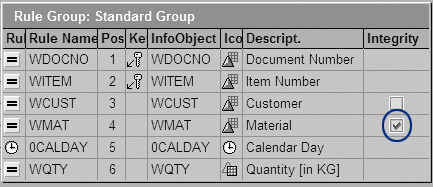
Figure 3
Transformation with Integrity selected for Material
Next, define a DTP to load the data from the PSA into the target DSO. You can create the DTP by using transaction RSA1, which we described in part 1 of this series. The process of creating this DTP is the same as the one in the previous article except that you need to define the data target and error stack key in this DTP for the DSO.
You must define the error handling options in the DTP as shown in Figure 4. First, choose the option Valid Records Update, Reporting Possible (Request Green), which enables the use of the error stack in the data flow. You can also define the maximum number of error records the system should tolerate. We recommend setting the maximum to 1000.

Figure 4
DTP settings with error handling options
Note
The two options using the radio button shown at the bottom of Figure 4 for Type of Data Update to Data Targets do not impact the error stack scenario. In both cases, the DTP provides the same result.
Then define the semantic key for the error stack that determines which records the system must route through the error stack. Follow menu path InfoProviders>Select Specific Target. Expand the node, right-click on the DTP, and select Display Data Transfer Process from the context menu. In our example in Figure 5 we use the default key, which is the DSO key (i.e., the document number and item number). To select a different key, click on the Semantic Groups button. In the screen that appears, select the key fields that you need to ensure a correct sequence of data flow into the DSO. In our example, we selected /BIC/WDOCNO (Document Number) and /BIC/WITEM (Item Number).
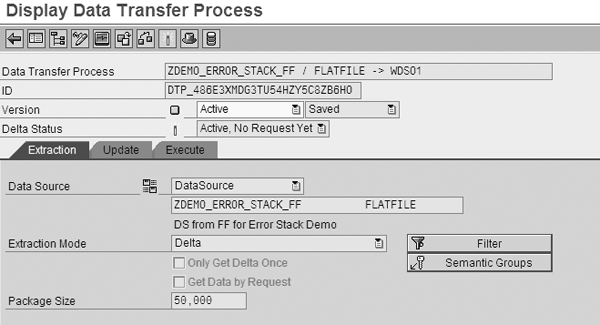
Figure 5
We use the default key for the error stack in the DTP
After you set the key for the DTP, execute it by clicking on the execute icon. The Data Transfer Process Monitor appears and indicates that five of the six records from the PSA passed to the data target (Figure 6). One record saved in the error stack due to an error.

Figure 6
The DTP monitor indicates that five out of the six records loaded successfully
Data Package 1 has a successful (green) status in spite of the error. In Figure 6, the circled message means that one record is in the error stack, but the request is set to successful because of the way we defined error handling in Figure 4. Click on the Error Stack button to see the erroneous records. Then double-click on the status icon  to view the error details.
To fix the error with M34 in the error stack, you must update the material master data for M34. You can do this either by loading the data into the material InfoObject using an InfoPackage and DTP or by manually maintaining the master data in the system.
After loading this data, go to transaction RSA1 and right-click on the material InfoObject. From the context menu select Display Master Data. Now the system shows the material master data for M34 (Figure 7).
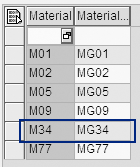
Figure 7
M34 now contains material master data
Scenario 2
Now we’ll describe the more complex second scenario in which we have one material that does not have any master data (M66) and one material for which we want to update the sales data (M34). The system routes M66 to the error stack because it does not contain any data. This is the same as the simpler example in our first scenario.
In the second scenario, the issue with M34 is a little more complicated. In the first load, let’s say the record for M34 had a quantity of 34 assigned to it. This is the record that is currently in the error stack. In the second load, the record for M34 has an updated quantity of 38.
It is important to select the correct key fields (in our example, /BIC/WDOCNO and /BIC/WITEM). Otherwise, you could have an incorrect record sequence flow into the DSO. This can lead to the old version of the data overwriting the new version of the data because we are using the overwrite mode. This means that when we load the data from the error stack, the record for M34 would have an incorrect quantity of 34.
However, the defined semantic key ensures that this won’t happen. With this definition, if new records uploaded to the DSO have the same key field values as the record in the error stack, then the system routes these records through the error stack to maintain the semantic queue. Although M34 now has master data available, the new record for M34 has the same key field values as the older data. When we stage to load the second record into the DSO, the system automatically routes it to the error stack to maintain the correct data flow sequence into the DSO (Figure 8).

Figure 8
The DTP monitor shows the records filtered with the same key
The circled section in Figure 8 warns you that not all the records were loaded to the DSO — some were filtered out. The system looks at the records in the error stack. If it finds a record with the same key in the next load, it routes the record to the error stack to avoid data inconsistency.
In this example, the system forwards four of the five records from the first scenario for further processing. Out of these records, the system moves the M66 record to the error stack because no master data for M66 exists. The remaining three records are loaded to the DSO successfully and the data is available for reporting. In this second data load to DSO, two records shift to the error stack (Figure 9).
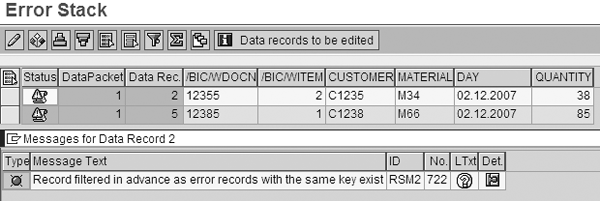
Figure 9
Error stack and error message for records with same key
To correct the error for M66, follow the process you completed for M34 in the first scenario to add master data to the record. Then create the error DTP and load the M66 and M34 data into the DSO. As we mentioned in part 1, this error DTP is virtually the same as a normal DTP except that the error stack is the source of the error DTP (see Figure 8 in part 1). Note that you only need to create the error DTP once for one DTP.
To create the error DTP, go to transaction RSA1 and select InfoProvider>Select the Data Transfer Process for the InfoProvider. Right-click on the DTP and select Change from the context menu. When the DTP is available in change mode, click on the Update tab, and then click on the Creating Error DTPs button. In the screen that appears, click on the Execute tab (Figure 10).
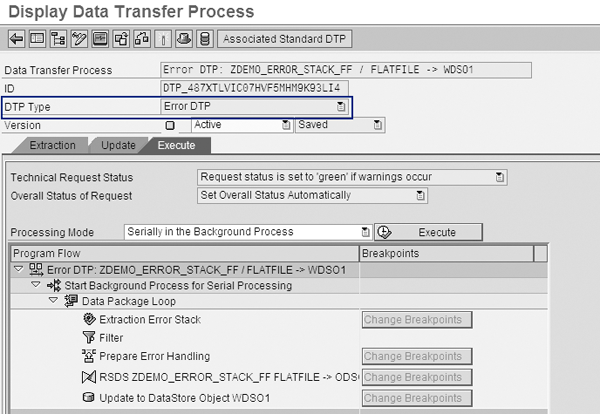
Figure 10
Click on the Execute button to run the error DTP
Click on the Execute button to run the error DTP. The system updates the data from the error stack into the DSO. The data is now complete and available for reporting. Figure 11 shows the DSO contents with the loaded records.

Figure 11
Final data available in the DSO active table for reporting
Shreekant W. Shiralkar
Shreekant W. Shiralkar is a senior management professional with experience on leading and managing business functions as well as technology consulting. He has authored best selling books and published many white papers on technology. He also holds patents for innovations. Presently he is global head of the SAP Analytics Centre of Excellence at Tata Consultancy.
You may contact the author at s-shiralkar@yahoo.com.
If you have comments about this article or publication, or would like to submit an article idea, please contact the editor.

Amol Palekar
Amol Palekar has worked on BI implementations for various Fortune 500 companies. He is currently principal consultant at TekLink International, Inc., and focuses on institutionalizing the global delivery model and processes for application development, maintenance, and support engagements. He is also a trainer, author, and regular speaker on the subject of BI. He is recognized for his popular and best-selling books: A Practical Guide to SAP NetWeaver BW (SAP PRESS) and Supply Chain Analytics with SAP BW (Tata McGraw-Hill).
You may contact the author at amolpp@yahoo.com.
If you have comments about this article or publication, or would like to submit an article idea, please contact the editor.
Bharat Patel
Bharat Patel is experienced in managing data warehouse technology for the petroleum industry. He is an SAP-certified BW and ABAP consultant, has authored a book on SAP BW, and teaches courses on BW and ABAP at the Sapient Academy and SAP Labs India. Bharat has presented papers about BW at Business Intelligence India Group (BIIG) conferences. He presently manages the SAP BW system at Bharat Petroleum, India.
You may contact the author at patelb@bharatpetroleum.com.
If you have comments about this article or publication, or would like to submit an article idea, please contact the editor.