Learn about some of the new capabilities of SAP BusinessObjects Dashboards 4.0 and how you can leverage the newly integrated features in combination with the semantic layer.
Key Concept
SAP BusinessObjects Dashboards 4.0 (formerly named Xcelsius) allows users to create compelling data visualizations. As part of the SAP BusinessObjects 4.0 release, there are several new capabilities for designers.
SAP BusinessObjects 4.0 delivers a broad set of new functionality for all the BI client tools, with SAP BusinessObjects Dashboards 4.0 being the latest version of Xcelsius. SAP BusinessObjects Dashboards has the features and functions to provide end users with interactive data visualizations.
I will focus on the most important features of SAP BusinessObjects Dashboards 4.0 from the perspective of a dashboard designer. The SAP BusinessObjects 4.0 release provides several enhancements, the integration with the SAP BusinessObjects semantic layer clearly being the strongest functionality in the 4.0 release.
Note
The new capability shown in this article as part of SAP BusinessObjects 4.0 to leverage the semantic layer via the Query Browser is not available for the connection with SAP NetWeaver BW. For connecting to SAP NetWeaver BW you can use the direct connectivity from SAP BusinessObjects Dashboards to the SAP BEx query. You still need to use the spreadsheet to link to the data. The outlined capability for the direct binding of data to components is planned for the SAP BusinessObjects Dashboards 4.1 release.
Note
Keep in mind that SAP BusinessObjects Dashboards is not a product that is designed to aggregate information or handle very large volumes of data.
Direct Integration with the Semantic Layer
In the previous releases, companies always had to use specific products such as Live Office, BI Web Services, or Query as a Web Service to leverage the existing metadata from the Universes in combination with SAP BusinessObjects Dashboards. Now in the 4.0 release of SAP BusinessObjects, the designer product closely integrates with the semantic layer in the form of the Query Browser. The following steps outline the process of creating a very simple dashboard using SAP BusinessObjects Dashboards 4.0 in combination with a Universe as the data source.
Step 1. Start the SAP BusinessObjects Dashboards Designer via the menu path Start > All Programs > Dashboard Design > Dashboard Design.
Step 2. Follow menu path File > New > New to create a blank canvas.
Step 3. Follow menu path View > Query Browser to ensure the Query Browser is shown (Figure 1).
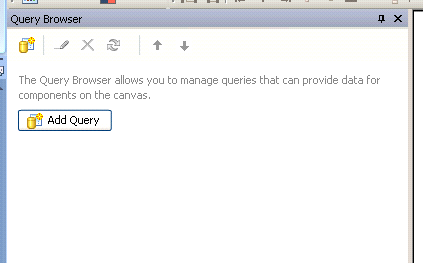
Figure 1
Query Browser
Step 4. Click the Add Query button.
Step 5. You are now asked to authenticate to your SAP BusinessObjects Enterprise 4.0 environment. After you are successfully authenticated, you retrieve a list of available Universes (Figure 2).

Figure 2
Available data sources
Step 6. Click the Universe and move forward to the next screen.
Step 7. In the next screen, select the dimension and key figures you would like to include in your SAP BusinessObjects Dashboards object. In my example (Figure 3) I am using the dimension Year and Lines and the key figures Sales revenue and Quantity sold in the Result Objects section.
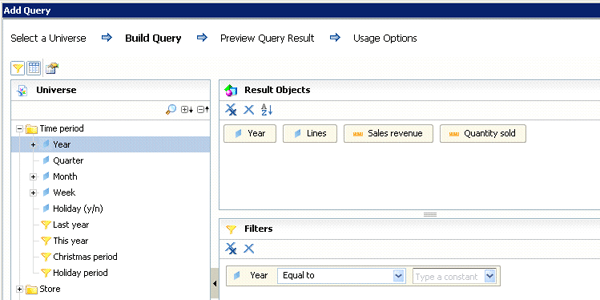
Figure 3
SAP BusinessObjects Dashboards query panel
Step 8. In addition, I created a filter based on the dimension Year in the Filters panel and defined a prompt to allow the user to provide an input to the filter at runtime for the SAP BusinessObjects Dashboards object (Figure 4). You are defining the prompt to be an optional prompt so that in the initial run of the SAP BusinessObjects Dashboards, the data being displayed shows all values and the user can then filter down on the data as needed.
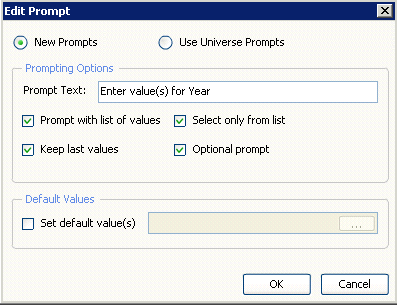
Figure 4
Prompt definition
Step 9. Move to the next screen by clicking Next, which is the data preview (Figure 5). Because I created a prompt I am asked to provide values for the prompt. However, because the prompt is optional you can leave the prompt empty. The data preview is limited and is meant only to give you a quick look at the data so that you can understand the data structure and the data types being returned.
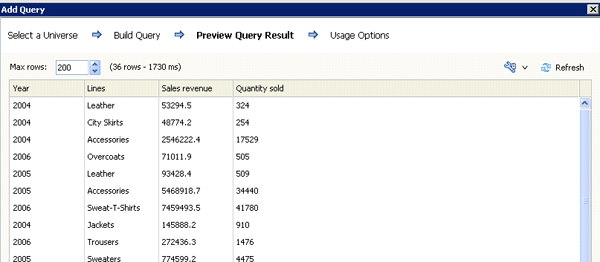
Figure 5
Data preview
At this point you have leveraged an existing Universe from your SAP BusinessObjects platform. You were able to simply drag and drop the dimensions and measures that you will use for the SAP BusinessObjects Dashboards object as part of the query panel into the result set. Previously you had to create the Universe and then leverage either Live Office, BI Web Services, or Query as a Web Service to then use the data in SAP BusinessObjects Dashboards. As you can see the 4.0 release of SAP BusinessObjects Dashboards is now much more tightly integrated with the semantic layer and reduces the steps in regards to the data connectivity significantly.
In the next steps I will use the query in the SAP BusinessObjects Dashboards Designer and leverage another new functionality of the 4.0 release – the capability to bind components directly to the elements of our established query without the need to use the Microsoft Excel spreadsheet for the data retrieval definition.
Step 10. After you establish the data connection, add a chart to the SAP BusinessObjects canvas and open the Properties of the chart with a right-click. As shown in Figure 6, the chart properties now — in addition to the option to use a spreadsheet — offer the option to link directly to the Query Data.

Figure 6
Chart properties
Step 11. I am using the option Query Data for the Values of the chart. In the resulting screen, select Sales revenue (Figure 7).
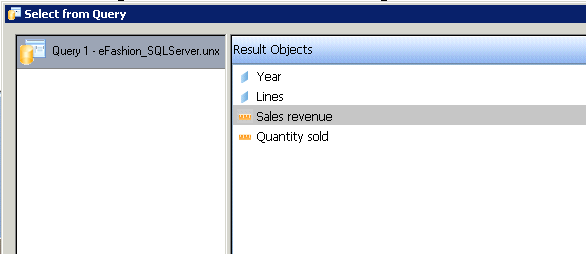
Figure 7
Query data
Step 12. Use the option Query Data for the Labels properties of the chart and select the dimension Lines from the result set.
Step 13. Now the chart is defined but you still need to add the prompt to the canvas. In the previous steps you added a filter that allows the user to enter a value to a prompt for the Calendar Year. This prompt is also part of the Query Browser (Figure 8). In addition to the direct binding for components, SAP BusinessObjects Dashboards 4.0 provides you with the option to drag and drop a predefined prompt onto the canvas. SAP BusinessObjects Dashboards then generates a default prompting dialog. The prompting dialog contains all the needed standard functionality, such as being able to select single or multiple single values and being able to search for a value.
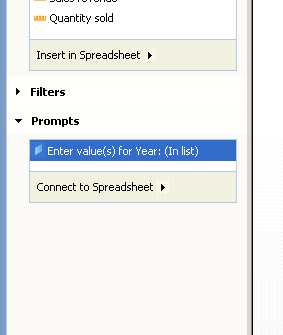
Figure 8
Query Browser
Step 14. Follow menu path File > Preview to see a preview of the dashboard consisting of a chart and a prompt dialog, all based on a Universe from your SAP BusinessObjects system (Figure 9).

Figure 9
Dashboard preview
Step 15. As the last step, save the SAP BusinessObjects Dashboard object to your SAP BusinessObjects system. Follow menu path File > Save to Platform. Select a name and save the object.
In Xcelsius 2008 you saved the actual design of your dashboard and then you exported the Xcelsius object to the SAP BusinessObjects Enterprise system as a Flash (SWF) object. In SAP BusinessObjects Dashboards 4.0, there is no need to separate these two tasks anymore. You can save the SAP BusinessObjects Dashboards object to the server environment and you do not need to export it to the Flash object. When the user selects the dashboard for viewing, the Flash object is rendered at runtime. If you want — for some other reason — to export to Flash (SWF) you can still do so, but you don’t have to.
Product Roadmap Disclaimer
The descriptions in this article of future functionality are the author’s interpretation of the publicly available product integration roadmap. These items are subject to change at any time without any notice and the author is not providing any warranty on these statements.

Ingo Hilgefort
Ingo Hilgefort started his career in 1999 with Seagate Software/Crystal Decisions as a trainer and consultant. He moved to Walldorf for Crystal Decisions at the end of 2000, and worked with the SAP NetWeaver BW development team integrating Crystal Reports with SAP NetWeaver BW. He then relocated to Vancouver in 2004, and worked as a product manager/program manager (in engineering) on the integration of BusinessObjects products with SAP products. Ingo's focus is now on the integration of the SAP BusinessObjects BI suite with SAP landscapes, such as SAP BW and SAP BW on SAP HANA, focusing on end-to-end integration scenarios. In addition to his experience as a product manager and in his engineering roles, Ingo has been involved in architecting and delivering deployments of SAP BusinessObjects software in combination with SAP software for a number of global customers, and has been recognized by the SAP Community as an SAP Mentor for SAP BusinessObjects- and SAP integration-related topics. Currently, Ingo is the Vice President of Product Management and Product Strategy at Visual BI Solutions, working on extensions to SAP’s product offering such as SAP BusinessObjects Design Studio and SAP Lumira. You may follow him on Twitter at @ihilgefort.
You may contact the author at Ingo@visualbi.com.
If you have comments about this article or publication, or would like to submit an article idea, please contact the editor.


 Premium