Improve your scrolling abilities with JavaScript enhancements to Web interfaces. See the step-by-step process for preparing the Web interface and learn where to add the appropriate code.
Key Concept
The standard Business Planning and Simulation (BPS) interface toolset allows the insertion of JavaScript-based commands directly into the Web interface for customization. Existing BPS Web interface customization tools do not provide specific formatting capabilities for overall presentation. In the case of layouts presenting large numbers of columns and rows, the standard presentation does not allow certain columns or rows of a layout to be fixed (or “frozen”) and other columns or rows to scroll. The incorporation of JavaScript commands into the BPS Web interface allows you to customize the Web presentation to include enhanced scrolling capability.
SAP BW-Business Planning and Simulation (BPS) provides tools via transaction BPS_WB that allow you to customize BPS planning applications that you want to present to the end user via a Web session. SAP provides standard Web interface development tools such as function buttons, tab strips, and containers for specific objects. However, the standard solution does not provide a number of custom effects. You can achieve some of these effects by using JavaScript-based commands to enhance your scrolling abilities.
We’ll present a brief example to explain different scrolling capabilities and limitations and then show you the three phases of work you need to undertake to implement the capabilities you want to have. We’ll also show you the logic of the scrolling solution.
We provide JavaScript commands in the code available for download at this link. You can easily incorporate these commands into most Web interfaces during the Web interface configuration. The use of this modification code technique is applicable to all BW-BPS Web Interface Builder functionality found within BW-BPS 3.5 through BW-BPS 6.0.
Example Showing the JavaScript Command Effect
As you can see in Figure 1, the layout extends further right than the browser can accommodate, so the browser adds its own scroll bar to compensate. Using the browser scroll bar does not allow control over which columns are scrollable. From a user perspective, it can become very easy to forget which line (or account, in this example) the user is viewing (Figure 2). Figure 3 shows the screen after adding the JavaScript controls. Because the new scroll bar is set to custom width and height requirements, the browser did not need to automatically add its own scroll bar. Figure 4 shows that the lead columns remain visible after scrolling.

Figure 1
Before addition of JavaScript scrolling controls, initial screen

Figure 2
Before addition of JavaScript scrolling controls, scrolled to middle

Figure 3
After addition of JavaScript scrolling controls, before scrolling

Figure 4
After addition of JavaScript scrolling controls, after scrolling
This feature handles multiple layout types, in different containers or tabs, with headers or footers. It only adjusts layouts that are currently displayed to the user. It automatically resizes vertically and horizontally to accommodate layouts that are smaller than the dimension passed to the code. It also automatically resizes to the width of the browser window if, when the interface is loaded, the browser window is smaller than the width passed to the code.
One practical limitation is that this does not support, for example, input fields, radio buttons, and selects in the fixed columns. You can display these items, but they do not actually update the data. There could also be a slight misalignment (a few pixels) between the frozen header and frozen body. However, the end user should not be able to see this. As there are many variations of layout configuration, you should thoroughly test use of this modification code for the specific application.
Implementing the custom scroll features requires three phases of work:
- Install JavaScript code to identify user-specific browser width settings
- Install JavaScript code to include customized scrolling capability
- Modify code to specify which layouts to customize and define size limitations
Install JavaScript code to identify user-specific browser width settings. First, you need to set the page element property Arrangement in Table Form to false, as shown in Figure 5. When the value of this property is equal to true, everything on the page is contained within a table element. Calculating cell dimensions is not supported when the JavaScript code is contained within a table.

Figure 5
Set the page element property Arrangement in Table Form to false
You need to install the first program, JSINITSCROLLINGLAYOUT, at the beginning of the Web interface, directly under the page element definition (Figure 6). This ensures that the JSINITSCROLLINGLAYOUT program can determine the width of the browser window, before it is resized by any subsequent page components.
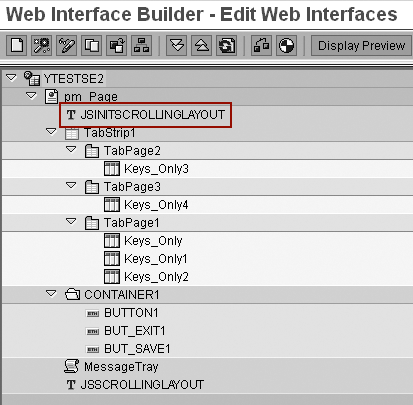
Figure 6
Install JSINITSCROLLINGLAYOUT
Install JavaScript code to include customized scrolling capability. Then you need to install the second program, JSSCROLLINGLAYOUT, at the end of the page definition (Figure 7). This ensures that all page components are available to the JavaScript program.

Figure 7
Install JSSCROLLINGLAYOUT
Modify code to specify which layouts to customize and define size limitations. You need to modify the program JSSCROLLINGLAYOUT to specify the layouts to be modified with custom scroll capability as well as any unique size requirements. These actions are specific with the last few lines of the program, and are in the format of:
buildScrollLayout("technical name of layout in the Web Interface Builder “, vertical sizing parameter, horizontal sizing parameter);
See Figure 8 for an example. You need a separate line entry to customize each layout. Figure 9 shows an example that illustrates the result of entering different horizontal sizing parameters for the same layout. Depending on the overall Web interface design, the horizontal parameter setting allows the developer maximum design flexibility to present many columns of data as well as simultaneously ensuring that the lead columns of the layout are always visible. The ability to continuously view the lead columns allows end users to maintain relevancy of the data that they are viewing.
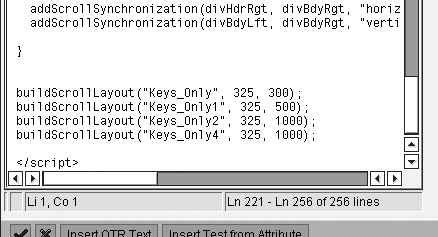
Figure 8
Modify the program

Figure 9
Horizontal sizing example
Figure 10 shows an example that illustrates the result of entering different vertical sizing parameters for the same layout. Note that you can set the parameter settings to allow the end user to view as little as one row of data at a time, or as many rows as desirable. The use of vertical scrolling again allows maximum flexibility in the Web interface design.

Figure 10
Vertical sizing example
Examine the Logic of the Scrolling Solution
The following 12 steps describe the process the JavaScript program uses to identify, position, and synchronize the scrolling among the four main components of the original layout (Figure 11). (These are not steps the developer needs to take.)

Figure 11
Solution components
Step 1. Determine the size of the browser window.
Step 2. Create the TABBDYRGT table, or scrolling body. Create a reference, called TABBDYRGT, to the original layout. Find the height and width of the original layout in preparation for the partitioning of the layout into the four sections described above (DIVHDRLFT, DIVHDRRGT, DIVBDYLFT, and DIVBDYRGT).
Step 3. Create the TABBDYLFT table, or frozen body. Copy the entire original table (TABBDYRGT) to a new table called TABBDYLFT. Then clear the events for all input fields in TABBDYLFT. You need to do this because when the original table is copied, the events for input fields are also copied. When duplicate events exist on a page, Internet Explorer only recognizes the first named event. Therefore, if events aren’t cleared, input fields would only work on the frozen section of the table (TABBDYLFT). For this reason, the current solution does not support input fields in the frozen section.
Step 4. Create the TABHDRLFT table, or the frozen header. Determine the number of frozen columns by calculating the number of columns in the second row of the original table that have the frozen column style (SAPBEXCHATEXT). Copy this number of cells from the column header of the original table. Set the height and width of these cells equal to the same cells in the original table.
Step 5. Create the TABHDRRGT table, or the scrolling header. Copy the first row of the original layout to a new table called TABHDRRGT. Set the dimensions of the cells, in both TABHDRLFT and TABHDRRGT, equal to the dimensions of the cells in the second row of the original layout.
Step 6. Create four division (div) HTML elements (block-level containers) that you use to hold and hide portions of the tables, which you created in steps 2-5.
Step 7. Create a new table and add the four div elements (Figure 11).
Step 8. Set the styles and dimensions of the four div elements. The system calculates the width so that it does not exceed the width of the browser window.
Step 9. Add the four tables to the div elements.
Step 10. Position tables TABBDYRGT, TABBDYLFT, and TABHDRRGT in their respective div elements to hide portions of the tables (Figure 12).

Figure 12
Positioning of tables with div elements
Step 11. If a footer exists on the original layout, move the footer from the original layout to a new table called TABFOOTER. Add this TABFOOTER table to DIVBDYLFT and make it float above the other tables (Figure 13).

Figure 13
Final solution with floating footer
Step 12. Set up synchronized scrolling so that if a scrolling event occurs in DIVBDYRGT, then DIVHDRRGT and DIVBDYLFT are scrolled the same amount.
James Koefelda
James Koefelda is a senior technical consultant at SAP America, Inc. In his 10 years with SAP, he has focused primarily on enhancing SAP software using Internet technologies and the ABAP toolset. For several years, James has specialized in SAP NetWeaver Portal. In his current role as a portal technical lead, he is responsible for managing the technical aspects of large-scale portal implementations.
You may contact the author at James.Koefelda@sap.com.
If you have comments about this article or publication, or would like to submit an article idea, please contact the editor.

Sheldon Edelstein
Sheldon Edelstein is a director within the SAP Platform Solutions Group specializing in SAP HANA, SAP HANA Accelerators, SAP Business Warehouse (BW), and SAP Business Planning and Consolidation (BPC). He has over 10 years of experience at SAP and currently focuses on business development opportunities across a wide array of industries and product solutions. Formerly an SAP Platinum Consultant and SAP RIG –Regional Implementation Group—Specialist, Sheldon has either directly implemented or provided architectural guidance for numerous large-scale projects. Currently, his primary area of focus is HANA, but previously he specialized in BW-IP (Integrated Planning), BW-BPS (Business Planning and Simulation), and SAP BPC. Sheldon is an active presenter at numerous events, a contributor to the SAP Customer Network (SCN), writes blogs on a variety of SAP topics, and is an author of many guides on SAP Service Marketplace for use by the extended SAP community.
You may contact the author at Sheldon.Edelstein@sap.com.
If you have comments about this article or publication, or would like to submit an article idea, please contact the editor.
Olaf Fischer
Olaf Fischer is a Regional Implementation Group (RIG) specialist in SAP NetWeaver BI and Business Planning and Simulation (BW-BPS). He has more than five years of experience in functions for SAP Business Information Warehouse (BW). Olaf has strong technical skills in cross- module application integration, custom developments (ABAP Workbench, WebDynpro), Composite Application Framework (CAF) Guided Procedure and BPS performance tuning.
You may contact the author at Olaf.Fischer@sap.com.
If you have comments about this article or publication, or would like to submit an article idea, please contact the editor.