Discover how to migrate SAP NetWeaver Knowledge Management documents to a third-party portal. You can develop a tool to migrate subscription data along with the physical migration of documents.
Key Concept
SAP NetWeaver Knowledge Management (KM) is widely used for various purposes in business scenarios such as maintaining document versions, setting up a subscription on the folder or document level, triggering emails to subscribers on changes, and storing important documents and displaying them with the correct taxonomy and permissions. It is the crux of any SAP NetWeaver Portal implementation.
As more options are available for document storing, SAP NetWeaver Knowledge Management (KM) is used more for displaying documents stored in different places (e.g., Microsoft Sharepoint repositories, file server repositories, or WebDEV repositories). Organizations often store documents in multiple places because of size restrictions or convenience, and then display this data in KM. Typically you migrate documents in two ways:
- Migrating KM documents to another KM portal, in which you can use KM Drive but it will migrate documents only, and not permissions or subscription data
- Migrating them to a third-party portal, in which case you can’t use KM Drive.
The only other option is to migrate documents manually, but that can be time consuming when dealing with thousands of documents stored in KM. It also presents technical challenges such as:
- No out-of-the-box method available to retrieve subscription details
- Not even an administrator can check who else has subscribed to a particular KM resource
- Each KM API execution provides data of one file or folder
- The API only returns a user ID, not the email ID, of the subscribed user
- A typical production environment has 10,000 to 15,000 folders and more than 25,000 files
- You cannot download to Excel and have to develop a separate component to do so
- You have to retrieve email IDs manually for each user. Without them, you cannot configure user data in a third-party repository.
I developed a tool that allows you to retrieve user data such as email, UME login ID, user first and last name, KM resource URL, and subscription data for any file and folder in KM. I’ll describe KM APIs, services, and users involved in using a third-party portal for document storage so you can make KM lean and fast. You can download the data in an Excel sheet that you can use as an input to the standard SAP NetWeaver Portal WebService as an extended application of this tool.
Using this tool in a productive environment that has more than 25,000 KM documents resulted in 1,059 labor days of effort saved per server. No separate manual intervention or configuration was required in a third-party repository.
Note
The SAP NetWeaver Portal WebService is used to migrate KM documents to third-party repositories to set up exactly the same folder structure as that of KM and also maintain subscription data automatically. Though technical discussion of the Web service and its use is out of the scope of this article, you can still use this article to develop an approach to KM document migration.
Note
You can navigate through KM Drives just like you navigate through drives on your computer. If you map source KM and target KM with KM Drive, you just have to copy and paste documents from one drive to another to transfer them.
Implementation Approach
I’ll use a lot of APIs, including SAP Portal KM APIs, UME APIs, and subscription APIs, to get the right set of data in the right format. In the example I’m using, I used Sharepoint as a third-party portal to store KM documents and let the end user choose whether he wants to see these documents in Sharepoint or SAP Portal KM. Therefore it is essential to have the same folder structure and subscription data in both Sharepoint and SAP Portal KM. The output of this tool maps data into a format that can be read by Sharepoint Web service. However, if you are using any other third-party repository to store KM documents, this article is an excellent reference for developing migration approach for your portal.
Figures 1 and 2 are basic UI and execution screens of this tool. Figure 1 displays what RID URI to enter and Figure 2 displays what kind of output the tool generates.
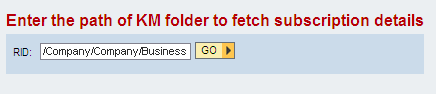
Figure 1
Enter the path to the KM folder that you want to migrate
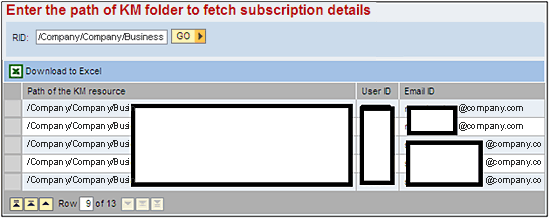
Figure 2
Tool displaying all files, folders, and subfolders under the parent folder along with the user ID subscribed to the KM resource
Solution in Brief
The solution I’ll show you involves five general steps:
- Step 1. Use km_service and subscription_service users so I can access any user-specific KM data to which a regular admin user does not have access.
- Step 2. Execute the KM Subscription API using the user context of the above-mentioned users so you can access entire subscriptions.
- Step 3. Write a method for recursive KM traversing which, as a result, gives Resource IDs (RIDs) of all files and subfolders under a specified parent folder.
- Step 4. Use UME APIs and KM APIs collectively to fetch email IDs for the users returned by KM APIs.
- Step 5. Optionally, you can write custom download-to-Excel functionality by converting API data to bit stream data.
Note
km_service and subscription_service are system users. Do not mistake them for typical UME users. These system users are exclusively used to access system data to which regular admin users do not have access. If you are planning to build any KM application, always remember to use system users. Otherwise, despite writing the correct code, you never get the correct data.
Now, let’s briefly go through the code of this tool.
Solution Implementation
In this section of the article, I will briefly discuss the code and APIs. The entire working code is provided here.
fetchKMdata( ) — A Method to Fetch KM Resource IDs and Collections
- Establish a user context for the subscription_service user and resource context.
IUser user = WPUMFactory.getUserFactory().getUser("subscription_service");
ResourceContext resourceContext = new ResourceContext(user);
- At this point, you get the resource factory.
IResourceFactory resourceFactory = com.sapportals.wcm.repository.ResourceFactory.getInstance();
- Read user input and save it in a variable pathRID.
RID pathRID = RID.getRID(wdThis.wdGetContext().currentContextElement().getVa_KMRID());
- Use the interface ICollection, which is extended from IResource, so the resource object of IResource contains other resources and collections. In simpler terms, the collection is nothing but a KM folder.
ICollection kmFolder = (ICollection)resourceFactory.getResource(pathRID,resourceContext);
IResourceList resourceList = kmFolder.getChildren();
- If the resourceList contains at least one folder or KM file, execute a separate method to read specific data for that KM folder or file.
- If the resourceList contains at least one resource, then call readCollection() method (resourceList.size()>0).
IResourceListIterator resourceListIterator = resourceList.listIterator(); wdThis.readCollection(kmFolder);
- If the resourceList does not contain any resource then you can choose to display your own error message.
wdComponentAPI.getMessageManager().reportException("No Resource Found", true);
readCollection() — A Method to Read Resource-Specific Data from KM
- Get the children of folders and save in resourceList.
IResourceList resourceList = im_collection.getChildren();
- If resourceList further has any children then use a list iterator to get all child objects.
if (resourceList.size() > 0)
IResourceListIterator resourceListIterator = resourceList.listIterator();
while (resourceListIterator.hasNext())
IResource tempResource = resourceListIterator.next();
- Check whether a resource provided by a user is a folder or a file.
- The resource is a folder tempResource.isCollection() == true
if (tempResource.isCollection() == true)
- Read the collection data.
ICollection temp_collcn = (ICollection) tempResource;
wdThis.readCollection(temp_collcn);
- Get the name and resource ID of the collection.
String strName = tempResource.getName();
RID resourceID = tempResource.getRID();
- Get the resource context of the RID entered by the user in the initial screen.
IResource resource = ResourceFactory.getInstance().getResource(RID.getRID(wdThis.wdGetContext().currentContextElement().getVa_KMRID()),resourceContext);
- Call the subscription manager for the specified resource context.
ISubscriptionManager subscriptionManager = SubscriptionUtils.getSubscriptionManager(resource.getRepositoryManager());
- Use subscription list API to get the subscription details from the resource context.
ISubscriptionList subscriptionList = subscriptionManager.getSubscriptions(resourceContext,tempResource.getRID(),true);
- Specify the delivery channel.
IChannel channel = ChannelFactory.getInstance().getChannel(ChannelFactory.EMAIL);
- If at least one user has subscribed to a KM resource.
if (!subscriptionList.isEmpty())
- Run to FOR-Loop for the size of subscription list (i.e., for a number of users subscribed)
for (p=0;p<subscriptionSizeCollection;p++)
- Convert RID to a readable format.
String ridTable = resourceID.toString();
- Map the RID into the output table for display.
IPublicKMdetailsComp.IVn_OutputTableElement vn_OutputTableElement;
- Get the owner of the subscription.
String UID = subscriptionList.get(p).getOwner();
- Get the user ID of the subscribed user.
com.sapportals.portal.security.usermanagement.IUser user2 = WPUMFactory.getUserFactory().getUser(UID);
- Fetch the email ID of the user and set the table node data.
String[] email = user2.getEmail();
vn_OutputTableElement = wdContext.nodeVn_OutputTable().createVn_OutputTableElement();
vn_OutputTableElement.setVa_resourceRID(ridTable);
vn_OutputTableElement.setVa_UserID(UID);
vn_OutputTableElement.setVa_emailID(email[0]);
wdContext.nodeVn_OutputTable().addElement(vn_OutputTableElement);
- If the user-specified RID is not a folder (i.e., it is a file)
(tempResource.isCollection()==false && tempResource.getLinkType()==LinkType.NONE)
So far you have identified that RID entered by a user is a folder in KM and further used subscription and UME APIs to fetch resource-specific data. However, you cannot stop here. There will be files, PDFs, presentations, and slew of other resources in a typical KM folder. Therefore, you have to further read all such child resources and fetch the relevant data.
For this, repeat steps 14 through 24. The code is similar except you don’t need to check for child elements or child resources. You can take a look at the code attached to this article to get a better idea of how to fetch data for a child resource. In addition, I have also attached code for downloading data into Excel format that can further be provided to the Sharepoint Web service. If you are planning to use a different third-party portal to migrate KM data, you have to spend a bit more time analyzing what should be the output format that you can pass on to the Web service of a third-party portal and convert the output accordingly. However, the method of fetching the data remains the same.
Ameya Pimpalgaonkar
Ameya Pimpalgaonkar is a senior SAP architect. He specializes in SAP Netweaver Portal, SAP BPM, BRM, MDM, and SAP Mobile. His interests include UI and front-end technologies, SAPUI5, Responsive Design, and integration of modern technologies with SAP UI. He has also worked on HTML5, CSS3, and jQuery. Ameya is also a certified usability analyst from HFI, USA.
You may contact the author at ameya85@gmail.com.
If you have comments about this article or publication, or would like to submit an article idea, please contact the editor.