Manager Self-Service (MSS), which was first delivered in 2002, has been enhanced in Release 50.2. Now companies can create their own display of R/3 information in SAP Enterprise Portal without the need for programming expertise. What used to take from two days to two weeks to develop, depending on the amount of data, now can be accomplished in no more than an hour.
Manager Self-Service (MSS), which was first delivered in 2002, has been enhanced in Release 50.2. Now companies can create their own display of R/3 information in SAP Enterprise Portal without the need for programming expertise.
These data displays are called iViews. Although the standard business package for MSS provides managers with a wealth of information and applications through standard iViews, these delivered views do not always provide a sufficient amount or the correct combination of data.
In the first release, companies that wanted to give their managers different displays of data had to give the project to programmers with ABAP and Java experience. Depending on the amount of data included, it could take from two days to two weeks to develop an iView. The new functionality means that you can provide your users with displays such as the phone list shown in Figure 1 without any programming — and you can do it in no more than an hour. This is accomplished by adapting one of the three generic iViews provided starting with Release 50.2.
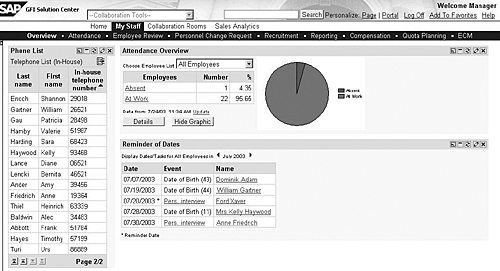
Figure 1
MSS phone list, attendance overview, and date reminder
The iViews you create using generic iViews do not differ in appearance or function from the iViews delivered as standard. I’m going to give you an overview of how this works. (Step-by-step instructions on creating new iViews are in the Download Section at the bottom of the article.) First, here’s some background on MSS.
Note
The prerequisites for this new functionality are:
- Enterprise Portal 5.0 installation
- Installed Business Package for Manager Self-Service 50.2 or higher
- SAP Query must be defined in the
R/3 system
- Manager must have authorizations for the infotype fields to be displayed in the iView
- Portal administration authorization
What Is MSS?
Managers have to perform a wide variety of tasks and are responsible for making major decisions. Having access to the right information at the right time is the key to making effective decisions. The tasks a manager has to perform depend on his or her area of responsibility, which means that the information a manager requires varies according to the individual specialized field. Managers are also responsible for carrying out more general managerial tasks, including personnel and budget management. When performing tasks of this nature, it is important that they have access to the appropriate information and applications.
MSS, which is delivered as a business package that runs in the SAP Enterprise Portal, supports these specialized and general managerial tasks. Managers can log on to the portal once to access information from different R/3 and SAP Business Information Warehouse (BW) systems. A standard portal interface is used regardless of the system from which data originates or the system in which the user is currently using an application.
The third version of MSS (50.3), released in June 2003, contains more than 130 iViews. iViews are Web services that provide users with data, information, and entire applications in the portal environment — for example, applications for Objective Setting and Appraisals, Compensation Planning, Cost Center Planning, and Employee Profile. In addition, MSS provides an abundance of iViews for displaying information.
The MSS screen in Figure 1 includes the following three iViews.
- Phone List, which lists the phone numbers of employees in the manager’s area of responsibility
- Attendance Overview, which allows the manager to determine which of the employees in his or her area of responsibility are at work
- Reminder of Dates, which allows a manager to display data on his or her employees, including birthdays, service anniversaries, and dates from infotype 0019 (Monitoring of Tasks)
The Employee Profile page (Figure 2) is another example of an MSS portal page. It displays detailed information about an employee. The Employee Profile consists of numerous iViews, such as General Data, Absence Days, Emergency Contact, Qualifications, and many more. These iViews ensure that the manager can access up-to-date information quickly about his or her area of responsibility.
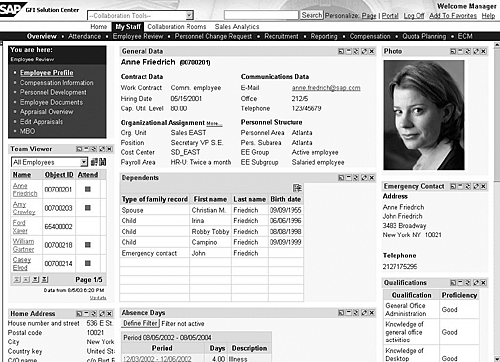
Figure 2
Employee Profile page
The iViews of the Employee Profile display just a small portion of the data stored in HR infotypes. This is intentional to provide flexibility in designing the page layout. The concept of displaying the Employee Profile using several iViews enables companies to tailor the Employee Profile to suit their individual requirements. They can remove iViews from the portal page that contain irrelevant information for managers by deselecting iViews or dragging them to other portal pages. Each manager can further personalize these pages by selecting or deselecting iViews from the Employee Profile.
Although the standard iViews available in the business package for MSS provide a great deal of information and numerous applications, many users want to enhance the Employee Profile or include customer-specific infotypes. For example, data based on customer-specific HR infotypes cannot be displayed using the standard iViews. If companies want to display data of this kind for their managers, they must develop their own iViews. Using the generic master iViews reduces the time needed to do so.
Note
Instead of developing a new iView, you could provide users with access to customer-specific infotypes in the R/3 system by using the HR administrator transaction (PA20) to access detailed information directly, or the IT department could provide managers with queries or reports that contain the necessary information. However, managers should be able to obtain the correct information in the right format with no more than three clicks. Consequently, HR administrator transactions are not particularly suitable. In the HR administrator transaction, the user must know and enter the personnel number or use the search help function. The user must also know in which infotype he or she can find which information and navigate to the appropriate infotype. With MSS, the user can select the correct persons from a list and automatically obtain all the relevant information on one page. Reports often contain far too much information (for example, data on all employees in an area of responsibility as opposed to data on an individual employee). This means that the user has to search for the information he or she needs.
Before generic master iViews were available, you needed ABAP and Java experience. The IT department had to create an RFC-enabled function module to extract the data from the R/3 system and create a Java iView to extract data from the function module and present it in the portal. The amount of time required in earlier releases to develop an iView from the Employee Profile largely depends on the amount of data to be displayed and can take up to two weeks.
The iView concept provides the enterprise and individual users with a high degree of flexibility. iViews can be included on any portal page and can be reused. Previously, the only disadvantage when creating iViews was the need for programming experience and ABAP and Java knowledge.
Generic Master iViews
As of MSS 50.2, SAP delivers the ability to create iViews through three generic master iViews. They are:
- com.sapportals.pct.srv.portaldataviewer. sapquerytemplate
- com.sap.pct.hcm. eeprofilegenericiviewtable.default — for tabular display of data
- com.sap.pct.hcm. eeprofilegenericiviewlist.default — for list display
To illustrate this generic iView function, SAP created four iViews as examples. These iViews, shown in Figures 3 and 4, are now available in the standard delivery.
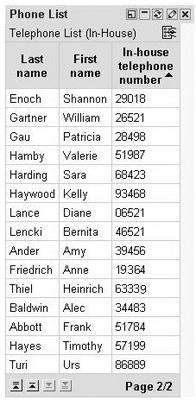
Figure 3
Phone List
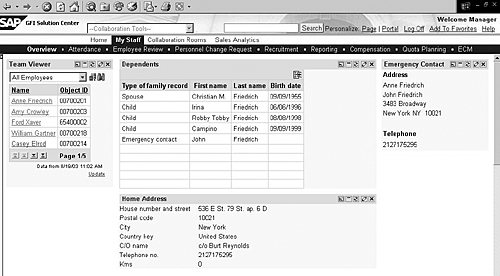
Figure 4
Employee Profile with home address, emergency contacts, and dependents
The Phone List iView is based on the generic iView com.sapportals.pct.srv. portaldataviewer.sapquerytemplate. The list displays all employees’ names and phone numbers in the manager’s area of responsibility. This generic iView is used if information is to be displayed simultaneously for a number of employees, such as in a report.
Master iViews 2 and 3 are used to enhance the Employee Profile page and display information about individual employees. These two iViews differ in the way they present data. In Figure 4, the Dependents iView was created based on the second generic master iView (com.sap.pct.hcm.eeprofilegenericiviewlist.default) and presents data in tabular form. The Home Address and Communication iView was created based on the third generic master iView (com.sap.pct.hcm.eeprofilegeneri civiewlist.default) and presents data in list form. In contrast to the first generic iView, iViews 2 and 3 react to the user’s actions in the Team Viewer portion of the Employee Profile screen through a process called “eventing.” To understand this concept, let’s take a more detailed look at the Employee Profile.
Team Viewer and the Eventing Function
In the Employee Profile shown in Figure 2, the manager is shown data on his or her employee, Ann Friedrich, (personnel number 700201). The Team Viewer, an iView that lists all the employees for which the manager is responsible, is displayed on the left side of the screen. Say the manager wants to display the employee profile of another employee — for example, William Gartner (personnel number 700218). The manager selects William’s name from the Team Viewer. The other iViews on the portal page react to this action and display the relevant information about the selected employee.
This is how it works: When a manager clicks on the employee’s name in the Team Viewer, the Team Viewer iView sends the personnel number (such as 700218) of the selected employee to the other iViews on the portal page. These iViews receive the personnel number (receiver iView) and compare the sent personnel number (700218) with the personnel number (700201) for which data is currently displayed. If the new personnel number sent by the Team Viewer differs from the current personnel number, the data for the sent personnel number is taken from the R/3 system and displayed in the iView. If the personnel numbers are identical, the present data continues to be displayed.
Each iView on the Employee Profile page contains the eventing function. If companies want to enhance the Employee Profile, they must use iViews that include the eventing function to ensure that the new iViews can respond to user actions in the Team Viewer. Before Release 50.2, this increased the work involved in creating customer-specific iViews. However, the new generic master iViews 2 and 3 already include the eventing function, so no additional programming is necessary.
Creating iViews Based on the Generic Master iViews
Now I’m going to give you a quick overview of how to create an iView. Before you create an iView based on a generic master iView, you must first define the data that is to be displayed. You create an SAP Query in the R/3 system for this data. The query extracts the data that is to be displayed in the iView.
In the Phone List example, the SAP Query PHONE_LIST was created in the global query area based on the /SAPQUERY/H2 InfoSet. This query, created in R/3, selects the phone numbers and names of employees for which the manager is responsible.
Similarly, the Home Address, Communication, and Dependents iViews were also defined in the global query area and are based on the /SAPQUERY/HR_MSS InfoSet. The following queries were created:
Home Address MSS_IT0006
Communication MSS_IT0105
Dependents MSS_IT0021
These queries are now included in the standard delivery.
After you have created the query, you can create iViews. You perform this activity in the portal in the Content Administrator area. (Note that you need administrator authorization for this activity. The portal administrator usually has the necessary authorization and performs this activity.)
Perform the following steps to create an iView in the portal:
1. In the portal, navigate to Content Administration>iViews.
2. Create a Java iView by choosing Java and then New iView.
3. Assign a unique name. Choose a channel in which the iView will be stored, and select a design layout for the information.
4. Choose Based on master iView.
5. Select the appropriate master iView.
6. Save the iView.
7. Link the iView to the query created in the SAP R/3 system.
The iView has now been created, but you still have to include it on the correct portal page:
1. In the portal, navigate to Content Administration>Page.
2. Use the search function to find the correct portal page and choose Edit.
3. Choose the Content tab page and the channel where your iView has been stored. All iViews within this channel are displayed.
4. Select the iView you want to place on the page.
5. Save your settings and choose the next tab, Layout, where you can change the layout of the portal page. Save your settings.
For a step-by-step guide with detailed instructions about how to create an iView based on master iViews and how to position iViews on a portal page, go to the Download Section at the bottom of the article. The guide demonstrates how to create a list of emergency phone numbers and a General Data iView that can be included in the Employee Profile.
Dagmar Gundelfinger
Dagmar Gundelfinger worked as an IT lecturer at the Leibniz Academy in Hannover, Germany, from 1992 to 1995. In 1995, she joined SAP AG as a consultant. She started work in product management for mySAP HR in October 1996. Her responsibilities included Organizational Management and Manager’s Desktop. She has been the product manager responsible for MSS since 2000.
You may contact the author at dagmar.gundelfinger@sap.com.
If you have comments about this article or publication, or would like to submit an article idea, please contact the editor.


 Premium