Manager/Project Management
Learn how to use the SAP Solution Manager Test Plan Management functionality to run an integration test. Most SAP projects today have a complex system landscape of multiple applications. To run an integration or string test across these systems is very time consuming, but using Test Plan Management can make this process much more efficient.
Key Concept
A great value-add for SAP Solution Manager occurs when you link it with SAP ERP Central Component, SAP Supply Chain Management, and SAP NetWeaver Business Warehouse systems. A single instance of SAP Solution Manager can link with at least three instances (development, quality assurance, and production) of each application. Using Test Plan Management for running an integration test across these managed systems can save your company a significant amount of time and money.
The SAP ecosystem has matured over the last 10 to 15 years and many companies have system landscapes with SAP ERP Central Component (ECC), SAP Supply Chain Management (SAP SCM), and reporting systems such as SAP NetWeaver Business Warehouse (SAP NetWeaver BW). When a company upgrades or implements a new rollout on any of these applications, they need to do integration or regression testing.
However, it can be difficult for IT departments to run frequent integration tests of such a large nature across system landscapes. In addition, an integration test in a quality assurance system may need to be repeated as a regression test in the production system, which has more master data. The testing efforts double to two times if regions such as North America or Europe have separate landscapes and the integration test has to be repeated.
The SAP Solution Manager 7.0 functionality Test Plan Management can create and monitor test plans in a complex system landscape for any system. You can use the Test Plan Management functionality directly or with the user-friendly, browser-like interface of the Test Management work center. This work center provides SAP Netweaver BW-based pre-delivered test reporting content so the test manager can manage the full life cycle of an integration test. (SAP NetWeaver BW is now embedded within SAP Solution Manager as it was embedded in SAP SCM from version 1.0 on.)
Note that the following steps I describe for creating and monitoring test plans are based on SAP Solution Manager 7.0 (with SAP enhancement package 1), SAP ECC 6.0, and SAP SCM 2007. These steps are for functional and technical consultants working on SAP Solution Manager and running tests in a system landscape with SAP ECC, SAP SCM, or SAP NetWeaver BW.
Basic Concept
Test Plan Management allows you to create or copy test plans in the SAP Solution Manager system and run the transaction codes across multiple systems. It also allows the testing manager to classify test packages and assign them to business or IT users. The testing manager can then check the progress of the test plans using the Status overview function and download the status in a Microsoft Word document. The user can access the functions of the Test Workbench either from the SAP GUI menu or from the Test Management work center.
Note
The Test Workbench collects all the relevant transaction codes for test management in one screen.
Prerequisite Configuration Steps
You need to perform a number of configuration and technical steps before you can execute Test Plan Management in SAP Solution Manager. First, you must create a project using transaction SOLAR_PROJECT_ADMIN (Project Administration). You need to set up the system landscape and specify logical components in the System Landscape Maintenance (transaction code SMSY). Many of these tasks need high-level Basis authorization. Generally, the Basis administrator is the person at your company who sets up logical systems, Remote Function Call (RFC) destinations using transaction code SM59, and client level changes using transaction code SCC4.
Next, create a Business Blueprint with the Business Process Hierarchy (BPH) for your project. This is done using transaction SOLAR01 or menu path Tools > SAP Solution Manager > Business Blueprint (Figure 1). You need to decide which business scenarios, business processes, and process steps you want to include in the Business Blueprint depending on the scope of your integration test. You can enhance the structure of the BPH to suit your project’s business process master list (BPML) and change the number of levels in the BPH. The BPH structure you define will be reused later to configure and test the business processes in the integration test.
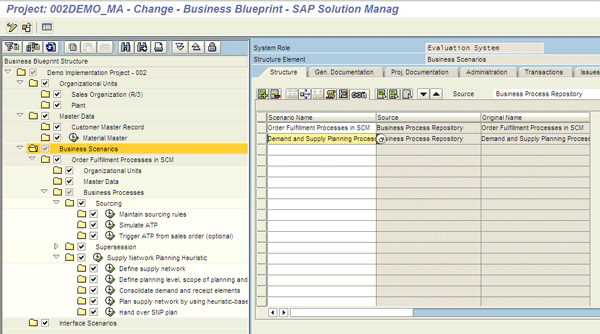
Figure 1
Business Blueprint for sample project 002DEMO_MA in transaction SOLAR01
Your project then moves into the Realization phase. Using transaction SOLAR02 or menu path Tools > SAP Solution Manager > Configuration, you can change the configuration structure in the Structure tab. The testing manager can also assign test cases and scenarios in the Test Cases tab. These test cases are later the default values when the testing manager creates the test plans. The testing manager can reuse existing test cases from an earlier rollout or create new ones. The different case types are automatic test cases (e.g., extended Computer Aided Test Tool [eCATT] Test Configuration), Function Module Test, Manual Test Case, External Application, and Test Document (Figure 2).
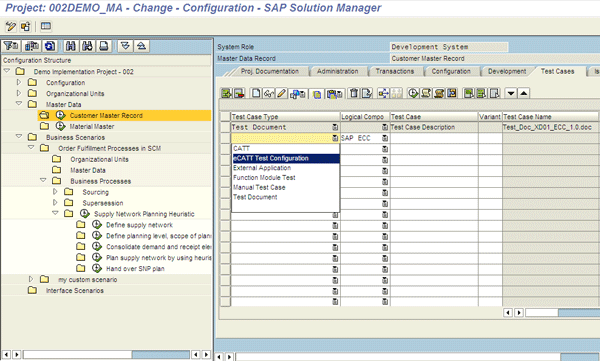
Figure 2
Test Cases tab in SOLAR02
Major Steps to Configure Test Plan Management
In an SAP system, the test case is the lowest level object for testing. You can group together test cases to make a test plan. You then assign one or more testers to a test case. A person-oriented view of the test plan is called a test package. When a tester finishes a test case, the status needs to be changed from Untested to OK or Error. This allows the testing manager to report on the status of the test cases with the Status Analyses functionality in Test Plan Management.
The first step in Test Plan Management is to create a test plan by specifying the SAP Solution Manager project for which you want to run the integration test. Specify the name of the test plan and the name of the testing manager. You can use the project structure defined in the Business Blueprint and select the test cases assigned to that project structure. SAP Solution Manager also allows you to create a test plan from scratch if you have not created a Business Blueprint.
For my example, I created test plan Z_UPGRADE_INTEGRATION_TEST1 for the project structure in 002DEMO_MA as shown in Figure 3. The manager can specify a release status schema in the status profile that defines a set of release status values for use in the test plan. If you are using eCATT for your integration test, specify a system data container and a target system. The target system has a logical name and you must assign an RFC destination to this target system. The target system is specified in the tab Attributes — General Data of your corresponding eCATT object editors. These values default in the eCATT screens, but you can change them.
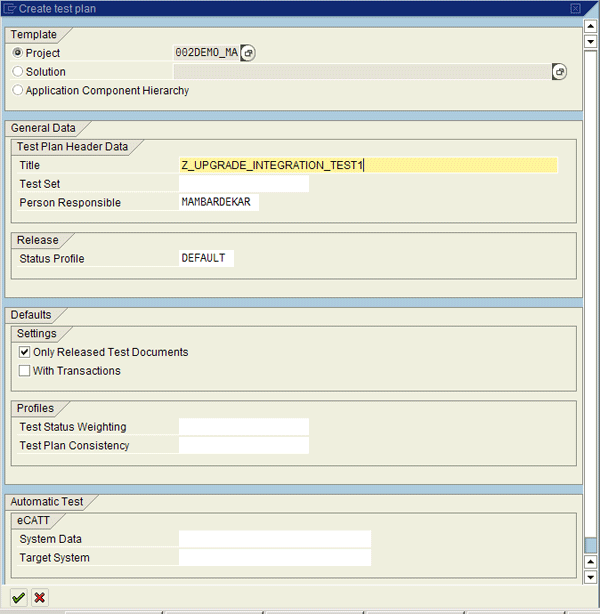
Figure 3
Create a test plan with header data
Once you have created the test plan, you can see it in the test organizer. Now you can change or copy the test plan to save time creating a new one. The test manager can create test packages by combining test plans. As I explained earlier, the BPH created in transaction SOLAR01 was used to attach test cases in the update of the configuration in transaction SOLAR02. These test cases can be used to create test packages, which can be combined to form test plans. You can also create an end-to-end script as a test package, starting with a sales order entry in SAP ECC to a Global Available-to-Promise check in SAP SCM with all the necessary steps. You can also define test packages using eCATT as shown in Figure 4. (Steps to create an eCATT are beyond the scope of this article.)

Figure 4
Define test packages using eCATT
Next, the test manager needs to assign testers to the test packages. Generally, one test package is assigned to one person. This is generally the team lead for the respective module, such as the SAP SCM demand planning (DP) lead or the sales and distribution (SD) team lead. They are assigned as the responsible person and can reassign the test package to their team members. Use transaction STWB_2 (Test Plan Management) to assign a user to a test package. Select the test plan to which the tester has to be assigned to a test package and click the assign tester icon  to finish the assignment.
A screen pops up in which you can select the user ID or search for the tester name. Select the user and save your work so the user is assigned to the test package, as shown in Figure 5. Follow this process for each test package so that the whole test plan has been assigned to testers. You can create users in the system as business partners with a unique ID that is used to assign them to support messages (this is shown later in the article in Figure 10).
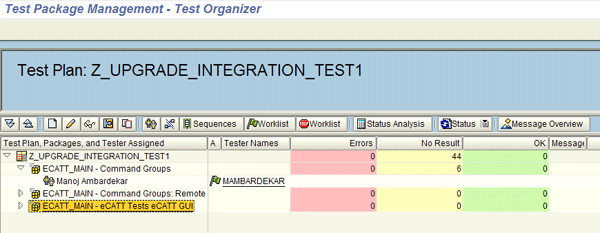
Figure 5
Tester assigned to the test package
The test manager can assign multiple testers to a test case, but the status of the last tester remains as the final status of the test case for an automatic test such as eCATT. In a manual test case with several testers and different statuses (e.g., OK or Retest), the more unfavorable result prevails (Retest in this example). The integration test manager can delete test packages from the worklist for a tester without deleting the tester assignment. The manager can also lock the assignment of a tester to a test package using menu path Goto > Lock Assignment so the status of the test case cannot be changed. (This lock can be undone by simply following menu path Goto > Release Assignment.)
Next, assume that the testers have to check their own worklist assignments to determine the volume of testing work they have. The testers can do this by using transaction STWB_WORK (tester worklist) to see the list of test packages assigned to them (Figure 6). They can also see the status of scripts in error or passed to OK by the test manager on this screen.

Figure 6
Tester worklist showing the list of test packages
From the tester worklist, the user can click the test package and start the test. The tester can perform the test using eCATT or a manual test script. Before executing the test script, the status of the test package has to be changed to Being Processed (Figure 7).

Figure 7
Status changed to OK
After changing the status of the test package, the tester can run the test script. Click the test note icon  on the top left of the screen shown in Figure 7 to open the test script. The detailed steps for each test package can be specified in a Word document, such as the transaction codes and steps to execute (Figure 8).
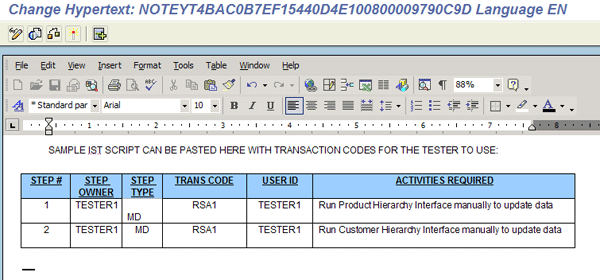
Figure 8
Sample test script with transaction codes
Run all the steps and update the test script with screenprints and results. SAP Solution Manager allows each project to define its own templates. You can email them within SAPoffice or to an email address, as shown in Figure 9.
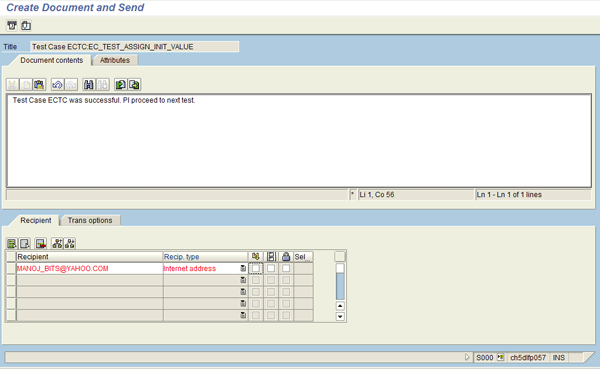
Figure 9
Send test completion message by email
If you get an error while running the test, you can create a support ticket using the Service Desk and send an email to the SAP inbox. Use the support message numbers for error handling and to monitor the test. To create a support message, enter transaction STWB_WORK and click the status maintenance icon (which looks like a pen) for the test plan. Then go to the second tab, Messages, and click the create icon to create a support message.
The tester can then create a support message with the required information (Figure 10). The name of the tester is entered in the Reported by field and the name of the resolver is selected in the Processor field. Note that these persons and other members of the project have to be created as a business partner in SAP Solution Manager and assigned a number before you perform this step. This business partner number is assigned to the SAP logon ID of a particular individual and can be used to send an express message in SAPoffice.
Other fields such as Category or Component are predefined by the system. When you save your work, a ticket number is generated and the support message is attached to the test case.
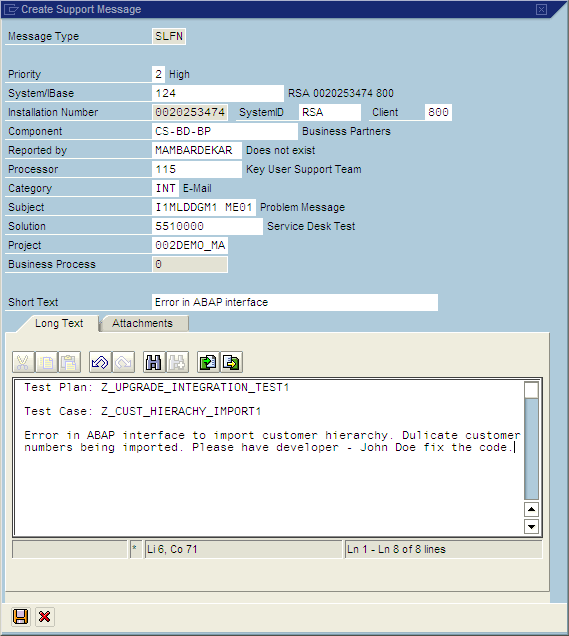
Figure 10
Create a support message
Some clients use SAP workflow to trigger an express message to the resolver in SAPoffice or to send an email to a client using Microsoft Outlook or Lotus Notes. The resolver can open the email with the support message number using transaction SO01 (SAPoffice: Inbox) and see the details of the error. After fixing the error, the resolver can update the support message. A message can be sent in SAPoffice to the tester to inform him or her that the program has been fixed. The resolver can also go to transaction code STWB_2 and select the Test Plan Z_UPGRADE_INTEGRATION_TEST1 and then click the Message Overview button. There he or she can open the support message and change the processor back to the person who reported the testing error.
After the tester finishes executing the test script, he or she can change the status of the test plan to OK and save the test results to the same document. There is no need to save data on the local disks of the tester’s laptop.
The test manager can find the status analysis of the test package in transaction STWB_2. Click the Status Overview button in the screen that appears to start the overview and move to the next screen. There, the manager can choose whether to analyze the status of a single test package or the entire test plan. Then the manager can click the Status Analysis button to start the analysis. The screen that appears shows the OK status of the test plan or the number of errors (Figure 11).
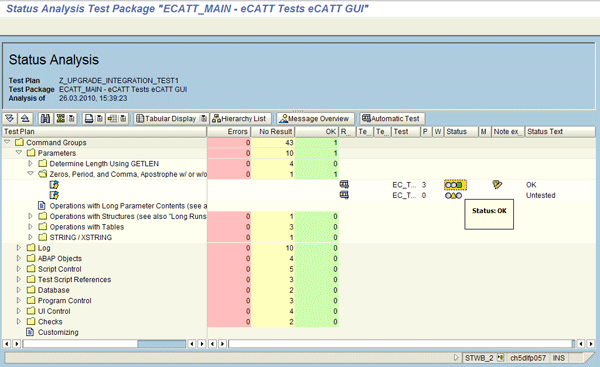
Figure 11
Status analysis of test package
Work Center for Test Plan Management
SAP Solution Manager 7.0 introduced the concept of work centers. Work centers for Test Management or Documentation Assistant centralize all the relevant transactions on a user-friendly, browser-like screen. The work centers are role specific and provide access to relevant messages, alerts, reports, and documents for which your role is authorized. You can also access SAP NetWeaver BW, which is embedded within SAP Solution Manager, here. Transaction codes that were run in SAP NetWeaver BW before, such as RSA1, can now be run in SAP Solution Manager. You can access it in the SAP GUI for Windows using transaction SOLMAN_WORKCENTER or in a Web browser using the Web Dynpro application AGS_WORKCENTER (Figure 12).
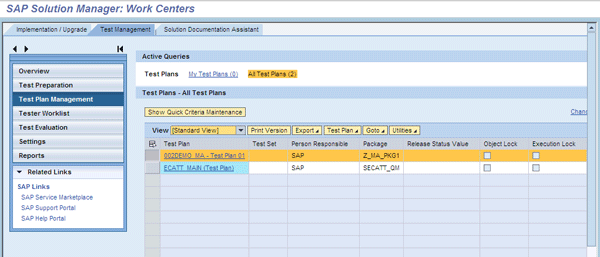
Figure 12
Test Management work center
Using the embedded SAP NetWeaver BW, you can run reports in SAP Solution Manager. You can invoke the analysis of test packages in the Reports section of the Test Management work center. Pre-delivered reports are available for Test Plan Status Analyses and Project Status Analyses (Figure 13).
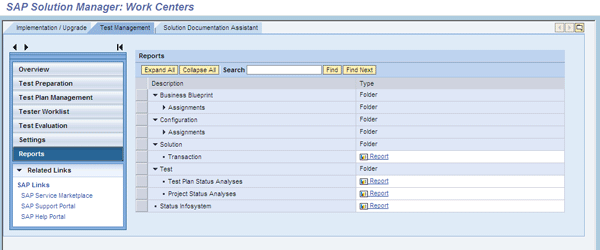
Figure 13
SAP NetWeaver BW reports for Test Plan Status Analyses
The status report is an overview of the progress of the test case status information over 15 or 30 days, as set by the integration manager. You can see it by clicking Test Plan Status Analyses.
Click Project Status Analyses to see the SAP GUI screen shown in Figure 14. This allows the integration test manager to select the project and the substructure for which the status is needed. For example, if the status of only the SD business scenarios is needed, the integration test manager can select a substructure by clicking the Select Substructure button. The testing manager can also run this report for only specific project team members who may be involved in cross-functional tests in SD and DP in SAP SCM, for example.
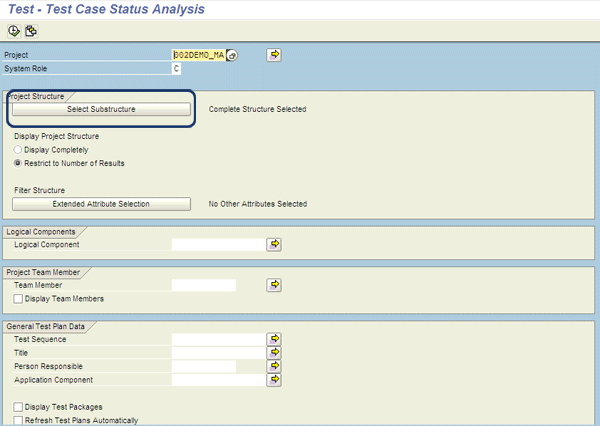
Figure 14
Test Case Status analyses
The integration test manager can use the Test Workbench to create a test report (Figure 15). This allows the testing manager to download a Word document of the status report and email it to the project management office.
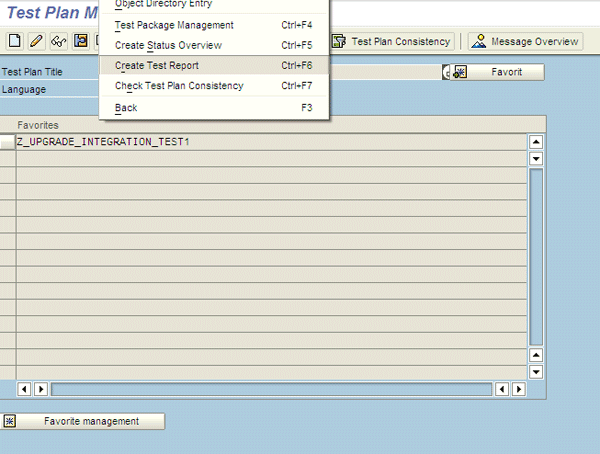
Figure 15
Download a Word document of the status report

Manoj Ambardekar
Manoj Ambardekar has more than 20 years of IT and manufacturing experience with firms such as IBM, Infosys, PricewaterhouseCoopers, and Siemens Information in the CPG, brewing, and process industries. He has more than 14 years of experience with SAP APO and SAP ECC with specialization in logistics. He has played multiple roles as functional and technical lead as well as project manager. He has implemented SAP applications at more than 12 large- and medium-sized projects since 1998. Manoj is a chemical engineer certified in production and inventory management (CPIM) from APICS – USA, and holds a master’s of engineering (industrial) degree from B.I.T.S. in Pilani, India. Manoj works on both large and SME clients to implement SAP as both a configuration SME in APO/ECC PP-MM/Solution Manager and project manager/team lead. He specializes in supply chain management solutions using software such as SAP APO, SAP SCM, SAP ECC, SAP Solution Manager, and business intelligence for North American clients.
You may contact the author at manoj_bits@yahoo.com.
If you have comments about this article or publication, or would like to submit an article idea, please contact the editor.



 Premium