Learn how lifecycle planning can be configured in SAP Advanced Planning and Optimization (SAP APO) to forecast a new product, manage the introduction of the new product (phase-in), phase out the old product being replaced, and integrate it with forecasting techniques. Follow a step-by-step procedure to configure and run the associated master data objects, run simulations, and interpret the results.
Key Concept
The lifecycle of a product consists of different phases: launch, growth, maturity, and decline. Demand for a product also varies in different phases. Generally demand increases with each period in the early phases, while it declines towards the end of the lifecycle. Like modeling allows you to create a forecast for a new product using historical data of a product for which demand behavior is similar. Phase-in/phase-out modeling allows the results of the statistical forecast to be multiplied by a time-dependent factor to arrive at the final forecast.
SAP Advanced Planning and Optimization (SAP APO) Demand Planning (DP) helps to forecast demand for a particular product. Forecasting can be carried out at any level depending on the business requirement, and the product demand forecast is an example of one of the levels. Generally, forecasting is carried out based on past data. However, you would not necessarily have past data available to use as the basis for forecasting algorithms in all practical scenarios. Lifecycle planning within SAP APO provides several tools you can use to model a product’s lifecycle if you do not have past data available.
For example, suppose you are introducing an existing model of motorcycle into a new location. You could use like profiles to use the historical data from the current location to create a forecast at the new location. Similarly, phase-in and phase-out profiles can be used to manage the forecast volume for different phases in the product’s lifecycle. Like modeling can be used for products that have short lifecycles and also for products without sufficient historical data. Also one like profile can be used for multiple products.
Whenever a new product is introduced in the market or an old product is phased out, the demand for that product differs from the demand during its maturity phase. For a new product, demand increases exponentially with each period and for a product that is in a decline phase, the demand decreases exponentially with each period. However, this behavior may not be exhibited by all products in general. Therefore, a statistical forecast that is based on a maturity phase won’t accurately predict this kind of behavior. For such products, the statistical forecast that is generated from DP needs some factor by which it will adjust the forecast. These adjustments can be made by phase-in and phase-out modeling.
Figure 1 shows the general product lifecycle trend and where phase-in and phase-out profiles play a role.
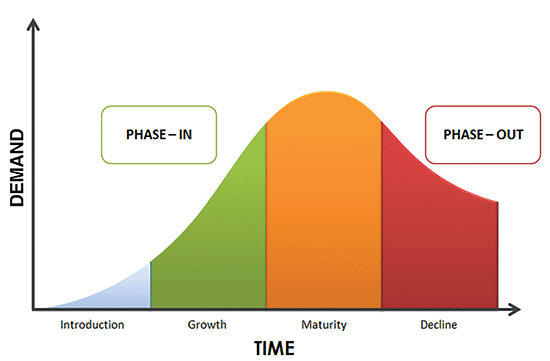
Figure 1
A possible product lifecycle
Business Scenario
Consider an example of an electronics manufacturer that manufactures and sells multiple models of televisions around the globe. For my business scenario in this article, the company is planning to launch a new model of the television (MODEL2), which is an improved version of the existing model (MODEL1). The company plans to roll out MODEL2 initially in the US and then to other countries. No historical forecast data exists for the new model, and therefore, the company is planning to base its forecast on the existing MODEL1 and to incorporate demands as per product lifecycle stages.
Figure 2 shows the business scenario discussed above. I also describe other scenarios highlighting different situations and how to map them within the system.
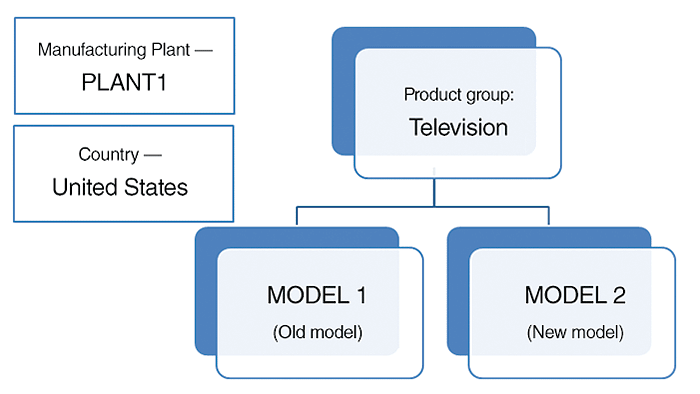
Figure 2
A sample business scenario
Basic Configuration of Objects in SAP APO
Before using lifecycle planning, you need to set up some objects. I assume that the reader knows how to set up master data in SAP APO and how to configure basic DP objects. For this article, I show screenprints of the major DP objects highlighting configurations specific to lifecycle planning.
Master Planning Object Structure (MPOS)
MPOS is created via transaction code /SAPAPO/MSDP_ADMIN. For the example discussed in this article, the MPOS contains Product, Location, Product Group, Customer, and Country/Market as shown in Figure 3.
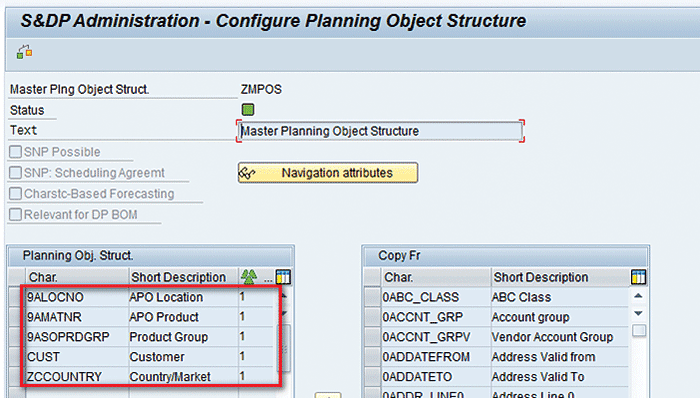
Figure 3
Configure an MPOS
Planning Area
A planning area is created via transaction code /SAPAPO/MSDP_ADMIN. It is based on the MPOS shown in the above step (ZMPOS). It contains key figures related to forecast and promotion as shown in Figure 4.
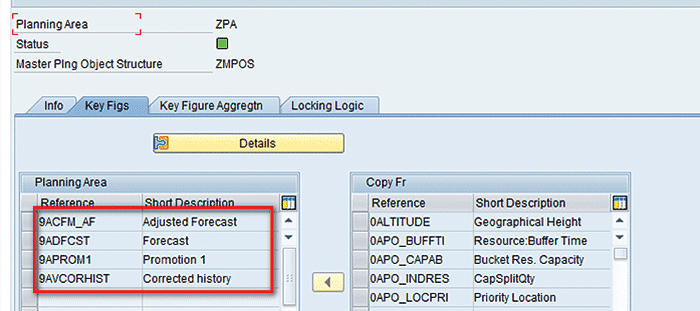
Figure 4
Planning area
Planning Book
A planning book is created via transaction code /SAPAPO/SDP8B. It is based on the planning area created in the above step (ZPA). The Promotion and Univariate forecast check boxes need to be checked as shown in Figure 5.
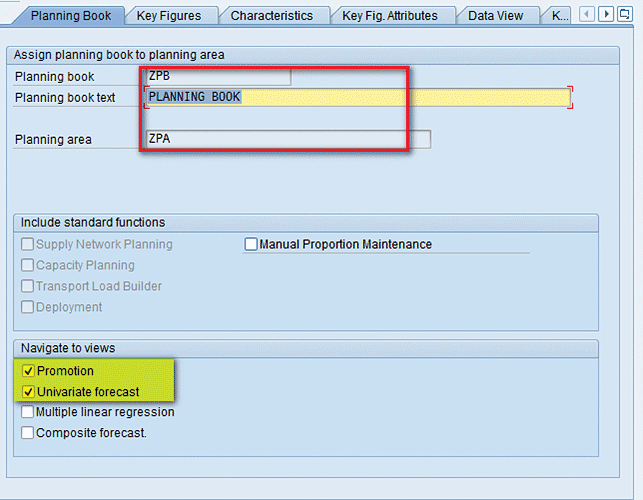
Figure 5
The main screen of the planning book
Selecting these check boxes gives the option to carry out promotion planning and statistical forecasting via an interactive planning book. After you select these check boxes, click the Data View tab. This view is shown in Figure 6.
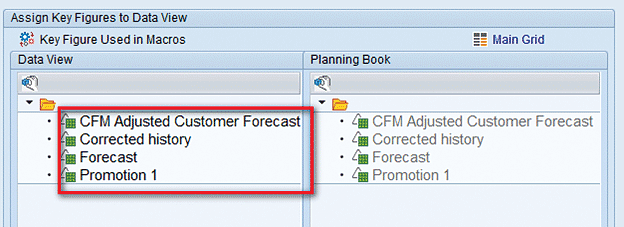
Figure 6
Key figure assignment to a data view
Key figures related to forecast, history, and promotion are assigned for discussion in this article, but they are not mandatory to carry out lifecycle planning to the data view as shown in Figure 6. In Figure 6, note that all the key figures on the right side are grayed out, but the ones on left side are active, indicating that that key figures are assigned to the data view.
Note
I have not explained the steps for assignment of key figures from the planning book to the data view as these steps are basic DP master data configurations.
Configuration for Lifecycle Planning
To configure the lifecycle, you need to define the planning area and the characteristics on which planning needs to be carried out. To define the settings, navigate to transaction code /SAPAPO/MSDP_FCST1. In the Lifecycle Planning screen, enter the name of planning area (ZPA) and then click the execute icon as shown in Figure 7.

Figure 7
Planning area for lifecycle planning
In the next screen (Figure 8), define the characteristics on which you want to define a like profile.
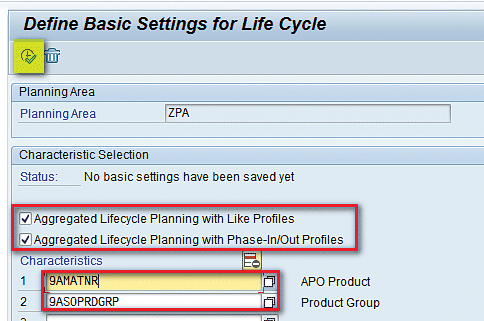
Figure 8
Basic settings for the lifecycle specific to the planning area
For the example discussed in this article, I am introducing a new model of television so the characteristics defined are APO Product and Product Group. Check the Aggregate Lifecycle Planning with Like Profiles and Aggregate Lifecycle Planning with Phase-In/Out Profiles check boxes to enable aggregate planning. After entering the details, click the execute icon.
Create Profiles for Lifecycle Planning
Lifecycle planning gives you options to define various profiles that you can use to model different phases of the product lifecycle, such as the like profile, the phase-in profile, and the phase-out profile.
The Like Profile
To create a like profile, execute transaction code /SAPAPO/MSDP_FCST1 (Figure 9). Enter the name of the planning area (ZPA) and click on the Like Profiles button.
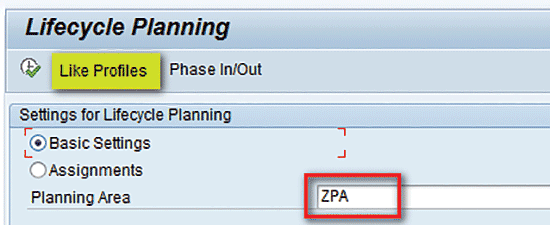
Figure 9
The planning area for the like profile
In the next screen (Figure 10), select the Char. field.

Figure 10
Characteristic for the like profile
A pop-up appears showing the two characteristics defined in Figure 8. Select APO Product and then click the enter icon. This action opens the screen shown in Figure 11.
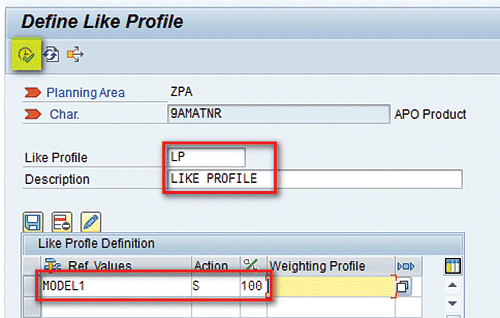
Figure 11
The like profile defined
Enter the name of the Like Profile (LP) and the description (Like Profile).
In the Ref. values field give the name of referred characteristic on which the like profile will be based. I am using MODEL1 as the baseline so MODEL1 is given. Enter S (for sum) in the Action field and 100 percent in the weighting factor field. The weighing factor denotes how much of a referenced characteristic history will be used to determine the forecast of the model that is being introduced.
An action has two categories. The letter A denotes the average historical value of all values. S denotes that the sales history of new product is the sum of all values of all the products. Once all the details are entered, click the execute icon.
Suppose that instead of one model I decide to use two old models (MODEL A and MODEL B) as my baseline and to have weightage of 50 percent assigned to each. In that case, the entries would be like what is shown in Figure 12.
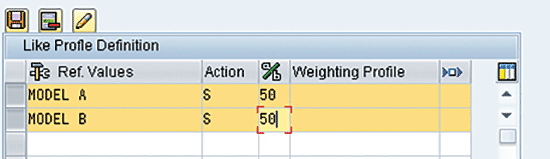
Figure 12
The like profile based on two models
The Phase-In Profile
To create a phase-in profile, execute transaction code /SAPAPO/MSDP_FCST1 (Figure 13). Enter the name of the planning area (ZPA) and then click the Phase In/Out button.

Figure 13
The name of the planning area for the phase-in profile
In the next screen (Figure 14), enter the name of the Time Series (PH_IN [Phase In), Description (PHASE IN PROFILE), Start and End Date (01/01/2016 to 05/31/2016), and Period (M [Monthly]). Time series is the data being maintained for different time buckets to carry out lifecycle planning.
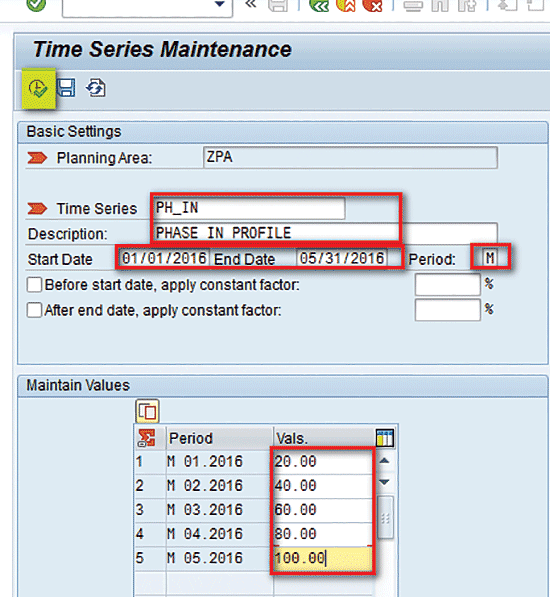
Figure 14
The phase-in profile
Also enter values for the five months (20, 40, 60, 80, and 100). Period 5 is kept to show an increasing trend every month from 20 percent to 100 percent. Figure 14 shows I created a five-month phase-in time series with values increasing every month. This means that for the first month, the corrected forecast will be 20 percent of the statistical forecast that is calculated by DP. Similarly, the forecast will be corrected for the remaining periods for five months. It means that the demand for the product is increasing towards the initial period, which is interpreted by the phase-in profile. After all the values are entered, click the execute icon.
The Phase-Out Profile
Figure 15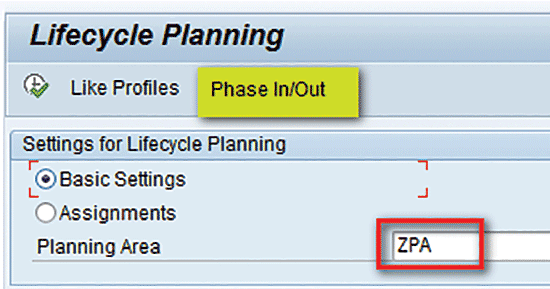
Figure 15
The planning area for the phase-out profile
In the next screen (Figure 16), enter the name of Time Series (PH_OUT), Description (PHASE OUT PROFILE), Start and End Date (01/01/2016 – 01/31/2016), and Period (M [Monthly]).
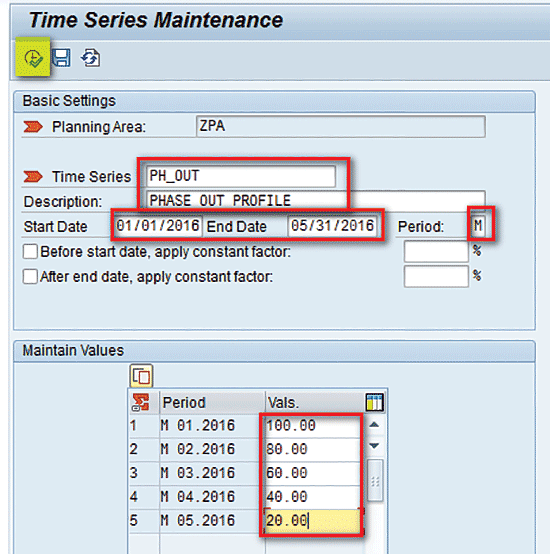
Figure 16
The phase-out profile
Enter values for the five months (100, 80, 60, 40, and 20). I have a created a five-month phase-out time series with values decreasing every month. This means that for the first month, the corrected forecast will be 20 percent of the statistical forecast that is calculated by DP. Similarly, the forecast will be corrected for the remaining periods for five months. The phase-out profile mimics the downward sales curve in the product lifecycle graph for the decline phase. After all the values are entered, click the execute icon.
Assignment of Like and Phase-In/Out Profiles
Now that I have defined all the profiles, they need to be assigned to the required characteristic. For assignment, execute transaction /SAPAPO/MSDP_FCST1 (Figure 17). Enter the name of planning area (ZPA), select the Assignments radio button, and click the execute icon.
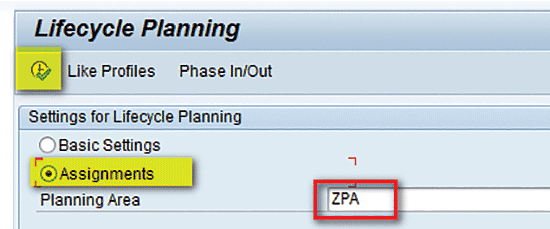
Figure 17
The planning area for assignment
Enter the details as shown in Figure 18 and then click the execute icon.
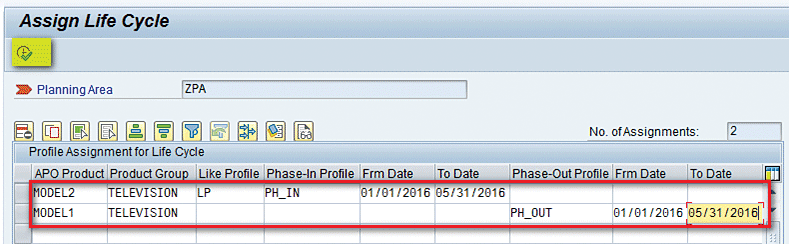
Figure 18
Profile assignment for lifecycle planning
Here I assigned the Like Profile and the Phase-In Profile (LP and PH_IN) to the new model to be launched (MODEL2). Similarly I assigned the phase-out profile (PH_OUT) to the old model (MODEL1).
The dates entered are the actual dates that will be used for the phase in/out modeling. If the period defined here does not match the number of periods defined in the profile, the profile is either truncated, or the last value is repeated until all buckets are full.
After entering all the details, click the execute icon and the like profile and phase-in profile are assigned to the new model. Note that you can select only one like profile, phase-in profile, and phase-out profile for a particular characteristic value combination (CVC).
Integration of Statistical Forecasting with Lifecycle Planning
Next, you need to integrate lifecycle planning with statistical forecasting so that forecasting functionality takes the lifecycle model into consideration. To assign lifecycle planning to the forecasting process, execute transaction code /SAPAPO/MC96B. This action displays the Maintain Forecast Profile screen (Figure 19). In the Master Prfl. (master profile) tab, enter the details shown in Figure 19.

Figure 19
Enter details in the Master Forecast Profile screen
Enter the details as shown in Figure 19. Select the Lifecycle Planning Active check box, which specifies that lifecycle planning and like modeling can be done if this master forecast profile is used. If you do not set this indicator, no lifecycle planning or like modeling can be done with this master forecast profile. Also note that the History Horizon is from 01/01/2015 to 12/31/2015 and the Forecast Horizon is from 01/01/2016 to 05/31/2016.
Forecast Generation for Lifecycle Planning and Results Interpretation
To generate the forecasting data for the new model using lifecycle planning, execute transaction /SAPAPO/SDP94 (Figure 20). Select the Planning Book/Data View created (ZPB/ZDV) and the two product models. (These two product models are for the product group television, but product groups are not displayed in the Planning Book/Data View shown in Figure 20.) Click the load icon highlighted in yellow.
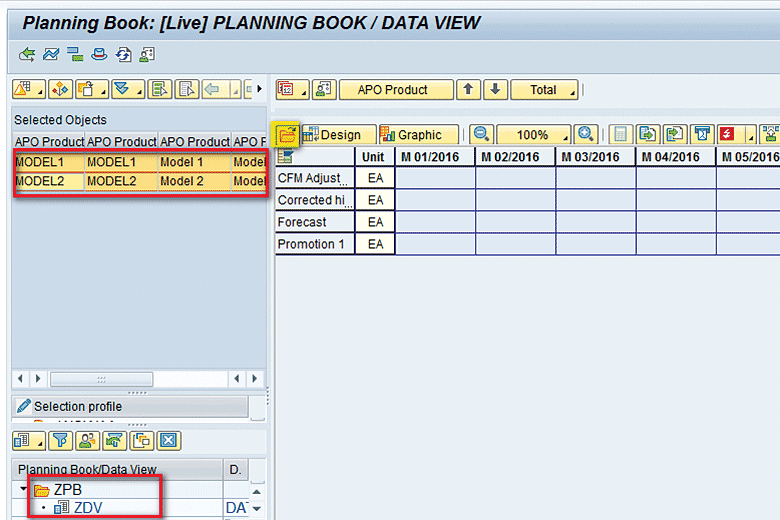
Figure 20
Load data in the planning book
The data is loaded in the planning book. Figure 21 shows that old historical data is there only for the old model (MODEL1). No data exists for the new model (MODEL2) as there is no old data present for this.
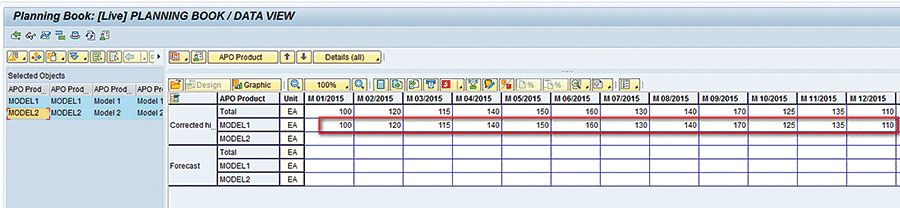
Figure 21
Data loaded in the planning book
Now scroll further left to right in Figure 21 to view data for 2016 (Figure 22).
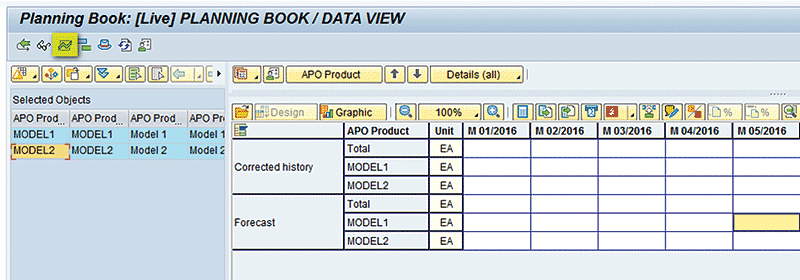
Figure 22
Statistical forecasting
Notice that there is no data present from January 2016 onward, so you need to forecast data for this period. To carry out forecasting, click the univariate forecasting icon (the third icon from the left at the top of Figure 22). This action displays the screen shown in Figure 23.

Figure 23
Statistical forecasting logs
Figure 23 shows the forecasting results. Under the Messages tab you can see a log message that shows that Like Profile LP was used.
If you scroll down further in the log in Figure 23, you see that the phase-out profile (PH_OUT) was used for MODEL1 and that the phase-in profile (PH_IN) was used for MODEL2 (Figure 24).
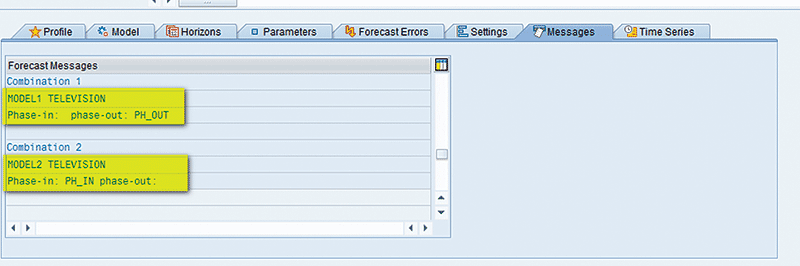
Figure 24
Statistical forecasting logs for the phased-in and phased-out profiles
After that, go back to the previous screen by clicking the back icon shown in Figure 25.

Figure 25
Exit statistical forecasting
In the planning book, you can see that forecasted values are present for both MODEL1 and MODEL2 from 01/01/2016 to 01/31/2016 in Figure 26.
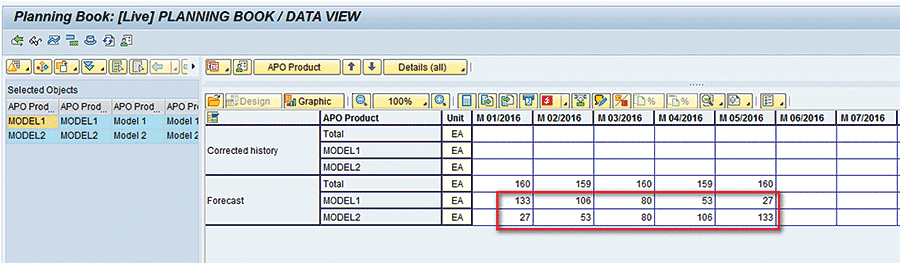
Figure 26
Lifecycle planning results
Another thing to note is that values for MODEL1 are following a decreasing trend while values for MODEL2 are following an increasing trend. The reason for this behavior is that I assigned the phase-in profile to MODEL2 and the phase-out profile to MODEL1 in the above sections. The old model is showing a downward trend and the new model is showing the upward trend.
Use of a Constant Factor in Profiles
In the above section, the horizon in profile creation was from January to May 2016, as shown in Figure 18, and the forecast horizon was also January to May 2016. Now the business may want to have the forecasting carried out beyond May 2016 (for example, to August 2016). However, for my example, the forecast after May 2016 should show a constant pattern. In this case you can use a constant factor.
To use constant factors in profiles, execute transaction /SAPAPO/MSDP_FCST1 (Figure 27). Give the name of the planning area (ZPA) and click the Phase In/Out button.
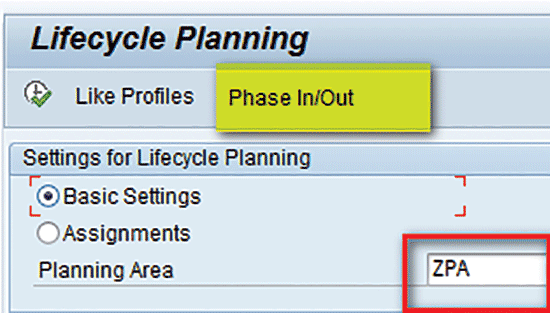
Figure 27
The planning area for the profile
In the next screen (Figure 28), load the value for the phase-in profile created in the above steps (PH_IN).
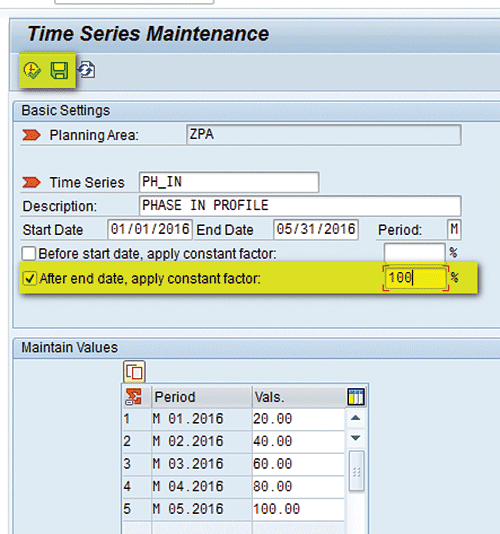
Figure 28
The constant factor in the phase-in profile
Here you can see there is another field where I can specify a constant factor to be applied after the end date. I have applied 100 percent. That means that after May 2016 the forecast for May 2016 will be the same for future months too. Click the save icon and then the execute icon.
You edit the Phase-out profile by following the same steps that I describe in the instructions before Figures 27 and 28. I have applied 10 percent for the constant factor as shown in Figure 29.
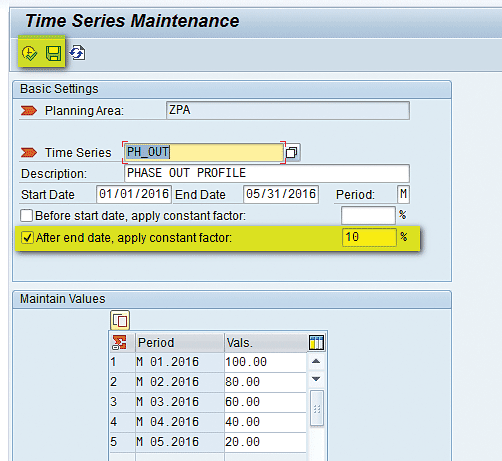
Figure 29
The constant factor in the phase-out profile
After May 2016 the forecast for future months will be 10 percent of the forecast for May 2016. Click the save icon and then the execute icon.
To extend the forecast horizon to August 2016, execute transaction /SAPAPO/MC96B. In the existing profile in Figure 19, change the forecast horizon to August 2016 and save it, as shown in Figure 30.
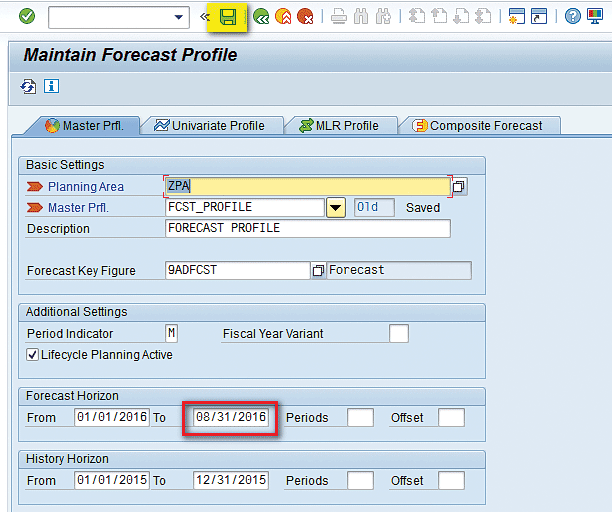
Figure 30
The master forecast profile extended
To carry out forecasting, follow the same steps as described in the above sections. After forecasting is executed, in the planning book you can see that forecast is calculated for June through August 2016 as shown in Figure 31. Note that the values for June through Aug 2016 are the same (100 percent) as what is present in May 2016 for MODEL2 and is 10 percent of what is present in May 2016 for MODEL1.

Figure 31
Lifecycle planning results with the constant factor
Alok Jaiswal
Alok Jaiswal is a consultant at Infosys Limited.
He has more than six years of experience in IT and ERP consulting and in supply chain management (SCM). He has worked on various SAP Advanced Planning and Optimization (APO) modules such as Demand Planning (DP), Production Planning/Detailed Scheduling (PP/DS), Supply Network Planning (SNP), and Core Interface (CIF) at various stages of the project life cycle.
He is also an APICS-certified CSCP (Certified Supply Chain Planner) consultant, with exposure in functional areas of demand planning, lean management, value stream mapping, and inventory management across manufacturing, healthcare, and textile sectors.
If you have comments about this article or publication, or would like to submit an article idea, please contact the editor.