See how to implement a full contract manufacturing (CM) solution in an SAP system. Gain details about the main master and transactional data needed to implement this solution along with the most important customizing details from a logistics point of view.
Key Concept
An outline agreement (contract or vendor scheduling agreement) is set up once a year to facilitate movements of materials between the vendor and the company. This document contains information such as material, pricing conditions, and delivery lead times. It is used in material requirements planning (MRP) to create an actual purchase (PO) or delivery schedule for the vendor.
Full contract manufacturing (CM) is the solution in an SAP system to fulfill specific CM operational requirements. You can create a separate SAP plant in the system to map the manufacturer and manage stringent business requirements such as capacity planning, production tracking, and detailed inventory visibility. A full CM solution is usually needed to fulfil the following business requirements:
- There are legal requirements to manage the manufacturing operations using a separate SAP plant.
- The produced item can only be sourced from a subcontractor. In other words, like materials cannot be purchased from a vendor.
- Inventory of the produced item located at the subcontractor is required (such as for planning purposes)
- A safety stock of component materials at the subcontractor is required
- Capacity planning in the SAP system is required at the manufacturing’s facility
- Batch tracking is required for manufacturing’s produced goods and the components’ uses
- There are requirements to track and record production of the produced item
- There are requirements to track and report total plant costs (TPC) for the produced item
I describe the necessary customization. The process also applies to previous versions.
The full CM solution should be adopted if the following preconditions are fulfilled:
- Produced material can be sourced from both the subcontractor and the company’s facilities
- There is a need to track the inventory, capacity planning, production, and total manufacturing costs (TMC) of the produced goods
- The backflush process doesn’t provide acceptable accuracy for the component’s use.
Figure 1 shows a typical CM material flow for a full CM solution. The letters correspond to Table 1, which shows the activities to be done in the SAP system in the company plant, distribution center, and contract manufacturer.

Figure 1
Full CM business process flow
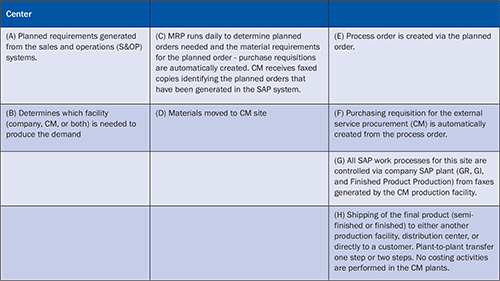
Table 1
Full CM business activities
Master Data
Here are the main master data and related parameters needed to manage the CM solutions (in the case of full CM).
Step 1. Create the contractor as a vendor. This vendor is the entity that performs the service or work to produce the finished product in the CM plant. In essence, this vendor represents the contractor’s activities. This is the normal process for establishing a vendor in an SAP system.
Step 2. Create material masters. These materials are the raw materials a supplier uses in the process that the company owns, and the material the supplier makes. Use the normal process for establishing a material in an SAP system.
Note that for semifinished materials the following views should be created: Basic data, Purchasing, Purchase order text, MRP 1, MRP 2, MRP 3, MRP 4, Storage, Warehouse management, Accounting, Costing, and Plant/storage location stock.
The views for finished materials should be the following views: Basic data, Purchasing, Purchase order text, MRP 1, MRP 2, MRP 3, MRP 4, Storage, Warehouse management, Accounting, Costing, and Plant/storage location stock. The scheduling margin key should be set to 540 at the receiving site for all raw materials and intermediates shipped between company and the contractor. This simplifies planning and allows scheduling agreements to be generated for the entire plan horizon.
Step 3. Create a purchase information record for each material, plant, purchasing organization, and vendor combination for procurement of CM services. Use transaction ME11 or follow menu path Logistics > Materials Management > Purchasing > Master Data > Info Record > Create.
Step 4. Create a CM cost center and input the cost center activity rate. Review it once a year.
To create it, use transaction KS01 or follow menu path Accounting > Controlling > Cost Center > Master Data > Cost Center > Create.
Step 5. Create a cost center activity rate by using transaction KP26 or following menu path Accounting > Controlling > Cost Center > Planning > Activities/Price > Change. The following three activities should be planned on the cost center:
- COADMI represents the company’s administrative costs associated with CM processes.
- COFREI represents the freight costs not associated with the purchase order.
- COADVA. If applicable, it represents the company’s advances to the CM to assist CM in providing specific goods or services in the future. (This depends on the business relationship between the company and subcontractor. If the subcontracting activities are not frequent, then it doesn’t make sense to create this type of activity.)
Note
There is no direct assignment between an activity type and the cost center. You plan the output for a cost center first using transaction KP26. Then you plan the value of that cost center, which you budget for a period using the transaction KP06. Planned Activity expenditure/Planned Activity quantity gives you a planned actual rate that you can use to valuate your activity confirmations in manufacturing orders. You can also define your own prices, but you have to run the price revaluation if you want to revaluate your actual activity prices.
Step 6. Create a resource. A resource is an entity that is needed to convert materials to an intermediate/finished product. Each of the resources has a standard quantity ($ per) relative to the production of a specific amount of product. You create a resource by using transaction CRC1 or following menu path Logistics > Production Process > Master Data > Resources. You can create the following three types of resources:
- An external processing resource is created at the CM plant. It captures service costs from the info record. This means that it doesn’t contain any activities and it is not linked to any cost centers. In this case the value for the Standard Value Key is blank, and the value for the Control Key is COCM (allows external processing only).
- An internal (company) resource is used only by costing, and it is linked to the internal company cost center. It is linked to the three CM activity types:
- Contractor Admin: Activity Type COADMI and Formula ZCOC01
- Contractor Freight: Activity Type COFREI and Formula ZCOC02
- Contractor Advance: Activity Type COADVA and Formula ZCOC03
In the case of an internal resource, specify the following values:
- Standard Value Key ZCO4
- Contractor Admin 2
- Contractor Freight 2
- Contractor Advance 2
- Control Key* - CO04 (allows costing only)
- The planning and scheduling resource is used only for capacity planning at the CM plant, but not for costing. In this case specify the following values:
- Standard Value Key ZCO1
- Control Key CO05 (allows scheduling, capacity planning, and automated goods receipt)
- Control Key RefCt when enabled defaults and protects control key CO05 when the master recipe is created.
Step 7. Create a production bill of material (BOM) at the CM plant. There is no difference in the procedures used to maintain BOMs at a CM plant from those in a company facility. You can do so by using transaction CS01 or following menu path Logistics > Production > Master Data > Bill of Material > Bills of Material > Material BOM > Create.
Step 8. Create a recipe at the CM plant. The recipe is the method of manufacturing a finished material by using the resources, the resources activities, and the BOMs. The recipe is composed of one or more operations, and the operations are composed of one or more phases. The operations and their phases corresponding to the external processing resource and the capacity planning and scheduling resource are required. The internal company operations and phases are optional. To create a recipe, you can use transaction C201 or follow menu path Logistics > Production Process > Master Data > Master Recipe. The following parameters should then be specified:
- Recipe group CONOPS
- Profile PI01
- Op. 0010: Identifies resource needed (header level). In the Resource field, enter the appropriate external resource number, and in the Control Key field enter the value PI03.
- Op. 0020: Phase of Op. 0010 provides the CM service costs. Specify SOp. as 0010. Field CRD should have the value XX - send to nowhere (functionality was not used in this implementation). The Resource field is automatically populated from operation 0010. Specify the value COCM in the Control Key field. The use of control key COCM requires that a purchasing info record number, purchasing group, and cost element be entered on the general data screen. The cost element for CM should always be fixed and provided by the costing department.
- Op. 0030: Identifies the resource needed (header level). In the Resource field, enter the appropriate internal resource number and enter the value CO04 in the Control Key field.
- Op. 0050: Identifies resources needed (header level). In the Resource field, enter the appropriate external resource number and enter the value CO05 in the Control Key field.
- Op. 0060 Phase of Op. 0050 provides capacity planning and scheduling. Specify SOp. as 0050.
The field CRD should have the value XX - send to nowhere (functionality was not used in this implementation). In the Resource (auto fill from operation 0030) and Control Key fields enter the value CO05.
Figure 2 shows an example of how these values are entered in the system.
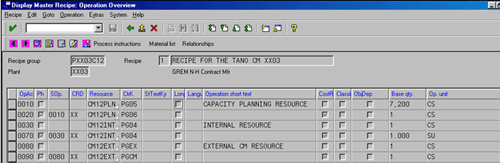
Figure 2
Master recipe configuration
Note
The base quantity should always be 1,000 cases for the external and internal cost operations or phases. The base quantity for the capacity and scheduling phase should represent the daily capacity for the CM equipment.
Step 9. Create a production version. Use transaction CS01 or follow menu path Logistics > Materials Management > Material Master > Material > Change > Immediately (MRP-4 view).
Note
Capture resources used for capacity planning and scheduling in the production line field.
Step 10. Set up MRP quotas, scheduling agreements, and source lists. Quotas can be used to specify the percentage of the business procured externally at the contractor site. To set up a quota arrangement, use transaction MEQ1 or follow menu path Logistics > Production > MRP > Master Data > Maintain Quotas.
Note
Use the following parameters to set up an MRP quota to source a material from another plant:
- Procurement type F, external special procurement type U, stock transfer
- Plant - SAP plant number of the source plant
- Production version - None, blank
- Scheduling agreements are required for all intermediate and raw materials that move between a company and a contractor and for all finished products if a contractor is based in the same plant as the company. The confirmation control key should be set to provide advanced shipping notifications (ASNs) for normal contractors, and not to provide ASNs for white line contractors. (A white line is a separator between the subcontracting and company’s work space in case the subcontractor operates within the company’s facility.)
- A source list is required for every scheduling agreement. The source list must be set as relevant to MRP.
Step 11. Create/mark/release a cost estimate. The cost estimation is based on the quantity structures you previously defined in production planning (PP) or Production Planning-Process Industries (PP-PI) and must be done for the product at the CM plant. The transaction to be used is CK11N.
The cost estimate can be marked for release via transaction CK24 and then released into the master file, which can set the STD price for the material. Saved cost estimates need to be marked for release, which sets the cost estimate into the material master (accounting view-1) as a future cost estimate. Then it needs to be released to finalize its transfer into the material master.
Step 12. Create a costing BOM. The scope of this step is to copy the production BOM into a costing BOM - Material (finished product). To do so, use transaction CS01 or follow menu path Logistics > Production > Master Data > Bill of Material > Bills of Material > Material BOM > Create. Then specify the BOM use 6 and follow menu path Material BOM > Copy from.
Step 13. Create a costing master recipe by copying the production recipe into a costing recipe - Material (finished product). To do so, use transaction C201 or follow menu path Logistics > Production Process > Master Data > Master Recipe > Master Recipe > Create.
Transactional Data
Here is the main transactional data needed to manage the CM solutions in case of full CM.
Planning Work Processes
Step 1. Generate S&OP orders. A sales order generates a demand or independent requirement for the finished product in a company distribution plant (DP). The DP has several supporting facilities that can supply the finished product. To determine which supporting facilities fulfill the sales orders capacity, the DP uses the planning tool Distribution Requirement Planning (DRP).
Step 2. The DP runs DRP. This provides the company with a schedule for the finished product that the CM produces. This production schedule is manually faxed to the CM.
Step 3. Perform the MRP run for the company and CM sites. Run MRP on the company plant. MRP automatically runs on the CM plants as required. Stock transfer requirements to the CM plant may not be satisfied by the MRP run, and MRP may need to be run on the company plant again. If any company intermediates or raw materials are needed, they are either moved from an internal source or received from an external source to the CM plant.
Step 4. Convert planned orders from the MRP run into process orders. Use transaction COR7 or follow menu path Logistics > Production Process > MRP > Planned Order > Convert to Process Order > Individual or Collective. When the planned orders at the CM plant are converted to process orders, a purchase requisition for the external operation is automatically created. Note that the planners have to enter a Requistnr (Requisitioner) at the time of conversion.
Production Work Processes
Step 5. Release the process order. Use transaction COR5 or follow menu path Logistics > Production Process > Process Order > Process Order > Change. Then enter the Process Order Number and follow menu path Process Order > Functions > Release.
Step 6. Create purchasing documents. There are multiple ways to get the material to the contract manufacturer’s site. In all instances, the movement should be planned using a materials management (MM) document type. If the raw material is supplied from a company facility, a transport scheduling agreement or a stock transport order should be created. If the raw material comes directly from the supplier to the contract manufacturer, create the scheduling agreement or contract in the CM plant with the raw material supplier.
Create an Outline Agreement
Create a contract or vendor scheduling agreement for external procurement. This is the normal work process. Use transaction ME31 or follow menu path Logistics > Material Management > Purchasing > Outline Agreement > Contract or Scheduling Agreement.
If the contract manufacturer is working at the company’s site, perform the following three steps:
- Create a transport scheduling agreement. The company plant materials are transported at the CM zone. An outline agreement (transportation scheduling agreement) is set up to facilitate movements of materials between plants. It is usually created once a year. Use transaction ME37 or follow menu path Logistics > Material Management > Purchasing > Outline Agreement > Create Trnsp.Sch.Ag.
- Create a transport scheduling agreement stock transport order. Company plant materials are transported across the white line. The company site’s MRP creates transfer reservations and converts them to a scheduling agreement once. They’re within the planning horizon via auto PO, a standard SAP program scheduled in the background to automatically generate POs.
- Process the transport scheduling agreement stock transport order. The company plant materials are transported at the CM zone. The company site performs the stock transfer posting to the CM Site using the MM module. You can use transaction MIGO MvT 351 in the company plant, entering the Transport Schedule Agreement document number in the Purchase Order field.
For a stock transport order, with or without shipping, perform the following two steps:
- Create a stock transport order. In this case the company plant materials are transported to the CM plant. The company site’s MRP creates a purchase requisition. These must be converted to stock transport orders once they’re within the planning horizon via auto PO.
- Ship the stock transport order. The company site performs the stock transfer posting to the CM site using Inventory Management without a shipping process. It uses transaction MIGO movement type 351 in the company plant against the stock transport order number. Note that if the sales and distribution (SD) module is implemented, to generate a delivery with reference to the purchase order, you can use transaction VL10B or follow menu path Logistics > Sales and Distribution > Shipping and Transportation > Outbound Delivery > Create > Collective Processing of Documents Due for Delivery > Collective Processing of Documents Due for Delivery > Purchase Orders.
Note
As of Release 4.6, transactions VL10, VL10A, VL10B replace transaction VL04 (processing the delivery list).
If a finished product is moving from the company plant to the CM plant, then perform the following two steps:
- Create a stock transport order. In this case the company’s finished product materials are transported to the CM plant. The company site’s MRP creates the purchase requisitions, which must be converted to stock transport orders once they’re within the planning horizon via auto PO.
- Ship the Stock Transport Order (STO). In this case the company’s finished product materials are transported to the CM plant with or without an SAP shipping process. In the first case an outbound delivery is generated with reference to the STO document number. In the second case the company site performs the stock transfer posting to the CM site using an Inventory Management-CM receiving process. It does so, without the SD module, via transaction MIGO and movement type 351 (transfer posting to stock in transit from unrestricted-use), entering the STO document number in the Purchase Order field.
Step 7. The CM site performs a goods receipt. To perform a goods receipt at the CM plant with reference to a PO or delivery schedule lines, use transaction MIGO or follow menu path Logistics > Material Management > Inventory Management > Goods Movement > MIGO - Goods Movement. Then specify the value 101 as the movement type. In the case of an internal purchasing source, enter either the stock transport scheduling agreement document number or the stock transport order document number in the Purchase order field. In the case of an external purchasing source, enter either the scheduling agreement document number or Purchase Order document number in the Purchase order field.
Step 8. Perform two production activities now that the manipulation processes are completed:
- Production confirmation of material via transaction CORK or menu path Logistics > Production-Process > Process Order > Process Order > Confirmation.
- Goods receipt against a Process Order via transaction MIGO and movement type 101.
Note
During confirmation in the case of backflush and a control key appropriate for backflush, the system automatically generates the movement type 101 for the produced product and the movement type 261 for components of the process order. Movement type101 creates a debit to inventory and a credit to factory output while 261 creates a debit to the stock use/consumption account in the process order and a credit to inventory.
Step 9. Perform production and process GR against PO (external service). Use transaction code MIGO movement type 101 and then enter your Purchase Order Service.
Step 10. Create the material delivery and foods receipt. Once the finished or intermediate product has been produced, it needs to be moved from the CM plant, either to the company plant, to a distribution center, or directly to a customer. Then you can create the same purchasing documents, already listed in step 6.
Step 11. Settle the process order. The costing department can use transactions CO88/KO88 (Collective/Individual settlement) or follow menu path Accounting > Controlling > Product Cost Acctg > Process Mfg > Period-End Close > Settlement > Collect Processing or Individual > Process Order.
Step 12. Calculate production variances. The costing department should use transaction KKS1 or follow menu path Accounting > Controlling > Product Cost Acctg > Process Mfg > Period-End Close > Variances > Collect Processing or Individual > Process Order.
Customizing Activities
In this section, I cover the main customizing activities that are relevant to the CM processes across SAP modules.
Step 1. Create a material group. A table of the material group’s values must be maintained in Customization for use on the material masters, purchasing info records, and POs. Use IMG transaction OMSF or follow menu path Tools > Business Engineering > Customizing > Enterprise IMG > Logistics-General > Material Master > Settings for Key Fields > Define Material Groups. In Figure 3, a material group has been added to the customizing table.
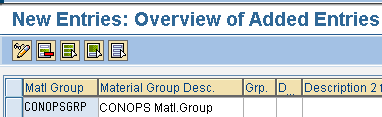
Figure 3
Create a material group
Step 2. Maintain allocation cost elements for the CM activity types. Secondary cost elements collect all the company’s CM internal costs. Use IMG transaction KA06 or follow menu path Tools > Business Engineering > Customizing > Enterprise IMG > Controlling > Overhead Cost Controlling > Cost Center Accounting > Master Data > Activity Types >Maintain Allocation Cost Elements > Create Secondary Cost Element. In Figure 4, you can see the basic data of the cost element used to collect CM administrative costs.

Figure 4
Create a cost element – COADMI
In Figure 5, you can see the basic data of the cost element used to collect freight costs.

Figure 5
Create a Cost Element – COFREI
In Figure 6, you can see the basic data of the cost element used to collect contract advance costs. Contract advances are planned activities that will be performed by the subcontractor.

Figure 6
Create a cost element – COADVA
Step 3. Create activity types for CM. Activity types are used in an SAP system to perform internal cost allocation through the secondary cost elements. Use IMG transaction KL01 or follow menu path Tools > Business Engineering > Customizing > Enterprise IMG > Controlling > Overhead Cost Controlling > Cost Center Accounting > Master Data > Activity Types > Create Activity Types > Create Activity Type. In Figure 7, you can see the basic data of the Activity Type used for administrative activities.
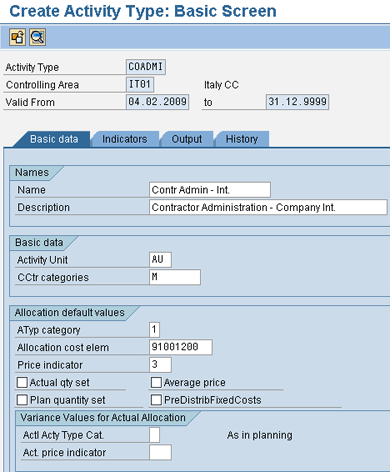
Figure 7
Create an Activity Type for administrative activities
In Figure 8, you can see the basic data of the Activity Type used for freight activities.
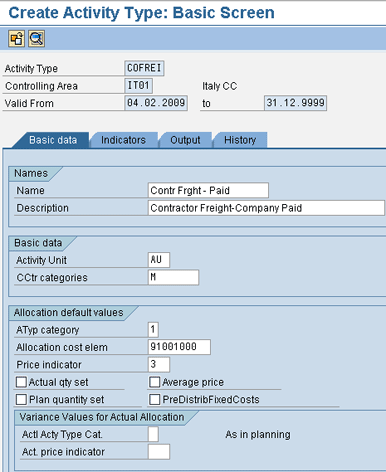
Figure 8
Create an Activity Type for freight activities
In Figure 9, you can see the basic data of the Activity Type used for advance activities.
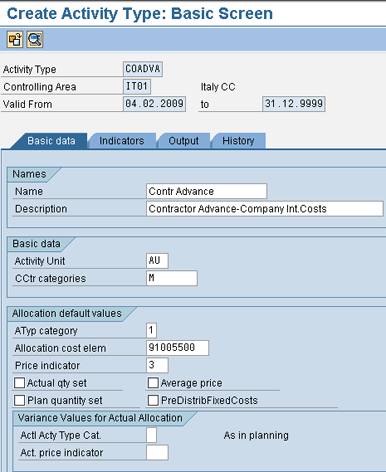
Figure 9
Create Activity Type for advance activities
Step 4. Create CM parameters for the standard value key. These parameters are set up for the formula definition in calculation of standard value. Use IMG transaction OP7B or follow menu path Tools > Business Engineering > Customizing > Enterprise IMG > Production Planning-Process Industries > Master Data > Resources > General Data > Standard Value > Set Parameter.
In Figure 10, you can see the standard value key (ZCO_CA) to be used for administrative operations.
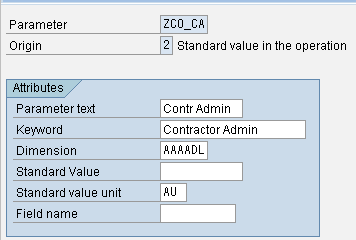
Figure 10
Create a standard value key for administrative operations
In the Figure 11, you can see the details of the standard value key (ZCO-CF) to be used for freight operations.
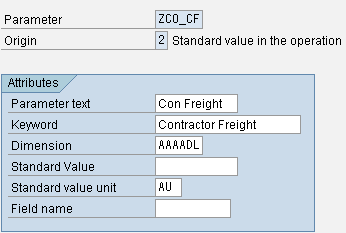
Figure 11
Create a standard value key for freight operations
In Figure 12, you can see the details of the standard value key to be used for advance operations (ZCO_AD).

Figure 12
Create a standard value key for advance operations
Step 5. Create a standard value key for CM. These keys determine the meaning of the six standard values in process order operations. In CM, only the last three standard values (rows 4-6) are used.
Use IMG transaction OP19 or follow menu path Tools > Business Engineering > Customizing > Enterprise IMG > Production Planning-Process Industries > Master Data > Resources > General Data > Standard Value > Define Standard Value Key. In Figure 13, you can see the standard value key formula (ZC04) for CM.
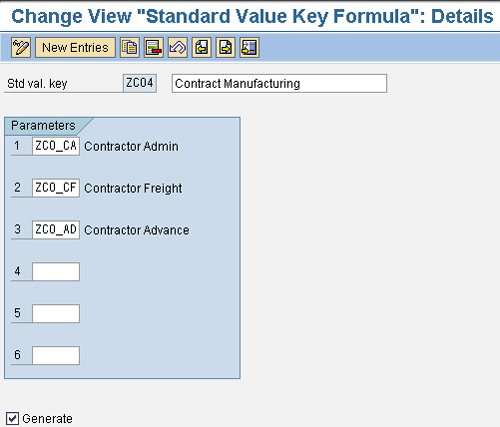
Figure 13
Create a standard value key formula
Step 6. Define a formula key for activity types. Formula keys are used for calculating costs incurred in each of the CM activity types. Use IMG transaction OP54 or follow menu path Tools > Business Engineering > Customizing > Enterprise IMG > Production Planning-Process Industries > Master Data > Resources > Costing > Work center formula > Define formulas for Work Centers.
In Figures 14, 15, and 16, you can find the details of the formulas used to calculate the costs for administrative, freight, and advance operations, respectively.

Figure 14
Create a formula value key for administrative operations
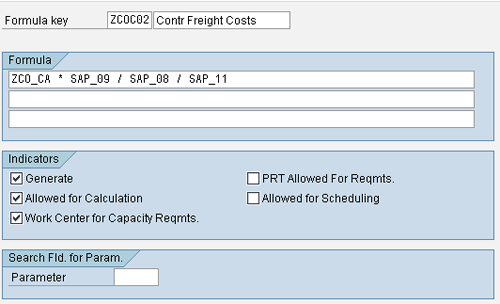
Figure 15
Create a formula value key for freight operations
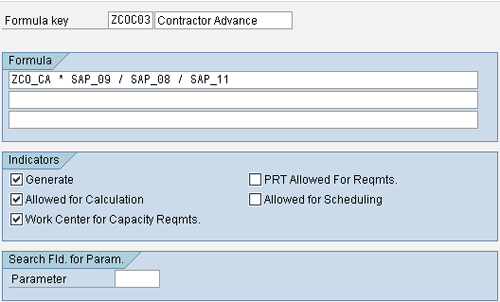
Figure 16
Create a formula value key for advance operations
Note
If errors occur with the formulas, run a generation program (RCR05GEN) in the receiving client.
Step 7. Create a control key for CM. Control keys are used for specifying the process order transactions to be carried out for a respective task list, such as external procurement for CM services, costing, or scheduling. Use IMG transaction OPSH or follow the menu path Tools > Business Engineering > Customizing > Enterprise IMG > Production Planning-Process Industries > Master Data > Resource > Master Recipe Data > Define Control Key. In Figures 17, 18, and 19, you can find the details of the relevant control keys for external costs, internal costs, and capacity planning, respectively.
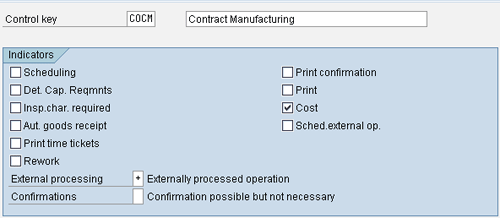
Figure 17
Create a standard value key for external operation costs

Figure 18
Create a standard value key for internal costs (leave the externally processed operation field blank)
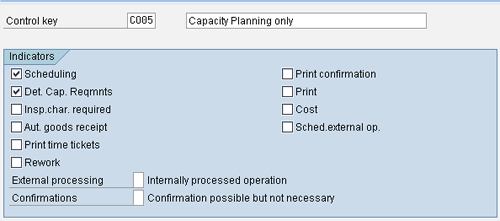
Figure 19
Create a standard value key for scheduling and capacity planning
Step 8. Create a CM plant. This plant is a representation of the CM facility in the SAP system. The plant is used to account for activities that the company has with the actual CM facility. Use transaction OX10 or follow menu path Enterprise Structure > Definition > Logistics – General > Define, copy, delete, check plant.
Step 9. Specify the parameters for scheduling sales operation planning (SOP) orders for each plant and production scheduler. Use transaction MC70 or follow menu path Tools > Business Engineering > Customizing > Enterprise IMG > Production > Sales Operation Planning > Functions > Resources Planning > Configure scheduling parameters (Figure 20).
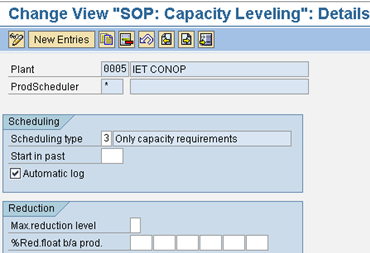
Figure 20
Create a standard value key for capacity requirements

Gaetano Altavilla
Dr. Gaetano Altavilla is a senior SAP practice manager. His focus is on pre-sales, delivery of SAP application solutions for large international corporations, and SAP knowledge management in Europe, the Middle East, and Africa (EMEA).
In his 18 years of SAP application experience working for many multinational companies, such as Procter & Gamble and Hewlett-Packard, he has covered a wide range of ERP logistic areas, focusing on the MM, WM, SD, LES, PP, PP-PI, PLM (QM, PM, PS) modules, as welll as CRM (TFM), SRM (EBP), SCM (SAP APO), and MES (ME) components.
Dr. Altavilla holds a degree with first-class honors in mathematics from the University of Naples and is certified in many SAP modules: SAP Logistics Bootcamp, SAP MM, SD, LE (SHP/WM/LE), PP, PLM (PM, QM, PS), SRM, CRM, SCM (APO), SCM (TM), FI, CO, and Solution Manager. He also has experience in ABAP/4 and application link enabling (ALE) and IDocs. He has participated in numerous industry conferences, such as the SAP Skills Conference in Walldorf at SAP SE.
You may contact the author at Gaetano_altavilla@hotmail.com.
If you have comments about this article or publication, or would like to submit an article idea, please contact the editor.