BW has a bookmarking feature that saves the navigational state of Web queries in the form of a URL. It is similar to the Favorites feature of Microsoft Internet Explorer, but does not work in the same way. Use the instructions and code in this article to make BW's bookmarking function as easy to use as Internet Explorer's.
Most Web browsers have a bookmark feature that saves a URL for future reference. Microsoft’s Internet Explorer calls this bookmark feature “Favorites.” BW has a bookmarking functionality that is significantly different from that of a Web browser. It stores the navigational state of queries in a Web template and creates a URL to access the template. This helps users customize Web reports and collaborate with other users.
However, using the BW bookmark functionality requires additional steps and is not intuitive, since its behavior is unlike a Web browser’s bookmark functionality. We will show you how to make the BW bookmark feature work as simply as a typical Web browser’s bookmark with the use of a small JavaScript application. We will also discuss the salient features of the bookmark functionality and the available tools to manage them.
BW bookmarks can store the navigational state of a query with or without data. Bookmarks created without data retrieve data from the database every time they are accessed. Bookmarks created with data store a copy of the result set when they are created. They display the stored snapshot of data when it is accessed. It is a static report devoid of OLAP capabilities. It is useful for comparing result sets from two or more snapshots.
Bookmark functionality is available for each Web template whether it is developed using Web Application Designer or a query published using the BW default query template. The context menu associated with the template has two entries related to bookmarks (Figure 1).
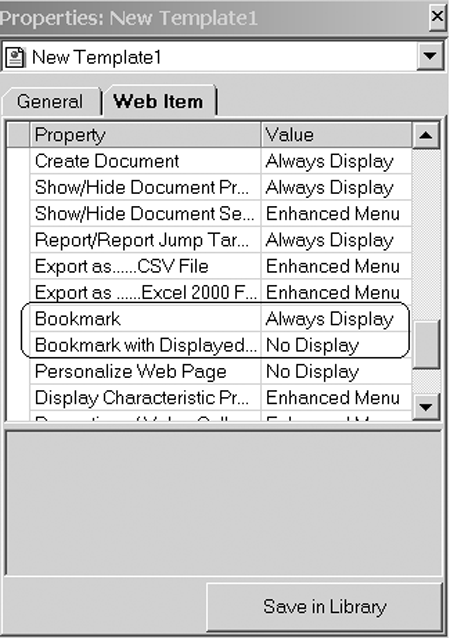
Figure 1
Bookmark-related context menu attributes
In its default state, the entry for Bookmark is enabled and Bookmark with Displayed Data is disabled. You can disable the bookmark entries. It is possible to display these menu entries in either the Basic or Enhanced section of the context menu. If you publish your query through the BW default query template, a toolbar button for the bookmark is included. When you bookmark a BW Web template, a URL that saves the navigational state of the query is created on the Web Application Server (Web AS). After the URL is generated, you can use the browser’s bookmark menu to add it to your favorites.
This two-step process is confusing to the user since there is no visual feedback after the first step. We overcame this problem using a JavaScript function that integrates the URL-generation step with the subsequent step of adding it to the favorites.
Note
This JavaScript function was written for Microsoft’s Internet Explorer. You will have to change the script’s function calls to work with another brand of browser.
Our method involves adding JavaScript function to the Web template and calling it from a desired location such as a context menu, toolbar button, or hyperlink. In our example, we call the JavaScript function from a toolbar button and have disabled the Bookmark function from the context menu. For your Web application, you could customize the context menu to call the JavaScript function. However, this involves additional work and is not within the scope of this article. Add the JavaScript function (Figure 2) AddToFavorites to the header section of your Web template.

Figure 2
AddToFavorites JavaScript function
This script is called from the toolbar button, the code for which is shown in Figure 3.
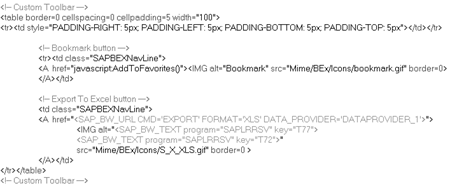
Figure 3
Toolbar button code
The AddToFavorites function creates the URL in a child window first. After the URL is generated, the browser’s bookmark functionality is invoked. Once the toolbar bookmark button is selected (Figure 4), the Add Favorite window appears (Figure 5). The name of the query is used as the default name for the bookmark.

Figure 4
Custom toolbar button
Tip!
Users may also copy the URL to share with other users on the system. This feature is helpful when users want to collaborate on the navigational state of a query.
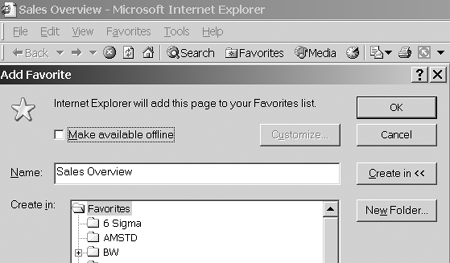
Figure 5
The Add Favorite window
You can easily incorporate this function into your default query template. Add it to your company default query template using the method described above, and invoke it from a toolbar button or context menu item. A simple query template that incorporates the JavaScript function discussed in this article is available for download at this link.
Users can remove the bookmark entry from their PC browser favorites. However, the BW URL on the server remains on the Web AS. Removing the BW bookmark from the Web AS requires Reporting Agent. Reporting Agent organizes the bookmarks based on the users and Web templates. It is possible to delete the bookmarks based on user name, template name, and other criteria (Figure 6). If you delete the BW bookmark from the Web AS first, be sure to remove the bookmark from the PC’s browser favorites as well.
Note
Educate your users that bookmarks with data maintain a snapshot of the data at the time the bookmark was created, and that bookmarks with data take up more space than bookmarks without data.
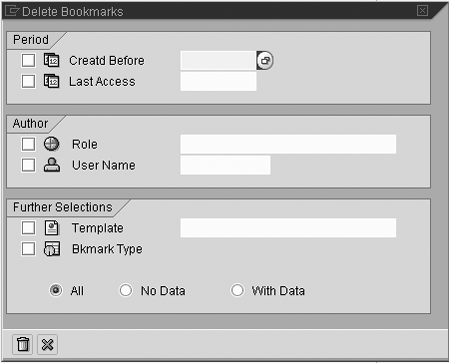
Figure 6
Use Reporting Agent to delete bookmarks from the Web AS
Note
Some releases of BW ignore the deletion criteria you choose. Review SAP note 640502 to ensure that your BW system has the necessary patch.
Tip!
Using bookmarks is an effective way to help users who demand reports in a certain format. For example, say you have one report that is shared by several users, and that each user is interested in a different slice of the query. If the users request a separate report that gives them direct entry into a navigational state of their interest, you can create bookmarks for each user to meet his or her requirement. This saves developers from creating multiple versions of the same query for different users.
Tip! It is important to keep your GUI simple, consistent, and easy to use across your BW Web templates. The technique discussed in this article simplifies BW’s bookmark functionality. Developing best practices for GUI design and incorporating them in BW global templates increases the quality of user experience and decreases your development effort.
Mukunda Krishnaswamy
Mukunda Krishnaswamy is the CTO and founder of MimosaSoft. He has extensive experience developing technology solutions to solve business process challenges. He is currently focused on helping companies increase sales, brand awareness, and supply chain efficiencies through automated syndication of product catalogs to multiple channels including social networks, comparison shopping networks, marketing data pools, and GDSN.
You may contact the author at mukunda.krishnaswamy@mimosasoft.com.
If you have comments about this article or publication, or would like to submit an article idea, please contact the editor.
Adrian Gawdiak
Adrian Gawdiak is a manager for the Global Data Warehouse Bath and Kitchen team at American Standard Companies, Inc. Adrian has extensive experience in the development of manufacturing applications and database administration.
You may contact the author at gawdiaka@amstd.com.
If you have comments about this article or publication, or would like to submit an article idea, please contact the editor.



 Premium