D. Russell Sloan shows you how to link your Solution Manager project to IMG projects and project views during the configuration phase of a project.
Key Concept
The IMG projects and project views are control elements created in the managed systems to narrow the scope of access to the configuration of the managed system (IMG). Creating these during initial project scoping helps projects stay in bounds from a scope perspective and can help configuration teams quickly capture key information during configuration activities.
Large SAP implementations often have geographically dispersed teams and have a fair bit of personnel turnover during the project. The costs associated with continuously communicating and policing scope boundaries can be reduced through the use of IMG projects and project views. On large implementations, the cost to continuously audit the configuration activities and take corrective actions can very quickly offset the initial investment of setting up the IMG projects and project views.
To be most effective, the setup of IMG projects and project views can be coupled with authorization profiles to further reduce the risk of project team members straying outside the intended scope boundaries during configuration. (The techniques for setting up authorizations to enforce these boundaries are beyond the scope of this article).
To take advantage of IMG projects and project views, you need to create them and associate them with the logical components assigned to your Solution Manager project. You can do all this directly in Solution Manager, which can save you the trouble of creating the projects and views in each of the managed systems using transaction code SPRO_ADMIN.
Note
An IMG project is a subset (or all) of the IMG structure nodes within any given SAP product system. A project view is a subset of IMG structure nodes contained in an IMG project to further group IMG structures that should be configured together to deliver specific functionality. To understand the difference between a Solution Manager project and an IMG project, see the sidebar “IMG Projects and Solution Manager Projects–How Do They Relate?”
IMG Projects and Solution Manager Projects - How Do They Relate?
When you create a project in Solution Manager using transaction code SOLAR_PROJECT_ADMIN, many capabilities are set in motion. One of these is the ability to manage configuration in managed systems in your SAP landscape.
Through the System Landscape tab in SOLAR_PROJECT_ADMIN you can assign logical components to your Solution Manager project, which provide Solution Manager with information about the systems managed in your landscape. As such, Solution Manager understands how to navigate the landscape to access the IMG configuration settings of the managed systems.
Within the managed systems’ IMGs, there is the ability to create subsets of the configuration activities. These subsets are called IMG projects. Within the IMG projects you can create views to further subset and organize the IMG activities in scope. Solution Manager provides you a way to create these IMG projects and views centrally from within the SOLAR_PROJECT_ADMIN transaction.
By default, when you assign a logical component to a Solution Manager project, it assumes that the IMG project has the same name in the managed system. However, it is not required that the IMG project in the managed system have the same name as the Solution Manager project.
Figure A shows the tab System Landscape and the subtab IMG Projects for creating and managing IMG projects and views from within a Solution Manager project.
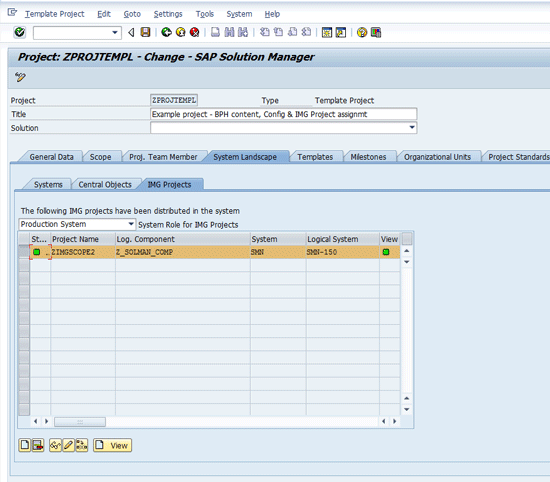
Figure A
Managing IMG projects from within a Solution Manger project
The key thing to remember is that the IMG project is a view to the IMG of the managed system. The actual IMG project is not housed in Solution Manager (unless it is an IMG project for the Solution Manager configuration itself). What is housed in Solution Manager is the relationship of the Solution Manager project with the IMG projects of the managed systems. This one-to-many relationship (one Solution Manager project to many IMG projects) allows you to manage the scope of a complex landscape centrally.
The use of the IMG project and project views in the managed systems allows you to pre-filter the IMG hierarchy before the project team begins doing configuration. This gives you the opportunity to direct the teams to the portions of the IMG of the managed systems that are in the project scope without everyone on the project team needing detailed knowledge of what is in or out of scope.
For example, if you have a project that is implementing Order To Cash using SAP ERP Central Component (ECC) and Customer Relationship Management (CRM), you would build IMG projects in both the ECC- and the CRM-managed systems that create the subsets of the respective IMG structures that are relevant to your project. Transaction SOLAR_PROJECT_ADMIN in Solution Manager allows you create these IMG projects and views from Solution Manager. By having an IMG project in CRM and another in ECC you can reduce the risks of overlapping or conflicting configuration.
The project view within the IMG project allows you to further filter for specific needs. For example, if you have a very large implementation, you might have one team dedicated to pricing and another dedicated to accounts receivable. You could set up project views for pricing and accounts receivable so that each team would have its own narrow view of the IMG while doing its configuration.
When you create a project in Solution Manager using transaction code SOLAR_PROJECT_ADMIN, many capabilities are set in motion. One of these is the ability to manage configuration in managed systems in your SAP landscape.
The IMG project can be created to represent a go-live scope for a particular SAP component. For example, in your current project you might have in scope Financials and logistics for ECC and customer management and sales in scope within the CRM product. Since these are delivered in two different instances, you’ll need to manage the configuration of two different development environments to deliver your chosen scope.
Creating a Solution Manager project that contains the scope for both SAP components enables you to manage the design, development, testing, and delivery of the solution even though the work must be done in multiple development environments.
Since Solution Manager can represent any number of managed systems through the use of logical components, and Solution Manager projects can manage multiple logical components, the task of managing the work in the multiple systems becomes much easier.
For this article, I am assuming that you have a Solution Manager 7.1 system up and running, you’ve already created your Solution Manager project in SOLAR_PROJECT_ADMIN, and the logical components for your managed systems have already been created.
For the examples contained in this article, the IMG projects and views created are for the Solution Manager IMG. This is to reduce the complexity of the IMG project creation illustrations as you do not need to navigate to any managed systems. However, the steps for creating IMG projects and views are the same for other managed systems that use an IMG for their configuration.
Getting Started
Using transaction code SOLAR_PROJECT_ADMIN, navigate to the System Landscape tab for your project to confirm that the desired logical component has been assigned to the project. Figure 1 shows project ZPROJTEMPL on the System Landscape tab with the logical component for the Solution Manager system highlighted. The subtab Systems is selected showing the highlighted logical component for Solution Manager.
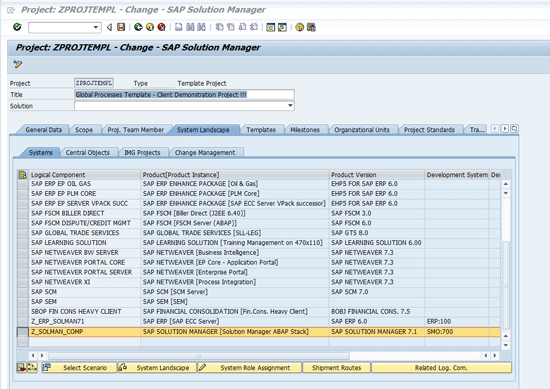
Figure 1
System Landscape tab
Note in Figure 1 that the system role Development System shows SMO:700 for the Solution Manager logical component. This tells you that the logical component has been set up to use system ID (SID) SMO and client 700 for development activities in Solution Manager.
Next click the IMG Projects subtab which takes you to Figure 2. Note that the IMG projects subtab selection with the System Role for IMG Projects is set to Training System. Since none of the logical components assigned to the project ZPROJTEMPL have a system identification for the Training System role, the list is empty.

Figure 2
IMG Projects subtab of the System Landscape tab
Use the drop down in the field that shows Training System to switch the system role selection to Development System. The list populates with the logical components that have a development system system role and client assignment configured in the Landscape Management DataBase (LMDB), shown in Figure 3.
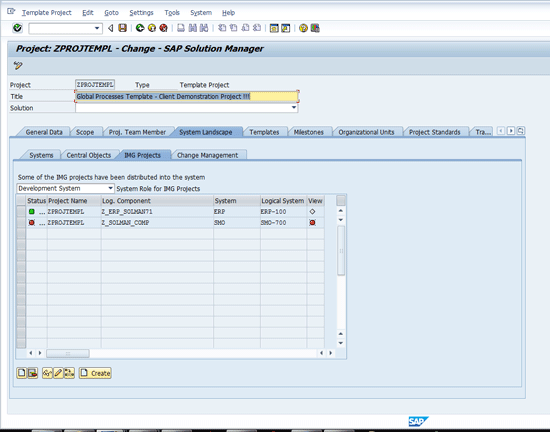
Figure 3
Logical components with development system role assignments
Figure 3 shows that logical components Z_ERP_SOLMAN71 and Z_SOLMAN_COMP have a Development System role configured for the logical components. The Logical System column shows the SID and client assigned for the development role.
Note the red status indicators in the Status and View columns in Figure 3. These indicate that the logical component for the Solution Manager has no IMG project or IMG project view assigned to it.
You can create and assign the IMG project directly from this screen without having to separately log in to the managed system. Note that this assumes that the managed systems have had trusted Remote Function Calls (RFCs) established between the managed system and the Solution Manager system. Your project environment security policy may still require you to log into the managed system when accessing them from within the Solution Manager transactions.
When you select the row for the Z_SOLMAN_COMP logical component and click the create IMG project icon  , Solution Manager begins the process of creating and assigning an IMG project to Solution Manager for the selected logical component.
The following figures show the sequence of screen events that occur when you click the IMG project icon to get to the IMG project maintenance screen in the managed system. Figure 4 shows the pop-up box for the request to create a master transport for the IMG project in the managed system. Since transport management is beyond the scope of this article, I’ll answer “No, Later” for this and any subsequent transport requests in the rest of this procedure. This clears the pop-up and takes you to the screen in Figure 5.
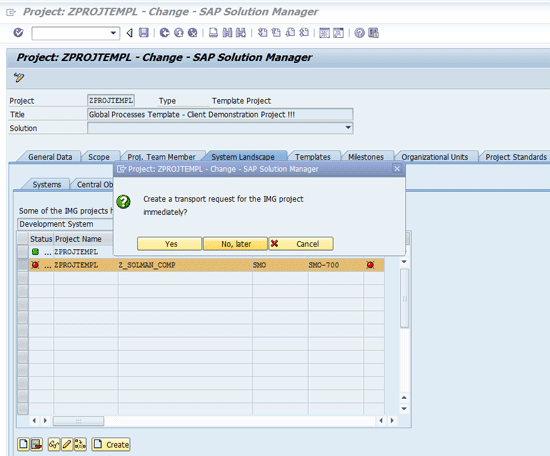
Figure 4
Request to create transport for an IMG project in the managed system
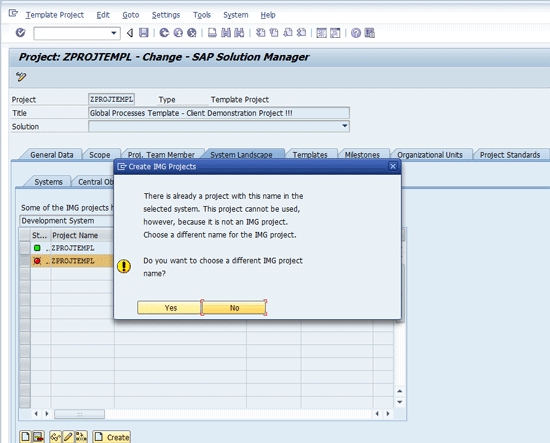
Figure 5
Warning of an existing project that cannot be used as an IMG project
Figure 5 shows a message that is often a source of confusion at this stage of the process. It is telling you that the project ZPROJTEMPLE already exists but cannot be used because it is not an IMG project. This is because by default Solution Manager assumes that the IMG project will be the same as the Solution Manager project. Both project types are stored in the same table in the system that has as its primary key Project Name.
Figure 4Figure 6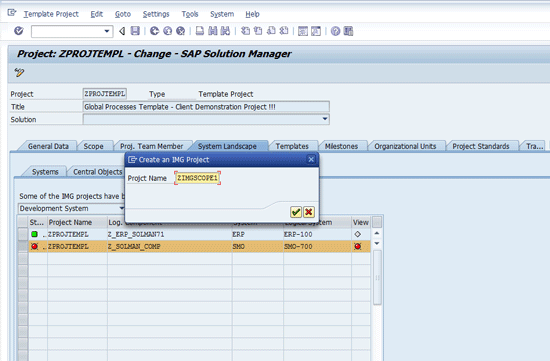
Figure 6
IMG project name
Figure 6 shows the prompt for creating a new IMG project. The IMG project is created in the managed system and the reference to it is stored in Solution Manager within your Solution Manager Project IMG Projects subtab on the System Landscape tab. Follow your project naming standards for creating IMG project names in managed systems. Enter the project name and press Enter to proceed to Figure 7.
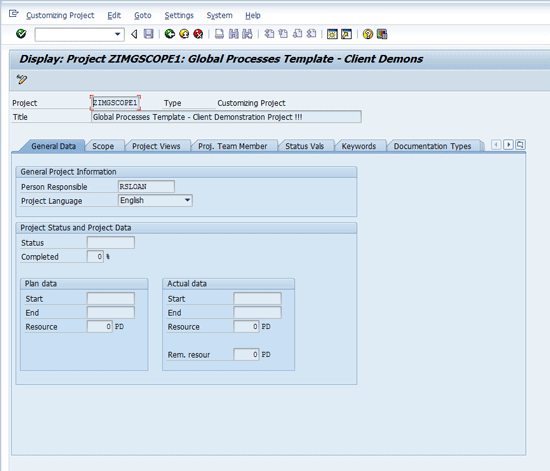
Figure 7
IMG project maintenance in display mode
Figure 7 shows the Display: Project ZIMGSCOPE1 IMG Project screen. For brevity, I’m only entering the required fields and so I move directly to the Scope tab to begin setting the IMG project scope that is relevant for this Solution Manager project.
Click the the display <-> change toggle icon  , then click the Scope tab to begin setting the scope for the IMG project. Figure 8 shows the Scope tab in change mode (note the title change on the screen to Change: Project ZIMGSCOPE1).
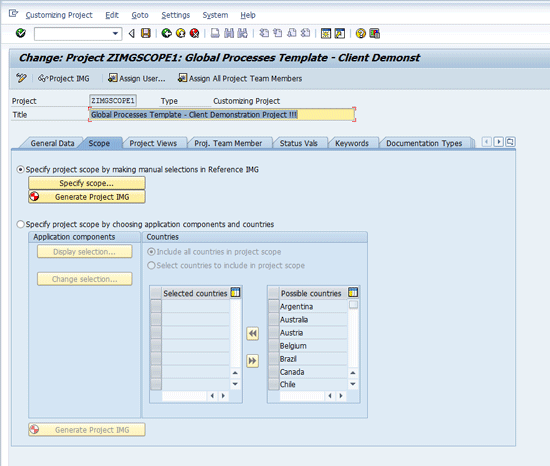
Figure 8
Scope tab in change mode
There are numerous ways to go about setting the scope for the IMG project, but for my purposes, I select specific IMG nodes manually using the Specify scope button. This opens a pop-up of the IMG as shown in Figure 9.
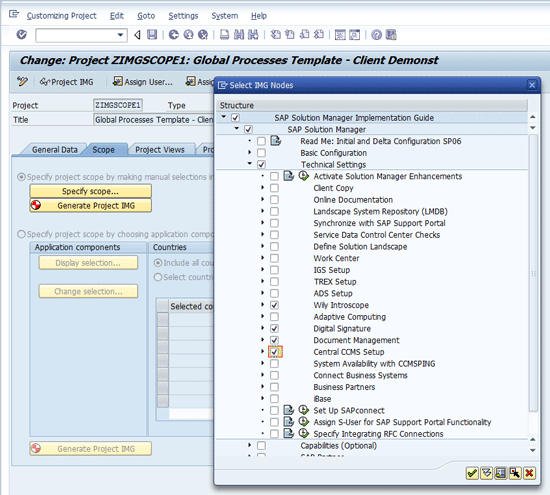
Figure 9
Choosing IMG nodes in scope for the IMG project
Figure 9 shows the selection of the IMG nodes necessary for including some of the document management and monitoring functions in Solution Manager as in scope for the IMG project. The nodes you choose are defined by your project scope. Experienced configuration team members are quite adept at understanding which nodes apply to which business process functions that are in the project scope.
(These selections are not set in stone. However, I advise that you greatly limit who has authority to modify the IMG project and project view scope so that it aligns with established project change management procedures.)
When your selection is complete, click the OK icon  to save the selections.
Next generate the project IMG using the Generate Project IMG button. This includes the selected IMG nodes in the IMG project in a background job. When the background job is complete, click the Project Views tab (Figure 10) to create a view of the IMG project.
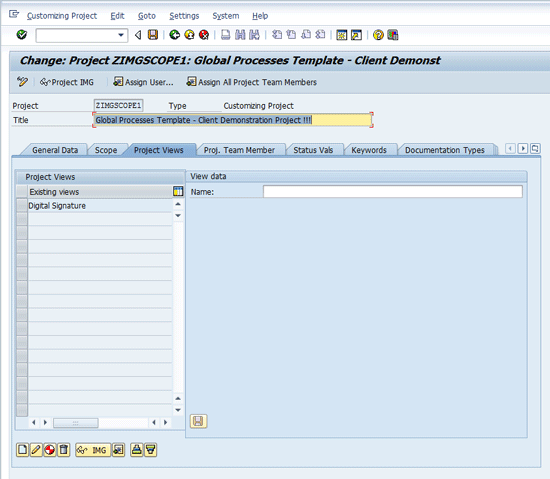
Figure 10
Project Views tab
As defined above, a view is a subset of the IMG nodes chosen for the IMG project. The intent here is to enable your teams to spend less time navigating the IMG and more time actually configuring the system.
Figure 10 shows the Project Views tab. Here you can create one or more project views to allow your teams to work in very specific areas of the IMG within the overall scope of the defined IMG project. You can see that a view for Digital Signature has already been created.
Click the create project view  icon in the bottom left of the screen to get the Creation of New Project IMG View pop-up (Figure 11). Here you can enter the name of the view and choose how to create the view.

Figure 11
Create the Business Process Monitoring view
Click the OK icon to open up the IMG for the managed system. Note that the IMG selections (Figure 12) are limited to only those portions of the IMG selected when creating the IMG project in the prior steps. Figure 12 shows the expanded IMG based on the IMG project. From these nodes, choose the subset you wish to have in the project view being created.
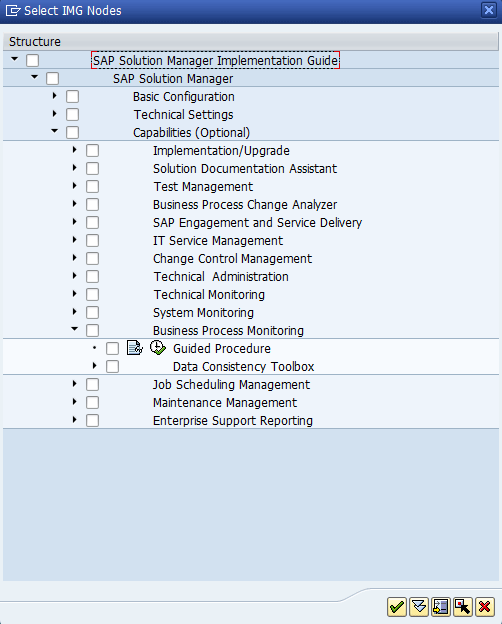
Figure 12
IMG elements available for selection when creating the project view
By expanding the nodes for Business Process Monitoring further, you can choose a subset of the configuration elements related to Business Process Monitoring that are relevant to your project. Figure 13 shows the Business Process Monitoring section of the IMG fully expanded and selected.

Figure 13
The Business Process Monitoring section of the project IMG expanded for selection into the project view
For my example, I chose all the nodes in Business Process Monitoring. Select the nodes relevant to your project and click the OK icon. This returns you to the Project Views tab. When you return to the Project Views tab, be sure to click the save icon  to finish capturing the content for the view (Figure 14).
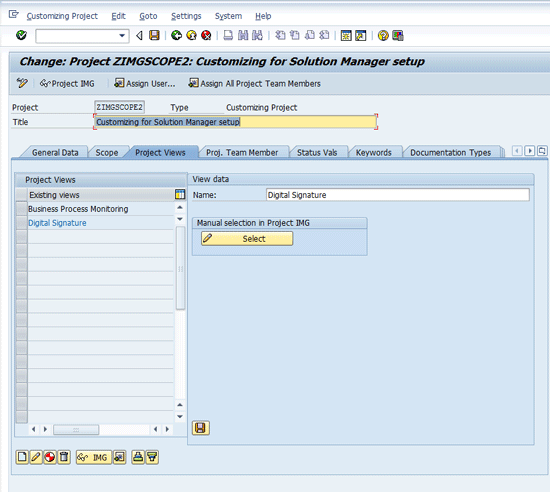
Figure 14
Save the view after making selections
Next, click the generate view icon  to properly encapsulate the subset of the IMG project that is to be contained in the project view—in this case, the Business Process Monitoring configuration nodes. This generates the projects and views.
Using the Newly Created Views
Now that the project views have been created, they are available to assist the team in navigating the IMG when doing IMG (Configuration Object) assignments to the Configuration tab in transaction SOLAR02.
Note
You may wish to activate the Configuration tab in the blueprint phase in transaction SOLAR_PROJECT_ADMIN to allow the project team to map configuration to business processes during blueprint. This can save the team time when doing prototyping activities because they won’t need to switch back and forth between blueprint (transaction code SOLAR01) and configuration (transaction code SOLAR02) to set up and test prototype configurations.
In transaction SOLAR02, navigate to any node in the BPH and open the Configuration tab to assign configuration objects to your project structure using these newly created IMG projects and views (Figure 15). You can see the Configuration tab displayed for the project ZPROJTEMPL. The structure node on the BPH (Business Process Hierarchy) for Business Process & Interface Monitoring has been selected so that any assignments of IMG nodes apply to the Business Process & Interface Monitoring business process definition in the project.
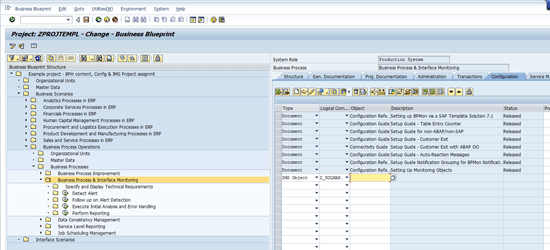
Figure 15
Configuration tab selected for the assignment of the IMG objects from the IMG project
In the Type column, the IMG object is selected to tell Solution Manager that you want to add an IMG configuration node to the BPH node in the Solution Manager project. The Logical Component column combined with the System Role tells Solution Manager which system and client in the landscape to open to retrieve the IMG object to be assigned.
When you click the prompt icon  on the field for the Object column, Solution Manager displays the IMG project that was created in the steps above. Figure 16 shows the content of the IMG project expanded.
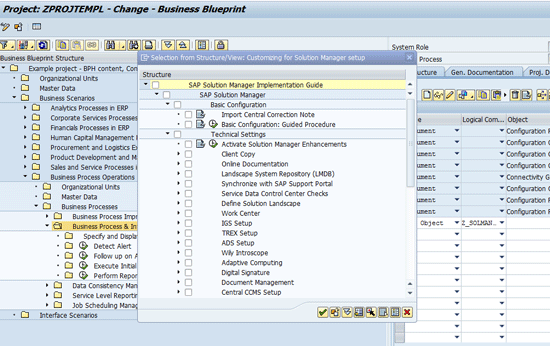
Figure 16
IMG project expanded for node selection and assignment to the configuration tab of the BPH structure
Even though Solution Manager is only presenting the subset of the entire IMG that was selected when creating the IMG project, it’s still a lot to go through to choose the proper IMG nodes for the Business Process Monitoring process. This is where the project views come in handy.
By clicking the choose another view icon  , you can select the project view that contains only that configuration that is relevant to Business Process Monitoring because you chose only that subset of the IMG when creating the project view. Figure 17 shows the pop-up that appears when you click the choose another view icon.
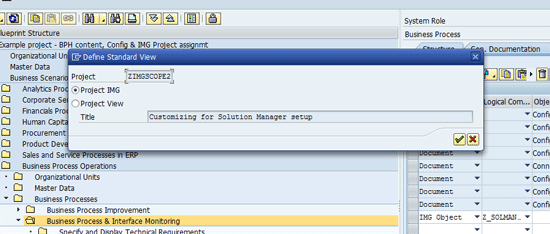
Figure 17
Choose another view pop-up
Here’s where terminology comes into play. By default, Solution Manager is assuming you want to switch to a different project IMG, but in this case, the goal is to open up a specific project view within the project IMG. Therefore, select the Project View radio button and the icons on the bottom right of the pop-up screen change to include a new choose another view icon (Figure 18). (Note that the choose another view icon is now visible between the green checkmark and exit  icons.)
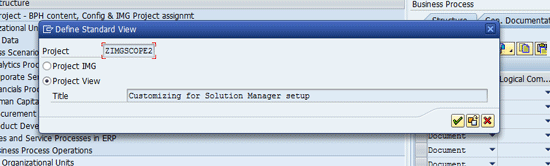
Figure 18
Project View radio button selected revealing the choose another view icon
Even though the title of the pop-up and the hover texts on the buttons are identical in both cases (Figures 17 and 18) the meaning is different. In each case, you are in fact requesting a different view of the desired IMG. In the first instance (Figure 17), Solution Manager is presenting you with the opportunity to switch to a different IMG project, and in the second instance (Figure 18), Solution Manager is presenting you with the opportunity to select a project view within the current IMG project. While this can provide great flexibility in managing multiple views of IMG structures, it can be a bit confusing, so I recommend that you stick with as few IMG projects as you can to manage your implementation scope.
Click the choose another view icon (Figure 18) to open up the options for the project views available within the currently assigned IMG project. Figure 19 shows the two IMG project views created in the steps above shown for selection.
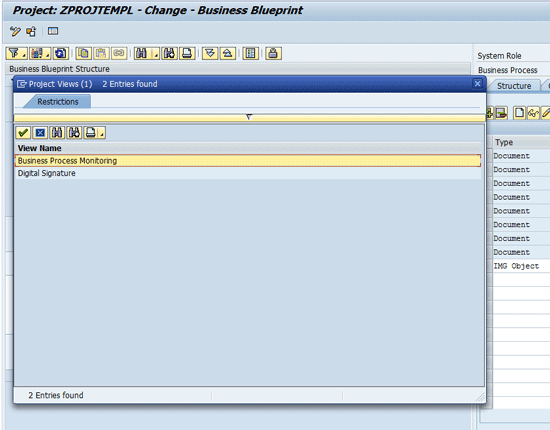
Figure 19
Project views available for selection
By double-clicking the Business Process Monitoring view, you update the pop-up window with the selected Project View (Figure 20).
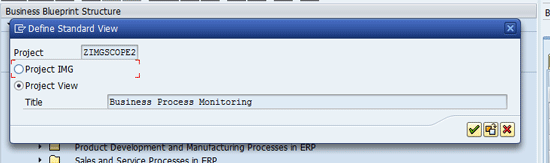
Figure 20
Business Process Monitoring IMG project view selected
Click the OK icon to open the Business Process Monitoring IMG Project View (Figure 21)
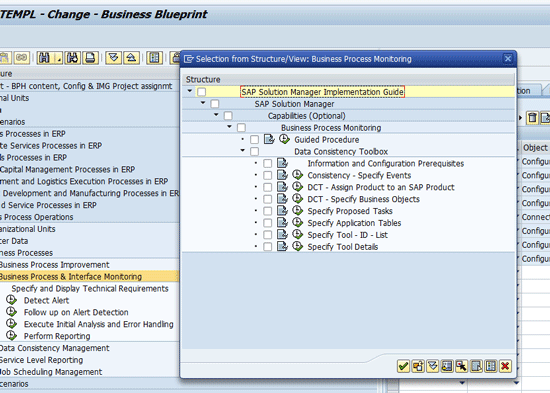
Figure 21
Business Process Monitoring IMG project view
Figure 21 shows the Business Process Monitoring IMG project view open and fully expanded. Note that only the IMG nodes needed for configuring the Business Process & Interface Monitoring are available for assignment to the Configuration tab.
Select the nodes necessary to configure Business Process Monitoring for your project and click the OK icon to create the assignments of the IMG nodes (Figure 22) to the Configuration tab as shown in Figure 23.
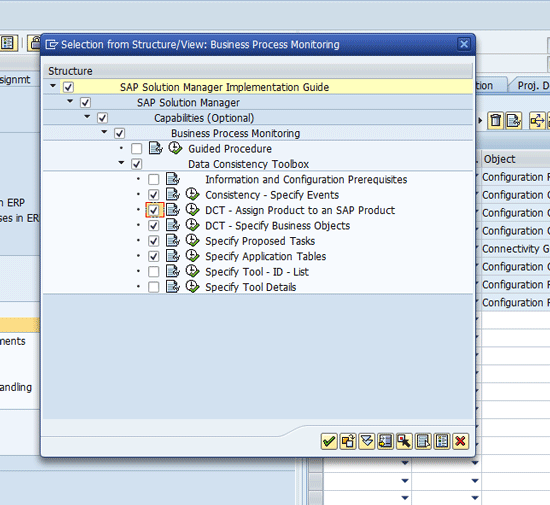
Figure 22
Business Process Monitoring IMG node selection from project view
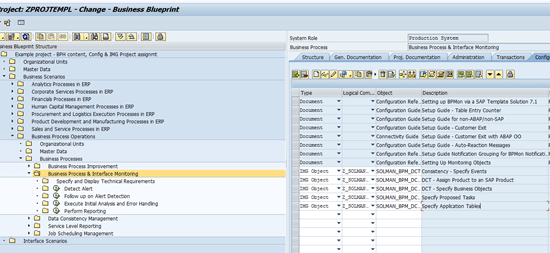
Figure 23
Selected nodes assigned to the configuration tab for the Business Process & Interface Monitoring BPH node
Recommendations
You’ve now seen how IMG projects and project views can assist in managing the scope of configuration for your projects. While this Solution Manager capability can give you better control and management of the configuration activities on your project, it can quickly become cumbersome if over used. As always, I recommend you set up a practice Solution Manager project and several IMG projects and views in the managed systems and become very familiar with this functionality before applying it to your project.
Also, I highly recommend that you establish and document project procedures for the proper use of these capabilities and that the project team be well trained.
One last note: This article did not touch on the integration of the IMG projects with the Correction and Transport System (CTS). As you establish the procedures for the use of the IMG projects and views capabilities of Solution Manager, be sure to integrate them with your project standards for correction and transport.
D. Russell Sloan
D. Russell Sloan is a specialist in project and program governance for IBM. He focuses on the use of SAP Solution Manager for global rollout projects for IBM’s largest customers, having worked with SAP software since 1996. Russell has degrees in accounting and information systems and has been a team and project leader for SAP projects for more than 14 years. He has been developing and deploying software systems for over 30 years.
You may contact the author at solmanruss@gmail.com.
If you have comments about this article or publication, or would like to submit an article idea, please contact the editor.



 Premium