SAP Solution Manager, the successor to ASAP/ValueSAP, boasts features such as project preparation, an implementation roadmap, the ability to manage multiple projects, and compatibility with legacy systems and R/3. The author, who worked on one of the first U.S. implementations of Solution Manager, shares his advice on how to optimize this tool.
SAP Solution Manager was introduced in 2002 as the successor to ASAP/ ValueSAP. I'm going to give you some tips and guidelines on how to make use of its functionalities, based on my experience with one of the first implementation projects in the United States.
A few years back, SAP introduced its ASAP methodology to implement SAP on an "accelerated" basis. ASAP was essentially an offline CD set with software to generate a scope document, business process master list (BPML), authorization list (AL), blueprint document, and development list (DL). The main feature was a five-step methodology for implementation projects: project preparation, business blueprint, realization, cutover and go-live, and post-go-live support.
At that time, SAP delivered ValueSAP to manage projects using the ASAP methodology. ValueSAP was very similar to the ASAP CD. However, it extended the functionality beyond implementation to include evaluation and continuous business improvement.
However, ValueSAP did not include a method to integrate its processes with the R/3 system. As you can see from the following highlights of Solution Manager, it fills in the gaps in ValueSAP.
- An on-site platform supports actitivities such as blueprint, realization, testing, and documentation. For example, you now can store documents in Solution Manager itself.
- It includes ASAP features such as project preparation, implementation roadmap, business blueprint, and configuration.
- There are enhanced concepts to encompass the specifics of mySAP.com implementations. Instead of focusing only on R/3, Solution Manager can cover any and all components of a mySAP implementation. For example, if you are implementing mySAP CRM and R/3, you can manage both projects via Solution Manager.
- This platform supports implementation and operation of mySAP.com. Solution Manager can interact with R/3 as well as with legacy components of the implementation.
The fundamental implementation approach of ASAP methodology has not changed in Solution Manager. As shown in Figure 1, Solution Manager includes the ASAP route of implementation: project preparation, business blueprint, realization, final preparation, go-live, and support. The difference is in the way each phase and its documentation is handled.

This article focuses on the activities associated with each phase in Solution Manager 2.1. The most current release is Solution Manager 3.1. I will exclude Solution Manager's extended business support functionality from this article.
The first step in Solution Manager is to create a project. In Solution Manager, you can create two types of projects: a template project and an implementation project. As the name suggests, you can use a template project to create a model for a multi-site mySAP.com implementation. This model then can be used by each site's implementation teams to create individual implementation projects — e.g., in a global rollout you create a template project with predefined structures and then roll it out to different countries. Each implementation team then adapts the prebuilt structure of the template project into its individual implementation projects.
Alternatively, you can create a stand-alone implementation project and create your own model based on customer-specific needs. In this article, I have focused on an implementation project with manually created processes because we used Solution Manager for a single-site implementation.
Phases of the Project
Phase 1: Project Preparation
During the first phase of the project, you need to do the following:
- Create the project in Solution Manager (Figure 2).
As you can see, the project information is the same as for the IMG projects you are accustomed to in R/3. If the project is created in Solution Manager and if your development system is linked to Solution Manager, then Solution Manager automatically creates an IMG project in R/3.
- As shown in Figure 3, under the Roadmap Selection tab, you select which elements to include in your implementation.
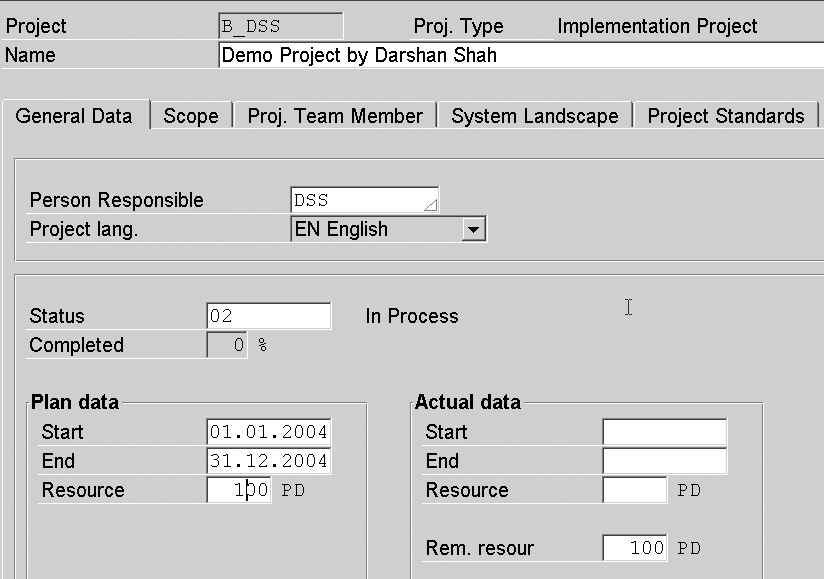
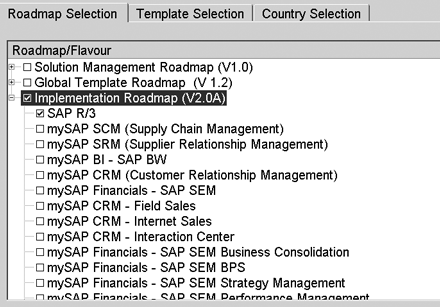
Figure 3
Scope of the project
Tip!
If you are creating an implementation project using the template, you can bring in the prebuilt template structures under the Template Selection tab in Figure 3.
- Create a System Landscape.
In this step, you assign the evaluation (sandbox), development, QA, and production systems. You do this via the System Landscape tab you saw in Figure 2.
- Project Standards (Figure 2)
maintain the Status Values, Keywords, and Documentation Types for this project. The Maintaining Document Types function allows you to save different documents under appropriate document types so that the retrieval is easier. You should consider attaching templates to certain document types. This ensures the same look and feel for documents across various modules. We used ASAP templates wherever possible — e.g., for business process procedures and test documents.
Phase 2: Blueprint Activities
In this phase, you are building the structure that you will use throughout the project life. Unless you have chosen to create a project from the template, you will be building the structure specifically for your implementation. Note that there is no BPML delivered; therefore, you build your own process list. In our project, we built the BPML structure in ValueSAP and then used that as a reference to create the basic structure in Solution Manager.
You can take a couple of approaches to build the structure.
- Structure by module:
In this approach, each module can have its own structure and each team can manage its own area. However, the idea of integrated implementation is somewhat lost.
- Structure by business process: (Figure 4, order-to-cash scenario)
This methodology is more difficult to build and manage. However, the advantage of following this approach is that the teams will start to appreciate the value of integration from the blueprint phase.

In this structure, you can store documentation, assign transactions to nodes, and use them later during realization to access the SAP system from within Solution Manager. Each substructure item under the Organizational Units, Master Data, or Business Scenarios is called a node. For example, in Figure 4, I have assigned transaction code VA01 to node Create Sales Order under Business Scenarios. This allows me to execute VA01 from within the Solution Manager.
Phase 3: Realization
Once you build the structure in the blueprint phase, the structure is reusable during the realization phase. In this phase, you can configure the system based on the selected plan and structure by accessing the R/3 system from within Solution Manager. To do this, you assign the configuration transactions to the nodes, where applicable. The advantage is that once you assign these transactions, they are available after the project completion so that the support team can use them for problem solving or enhancements.
You should also store the configuration documentation for all the configuration changes you are making. For example, you should store all your plant-related settings under the node Plant under Organizational Units.
Note!
Some of the configuration items do not have transaction codes assigned in R/3. For those items, you do not have the option of assigning a transaction code in Solution Manager. You can see if a transaction code is assigned by looking at its status information.
Phase 4: Test Organization
In this phase of SAP implementation, you will be conducting unit and integration test cycles to test the business processes you have configured during the configuration phase. Solution Manager offers the Test Organization area via transaction code SOLAR03 (menu path Tools>SAP Solutions Manager>Test Organization) in which you can build your test cases and then manage the testing phase, as shown in Figure 5.

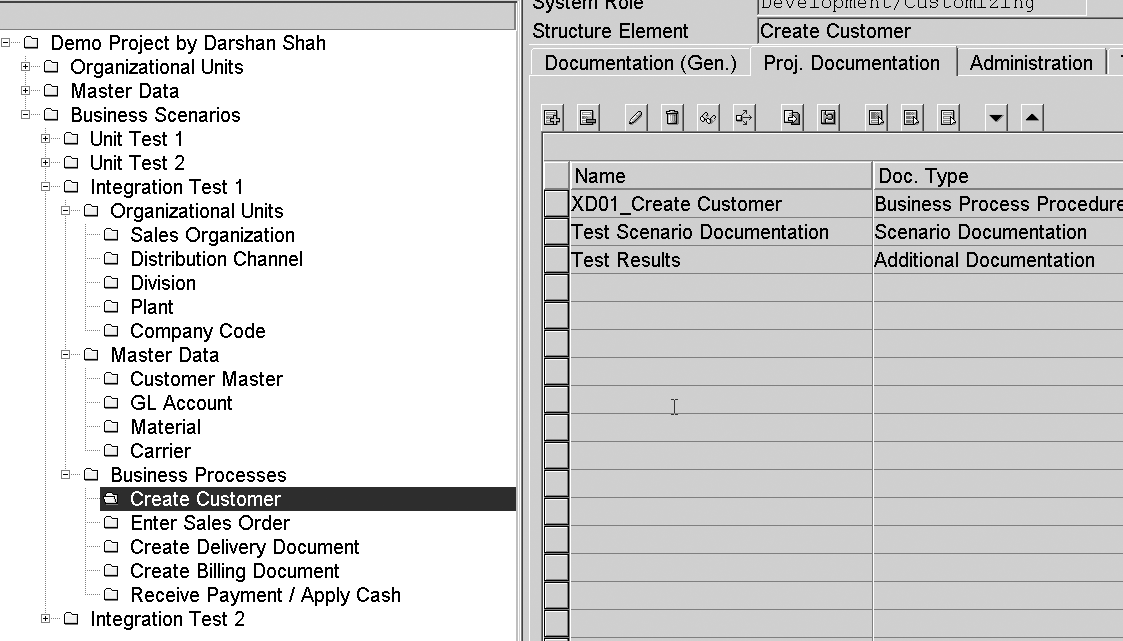
We found the documentation capabilities were not particularly great in the above approach and we could not store the test results the way we wanted to. As an alternative approach, we created a unique hierarchy for each unit and integration testing, as shown in Figure 6. We were then able to store all kinds of documentation for our test processes.
You can also create a Computer Aided Test Tool (CATT) or Extended CATT and link it to Solution Manager test cases to execute the test transaction. In my view, the Test Organization tool with CATT is more useful for post- implementation testing needs such as application of patches, upgrades, and functional enhancements.
Tip!
As there is no predefined process to manage the technical implementation using the Solution Manager, you can build the technical project structure in Solution Manager, just like any other functional area. You can divide the structure into forms, reports, enhancements, SAP notes, etc., and manage the development process effectively.
Project Analysis and Reporting
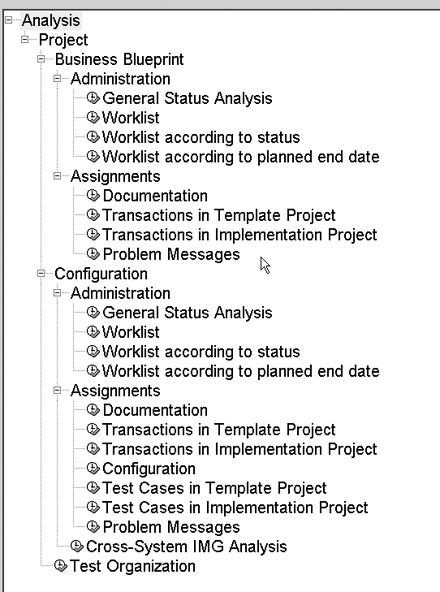
As shown in Figure 7, the Project Analysis feature has a prebuilt reporting structure to generate project management reports. We ended up using the Documentation node a lot for analyzing the status of documents stored in Solution Manager.
You can visit https://service.sap.com/solutionmanager for more information if you have a customer/partner login (OSS user id and password).
Darshan Shah
Darshan Shah is a platinum solutions consultant with itelligence Consulting. itelligence is a leading global mid-market SAP provider that offers a full scope of SAP services, including SAP consulting, licensing, managed hosting, customer support, and education. It is one of only 12 consulting firms to earn SAP Global Partner status and one of only six to earn SAP Global Hosting Partner status. With an MBA degree in finance, Darshan has managed and implemented several SAP projects over the last nine years in North America and Asia. He has extensive experience in designing and implementing solutions in conjunction with SAP. He is skilled in helping clients to make strategic decisions for overall ERP implementations.
You may contact the author at Darshan.shah@itelligencegroup.com.
If you have comments about this article or publication, or would like to submit an article idea, please contact the editor.





 Premium