SAP ERP HCM users demand a flexible and fully navigational organizational unit input help in their reports. Learn about some flexible help methods that have a variety of advantages over the simple basic organizational unit F4 help. See how to incorporate them in SAP ERP HCM reports.
Key Concept
SAP ERP HCM provides a number of useful macros. Two examples are macros RHX-F4-OBJID-LOW and RHX-F4-OBJID-HIGH. If appropriate values are passed for parameters along with prior coding, they can be used to create a flexible input help for organization unit in reports. In addition, function module RHP0_POPUP_F4_SEARK, used in programs with appropriate values supplied for importing parameters, gives a similar effect.
When creating SAP ERP HCM reports, there may be a requirement for providing the organizational unit as an input field. The basic F4 help for an organizational unit has a number of limitations; for example, it does not allow multiple selections or sub-tree (an organizational unit and its component organizational units) selection. Users usually prefer to have a fully navigational organization hierarchy to use when inputting the information for their reports. Moreover, they like to select an entire set of organizational units as well as an entire sub-tree from the organizational hierarchy.
I provide an explanation of the available two methods for providing such a flexible input help for the organizational unit using macros and a standard function module. First, I cover the limitations of the basic F4 help for the organizational unit field. Then I discuss how the user-friendly help works and its advantages over other methods. I dive into the details of the two approaches and the relevant coding involved, as well as giving detailed step-by-step instructions of the two methods.
In addition to SAP ERP HCM functional and technical experts, the article is also intended for SAP ERP HCM users who wish to make their reports more user-friendly and who may not be aware of the options offered by F4 help. Once they learn more about this functionality, they can use the knowledge gained get the most from their SAP ERP HCM systems.
Limitations of the Basic Organizational Unit Search Help
The ordinary search help F4 (help) for organizational unit is displayed as a result of the SELECT-OPTIONS statement (Figure 1).

Figure 1
Declaring select options based on organizational unit
The corresponding search help for the above coding is shown in Figure 2.

Figure 2
Ordinary search help
This has a number of disadvantages, particularly when used for a SELECT-OPTIONS statement when multiple selections of organizational units are desired. The hit list is simply a list of all the organizational units code and text without any hierarchical representation (i.e., it does not contain additional information, such as where each department falls in the organization and how the reporting structure is laid out). Moreover, the F4 help list for organizational units only allows selection one at a time, which is tedious.
Flexible and User-Friendly Input Help
A more user-friendly and efficient organizational unit search than the F4 help option is shown in Figure 3.
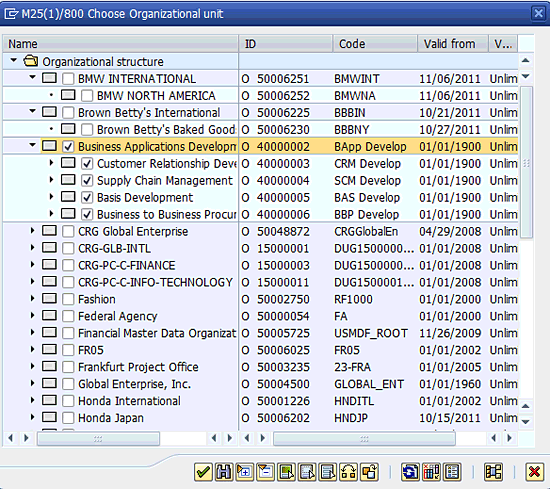
Figure 3
User-friendly search help for organizational unit structure
This search help option has a number of advantages:
- A fully navigational company hierarchy of organization units is available to the user along with the codes and the description, thus making the F4 help more user friendly and robust.
- Check boxes are provided for selecting multiple organization units. This relieves the user from the burden of entering values one by one.
- In addition to multiple selection, a whole subtree selection is also possible for a given organization unit. If users want to select a whole subtree within a particular organizational unit (i.e., all the organizational units within it), they simply select the root organizational unit and click the select subtree
 icon. This adds check boxes to all the units — subtrees — contained within the organizational unit in question.
When the selections have been made, the appropriate organizational units have a selected check box added in front of their names. When you press Enter, the object IDs of all the selected units are transferred to the select option’s multiple selection tab for Select Single Values (Figure 4), and the message “Object ID(s) transferred” is displayed (not shown in Figure 4).
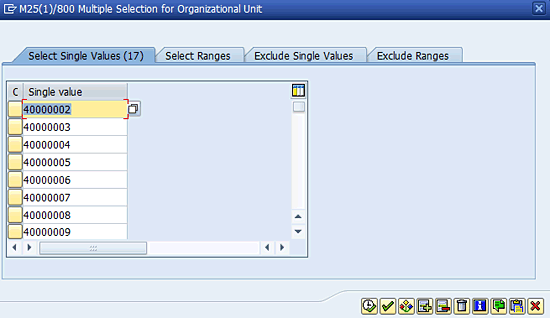
Figure 4
Multiple IDs transferred to Select Single Values tab
In the next sections, I show you in detail the two ways of providing flexible search help: the macros approach and the function module approach.
Approach 1 – Using Macros
The first approach is to provide the F4 help for an organizational unit using standard SAP macros. The two macros used are RHX-F4-OBJID-LOWand RHX-F4-OBJID-HIGH, which are stored in the standard RHXMACRO include program. You need to call the macros for providing the F4 help for the low and high fields of the select option. Apart from the include definition, a number of other statements need to be added to the program before the macro call can be made. Let’s take a closer look at the various steps required in writing the coding for this requirement.
Step 1. Add NO-DISPLAY parameters in the program (Figure 5). These are necessary for the correct functioning and display of the F4 help. These are for the object type (OTYPE) and the plan version (PLVAR).

Figure 5
Declaring the no-display parameters
Step 2. Use the RHXMACRO include program and declare the necessary data variables. You write the include statement for the RHXMACRO include program (Figure 6). Also, a data variable, SUBRC, having type SYSUBRC (return code) is needed as it is used in the macro code. In addition, you also call the macro RHX-F4-OBJID-DATA.

Figure 6
Declaring necessary variables and include program
Step 3. Initialize the plan version and object type parameters declared in the first step (Figure 7). The active plan version (01) is specified along with the organizational unit object type (code O).

Figure 7
Initialization code
Step 4. Call the RHX-F4-OBJID-LOW macro. Write the macro call for RHX-F4-OBJID-LOW within the AT SELECTION-SCREEN ON VALUE-REQUEST event for the low field of select option S_ORGUNT (Figure 8). You supply the plan version, the object type and the select options as parameters to the macro.

Figure 8
Calling the F4 help macro
Note
The code in Figure 8 only displays F4 help for the low field. If you need the F4 help to function for the high field of the SELECT option, call the RHX-F4-OBJID-HIGH macro for the VALUE REQUEST event or the S_ORGUNT-HIGH field.
The complete code listing for this approach is shown in Figure 9.
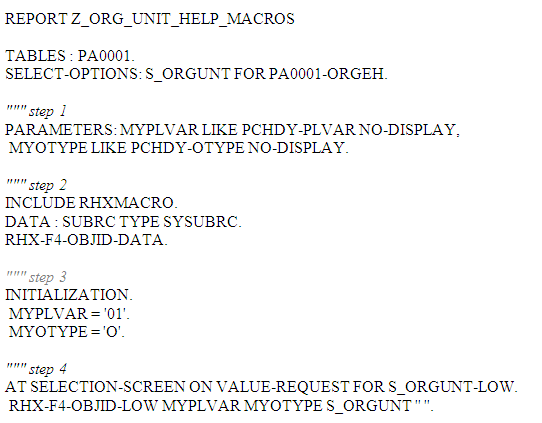
Figure 9
The complete code for the macros approach
Approach 2 – Use Function Module RHP0_POPUP_F4_SEARK
Another easy approach is using the function module RHP0_POPUP_F4_SEARK, which can be used for a number of organizational objects. In this case, it is being used for the organization unit (O). The function module has a number of importing parameters to fulfill the requirement:
- Plan version PLVAR. For this you supply the active version (01).
- Organizational type OTYPE. This parameter is for the organizational type under consideration. In this case you pass the value O for this parameter (the organizational unit).
- MULTI_SELECT. This one-character parameter allows you to specify whether multiple organization units (and their subtrees) may be selected by the user from the F4 help display. A value of X denotes yes.
- SEL_TAB. This is the internal table in which the selected values (object IDs of the organizational units) are returned to the program.
A typical code dealing with the requirement is shown in Figure 10.
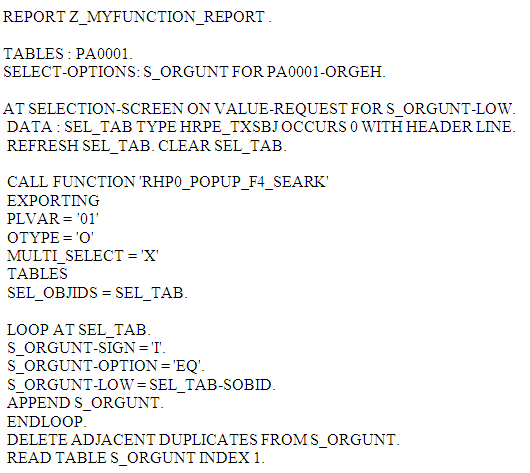
Figure 10
The complete code for the function module approach
On the AT SELECTIONSCREEN event, you first declare the internal table SEL_TAB is to be used for storing the select object IDs. This declaration is made according to the type specified within the function module. The function module is then called, supplying the necessary values for the three parameters PLVAR, OTYPE, and MULTI_SELECT (Figure 10). After you have made your selection, the values are returned in the internal table SEL_TAB. Run a loop at the SEL_TAB internal table and populate your select options internal table S_ORGUNT by adding them as selected single values. Any adjacent duplicates are deleted from table S_ORGUNT and the first entry in the tab is read in the header row.
Rehan Zaidi
Rehan Zaidi is a consultant for several international SAP clients (both on-site and remotely) on a wide range of SAP technical and functional requirements, and also provides writing and documentation services for their SAP- and ABAP-related products. He started working with SAP in 1999 and writing about his experiences in 2001. Rehan has written several articles for both SAP Professional Journal and HR Expert, and also has a number of popular SAP- and ABAP-related books to his credit.
You may contact the author at erpdomain@gmail.com.
If you have comments about this article or publication, or would like to submit an article idea, please contact the editor.





 Premium