Learn how to configure the daily work schedule variant for the absence and attendance in SAP Time Management. Depending on the absence or attendance type, a special day, or different time parameters, an employee’s daily work schedule can be changed automatically without putting substitution records into infotype 2003.
Key Concept
The daily work schedule absence functionality in SAP ERP HCM Time Management is a handy way to make the process for eliminating manual substitution records automatic. With this functionality, the system is able to easily adjust daily work schedules according to absence type and different time parameters.
Most SAP ERP HCM users would like the option to create flexible work schedules without putting substitution records into an employee’s infotype 2003. It is possible to generate an automatic daily work schedule according to absence type using a daily work schedule variant for absence or attendance configuration. I show, with step-by-step instructions, how to make work schedules flexible based on attendance and different time parameters.
Note
Readers of this article need to have an understanding of the basic concepts of SAP ERP HCM attendance, absence, and daily and periodic work schedules, and also of the time evaluation configuration setting in SAP ERP Central Component (ECC) 6.0.
Under standard work schedule configuration, absentee hours can be recorded either as equal to or less than standard daily work schedule hours. Absence hours cannot be recorded as more than the standard daily work hours. In other words, if an employee has an eight-hour daily work schedule, he or she cannot be absent for 10 hours (or any amount over eight). It is also possible to override the daily work schedule by adding the substitution records into infotype 2003 manually, but this method is beyond the scope of this article. The SAP ERP HCM system provides a flexible and strong option that you can configure to resolve these scenarios by using a daily work schedule variant for the attendance and absence in SAP Time Management.
This article illustrates how to use a daily work schedule variant for absence type. Before going any deeper into the details, here is a brief overview of the daily work schedule and the periodic work schedule functionalities.
A daily work schedule is a rule that indicates how many hours the employee has planned working hours for a given day. For example, an employee’s daily planned work schedule for Mondays is between 8:00 a.m. and 4:00 p.m., with a one-hour break. The employee’s daily planned working time (in this example, Monday) shows the ordinary one-day working hours with start, end, and break time range so that this employee works a defined time frame on Mondays.
If the working conditions are exactly same for multiple days, then this one daily work schedule can be used for multiple days because all of the working days’ start, end, and break times are exactly the same. What happens, however, if on Saturdays the employee has a different daily work schedule—for example, one with only one planned working hour between 8:00 a.m. and 12:00 p.m., and with no breaks? In that situation, a different daily work schedule must be created and assigned for Saturdays because the working conditions and times are different than for the other days.
Periodic work schedules show the employee’s work schedule that occurs in the sequence of the daily work schedule and it repeats after a determined period of time. For example, Monday to Friday the employee works between 12:00 and 17:00, which is five hours a day, but the employee has a day off on Saturdays and Sundays. This one-week periodic work schedule is a combination of the seven single daily work schedules. This periodic work schedule repeats week to week; this is because the employee has the same periodic work schedule every week.
In order to cover different customer work schedule requirements as described using the following examples, it is important to know how to make this process automatic under these specific conditions and using daily a work schedule variant for absence. For example, in a real business scenario an employee’s contract states that when the employee works a full day, their attendance should be recorded as 10 hours (e.g., nine hours of work with a one-hour break). If an employee is absent, however, their absence is recorded as nine hours because, in the time evaluation process, for every 10 hours attendance an employee earns a one-hour absence quota. If cases of employee absences, for that day there is no one-hour leave quota generation, just an absence record of nine hours. It is very hard to control this process manually by putting substitution data into infotype 2003. I show you how to configure a daily work schedule variant for this scenario in the SAP ERP HCM system. The configuration steps of the daily work schedule variant for absence are very similar to attendance configuration.
When you record an employee’s absence day in infotype 2001 (absence), the SAP ERP HCM system automatically refers to the planned working hours in the relevant daily work schedule to bring the absence hours from the related daily work schedule. Therefore, when you put a full-day absence into infotype 2001, the system automatically brings the employee’s working hours from the daily work schedule. The result is if the employee is absent for a full-day, his or her absence hours are the same as his or her daily work schedule.
By using daily work schedule variants for absence that are based on conditions such as weekends, different absence types, or public holidays, the SAP ERP HCM system is able to refer to a different daily work schedule. This means that if an employee is absent for a full day, their absent hours would be different than their daily work schedule. This is because the daily work schedule variant for absence configuration provides this flexible option.
Under certain employee agreements, the absence hours can be longer or shorter than the daily work schedule for absence or attendance purposes, such as calculating bonuses. In some business scenarios, an employee may have a special absence type that requires the employee to still be paid when absent, such as jury duty or national service (for example, being called up by the military). For this absence type, even though the employee does not work, the full-day absence’s hours would be flexible depending on different variant parameters. In this scenario, the absence hours are irrelevant to the employee’s daily work schedule because this is an external paid absence; therefore, the absence hours should be longer or shorter than the daily work schedule.
In the next section, I show how to:
- Create a daily work schedule variant (A and B)
- Assign the daily work schedule variant to the absence type
- Use a daily work schedule variant in absence
- Configure the system as required by the business in my example scenario
Configuration of the Daily Work Schedule Variant for Absence
To get started, follow this configuration menu path: SPRO > Time Management > Time Data Recording and Administration > Absences > Absence Catalog > Absence Counting > Set Daily Work Schedule Variant for Absence, which results in the screen in Figure 1.

Figure 1
Activities for the daily work schedule
Note
The scenario in article is used to help explain the daily work schedule variant for absence; however, it may not be legal in some countries and under certain agreements.
In the screen in Figure 1, double-click the Check Variants for Daily Work Schedule line. This opens the screen shown in Figure 2, where you create the new daily work schedule variant. (You can also access this configuration by executing transaction code SM30 to access table V_T550A.)

Figure 2
Define the new daily work schedule variant for Friday
You can create a daily work schedule variant in the screen in Figure 2. Select the grouping (Grpg) and the Daily work schedule (in this example, 13 and CHRR). You can use different variant names if you want; in my example, Variant A is the work schedule for Friday and Variant B is the weekend work schedule.
When you double-click on the Variant A line in the Daily WS text column (Figure 2), the screen in Figure 3 opens, where you define the daily work schedule variant A conditions. In this example, if the employee is absent on Friday, the planned daily work schedule is eight hours as indicated by variant A. This means the system is going to use daily work schedule variant A if the employee is absent on Friday.

Figure 3
Create a new daily work schedule variant (A) for service duty on a Friday
When you double-click Variant B (in Figure 2), the screen in Figure 4 opens, where you define the daily work schedule conditions for variant B. In this example, if the employee has an absence on a day other than Friday, then the planned daily work schedule is six hours as indicated by variant B. This means the system is going to use daily work schedule variant B if the employee is absent on any day other than Friday.
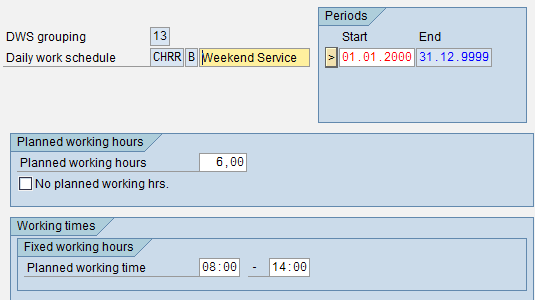
Figure 4
Create a daily work schedule variant (B) for service duty on weekends
Variant A is defined for Friday and Variant B is defined for any day other than Friday. This means that when you try to record absence data via infotype 2001, the default working hours are indicated as variant A/B. If the recording day is Friday, the absence hours are eight (which come from variant A). If the recording day is on a day other than Friday, the absence hours are six hours (from variant B). The next important step is to assign the absence type to the appropriate grouping.
Double-click the Assign Grouping for Daily Work Schedule Variant line (Figure 1), and the absence grouping screen shown in Figure 5 opens. Here you assign the absence type to the correct grouping for future steps. In this example, I assign absence type 2100 Jury Service to absence grouping 1.
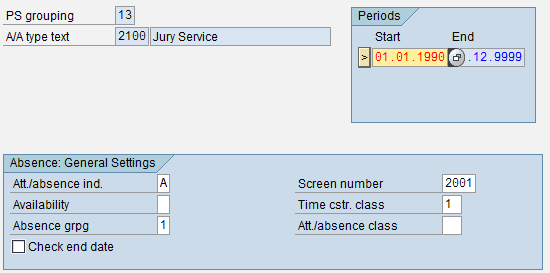
Figure 5
Assign absence type to absence grouping
Create Rules for Daily Work Schedules
The next step is to create the rules for the daily work schedule. Double-click the Create Rules for Daily Work Schedules line (Figure 1), which opens the Daily Work Schedule Rules screen in Figure 6. Here you are creating a rule for absence recording. There are different columns and different parameters that can be defined by the different columns as shown in the figure. An explanation for each column is detailed below.

Figure 6
The new daily work schedule rules for absence
GrpAtt/Abs (eligibility string for grouping of attendance/abs. types): Each attendance or absence type can be assigned an attendance or absence type grouping for the determination of daily work schedule variants in the customizing settings that were assigned to grouping 1 (Figure 5) In the eligibility string for grouping of absence or attendance type, which variant of the daily work schedule should be selected for which grouping can be specified. Each position of the 9-character field corresponds to groupings 1 to 9 (e.g., position 1 describes grouping 1, and so on). Enter an X at the position for which each rule is to apply. In this example (grouping 1), that means the first position has to have X in the Grp Att/Abs column.
Weekday (Eligibility string for weekdays): This string is used to determine the validity of the rules. This particular string shows the days of a week. Here a rule for one or more weekdays can be specified. The number 1 corresponds to Monday, and 7 to Sunday. The string can be used to specify the weekdays on which a specific rule should be processed, and the relevant weekdays should be flagged with an X. In this example, I want a rule to apply on Friday, so X has been put in position 5.
If the absence is on a Friday (position 5), use variant A for the corresponding absence grouping as defined by Rule number 01. If the absence is on any day other than Friday (position 5), then use variant B for the corresponding absence grouping, as defined by Rule number 02. In my example, the absence grouping is defined as 01.
Note
In order to use the work schedule for a certain period in infotype 0007(planned working time), daily work schedule CHRR must be assigned to a periodic work schedule. Then the work schedule must be generated for the right week.
The next step is to check the calendar. On October 1, 2012, which is a Monday, the employee is absent (Figure 7). This means the system records six hours as a full day based on variant B. If the employee is absent on Friday, October 5, 2012, then system records eight hours as a full day of absence based on variant A.
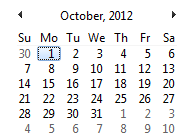
Figure 7
Calendar for recording absences
Create an Absence Record
The next step is to create an absence record for the employee. Execute transaction code PA30, select infotype 2001, and select the date (Monday 01.10.2012, in my example). Press Enter and the system automatically calls the daily work schedule variant B because the day is other than Friday and a full day absence is just six hours (Figure 8).

Figure 8
Create the Monday absence record
Follow the same process, but select 05.10.2012, which is Friday (Figure 9). According to the work schedule rule configuration, if the day absent is Friday, the system automatically uses daily work schedule variant A. That means the system generates default absence hours of eight hours for a full-day absence because the current day is Friday.
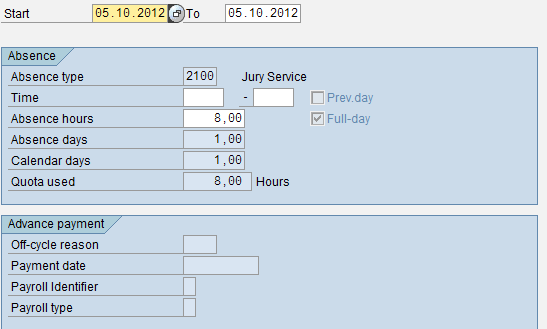
Figure 9
Create an absence record on Friday
Depending on the day of the absence, the system is able to automatically refer to different daily work schedule variants, which means that you don’t need to change the employee’s work schedule rule under certain conditions and that no substitution records are required. Therefore, the system calls the daily work schedule variant’s working hours in this absence screen. In this example, the absence day is Friday and the system automatically call the daily work schedule variant A, which is eight working hours. The normal working hours on Friday, however, was in fact six hours, but when absence is recorded, the employee’s working hours are changed automatically and the employee can be absent more than normal working hours. Finally, based on the absence type, the day, and other parameters, the SAP ERP HCM system can reference different daily work schedule variants automatically.
Yener Turkeli
Yener Turkeli has over eight years of experience working as an SAP consultant on SAP ERP HCM, Payroll, Time Management, and ABAP. He has completed several implementation projects including SAP Payroll, Time, upgrades, HR configuration, HR schema, PCR, and crucial integration. Yener has a broad consulting experience across a wide range of different fields, including the retail, cement, wholesale, textile, medicine, electronics, banking, food, software, mining, education, and telecommunication industries.
You may contact the author at y_turkeli@yahoo.com.
If you have comments about this article or publication, or would like to submit an article idea, please contact the editor.



 Premium