You can use personnel calculation rules (PCRs) for automatic calculation of employee payments or deductions when the calculation rule for the wage type depends on the payroll period. See how you can call a payroll period in a PCR to process a wage type for a particular payroll period during a payroll run. You can use PCRs to meet these types of payroll requirements.
Key Concept
The payroll period is queried in payroll for calculation purposes. You can use in-period or for-period values for automatic calculation of certain payments or deductions when the formula depends on the payroll period or the processing of the wage type is required only in the desired payroll period. The payroll period can be compared in a personnel calculation rule and the wage type can be processed according to company policy.
It’s not unusual for companies to change their payroll policies. For example, a company may revise the calculation formula from a particular date or payroll period for a payment or deduction wage type relevant for payroll. During payroll implementations, users frequently face a situation in which the processing of a wage type is dependent on the payroll period. I show you how to meet the requirements of processing a wage type when it depends on the payroll period (in-period or for-period) during payroll run.
You can use operation NUM = YCURPP in a personnel calculation rule (PCR) to call the current payroll period, but it doesn’t tell you the year of the payroll period; it just passes the period number. In addition, in this method, unlike the technique I explain in this article, the in-period and for-period information is not available, which can be a critical issue during payroll runs. In my example I have used operation CMPER to call the payroll period in a PCR. It is much more flexible and gives more choices to the user, including the in-period and for-period information, which is very important to have for payroll calculations.
Business Scenario
To illustrate this situation, I’m using wage type 6090, and the calculation formula changes from a particular payroll period (for example, from February 2011 on). The business requirement is to automatically calculate the amount in wage type 6090 using a different calculation formula from February 2011 on. The challenge here is that PCRs don’t have start and end dates. Therefore, users don’t have the option of copying the rule and writing a new formula for the new date that the company has determined the rule needs to implement going forward. This can be achieved, however, within the PCR by calling an operation for payroll period comparison.
Note
To aid in understanding this article, readers should have a basic understanding about PCRs, payroll schemas, and payroll subschemas. This article assumes that the reader knows how to create a PCR using transaction code PE02, to copy a standard schema using transaction code PE01, and to call a PCR there.
How to Process a Wage Type by Payroll Period
In this example, I show you how to use PCR Z002 for processing a wage type depending on the payroll period (Figure 1). Here I use PCR Z002 to meet a business requirement in which the amount of wage type 6090 needs to be calculated using a different formula from for-period February 2011 onwards.
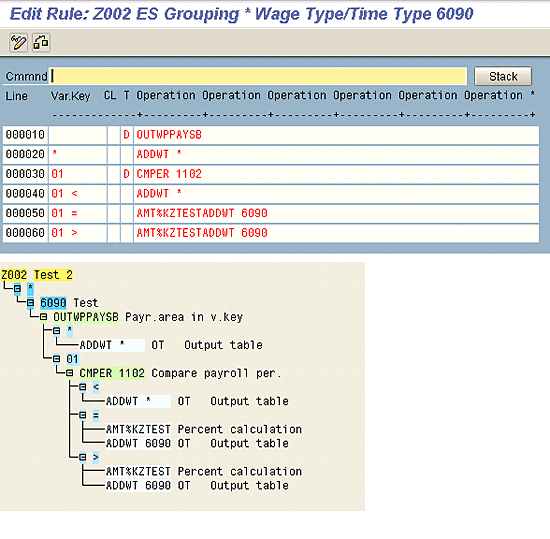
Figure 1
PCR Z002 to compare the payroll period
In Line 000010, I use operation OUTWPPAYSB to check the payroll area. This may be required when the same payroll schema is being used for multiple payroll areas in the company. This operation places the payroll area in the variable key. If a separate payroll schema is used for each payroll area, then you don’t need to call this operation in the PCR, as the payroll runs for one particular payroll area at a time.
I want this PCR to be processed only when the payroll area is 01. That’s why, in Line 000020, I entered *, which means that if the payroll area is not 01, then the system returns the amount back to wage type 6090 without changing it.
In Line 000030, I entered 01 in the variable key field to ensure that the payroll area is 01, followed by decision operation CMPER 1102, which compares for-period of the current payroll run with February 2011. The resulting symbol of this comparison (i.e., <, >, or =) is automatically entered in the variable key field during PCR processing in payroll run.
Line 000040 says that if the payroll area is 01 and the for-period is less than February 2011, then return the amount back to wage type 6090 without changing it.
Lines 000050 and 000060 say that if the payroll area is 01 and the for-period is equal to or greater than February 2011, then multiply the amount of wage type 6090 by the percentage maintained in the payroll constant ZTEST from table V_T511K and save the amount to wage type 6090 (Figure 2).

Figure 2
Payroll constant ZTEST in table V_T511K
Calling payroll constants in PCRs also helps you deal with the situation in which there is a change in value (i.e., rate, amount, or percentage) from a particular date. Since table V_T511K is date based, it’s easy to delimit the record and change the value as per company policy from any date.
Use Operation OUTWPPAYSB
What if the same payroll schema is used for various payroll areas in the company? If you have a situation in which multiple payroll areas are being processed in the same schema, then you can call operation OUTWPPAYSB to check the payroll area in the PCR. In Figure 1, you see that operation OUTWPPAYSB is called to make sure that the rule is being processed for the desired payroll area (i.e., 01, monthly, in my example). Similarly, if you have semi-monthly, bi-weekly, or weekly payroll areas as well, then you can write different rules based on the payroll areas.
Note
You should only use operation CMPER for regular payroll runs and not for off-cycle payroll runs, as off-cycle payroll runs are run on one particular date, not for a payroll period.
Use Operation CMPER (Comparison of Payroll Periods)
You can use operation CMPER to compare both in-period and for-period specifications in a PCR in three different variants:
- For-period comparison
- For-period comparison with the in-period
- In-period comparison
Variant 1: For-Period Comparison
The for-period is compared with the fixed values that you enter in digits in nn in the PCR.
If you use CMPER JJnn, then the year of the for-period is compared with the value entered in nn in the PCR. For example, if you use CMPER JJ08, the for-period for current payroll run is 06/2008. Therefore, since 08 = 08, = is placed in the variable key.
If you use CMPER MMnn, then the period number of the for-period is compared with the period number entered in nn in the PCR. For example, if you use CMPER MM02, the for-period for the current payroll run is 01/2009. Therefore, since 01 < 02, < is placed in the variable key.
If you use CMPER nnnn, then year and period number of the for-period are compared with the values entered in nnnn in the PCR. Values of nnnn = yymm (i.e., year and period number). For example, if you use CMPER 1102, then the for-period for current payroll run is 01/2009. Therefore, since 0901 < 1102, < is placed in the variable key.
Finally, if you use CMPER MMB, then the period number of the for-period is compared with the basic month for the special payment in the public sector.
Variant 2: For-Period Comparison with the In-Period
In this variant, the for-period is compared with the in-period values.
If you use CMPERRJJ, then the year of the for-period is compared with the year of the in-period. For example, is you use CMPERRJJ, the for-period is 06/2008 and the in-period is 01/2009. Therefore, since 08 < 09, < is placed in the variable key.
If you use CMPERRVJ, then the year of the for-period is compared with the previous year of the in-period. For example, CMPERRVJ, the for-period is 06/2008 and the in-period is 01/2009. In this case the previous year of the in-period would be 08. Therefore, since 08 = 08, = is placed in the variable key.
If you use CMPERRMM, then the period number of the for-period is compared with the period number of the in-period. For example, if you use CMPERRMM, the for-period is 06/2008 and the in-period is 01/2009. Therefore, since 06 > 01, > is placed in the variable key.
Variant 3: In-Period Comparison
In this variant, the in-period is compared with the fixed values that you enter in digits in nn in the PCR.
If you use CMPERRJJnn, then the year of the in-period is compared with the nn of the current payroll run. For example, if you use CMPERRJJ07, the in-period is 06/2008. Therefore, since 08 > 07, > is placed in the variable key.
If you use CMPERRMMnn, then the period number of the in-period is compared with the nn of the current payroll run. For example, if you use CMPERRMM07, the in-period is 06/2008. Therefore, since 06 < 07, < is placed in the variable key.
If you use CMPERRVJnn, then the previous year of the in-period is compared with the nn of the current payroll run. For example, if you use CMPERRVJ07, the in-period is 06/2008. In this case the previous year of the in-period would be 07. Therefore, since 07 = 07, = is placed in the variable key.
Use PCR Z002 in a Payroll Subschema
I used PCR Z002 in a subschema using the function Process Input Table (PIT). This function calls a PCR to process wage types in the input table (Figure 3).

Figure 3
Using PCR Z002 in a subschema
Now I run the payroll for payroll period 09/2012. I used payroll area 01 and payroll schema Z000 (Figure 4).

Figure 4
Payroll run for payroll period 09/2012
Since the PCR was for wage type 6090, the rule has been processed for this wage type during the payroll run, and the for-period (i.e., 09/2012), is being compared with 02/2011 (Figure 5).

Figure 5
Payroll log of PCR Z002
First the rule checks the payroll area using operation OUTWPPAYSB and places the value in the variable key. Then the rule compares the for-period. Since September 2012 is greater than February 2011, > is placed in the variable key. Figure 6 shows the value of the wage type 6090 that is calculated as a result of PCR Z002.
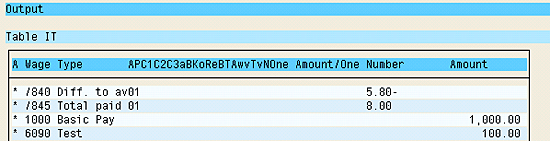
Figure 6
Payroll log showing calculated amount of wage type 6090
These example scenarios are relevant when the wage type needs to be processed internally during the payroll run and the calculation formula is changing from a particular payroll period. This would occur, for example, when in a particular payroll period more than one wage type is included in the calculation formula instead of just one. I have used a fairly simple PCR example to illustrate my points. You can use it as your basis for more complex calculations during payroll implementations, if required.
Shariq Badar
Shariq Badar has a master’s degree in business administration from Institute of Business Administration (IBA), Karachi, Pakistan. He started his career with Siemens Pakistan as an SAP HR consultant in 2001. He has implemented SAP HR modules, including Payroll, at many projects in Pakistan and the Middle East.
You may contact the author at shariq.badar@gmail.com.
If you have comments about this article or publication, or would like to submit an article idea, please contact the editor.