Understand the features of SAP Yard Management. See some configuration tips, and peek into its interface, scheduling, and integration capabilities.
Key Concept
Yard Management (YM) is a module in which various modes of transportation, such as trucks and containers, are parked and moved. This can occur before or after freight unload or when load activity is complete in a warehouse, plant, or distribution center. YM involves managing the yard activities to synchronize them with warehouse operations to ensure that you load and unload product at the right time. YM also makes sure that you are able to track inventory outside of your warehouse.
It is not uncommon for companies to use paper-based yard tracking. A typical yard management process starts with a
guard registering the trailer and driver information on paper and allocating a spot in the yard based on a visual layout.
The guard passes this information either manually or via email to the inbound and outbound operations, which uses the
information for dock management. Communication, large data volume, information lag time, lack of visibility, additional
labor requirements, and regular spot checking are some of the key challenges in the process of managing the yard and
identifying the inventory.
SAP provides YM functionality as part of Warehouse Management (WM) Extension Set 2.0 for R/3 Enterprise to handle
many of these challenges. This functionality is also available with SAP ERP Central Component (ECC). SAP Yard Management
(YM) tracks trailers, improves receiving dock operations, and provides inventory visibility. As many may not be familiar
with this relatively new technology, I’ll help you understand the YM architecture and some of its key features and
then show you some quick configuration tips. I’ll also look into the tool’s scheduling capabilities, its
visibility and interface, and finally its integration with other parts of your SAP system.
YM Architecture
YM is based on an organizational-level yard that is linked to the warehouse. YM is structured with several yard
objects that are represented as handling units (HUs). For example, a container can represent one HU that is part of a
higher-level HU called transportation equipment. There are logical connections between warehouse components, such as doors
and staging areas. These connections assist in scheduling and dock management. Some of the components of HUs are yard
locations, parking spaces, check points, weighing points, and transportation equipment.
Figure 1 illustrates the yard activities and what they look like in YM. Movement within the
organizational components is designated by activities such as check in and check out, load and unload start and finish,
scheduling, weighing, and seal and unseal. This is how a typical yard operates, but it could differ from one company to
another.
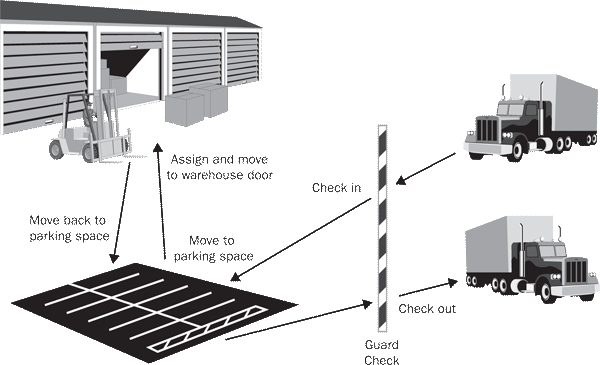
Figure 1
Typical yard organization and activities
These activities are available as standard options, but their advantages are subject to business rules.
For example, in some retail distribution centers the weighing activity is not important, so you can skip it in the system
design. In a labor management-driven distribution center, the “move to parking space” and “move to
warehouse door” activities help track productivity for yard jockeys. You can choose which activities to deploy based
on business requirements.
YM Functionality and Features
SAP YM functionality focuses on several important requirements. Here are four features and ways you can
use them to achieve better yard management.
- Improved door scheduling. You can assign trailers in advance as appointments using a
visual scheduling matrix.
- Efficient receiving dock management. You can assign trailers to doors closer to put-
away zones (if you’re using stock placement strategies).
- Inventory visibility in the yard. You can use the yard monitor to check what Advanced
Shipping Notification (ASN) documents are in the yard and on which trailers. You can also view ASN details from the same
report to get down to SKU-level information.
- Radio-frequency (RF)-operated transactions. If you can extend your wireless network to
the yard, you can carry out trailer movements from the parking space to door, and check-in and check-out processes via
standard RF transactions. This provides real-time information and accountability.
Now let me share some tips for configuring YM.
YM Configuration
To access the YM configuration follow IMG menu path Logistics Execution>Yard
Management. Some of the master configuration parameters include defining the yard, yard activity number ranges,
vehicle HU number ranges, and the yard map (doors, locations, and staging areas). It is important to complete master
configuration settings to develop the yard map in the system. The base configuration, which I’ll describe next,
helps connect YM to WM.
Note
In the IMG, vehicles are defined as HUs with packaging materials defined for vehicle types.
Basically, you must follow three steps to set up YM to exchange data with WM. These steps
are not difficult to understand, but they require joint participation of business and IT resources to define the rules and
configure accordingly.
Step 1. Define location groups. Follow menu path Logistics Execution>Yard
Management>Location Determination and Scheduling>Define Yard Location Group. In the Yard location groups
section, you can group doors that can best service a storage type within the warehouse. In Figure 2, I
created a location group 001 for doors to service storage type 002. For an example
location group, imagine that your warehouse has certain doors that are closer to bulk locations where you receive bulk
product deliveries. You would group these doors together (location group 001) so that trucks arriving
with bulk product are assigned to these doors first.

Figure 2
Define location group 001 for doors to service certain storage type
Step 2. Assign storage types to location groups. Follow menu path Logistics
Execution>Yard Management>Define Yard>Assign Storage Types to Yard Location Groups. Attach the
storage types to the yard location group you created in step 1. In Figure 3, I assigned location group
001 to storage type 002. In step 1, I organized bulk doors in a group. In step 2, I
assign that group to the bulk storage type so that the bulk product remains close to the bulk section warehouse (storage
type 002).

Figure 3
Assign location group to storage type
Step 3. Define yard location group relationship. Follow menu path Logistics
Execution>Yard Management>Location Determination and Scheduling>Define Location Group Relationships.
This allows you to specify if the location group can be used for inbound (receiving), outbound (shipping) operations, or
both (Figure 4). In steps 1 and 2, I associated bulk doors with the bulk storage area. This step allows
you to determine the loading and unloading operations based on the layout of your facility. If you want to perform loading
and unloading operations from the same doors, then you can assign them as both inbound and outbound. You can choose to use
different doors for unloading and loading processes, and then create two location groups, attach them to the storage type,
and assign one group as inbound and the other as outbound.

Figure 4
Define properties for door location group
Completing these three steps allows you to automate and organize the flow of product in the building. The
complete YM configuration is quite extensive, including more processes such as definition of external storage locations,
location determination and scheduling rules, parking spaces, check points, and weighing points. A comprehensive coverage
of a YM configuration is beyond the scope of this article.
Scheduling Tips
YM comes with a standard appointment scheduler, which you can use to schedule carrier appointments in
advance for inbound or outbound shipments. It provides a graphical representation of scheduled activities and allows users
to change the duration of a scheduled activity or move it forward or backward in time. I recommend that you identify doors
carefully as inbound, outbound, or both so the scheduler can automatically assign doors. Figure 5 shows a
sample scheduling grid.
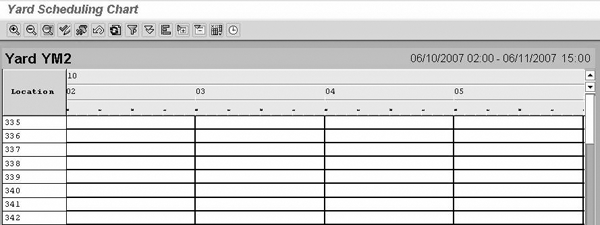
Figure 5
Yard Scheduling Chart with the doors listed at the top and times listed on the left
Visibility Tips
YM allows you to change the status of inbound and outbound delivery. When a guard checks an inbound
delivery in the yard via the check-in screen, the system can trigger a message to the planning system that confirms that
the inbound delivery is in the plant. Figure 6 shows the check-in process. When the guard checks a
delivery at the check point, the system flags the in-plant status on the delivery header in table LIKP.
The system then sends an IDoc to the host system with the in-plant status. You have to set up an IDoc as part of the YM
configuration, but it is beyond the scope of this article.

Figure 6
Check-in screen
You can see this status in the In Plnt field of the delivery using the standard delivery
monitor VL06I>List Inbound Deliveries>Selection Screen>Enter Delivery Number>F8 Execute
(Figure 7). Here you create a selection variant that displays the In Plnt field.
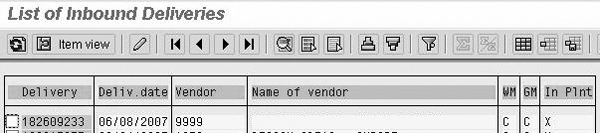
Figure 7
In-plant status in inbound delivery monitor
Mobile RF Interface Tips
Although YM handles the information flow at process points — such as the check point, receiving
office, or shipping office — it is important to automate the activities in the yard to avoid the paper log.
Automated yard activities provide real-time information that helps to eliminate the communication and administrative lag
time. For example, from the check point you can direct a vehicle in the yard to a parking space via an RF interface. Use
transaction LPYRD. Figures 8 and 9 show the main screens for this
process. For example, in Figure 8 you can select option 3. Move and then in Figure 9 you enter the
information for the vehicle you want to move. This enables real-time information gathering and reporting. You can use any
standard RF device within the warehouse — the most popular are Symbol and Intermec RF devices.

Figure 8
Mobile RF main menu for YM
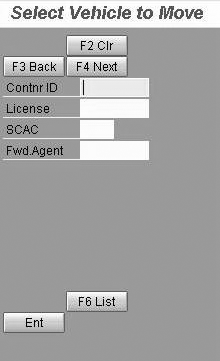
Figure 9
Mobile RF screen to move a vehicle
Integration with Other SAP Components
For existing SAP customers, YM integrates with the Shipping and Transportation modules for vehicle check
in and check out or for load start and load finish activities to update the shipment status and dates. You can trigger
load start and load finish activities through the yard monitor or the mobile RF menu (the option 6.
Load/Unload in Figure 8). YM also integrates with cross-docking functionality for inventory in the yard with
flexibility to execute cross-dock decisions from inbound deliveries or re-assign the picks to the warehouse. Planned cross-
docking influences door determination and location scheduling.

Ashish Saxena
Ashish Saxena is senior manager, supply chain execution, at Amazon. He was previously a senior director at Cognizant Technology Solutions and associate partner at IBM’s Supply Chain practice. He has more than 14 years of experience, including working in supply chain strategy, planning, execution, and technology in multiple industries.
An SAP SCM planning and execution subject matter expert, Ashish has been working with SAP for more than10 years, and has successfully delivered several large-scale global SAP projects. He has helped transform supply chains in wide range of industries, including automotive, retail, energy, consumer products, third-party logistics, and pharmaceutical sectors. His most recent focus is on supply chain digitization and analytics.
In addition to advising and contributing to SCM Expert, Ashish is a regular speaker at the SAPinsider SCM conference. For information on other SAPinsider conferences, click here.
You may contact the author at ashish.saxena@us.ibm.com.
If you have comments about this article or publication, or would like to submit an article idea, please contact the editor.


 Premium