See how to plan cost center activities automatically with driver-based planning. Learn how it works in both manufacturing and service departments.
Key Concept
Driver-based planning is a best practice in the manufacturing industry, in which companies often use the sales plan as a starting point for the production plan and the production plan to determine cost center capacities. Companies in the service industries also use driver-based planning increasingly, in which instead of a physical quantity of goods to make and sell, a bank might plan the clerical hours required to handle the loan applications it hopes to handle in a given region or the clerical hours required to process the new credit cards that it hopes to issue in the next budgeting period.
Many organizations consider driver-based planning a way to improve their operational planning. The objective of driver-based planning is simple enough — to provide a more accurate picture of expected future business performance by planning and monitoring the key operational activities that drive these results. However, achieving this objective can require you to reconsider the way you approach planning. In driver-based planning, you do not start the planning process with the monetary values for the period, such as dollars per line of business. Instead, you start with the drivers in sales and production, such as the sales quantities and production quantities, and use these to calculate how much work you’ll need to put in to meet your targets.
Ultimately, the amount of work required brings you to the capacity per resource, whether this is a cost center supplying machine time or a call center providing clerical hours. You then plan your expenses against these drivers to calculate the resources you will consume on each cost center to execute your plan.
In a series of two articles, I’ll walk you through driver- based planning in manufacturing and service environments. In the first article, I will show how to use drivers that already exist in routings and recipes to plan the activities required for each cost center automatically. You then can calculate an activity rate based on this input in a manufacturing environment and value the sales plan with the standard costs for each product to be sold. In the second article, I will show how to set up templates to access the drivers that do not exist in routings or recipes to plan activities, such as loan applications in a service environment, or to replace manufacturing overhead with a driver- based allocation. I’ve developed this process in mySAP ERP Central Component (ECC) 6.0.
Enter Drivers in the Sales Plan
In a manufacturing environment, routings and recipes can provide the key to accurately planning the activities provided by a manufacturing cost center. Just as a reminder, the routing lists the standard values for each operation required to produce a given lot size of a material. Planning in this type of environment typically starts with the sales plan in Profitability Analysis (CO-PA), where each sales manager plans the number of finished products he expects to sell to customers in the next budgeting period.
I’ll now show you a sample planning layout in CO-PA with the planned values for product F1000-M1 and customer 100000. Note that owing to the fact that you generate the operating concern for CO-PA on site, you only find the planning levels, methods, and layouts shown here in your own system if you are working with a preconfigured best practice system. To access profitability planning in ECC, use transaction code KEPM or follow menu path Accounting > Controlling > Profitability Analysis > Planning > Edit Planning Data and enter the operating concern. Then, in the Planning levels part of the screen (upper left), choose the planning level ZPL1 (Forecast Sales Qty) and then the planning package ZPP1 (Forecast Sales Qty). The planning package contains all of the parameters that you plan against in the steps that follow (Figure 1).
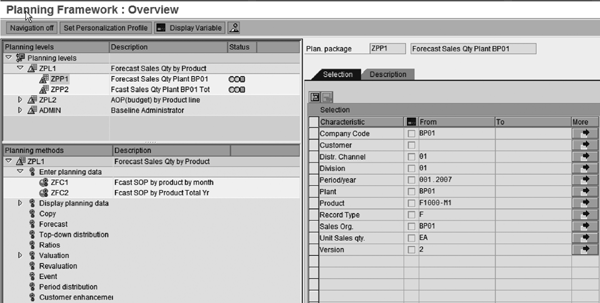
Figure 1
Figure 1 Planning package for CO-PA planning
Choosing the planning package activates the planning methods in the lower left part of the screen. This includes both planning methods for data entry (to input your sales quantities) and for displaying planning data (for example, once you have valuated your sales plan, as I will show you how to do at the end of the article). To input planning data, choose Enter Planning Data and the planning layout ZFC1 (Forecast SOP by Product). In my example, I’m using a Microsoft Excel planning layout. Therefore, an Excel sheet appears in which I can enter my driver quantities for the sales plan when I choose Enter Planning Data (Figure 2). It is also possible to use planning layouts created in ABAP List Viewer (ALV) to enter the same data.
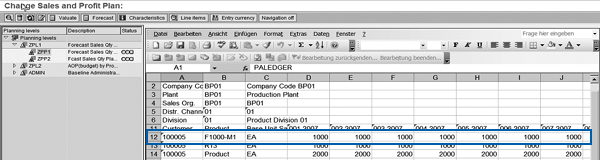
Figure 2
Figure 2 Sales plan in CO- PA
The data entered in the planning layout in CO-PA tells you what products the organization hopes to sell to each customer and provides the starting point for calculating how many lots of each product it must produce to supply this demand. If the product involves multiple stages of production (semi-finished products or intermediates), the production plan not only reads the sales quantities from CO-PA, but also reads the bill of material (BOM) for each product to determine which semi-finished products or intermediates you’ll require and which raw materials you’ll need to purchase to meet the sales plan.
To create a production plan, you have to transfer the sales plan to production. Before doing this, you need to create a planning scenario that combines all of the parameters used in long-term planning. To do this, use transaction code MS31 or follow menu path Logistics > Production > Production Planning > Long Term Planning > Planning scenario > Create. Give the planning scenario a name and specify that it is for Long-term planning. I’ll return to the data in this scenario to transfer the planned activity quantities to Cost Center Planning later on.
Now assign a version for the independent requirements using the Planned Independent Requirements button and a plant using the Plants button. Check the parameters proposed by the system and release the planning scenario for use in planning using the Release + Save button (Figure 3).
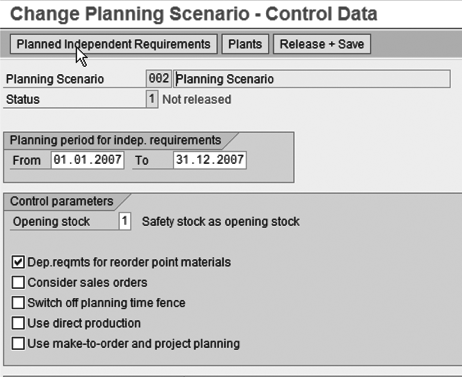
Figure 3
Planning scenario details
After you create the planning scenario, you should run this scenario by using transaction code MS01 or following menu path Logistics > Production > Production Planning > Long Term Planning > Long-Term Planning > Planning Run. Enter the planning scenario you just created and the plant, then press Enter (Figure 4). Figure 5 shows the results of the production plan, including the material F1000-M1.
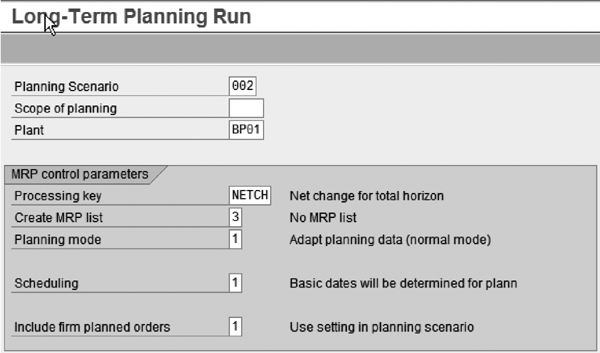
Figure 4
Long-term planning initial screen
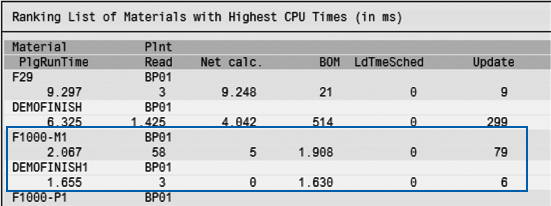
Figure 5
Generated production plan
Derive Activity Quantities Using the Production Plan
In planning terms, the organization now knows how much of each material (whether finished product or raw material) it must manufacture or buy to meet its sales targets. Because each material also has a routing or recipe, the organization can also determine which operations it must perform and thus whether each machine can meet these targets.
At this point, the process returns to CO with the transfer of the scheduled activity from long-term planning in production to Cost Center Accounting (CO-OM-CCA). The scheduled activity is the amount of machine hours, labor hours, and so on that the company needs to manufacture a given volume of the material according to the routing. The system calculates this figure by using the standard values in the routing and formulas in the work centers. Assuming that the routings or recipes are accurate, the system can calculate these drivers automatically during the creation of the production plan and simply transfer them to the cost center plan as a scheduled activity.
To transfer the activities from the production plan to Cost Center Planning, use transaction code KSPP or follow menu path Accounting > Controlling > Cost Center Accounting > Planning > Planning Aids > Transfers > Scheduled Activity SOP/LTP. Enter planning Version 2 and the time frame — Period 1 To 12 in Fiscal Year 2007 — as shown in Figure 6. Before you run the transfer, check the parameters by clicking on the Transfer control button in the initial screen. Planning is time-dependent, so choose the appropriate fiscal year.
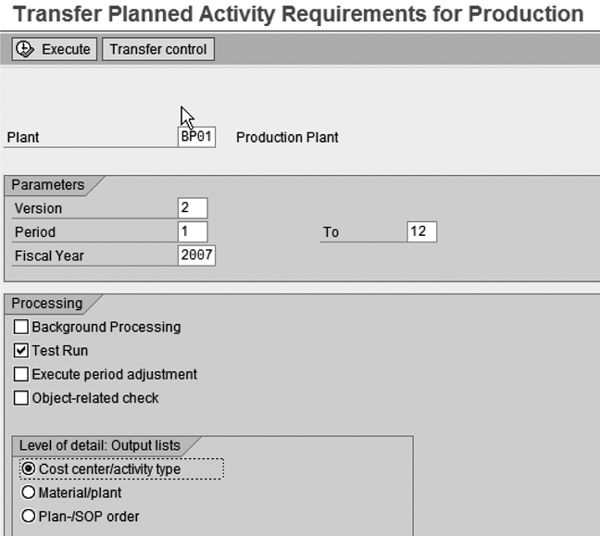
Figure 6
Initial screen for transfer
Figure 7 shows the parameters that you use to transfer the production plan to CO. In my example, I selected Long-term plng to show that that’s where I want to take data from, and entered 2 in Plnng scenario (planning scenario). This allows me to access the figures I generated for the planning scenario in Figure 5.
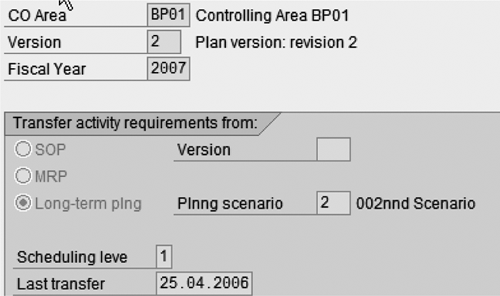
Figure 7
Transfer control parameters for the transfer of production activities to Cost Center Planning
If you now return to the initial screen (Figure 6) and start the transfer, you see that the system exploded each material’s routing and calculated the scheduled activity. In Figure 8, you can see the total scheduled activity by cost center and activity. Alternatively, if I had chosen Material/plant in Figure 6, I would have seen the same figures broken down by the materials to be produced.
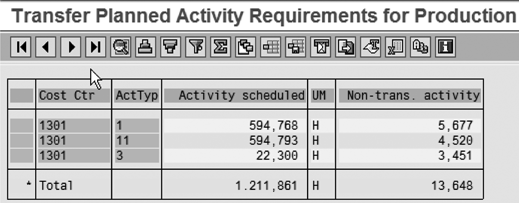
Figure 8
Scheduled activity in the production plan by cost center and activity type
Capacities in the Cost Center Plan
You can now see the same figures in Cost Center Planning by using transaction code KP26 or following menu path Accounting > Controlling > Cost Center Accounting > Planning > Activity Output/Prices > Change and entering cost center 1301 and activity type 1 together with the version and the planning time frame.
Figure 9 shows the scheduled activity for cost center 1301 (manufacturing) and activity type 1 (machine hours): 594,768 hours in the Scheduled Activity column. In an ideal world, an organization could use the numbers from production to calculate activity prices directly by dividing cost center expenses by the number of hours required. However, organizations are rarely so confident in the numbers in their production plan. Instead, you see a capacity per cost center/activity type in the Capacity column alongside the scheduled activity — 550,000 hours in my example.
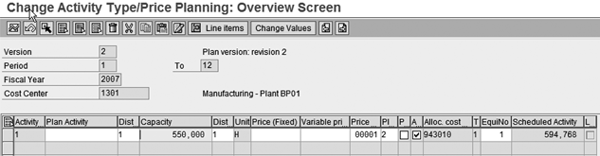
The cost center manager sets this figure based on experience in previous planning periods and provides a reality check against the scheduled activity. If the scheduled activity is much too high or too low, the cost center manager may request a recount. If the production plan is very raw, you can even use the capacity instead of the activity quantity to calculate activity prices by changing the Plan price indicator activity type (column PI [Planned Price Indicator]) from 1 (by activity) to 2 (by capacity). Note that you can either do this in the activity type itself (transaction KL02) or for the year in Cost Center Planning (Figure 9).
Let’s get back to the production activities. The cost center managers can either manually enter the planned activity quantities for you to use as a basis for activity price calculation or the organization can use a function called plan reconciliation to set the activity quantities based on the scheduled activities. Use transaction code KPSI or follow menu path Accounting > Controlling > Cost Center Accounting > Planning > Planning Aids > Plan Reconciliation and enter the version, the time frame, and whether you want to reconcile for all cost centers or just specific cost center groups.
Click on the execute icon, which brings up the screen shown in Figure 10. Here you can see the new planned activity for each activity type on the cost centers. Thus, 594,768 hours of activity are planned activity for activity type 1 (top line of the results list).
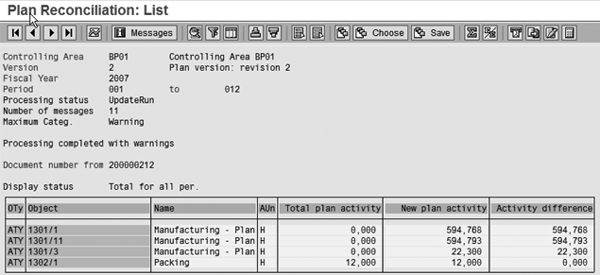
Figure 10
Plan reconciliation
Activity-Dependent Costs in the Cost Center Plan
Next you need to plan the fixed and variable costs on the cost center to provide these production activities. In this example, I’ve set up my planning layouts to handle activity-dependent and activity-independent costs in the same layout. However, I’ve also seen the two processes covered in separate layouts at customer sites. To enter the planned costs on the cost center, use transaction code KP06 or follow menu path Accounting > Controlling > Cost Center Accounting > Planning > Cost and Activity Inputs > Change. Enter the Cost Center 1301 (manufacturing), the Cost Element group P_CE_01 (labor expenses), and Activity Type 1 (machine hours).
In my example, I’m using planning layout Z1-101-A, which is delivered with the best practice systems but closely resembles layout 1-101. I’m now going to plan as many costs as I can with reference to the activity on the cost center. In Figure 11, I’m planning each of the labor-related cost elements with reference to the activity types on the cost center. You can see the activity type 1 in the leading column of the data entry table. This is probably the most notable difference between classic cost center planning and driver-based planning: classic cost center planning is based on monetary values only, whereas driver-based planning puts these values in the context of the amount of activity to be supplied.
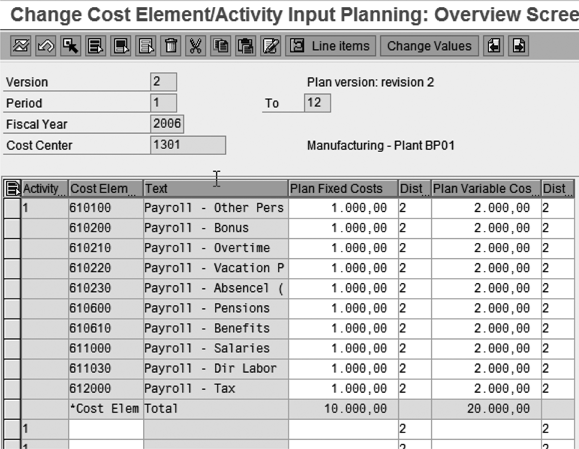
Figure 11
< d=""> Figure 11 Cost element planning by activity type
Now that I have both the expected expenses on the cost center and the expected output on the cost center, I can calculate the activity price. For a cost center with a single output, or one activity type, this process divides the expenses by the activity type to provide a rate per hour. If the cost center provides more than one activity, as in my example, then it first splits the expenses to the activity types using either equivalence numbers or a splitting schema.
The equivalence numbers establish the proportions by which the system splits all activity-independent costs on the cost center to the activity types for inclusion in the price calculation. For example, entering a 1 in the EquiNo column beside each activity type in Figure 9 results in the fixed costs being spread equally to all activity types on the cost center. The splitting schema is more refined, allowing you to use different figures to establish the ratios (such as activity quantity, capacity, or a statistical key figure) or to exclude certain types of cost from the splitting process. In this way, you can prevent imputed costs being included in the activity price.
To see the splitting schema, you need to return to transaction KP26 and choose a different planning layout by navigating through the Next Planning Layout buttons. The standard system includes the splitting schema in the layout 1- 204 (Activity Types: Indicators). The Swtch.str. (switching structure) column in Figure 12 includes a switching schema you could use.
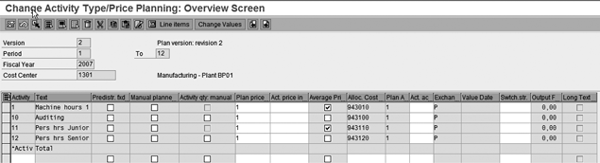
Figure 12
< d=""> Figure 12 Activity parameters, including switch schema
To start activity price calculation, use transaction code KSPI or follow menu path Accounting > Controlling > Cost Center Accounting > Planning > Allocations&Price Calculation. Enter the version, the time frame, and whether you want to calculate prices for all cost centers. Choose the execute icon. Activity price calculation is the final step in cost center planning, but not the last step in planning. You can now use this rate per hour to calculate the standard costs for each of the materials that you manufacture and apply these figures to the sales plan to calculate the contribution margin for the sales plan (Figure 13).
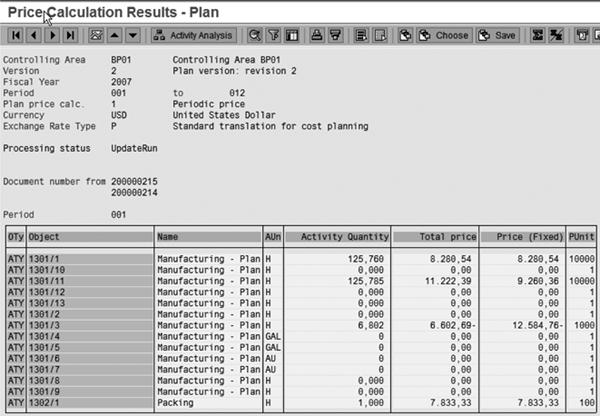
Figure 13
< d=""> Figure 13 Result of activity price calculation
Calculate Standard Costs in Product Costing
Usually I would use a costing run (transaction CK40N) to calculate the costs for all of the materials in my plant. In this example, however, I’ll just show you the cost estimate for one of the materials. To create a standard cost estimate, use transaction code CK11N or follow menu path Accounting > Controlling > Product Cost Controlling > Product Cost Planning > Material Costing > Cost Estimate with Quantity Structure > Create. Enter one of the materials that you entered initially in CO-PA, together with the plant, costing variant, and lot size. Press Enter and confirm the costing dates on the next screen.
In Figure 14, you can see that the system used the routing from the production plan to determine the number of machine hours initially to calculate the costs to produce one hundred units of material F1000-M1. The first three items in the cost estimate show the activity usage for the first operation: 0.33 hours, 5 minutes, and 5 minutes respectively. These quantities were determined using the standard values for the first operation in the routing. The activity price you calculated in Cost Center Planning has been applied to this figure to calculate the machine costs for each operation. The same occurred in items 12–14 (operation 20) and 15–17 (operation 30) in the cost estimate.
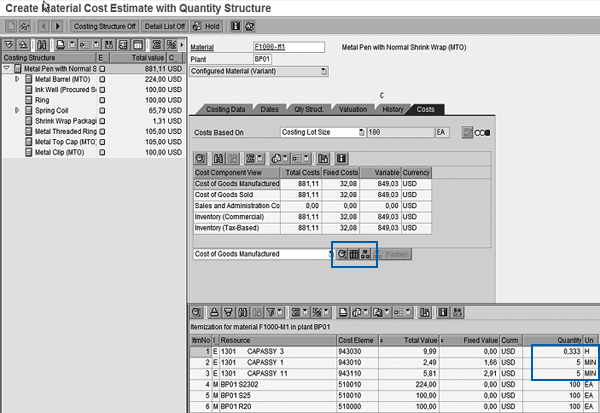
Figure 14
Standard cost estimate — itemization
The system assigns each of these product costs to cost components and it is these cost components that you map via entries in Customizing to value fields in CO-PA to close the loop in the planning process. You can display the cost components to which you assigned the product costs by clicking on the cost components icon next to the Cost of Goods Manufactured view in Figure 14.
Pull the Standard Costs into the Sales Plan
The final stage of the planning process uses the valuation function in CO-PA to pull the cost components for the product costs into the planned income statement. This process uses the Customizing settings for CO-PA. Refer to my article, “Calculate Contribution Margins in CO-PA That Include All Production Variances” for more detail.
To pull the standard costs into the sales plan, return to the planning layout you used in Figure 1 and choose the Valuate button in the menu bar. Then, in the Planning Methods section (in the lower left side of the menu), use Display Planning Data to show the result of driver-based planning for this material and customer. Alternatively, you can use a report in CO-PA to display the same data (Figure 15). To access this report, use transaction code KE30 or Accounting > Controlling > Profitability Analysis > Information System > Execute Report and choose an appropriate report. Note that owing to the fact that you generate the operating concern for CO-PA on site, you only find the report shown in your own system if you are using a preconfigured best practice system.
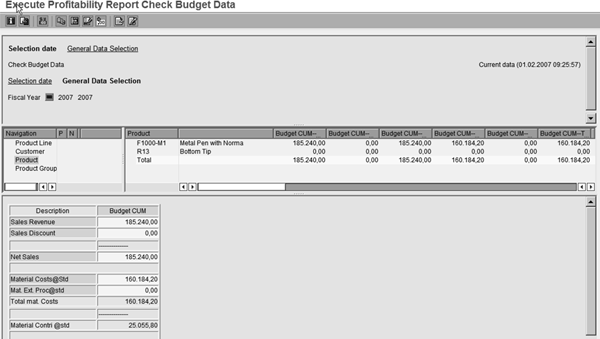
Figure 15
Driver-based plan in CO-PA
This plan is complete, apart from expenses for non- manufacturing cost centers, such as sales and marketing. To include these expenses in their final plan, most organizations use assessment cycles to assign the expenses on the service cost centers to their profitability segments to ensure that they have all relevant plan values in CO-PA. In my next article, I’ll show you an alternative that allows you to use driver quantities for any cost center that provides a service, whether it’s a customer service center in a bank or a non-manufacturing cost center.
Driver-Based Planning in Express Planning
All of the screens in this article were taken from an ECC 6.0 system as delivered with mySAP ERP 2005, but the functions described are available in both R/3 and mySAP ERP. In my example, I’m not using SEM or the BI capabilities of SAP NetWeaver to plan at all. I could have used them to manage my sales plan and then retracted this data to CO-PA, or I could have split the overall budget to the lines of business and cost centers and then retracted this data to CO-OM-CCA.
mySAP ERP 2005 also includes Express Planning as a new function to manage the cost center planning process. SAP delivers a planning service for the planning of activity-independent expenses on cost centers in Express Planning. Planning services for the planning of activity quantities and activity-dependent expenses on cost centers are in the pipeline and SAP plans to deliver them within one of the enhancement packages for mySAP ERP 2005. What’s more, you can include any of the functions described in this article as a transaction call in Express Planning, meaning that you could build a framework to guide your users through the relevant planning steps in the Web browser, calling each step you need in ECC. I’d like to avoid giving information in this article that might become outdated, so please contact me directly if you plan to implement Express Planning in the near future and need to know details of SAP’s delivery plans.
Janet Salmon
Janet Salmon joined SAP in 1992. After six months of training on R/2, she began work as a translator, becoming a technical writer for the Product Costing area in 1993. As English speakers with a grasp of German costing methodologies were rare in the early 1990s, she began to hold classes and became a product manager for the Product Costing area in 1996, helping numerous international organizations set up Product Costing. More recently, she has worked on CO content for SAP NetWeaver Business Warehouse, Financial Analytics, and role-based portals. She is currently chief product owner for management accounting. She lives in Speyer, Germany, with her husband and two children.
You may contact the author at janet.dorothy.salmon@sap.com.
If you have comments about this article or publication, or would like to submit an article idea, please contact the editor.