Viewing a list of cost estimates with cost components as columns assists your cost component analysis. However, cost components are not available as columns in standard cost estimate list reports. Learn a little-known technique involving a small amount of configuration to make cost components available as columns in these standard reports.
Key Concept
Analysis of cost components such as material, labor, and overhead overtime or across a range of products can assist in profitability analysis. Cost components increasing over time may result in a focus to reduce material, labor, or overhead costs. Comparison of cost components across products can influence marketing decisions. A manufacturing company may decide to focus on products that require less labor and overhead, or a company may be interested in analyzing the results of efforts to reduce labor and overhead costs.
Cost components that are available as columns in cost estimate list reports can be useful when analyzing production or purchasing performance across a range of products. You can add cost components to standard cost estimate list reports and costed multi-level bill of material (BOM) reports by creating cost component groups and assigning them to a cost component.
Standard cost estimate lists do not have cost components available as columns. This makes cost component comparison across a range of products difficult. With standard list reports, you need to drill down to each cost estimate individually, which displays cost components on a separate screen. Some companies write custom reports to include cost components as columns in list reports. I’ll show you how to add cost components to cost component groups with standard configuration. You then can easily view cost component groups as columns in standard cost estimate list reports and in costed multi-level BOM reports.
Production Cost Reports
Many companies are interested in analyzing the production costs of finished goods. Particularly, users and managers frequently request a report showing a breakdown by cost component. Cost components typically group costs such as material, labor, overhead, and external processing.
The system calculates and displays cost components as part of a standard cost estimate with transaction code CK13N orvia menu path Accounting>Controlling>Product Cost Controlling>Product Cost Planning>Material Costing>Cost Estimate with Quantity Structure (Figure 1). This is ideal for analyzing production costs for individual products because you can compare cost components on one screen. You can tell that component materials comprise the largest cost portion, and labor the second largest, in the example in Figure 1.
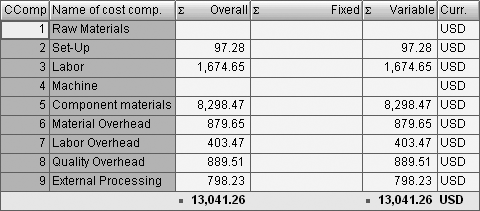
Figure 1
Cost component view of standard cost estimate
When analyzing production costs for any products, however, a list display can be more useful (i.e., one product per row, with cost components as columns). Figure 2 shows a standard report that displays a list of cost estimates for many products using transaction code S_P99_41000111.
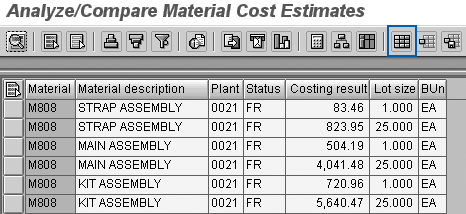
Figure 2
List report of multiple cost estimates
You can display individual cost estimates with cost component details for each product by double-clicking on individual lines on the report. However, this takes you to another screen, so you can’t compare cost components for different products on one screen — cost components are not immediately available as columns in this standard report. Click on the change layout icon highlighted in Figure 2 to display the dialog box shown in Figure 3.

Figure 3
Items available as columns in standard report
The left side of the Change layout dialog box displays columns shown in the report. The right side shows columns available to add to the report. The problem is that cost components are not shown in the list of available columns. However, you can add cost components as available columns using a little-known standard method. You can assign cost components to cost component groups, which you can make available as columns to the cost estimate list report.
Configuration
The following configuration steps demonstrate how you create cost component groups and assign existing cost components to the cost component groups. Cost component groups and assigned cost components are then available for reporting in cost estimate lists. You first create cost component groups via transaction OKTZ (Figure 4).
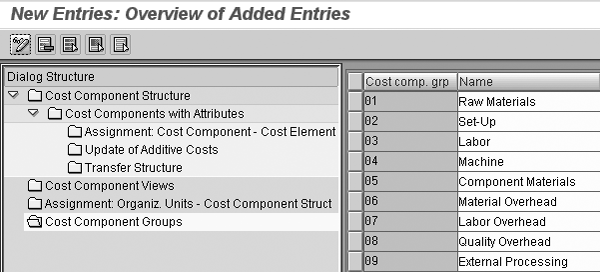
Figure 4
Create cost component groups
Double-click on Cost Component Groups and create a cost component group for each cost component needed to appear as a column in Figure 2. Doubleclick on Cost Component Structure to display a list of available cost component structures. You can see an example list in Figure 5.
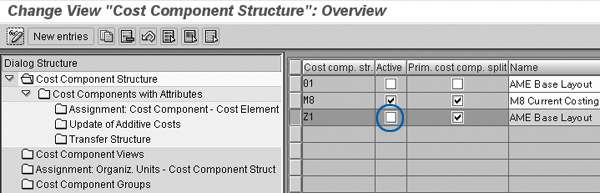
Figure 5
Deactivate cost component structure
Deactivate the cost component structure that standard cost estimates use by deselecting the highlighted selection box under the Active column next to Z1 in the Cost comp. str. column. See the sidebar “Choose the Correct Cost Component Structure” to determine the correct cost component structure to deactivate. Note that you must return to this screen and activate the cost component structure again after the following changes are made. If you attempt to create new standard cost estimates while the cost component structure is deactivated, error messages appear and you cannot release the cost estimates until you activate the component structure again.
Select the deactivated cost component structure and double-click on Cost Components with Attributes to display a list of cost components (Figure 6).
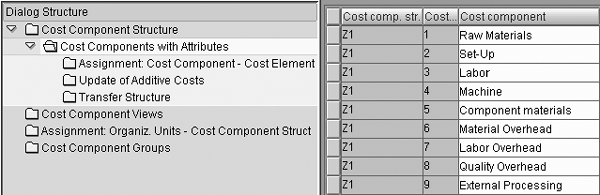
Figure 6
List of cost components for cost component structure Z1
Double-click on each cost component in turn on the right side of the screen. Assign the corresponding cost component group just created to each cost component (Figure 7).
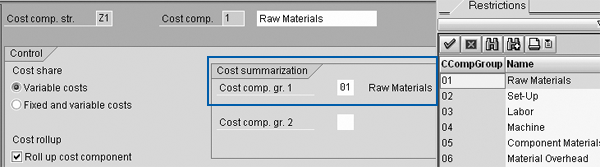
Figure 7
Assign cost component groups to cost components
You can assign two cost component groups to each cost component if required. Only one assignment is usually necessary, as shown in this example. After assigning all the cost component groups and saving, remember to activate again the cost component structure you deactivated in Figure 5.
Results
The new cost component groups now become available to add as columns in standard reports listing cost estimates, such as transaction code S_P99_41000111. Click on the change layout icon highlighted in Figure 2 and move the required cost component columns on the right side of the screen to the left (Figure 8).

Figure 8
Move required cost components to left side of Change layout screen
Press Enter to make the required cost components appear in the cost estimate list report (Figure 9).

Figure 9
Cost components are shown as columns
The Labor and Component cost components highlighted in Figure 9 do not add up to the total cost shown in the Costing result column. This is because you have not added overhead as a cost component in this example. Simply use the same procedure to add other cost components as required.
Choose the Correct Cost Component Structure
What if several active cost component structures exist in transaction OKTZ as shown in Figure 5 in the main article? Which one should you assign to the newly created cost component groups? You can find the answer by navigating within a standard cost estimate. Display a standard cost estimate with transaction CK13N and click on the Costing data tab.
Double-click on the underlined Costing variant PPC1 to display the costing variant. Click on the Assignments tab, then the Cost Component Structure button, to display the cost component structure assignment for each company code (Figure A).
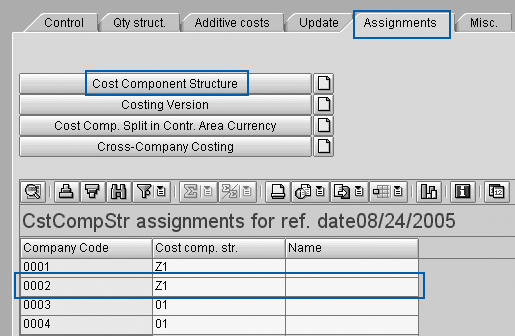
Figure A
Costing variant — cost component structure assignment
When you need more details of cost components within individual cost estimates, you can add cost component group columns to standard costed multi-level BOM reports. A BOM is a structured hierarchy of components necessary to build an assembly. These reports normally provide a column displaying the total value of each BOM component. Using the technique described in this article, you can add additional columns corresponding to cost component details of each component. You can view these reports with transaction codes CK86_99 and CK13N.
John Jordan
John Jordan is a freelance consultant specializing in product costing and assisting companies gain transparency of production costs resulting in increased efficiency and profitability. John has authored bestselling SAP PRESS books Product Cost Controlling with SAP and Production Variance Analysis in SAP Controlling.
You may contact the author at jjordan@erpcorp.com.
If you have comments about this article or publication, or would like to submit an article idea, please contact the editor.




 Premium