You can use enhanced configuration to improve your ability to repair Change Request Management (ChaRM) transactions with SAP report CRM_SOCM_SERVICE_REPORT in SAP Solution Manager 7.1. With the minor changes described in this article, you can improve the usability of this SAP standard report, which allows you to modify the sequence of status changes.
Key Concept
In an organization using SAP Solution Manager Change Request Management (ChaRM) for managing changes, there are always a few technical resources, most likely the ChaRM configurator or administrator, who regularly need to troubleshoot and repair ChaRM transactions that are stuck in a status that users cannot repair based on their authorizations. One key tool aiding with these necessary adjustments is the standard SAP report CRM_SOCM_SERVICE_REPORT. Report CRM_SOCM_SERVICE_REPORT is designed to enable an administrator to adjust transaction statuses from the SAP GUI.
Report CRM_SOCM_SERVICE_REPORT comes with limited documentation, and the concepts I share are the result of several years of using it. The value is mostly in preventing the need to reject stuck transactions and then re-create them, as this is time-consuming, repetitive, and very inefficient for all end users involved in change management.
This report is a great tool for mass data cleanup, especially in post-release activities in which many transaction records need to be updated with the same status. It is tedious to do it from the front-end web user interface (UI) in which each record has to be adjusted individually. Only a very limited number of resources with a good understanding of Change Request Management (ChaRM) should use this report. This concept is valid for all Support Package levels of SAP Solution Manager 7.1.
My assumptions are that:
- Your organization uses ChaRM.
- You copied the ChaRM transactions into the customer name space (Y or Z). If not, the same approach can be used for the standard SAP (S type) transactions, but with the next upgrade, your changes will be overwritten and lost.
- You are authorized to execute transaction code SE38 to run report CRM_SOCM_SERVICE_REPORT as well as an admin type of authorization for ChaRM.
- You are very familiar with the status profile of the ChaRM transactions you use Request for Change (SMCR), Admin Change (SMAD), General Change (SMGC), Normal Change (SMMJ), Urgent Change (SMHF), and their respective custom (Z) versions, with or without additional custom statuses.
Report CRM_SOCM_SERVICE_REPORT is a Solution Manager administrator tool that SAP delivers to adjust the statuses of ChaRM transactions. Reasons for adjusting statuses can vary from data cleansing to troubleshooting problematic transactions to mass updating a large number of transactions.
However, the documentation that comes with the report is limited, and therefore, I show you a much better way to use the report without any code changes. The report processes only transactions that are error free. The new status value is derived from the current status value and the customizing entries in table TSOCM_STAT_PROP, which is the normal behavior for ChaRM. To access the report, execute transaction SE38, report CRM_SOCM_SERVICE_REPORT (Figure 1).
The report comes with four radio buttons for use with a specific transaction, as shown in Figure 1.
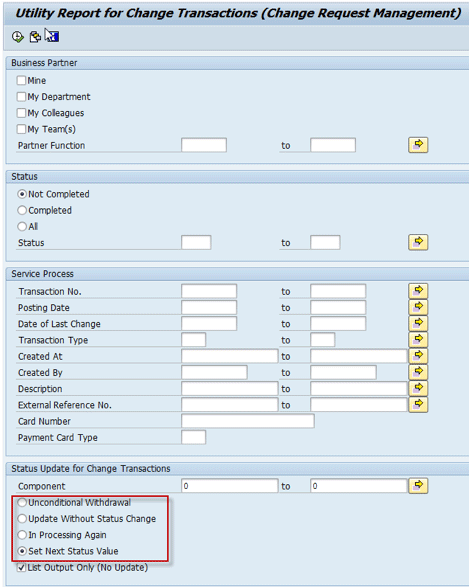
Figure 1
Options for status updates
The options in Figure 1 are:
- Unconditional Withdrawal is self-explanatory. Once executed, the transaction is in its final state and can no longer be edited.
- Update Without Status Change can help clean errors on the transaction, but does not change the current status.
- In Processing Again sets the status of a given transaction to a status of the type Starting Point. For each transaction this status may have a different description and technical value (in format E00xx, for example, E0001 represents Created). Experimenting is the only way you can know what to expect from this option. Table 1 shows details about this option and the starting point status for each ChaRM transaction type. These are example status values for a custom transaction type, but in this case, they are also the same as the standard as I do not use custom statuses.
| Status |
Status description |
Type |
| E0001 |
Created |
After Generation
|
| E0003 |
Rejected |
Withdrawn |
| E0004 |
Approved |
Starting Point
|
| E0005 |
Implemented |
Processing Phase
|
| E0006 |
Confirmed |
Completed |
| E0011 |
Extend Scope
|
Processing Phase
|
| E0012 |
To Be approved
|
Processing Phase
|
| E0014 |
Validation |
Processing Phase
|
| E0015 |
Being Implemented
|
Processing Phase
|
Table 1
Values for a ZMCR request for change transaction
- Set Next Status Value is the option I explore in this article, as it is a good tool for making adjustments. The report does not provide details about what happens to the status of each transaction, and the testing mode does not help either. I share what I learned by using this report during two ChaRM implementations.
- List Output Only (No Update) should be unchecked for the changes to take effect. This option (when checked) displays the number of hits without changing the status value.
The Transaction’s Status Profile
The functionality of this report and what happens when executing it with the Set Next Status Value option selected (as highlighted in Figure 1) depends on two specific items:
- The transaction’s current status
- The settings for each status profile in table TSOCMV_STAT_PROP
To see a transaction’s status profile, follow menu path SPRO > SAP Solution Manager Implementation Guide > SAP Solution Manager > Capabilities(Optional) > Change Control Management > Transactions > Status Management > Define Status Profile for User Status (as in Support Package 12). This path can be slightly different depending on the Support Package level in your system. You can access the same configuration location via transaction code CRMBS02 (change) or CRMBS03 (display). Both take you to Figure 2.
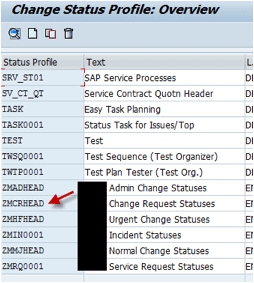
Figure 2
Status Profiles table
From this screen you can search or scroll down until you find the status profile of the Z transaction you need. In my example transaction ZMCR is using Status Profile ZMCRHEAD. Double-click the ZMCRHEAD field to go to Figure 3.
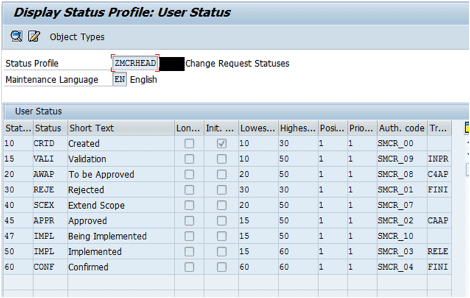
Figure 3
Status Profile for ZMCR (Request for Change)
If you configured additional custom statuses, they appear in Figure 3 as well. Each status has a technical value that is used by the system for all conditions and verifications.
The technical value is not visible on this screen. An easy way to see all technical values with their corresponding descriptions is to double-click any of the statuses shown in Figure 3. This action opens the screen shown in Figure 4 in which F4 help is available. Place your cursor in the Status field in Figure 4 and then press the F4 key.
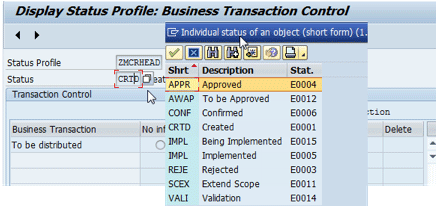
Figure 4
Acces Help from any status to view the complete list of statuses with a value and a description
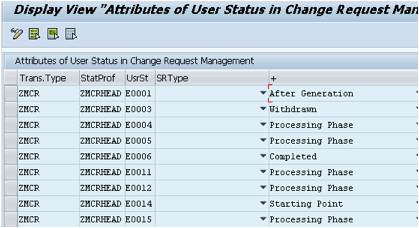
Figure 5
Status description using the UsrSt (user status) column values as in table TSOCM_STAT_PROP (accessed from SM30)
Settings for Status Profiles
In the next step you need to find the settings for each status profile in table TSOCM_STAT_PROP or in IMG activity Make Settings for Change Transaction Types. In this table you create the missing sequence numbers. To find the settings for each status profile in the IMG (as of Support Package 12), follow menu path SPRO > SAP Solution Manager Implementation Guide > SAP Solution Manager > Capabilities (Optional) > Change Control Management > Change request Management Framework > Make Settings for Change Transaction Types. This path takes you to Figure 6.
To get to the exact table, select the Trans.Type (transaction type) by highlighting the one you are interested in on the right side of Figure 6. In my example I use transaction code ZMCR (Request for Change).
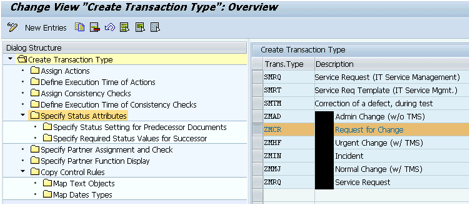
Figure 6
Select transaction type ZMCR (Request for Change)
Click the selected line in Figure 6 and then select the Specify Status Attributes folder from the Dialog structure on the left side. This action takes you to Figure 7.
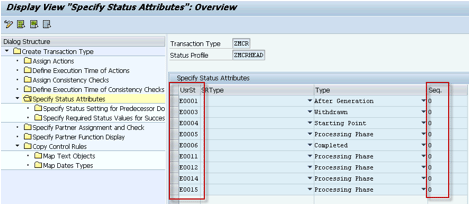
Figure 7
The original state of the values (with ZMCR for illustration)
In Figure 7, the same status values as in Figure 5 are visible: E0001 for Created, E0003 for Rejected, and so on. The types for each status such as After Generation, Withdrawn, or Starting Point are also visible.
The last column on the right displays Seq. (sequence) values. Note that these fields are blank (value = 0) for SMCR (as well for your custom ZMCR transaction created as a copy of SMCR). The Specify Status Attributes screens for transactions SMMJ (Normal Change), SMAD (Admin change), and SMHF (Urgent Change) look a bit different, with several sequence values configured.
If you go back to the screen in Figure 6 and search for transaction type SMMJ (Normal Change), you can see in Figure 8 what sequences are configured under Specify Status Attributes for Normal Change.
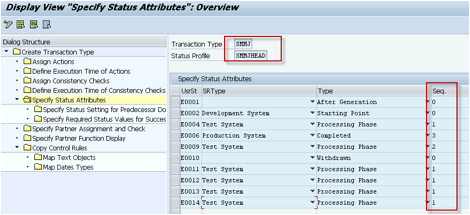
Figure 8
Configuration for Normal Change (SMMJ or ZMMJ are the transaction types used by ChaRM Change Document Normal Change)
The most common scenario of statuses can be different in various organizations, but you can still identify one that is used in around 80 percent of the cases. I call this the most straightforward path.
The example of the most straightforward sequence for status values to change based on a status profile is Created > Validation > To be Approved > Approved > Being Implemented > Implemented. When you execute a report with the Set Next Status Value option selected (refer back to Figure 1), the report looks for a sequence number first to define what the next status value would be. If the sequence is not defined, the report uses different logic, which is the source of the problem. This is especially true for the use of the option Set Next Status Value. The user is expecting the next status value executed by the report to be same as the most straightforward path.
The report with the existing configuration for transaction Request for Change (SMCR and the custom version ZMCR), as shown in Figure 7 (missing sequence numbers), uses the following different logic. It uses Created > Approved > Implemented > Confirmed as it is using the incremental values of the E00XX statuses. It skips E0003, which is the final status. The logic is E0001 (Created), next is E0004 (Approved), next is E0005 (Implemented), and next is E0006 (Confirmed).
Why in a real business situation is this an issue? Imagine that you just finished a major project and have some Requests for Change (RfC) records still in the Being Implemented status.
However, you know that transports are in production and the related change documents are in their final status. Perhaps there was an issue with the change documents and the configured Status Setting for Predecessor Documents did not actually update the predecessor.
Your ChaRM or transport administrator wants to use this report to update one or many records at once, set the status of these RfCs to Implemented, and then set them to Confirmed. Currently, this is not possible as the value E0015 is the very last status, and the report has no way to determine the next status as E0005 (Implemented).
Figure 9 shows the selections with which the report is executed before the change of the sequence values.
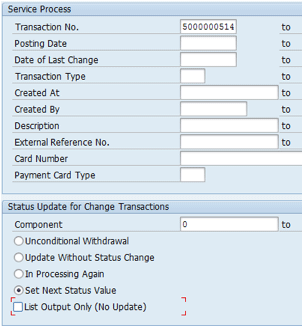
Figure 9
Executing Set next status value for my test RfC (populated in the Transaction No. field)
Figure 10 is an example of the execution and the error Unable to define the next status value.
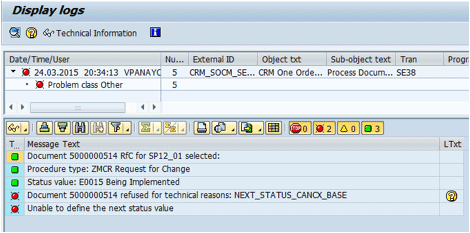
Figure 10
Result of executing the report with the Set next status value option on RfC currently in E0015 (Being Implemented)
The sequence number, if configured, can resolve this issue by providing a much more flexible option for defining the sequence of the statuses. This needs to be defined carefully.
For my example, I want to be able to follow the most straightforward path. I configured the status sequence only for several statuses for transaction code ZMCR (Request for Change) as shown in Table 2. I chose these statuses as they are the ones I need most often to adjust and without the sequences I get the error shown in Figure 10.
| Status |
Status description
|
Type |
Original sequence value |
New sequence value |
| E0001 |
Created |
After Generation
|
0 |
0 |
| E0003 |
Rejected |
Withdrawn |
0 |
0 |
E0004
|
Approved |
Starting Point
|
0
|
0
|
E0005
|
Implemented |
Processing Phase
|
0
|
2
|
E0006
|
Confirmed |
Completed |
0
|
3
|
E0011
|
Extend Scope |
Processing Phase
|
0
|
0
|
E0012
|
To Be Approved
|
Processing Phase
|
0
|
0
|
E0014
|
Validation
|
Processing Phase
|
0
|
0
|
| E0015 |
Being Implemented
|
Processing Phase
|
0 |
1 |
Table 2
Summary of my changes - new sequence values
This sequence can be different depending on your needs and the process flow defined by the organization. The sequence also is different because the report can execute only one increment at a time. If you need to move several statuses, you need to execute the same transaction several times, depending on the configured sequence.
Figure 11 is a view of the new configuration.
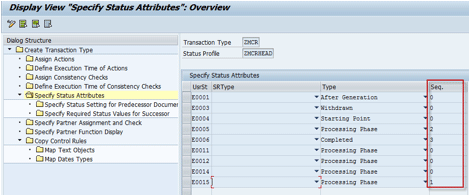
Figure 11
The new values from Table 2
Figure 12 shows the result of the execution of the report with the Set Next Status Value option for a record currently in E0015 (Being Implemented). This screen is the same example as in Figure 10, but now I can successfully set the next status as E0005 Implemented.
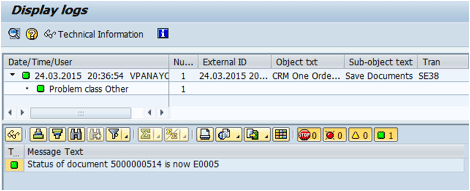
Figure 12
Set the next status from Being Implemented (E0015) to Implemented (E0005). This is the result after the new sequence values were configured according to Table 2.
The fix works without any problem to any existing transactions created before this change is made. The functionality is based on current and next statuses only. Therefore, it does not depend on the creation time. This point is particularly important if a large number of existing transactions needs to be mass updated. It is very safe to make the change of the sequence values and then do the large scale cleanup.
I do not recommend playing with these values and making changes often. The change in the sequence values has to be carefully planned and tested. I recommend doing this after at least several months using ChaRM and seeing the organization needs and common type of problems. This was my approach, and it was safe.
Additionally, it is worth repeating that none of these manipulations of statuses should be done if the change documents under the RfC being manipulated have transports. First, the transport should be deleted, decoupled, or imported (depending on the situation). The status of Normal or Urgent Change needs to be adjusted accordingly and then the RfC should be repaired last. This usually is closely coordinated with the developer or the transport manager.
All system changes are recorded in a log in the transaction in the text section for the Request for Change document of type ZMRC. Figure 13 shows the log in the transaction.
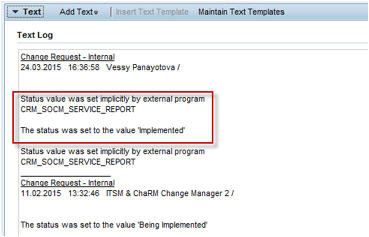
Figure 13
Log showing the last execution of the report
If I execute the report again with the same selection (as in Figure 9), it changes from Implemented (E0005) to Confirmed (E0006) as expected according to the new sequences (Figure 14).
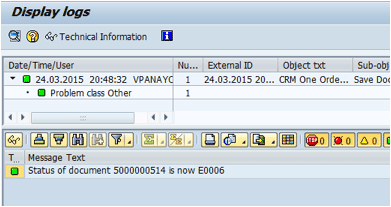
Figure 14
Set the next status from Implemented (E0005) to Confirmed (E0006)
The same status change can be observed from the front end, the web UI view of my test transaction 5000000514 (Figure 15).
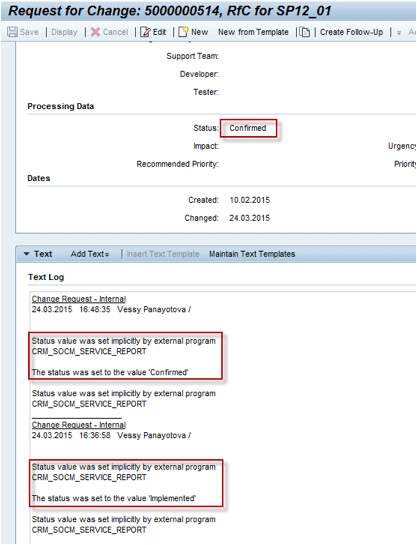
Figure 15
Log showing the last two executions of the report
For simplicity, the examples are with one single record, but the report can be used on a large number of records, after making sure all records have the same starting status.
As additional help, I found the work of the report improved when I implemented the suggestion in this SAP knowledgebase article (KBA) 1934873 - ERROR: Document refused for technical reasons PPF - Solution Manager. You can also refer to SAP Note 1426029 - ChaRM: limited value range for parameter CHECK_NTIMES_SOCM.
In transaction SU01 I set parameter CHECK_NTIMES_SOCM = 15. This parameter forces a longer time out in case verification takes a long time.
Vessy Panayotova
Vessy Panayotova is an experienced certified SAP Solution Manager professional working for the government of Canada, focusing on ITSM, ChaRM, and Solman project administration. She has more than 15 years of SAP experience in configuring, testing, and support of various SAP modules, and has experience in ABAP, Basis, and Portals. For the last five years she has concentrated on SAP Solution Manager 7.0 and 7.1. Vessy holds an engineering degree in electronics from Technical University in Sofia, Bulgaria.
You may contact the author at panayotova.vessy@gmail.com.
If you have comments about this article or publication, or would like to submit an article idea, please contact the editor.