Understand how to use GuiXT with the SAP front end to improve end-user productivity. Know the flexibility offered by GuiXT for customizing SAP transaction screens to make them simpler. Understand how customizations made by GuiXT are restricted to only those users who need them.
Key Concept
GuiXT is a scripting tool that is used with the SAP front end. GuiXT enables customized SAP transaction screens to cater to users’ role-specific requirements. You can modify SAP screens using GuiXT without changing the SAP code so the business logic of the SAP processes remains unchanged. Simplified custom screens improve user productivity and accuracy.
SAP transaction screens have a standard user interface (UI) design that controls the look and feel of the transactions accessed by end users. Specific functionalities and fields on a transaction screen are based on the user’s role and job requirements. Often these functionalities and fields are spread across multiple screens. For example, users from purchasing, planning, and finance all access material master information in their SAP system using transaction code MM03. Material master information is maintained in multiple tab screens in the SAP system. Users need to access all relevant screens consecutively to view this information.
Browsing through multiple screens is time consuming and counter-productive for users. It also raises the concern of accuracy if the multiple transaction screens are used for data maintenance. You can address these concerns by using GuiXT. GuiXT changes the look and feel of SAP transaction screens without making any changes to SAP code or business logic. You can add, delete, or modify specific fields and screens for an SAP transaction to optimize the screen display for the user. You can rename field text according to industry parlance and add usage tips for fields on the screen.
This article is relevant for SAP R/3 4.6B and newer SAP ERP systems. I’ll cover three main sections:
- Activate GuiXT for use with SAP transactions
- Use GuiXT on SAP transaction codes and understand its benefits
- Restrict the use of GuiXT to specific users
GuiXT is freely available to use with your SAP system, but its three additional components, InputAssistant, Viewer, and Designer, need to be licensed.
Activate GuiXT for Use with SAP Transactions
The GuiXT script is a set of instructions that needs to be selectively enabled for the SAP users who intend to use it. Enabling GuiXT scripts for specific users for the SAP front end is a prerequisite for using GuiXT. Use transaction RZ11 and enable the parameter sapgui/user_scripting. The profile value should be set to TRUE (Figure 1). Profile value FALSE would mean that user scripting is disabled for the SAP front end.
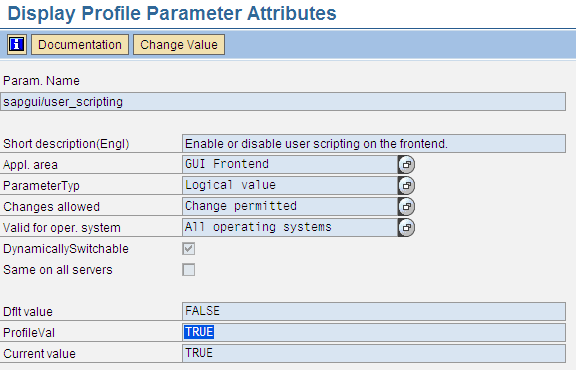
Figure 1
Activate user scripting
You can enable GuiXT from any SAP transaction screen, including the SAP EASY ACCESS screen. Press Alt+F12 or click the toolbar icon to activate GuiXT (Figure 2).
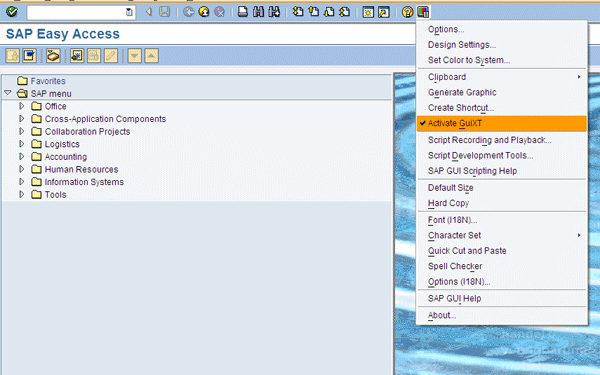
Figure 2
Activate GuiXT
The GuiXT tool window opens as a separate window upon GuiXT activation (Figure 3). You can control activation and deactivation of GuiXT by clicking Status > GuiXT Active in this screen.
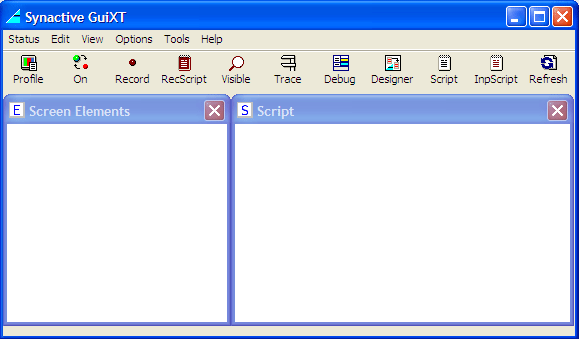
Figure 3
Click Status and then SAP GuiXT Active in this screen
You must set up a GuiXT profile for a user before you can use GuiXT scripts. You can maintain the profile by clicking the Profile button shown in Figure 3. In the profile, you define the directories where GuiXT scripts will be stored and thereafter accessed during the execution of SAP transactions (Figure 4). GuiXT provides up to four directories for storing the scripts and accesses them in the sequence of Scripts 4, Scripts 3, Scripts 2, and Scripts 1 directories. GuiXT provides the flexibility to store the scripts locally on a user’s hard disk or centrally on a file server. You can also store the scripts centrally in the Web repository using transaction SMW0. If the scripts are stored in the Web repository, then the directory path to maintain in the profile is a combination of sapwr and the Web repository object name.
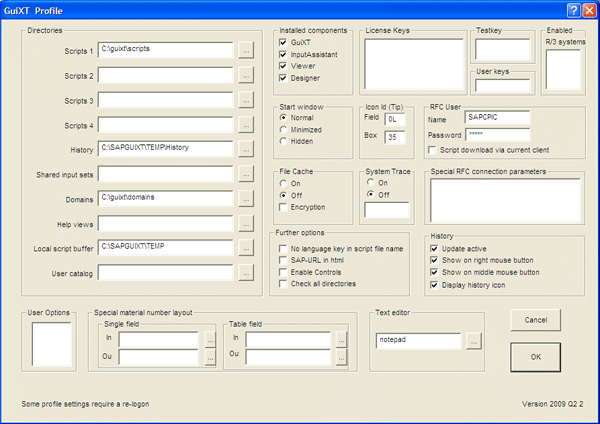
Figure 4
GuiXT profile
It is required that you store the GuiXT scripts locally if different users have different optimization requirements for the same transaction code. In this case, different scripts are created for the same transaction code. Store the GuiXT script centrally if all the users have the same requirement for streamlining the transaction code. Make sure you test the functionality of your GuiXT scripts during an SAP upgrade, as GuiXT scripts are created for specific transaction code screens and the screens may be changed during a technical upgrade.
You can selectively enable GuiXT for specific SAP R/3 or SAP ERP Central Component (SAP ECC) systems using the Enabled R/3 Systems field on the profile. If the specific SAP system name is not maintained in the GuiXT profile, it is enabled for all the SAP systems for the user.
GuiXT is made up of four components that are also controlled in the profile. The components are:
- GuiXT: Required for executing the scripts
- InputAssistant: Used within GuiXT scripts to minimize screens
- Viewer: Used for HTML display and use with SAP R/3 or SAP ECC
- Designer: Add-on for easy script generation
The Viewer and Designer components are not mandatory for recording, writing, and executing the GuiXT script. In this article, I have only used the functionality associated with the GuiXT and InputAssistant components as described later in this section.
Use GuiXT on SAP Transaction Codes and Understand Its Benefits
Let’s understand the benefits provided by GuiXT and then I will demonstrate the use of GuiXT on transaction MM03 as an example (Figure 5). Transaction MM03 has Accounting 1, Accounting 2, Costing 1, and Costing 2 views, which are finance specific. I will streamline the relevant information from these four views into one screen.
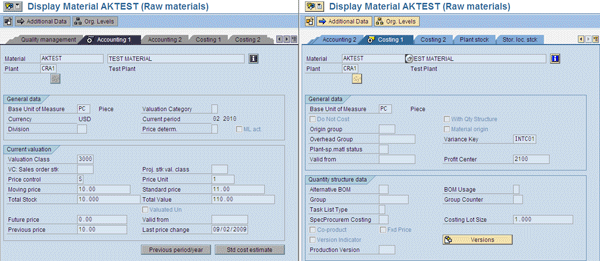
Figure 5
Standard SAP material master display
Significant advantages of using GuiXT with the SAP system are:
- Reduce data entry effort by using default values for fields on an SAP transaction screen. For example, the user for which transaction MM03 is being streamlined is responsible only for SAP plant code CRA1. You can use the GuiXT script to default the plant code.
- Convert field types (e.g., entry based, check box, and radio button). For example, if a user supports business processes relevant to only two company codes, he can convert the company code entry field to a radio button with those two company codes as radio button options. This would make it convenient for the user to select the company code on an entry screen.
- Remove unwanted fields. For example, I have removed the Future Price and Valid from fields (Figure 5).
- Provide input assistance to users by adding comments for SAP fields on the transaction screen
- Change SAP field name label to make it more industry and user specific
- Reduce the number of SAP screens and eliminate redundant information that is not required by the users
Step 1. Record the Transaction Using GuiXT
You can record SAP transactions using GuiXT. Recording a transaction helps obtain screen and field information that is used during the creation of a GuiXT script. To start the recording, click the Record button in the GuiXT tool window. Alternatively, you can also start the recording using the GuiXT menu path Options > Input Recording. The Record button changes to an On button and indicates that recording is currently on. Use transaction MM03 and then view the Accounting 1 and Costing 1 views. To stop the recording, click this icon again. GuiXT records the recording in an input script. You can view the input script after the recording is complete (Figure 6).
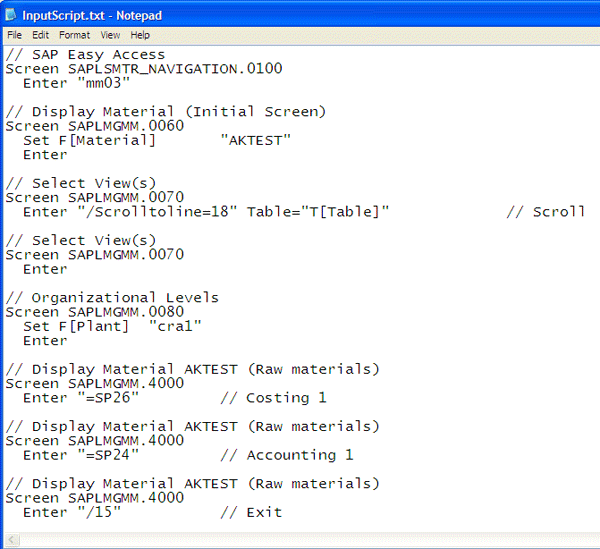
Figure 6
Record an SAP transaction in the GuiXT InputScript
Click the RecScript button or use GuiXT menu path Edit > Recorded Input Script to view the input script. The recorded input script provides the following information:
- The SAP screen name for transaction MM03 is SAPLMGMM.4000
- You can access the Costing 1 view from transaction MM03 using OK_CODE ENTER “=SP26” in transaction MM03. OK_CODE is a command field that stores a value whenever a command is executed. OK_CODE values can directly replace user actions such as buttons, saving, or navigating to a new tab.
- You can access the Accounting 1 view from transaction MM03 using OK_CODE ENTER “=SP24” in transaction MM03
During recording, the Screen Elements window in GuiXT displays the name of all fields and tabs for the transaction. The Screen Elements window is shown by default on GuiXT.
Step 2. Create the GuiXT Script
A GuiXT script is created as a text file. To create a script, it is essential to understand the functionality needed in the script. This functionality is derived from the business requirement to simplify the transaction screen. For better understanding, I will break down the requirement to streamline transaction MM03 into functionalities on the script. The two scripts I use are shown in Figures 7 and 8, and Figure 9 shows the effects in the SAP system.
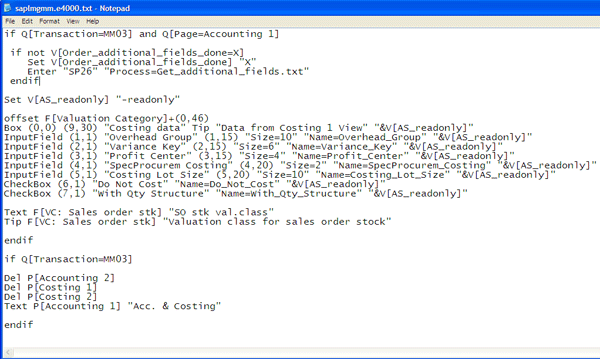
Figure 7
GuiXT main script for streamlining the material master display

Figure 8
GuiXT script used in the main script

Figure 8
GuiXT script used in the main script
- Restrict script changes to transaction MM03: Use the statement IF Q[Transaction = MM03] in the script (Figure 7).
- Delete fields and tab screens: Del F[xxxx] and Del P[xxxx] commands delete the unwanted fields and tab screens (xxxx stands for the field or tab screen name). If you do not know the field or tab screen name, you can find them during the recording of the SAP transaction in the Screen Elements window. Because I am consolidating all the finance views into one common view, I have deleted the Accounting 2, Costing 1, and Costing 2 views from transaction MM03. I have used the Del P[Costing 1] statement to delete the Costing 1 tab screen. The GuiXT script changes the display without making any changes to SAP programs and business logic. If you remove a mandatory field from a create/change transaction code and there is no value in the mandatory field, the system produces an error message.
- Change the field label: SAP uses standard terminology for the field labels that at times is inconsistent with the industry nomenclature. In transaction MM03, I have changed the field label Sales Order stk to SO stk val. class using the statement Text F[VC: Sales order stk] “SO stk val. class”. It is possible to change the field label with no restriction on name length. However, if you select a long name, it overlaps with the data entry box for that field. If rewriting a short field label is not possible, then add a tip for the field instead of renaming the label.
- Add a tip to provide help for a field: SAP field names may be confusing for the users to understand. You can add a tip to provide assistance about a field on the transaction screen using GuiXT. I have added a tip for the Sales order stk field using the statement Tip F[VC: Sales order stk] “Valuation class for sales order stock” (Figure 9).
- Create new fields on the screen: You can create new fields on the existing screen using the statements Inputfield, Checkbox, and Radiobutton for entry-based, check box-based, and radio button-based fields, respectively. In the illustration, I have created new fields on the Accounting 1 view: Overhead Group, Variance Key, Profit Center, SpecProcurem Costing, Costing Lot Size, Do Not Cost, and With Qty Structure (Figure 9).
- Link new screen fields to fields on another screen: Because the objective of this GuiXT script is to streamline multiple tab screens into one, I need to link the values for the new fields created in the Accounting 1 view to their respective values in the Costing 1 view. This has been done by calling another script, Process = Get_additional_fields.txt. This script (Figure 8) defaults the values from the Costing 1 view screen into the new fields on the Accounting 1 view. I have linked the values of Overhead Group, Variance Key, Profit Center, SpecProcurem Costing, Costing Lot Size, Do Not Cost, and With Qty Structure from the Costing 1 view to the new fields created on the Accounting 1 view.
- Change the tab screen name: The Accounting 1 view is now a consolidated view for Accounting 1 and Costing 1 views. GuiXT also provides the flexibility to change the name of the tab using a statement such as Text P[Accounting 1] “Acc. & Costing” (Figure 9).
Step 3. Use the GuiXT Script
Now that you’ve created the GuiXT script and are ready to use it, you need to take care of three factors:
- Script name: It is a mandatory requirement to have the script name as NNNNN.LPPPP.txt, where NNNNN is the screen name (SAPLMGMM in this example), L is the Language (e in this example) and PPPP is the screen number (4000 in this example). Hence, the script name SAPLMGMM.e4000.txt. GuiXT scripts are language dependent. If the user logs onto the SAP GUI in multiple languages, you need a GuiXT script for all those languages. GuiXT supports all logon languages.
- Script location: The GuiXT script needs to be located in one of the Script 1, Script 2, Script 3, or Script 4 directories. These directory paths are maintained in the GuiXT profile (Figure 4).
- Activate GuiXT: GuiXT should be active for the users who want to use the scripts (Figure 2)
You can only use GuiXT scripts when these three conditions are met. If users now go to transaction MM03, they see the streamlined transaction (Figure 9) and not the standard SAP screen layout. If GuiXT scripts are stored locally on a hard disk, they work for all SAP systems that have been maintained in the profile. If stored centrally in the Web repository, ensure that they exist centrally in the Web repository of all SAP systems.
Restrict the Use of GuiXT to Specific Users
Users have specific business needs for why they use the GuiXT scripts. Users in different functional groups may have different requirements, warranting the use of different GuiXT scripts or restricting GuiXT changes to specific user groups. You can do this with either of the following methods:
- Store GuiXT scripts locally: Store the GuiXT scripts locally on a user’s hard disk instead of a central server or a Web repository. This ensures that GuiXT changes are applicable to specific users and that the changes are based on the scripts stored locally for them.
- Script code: You can apply usage restriction in the GuiXT script itself at authorization role and authorization profile level. Use statement if Q[stage:Role=xxx] or if Q[stage:Profile=xxx] to restrict changes for specific role or profile, respectively.
Akhilesh Mittal
Akhilesh Mittal is a lead SAP consultant at Infosys Technologies Ltd. with eight years of consulting and industry experience. He has experience in FI and CO along with exposure to SD. Akhilesh is currently a consultant in the SAP space for a leading organization in the high technology domain. He has a degree in electronics and communication engineering from IIT Guwahati and an MBA in finance and systems from IIM Lucknow.
You may contact the author at akhileshmittal@yahoo.com.
If you have comments about this article or publication, or would like to submit an article idea, please contact the editor.





 Premium