A sanctioned party list (SPL) screening involves screening your business partners against the respective government-published denied party list (DPL). You can set up SAP BusinessObjects Global Trade Services to ensure that your system keeps your legal business partners in order.
Key Concept
A denied party list (DPL) is a government-published list that contains the names and addresses of the parties that are banned from doing business in the given country. Businesses are required to screen their business partners against these constantly updated lists. The business partner name and address characters are matched against the DPL name and address characters to look for exact and similar matches.
As worldwide cross-border trade grows, you have resources traveling and sharing information within your company globally and it becomes more important to be compliant. One of the lesser-known features of SAP BusinessObjects Global Trade Services is the sanctioned party list (SPL) screening of your internal work force, new hires, contractors, consultants, and visitors (among others) interfaced with your SAP ERP Human Capital Management (SAP ERP HCM) system. These SPL screenings are published by the different countries’ government organizations and are updated periodically. With dynamic environments and different regulations, it is important to monitor not only your external but your internal resources as well.
SPL involves the screening of your business partner against a list and these lists are uploaded to SAP BusinessObjects Global Trade Services as XML files. Third-party companies provide this content as a service, sending you updates when the government updates the list. SPL involves the screening of text or characters, which is very performance intensive. To address this, SAP BusinessObjects Global Trade Services allows you to build an index of denied party list (DPL) content. Business partners use this index to improve the screening performance.
It is important that you ensure that the SPL controls for the index are set correctly. Use transaction SPRO or follow menu path SAP Reference IMG > SAP Global Trade Services > SAP Compliance Management > Sanctioned Party List Screening Service > Control Settings for “Sanctioned Party List” Screening. Make sure that Store Summarized Comparison Index in Application Buffer and that Store Summarized Comparison Index in Cluster Table are selected (Figure 1). These system controls improve the search response because if the system first uses the application buffer and doesn’t find the entry, it searches in the cluster table. Note that checking the application buffer check box calls for more system memory resource. If you have less system resources and are not that particular about the search response, than you can uncheck the application buffer option and only use the cluster table option to store the index.

Figure 1
SPL configuration settings
The control procedure allows you to set the rules for exclusion, alias, and normalization. For example, if there are words that are a common match, such as Limited or Inc, you might want to exclude them from screening. The alias allows you to also screen entities that may be known as different names. Partner groups allow you to list all the partners within the document that you want to consider for screening.
In the Consider Validity field, select the option C Include Both “Valid From” And “Valid To” Date (Figure 2). This validity check keeps track of DPL entries that drop off the DPL list. If you have a business partner with multiple addresses, then you want to check the Multiple Address Check Active check box. If you want expired records to be marked for deletion, you can check the Set Deletion Indicator According to Official Validity check box.
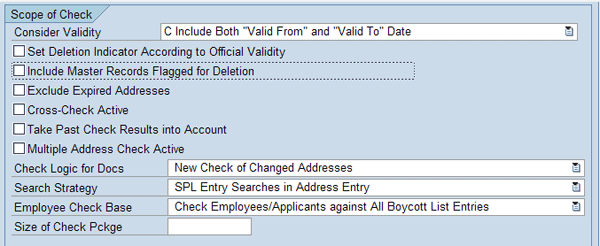
Figure 2
Select the validity option for the check
Tip!
Don’t check the Cross-Check Active check box in Figure 2 — this functionality might result in more hits because it cross-checks the name against other elements such as street and city characters. Also, avoid checking the Include Master Records Flagged for Deletion check box unless absolutely necessary. A better option is to use the archive functionality. Finally, avoid selecting the Take Past Check Results into Account check box. If you override the system check, the system might go back to the original screening and do the determination.
For Check Logic for Docs, choose New Check of Changed Address. This option results in improved performance because the business partner screening in the document is only performed when the address is changed in the document. If there is no change to the business partner, the system validates the business partner address screening results. If the business partner address is blocked, then the system blocks the transaction.
For Search Strategy, select the SPL Entry Searches in Address Entry option to screen the SPL search term against the business partner search term. Select the Search Strategy SPL Entry Searches in Address Entry option if you want the SPL screen to be performed two ways, business partner search terms against the SPL search term and SPL search terms against the business partner search term. The second option results in more matches. You should keep the size of search packages within the range of 5,000 to 10,000 so they are not too big for longer screening times and too small for processing multiple packages.
Note
During the initial conversion (i.e., when the production system is set up, but prior to go live, when you transfer the data), if you have a large volume of business partner records, you might want to uncheck the Write to Audit File option. Writing to the audit trail file takes additional processing time and the business partner conversion might run for hours. Once the business partner records are transferred, you can check the Writing Entry to Audit File option to capture the audit trails.
If you want to send an email to a blocked business partner, then select the Sending of Mail option under the Workflow section (not shown in Figure 2). I’ll talk about this option later.
Another important control within the configuration is the Control Procedure for Address Comparison. Here you list the name and address fields that you want to consider for screening and the logic (AND or OR). With AND logic the field is considered for screening against the same fields and results are used for comparison. With OR there needs to be more than one field, so it takes the result from all the OR fields for the final success or hit. Within each field you have the search term and the originating form. The search term is first step in determining a match as the system searches individual characters. If it finds a match, it then uses the originating form, which is the complete word to find a match or the number of complete words that are a match.
Let me explain the SPL screening and the mechanism behind the function. The SAP BusinessObjects Global Trade Services SPL screening can be summarized in two steps:
Step 1. The system tries to determine a match between the individual characters with the name and address, as search terms of business partner and SPL characters. All the characters have to be a match to produce a hit. Let’s take the example of name OSAMA as the business partner name and an SPL entry with same name. The system uses the business partner search term OSAMA and SPL search term OSAMA. In this case, it is a 100% match.
Step 2. Match the original form. Consider the original form as a complete word. For example, for the name Rajen Iyer, the search terms are the individual characters, R-A-J-E-N, and with original form they are the complete words, Rajen and Iyer. If you get a match in step 1 when the system searches with search criteria, you need to confirm it based on percentage settings maintained in the configuration for search terms. You calculate the percentage as follows:
Search term percentage = Number of letters matched in original terms of the business partner and SPL / number of letters in the original business partner * 100.
Originating feature percentage = Number of words matched / number of words in SPL entity * 100.
It’s only an SPL hit if both percentages match.
Figure 3 displays the configuration settings within the SPL address comparison. Use transaction SPRO or follow menu path SAP Reference IMG > SAP Global Trade Services > SAP Compliance Management > Sanctioned Party List Screening Service > Define Control Procedure for Address Comparison.
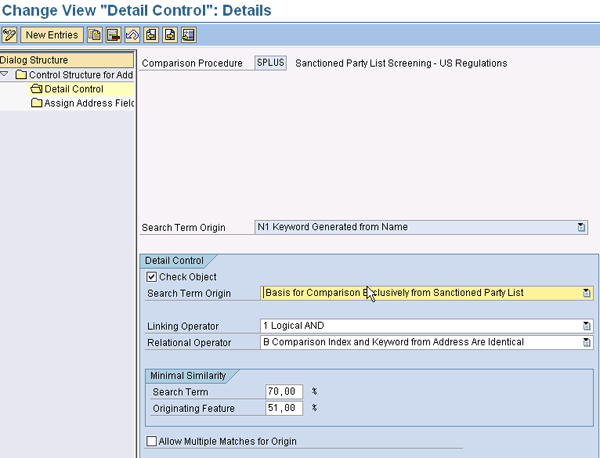
Figure 3
Detail control of SPL screening setup
Ensure that the correct Linking Operator is selected (1 Logical AND). If you prefer, you can select the OR operator instead of AND. Ensure the Check Object check box is selected. For Search Term Origin, select Basis for Comparison Exclusively from Sanctioned Party List. Within Minimal Similarity, set the search term and original term percentages. Figure 3 shows the default selection, which I recommend keeping. If you want to achieve a higher hit, then you can alter the percentages to see if you can achieve your goal.
From the screen in Figure 3, click the Detail Control folder to bring up the screen in Figure 4. It is a different view of the configuration step for defining the control procedure for address comparison.
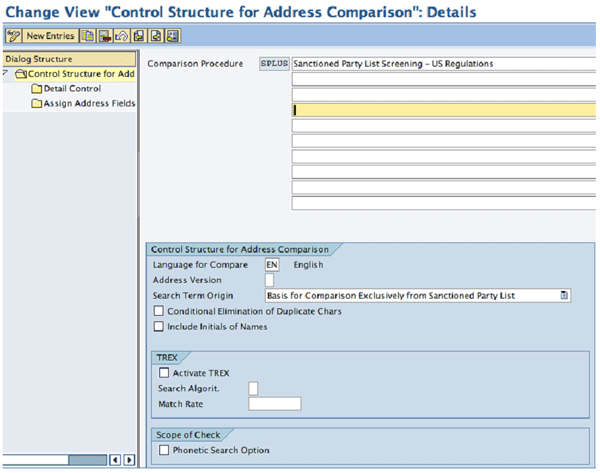
Figure 4
Control settings for SPL
In the field Search Term Origin in Figure 4, select Basis for Comparison Exclusively from Sanctioned Party List. This ensures that your screening is performed against the SPL content.
Check the Activate TREX box under TREX. Select F — Fuzzy Search or G — Fuzzy Search (Extended) from the drop-down for Search Algorit. to activate the SAP TREX functionality. The search algorithm G generates more hits due to the fact that it doesn’t have restrictions in the search as F does. With F, the first two characters have to be a match. With Match Rate you can specify the tolerance. For example, 4,000 match rate would mean that 60% of the characters have to be matched in a word to be found as a hit.
Along with the above settings you also need to assign the Comparison Procedure to the TREX destination within the SAP BusinessObjects Global Trade Services front-end cockpit. Use transaction /SAPSLL/VC_CMPAS or follow menu path SAP GTS Area Menu > Sanctioned Party list Screening > Master Data tab > General Settings under ‘Control Settings for Comparison Terms’.
Then select the Comparison Procedure (e.g., SPLUS) and click the TREX Destination folder. Click the New Entries button to select the Comparison Procedure from the drop-down menu. Select the RFC destination for the TREX destination and save the entries.
Then click the Assign Address Fields folder to bring up the screen in Figure 5. You can see t he delivered fields for SPL screening. Click the New Entries button to add fields that you want to screen (e.g., CITY2).
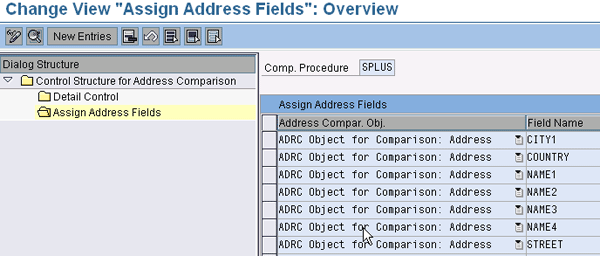
Figure 5
Control settings with Assign Address Fields
Denied Party List
US individuals and companies are restricted from exporting or providing services to any foreign party shown in DPLs. These comprehensive lists incorporate parties required to be screened according to the US export laws and requirements. The US has identified companies, persons, and countries with which US individuals or companies may not conduct international business. Failure to comply may jeopardize privilege to export.
Third-party companies provide the DPL content in XML format, to which you can subscribe. These content providers keep tab of the updates from the governments on any new inclusion or exclusions to the list and they periodically send updated delta files to subscribers. You can use the XML interface program included in SAP BusinessObjects Global Trade Services to load the DPL data into the system. You can then schedule a background job to receive the updated XML file on a periodic basis.
The XML file contents are categorized into list types for different grouping of the DPL content. Some of the examples of the list types are:
- Commerce Dept. Denial List / Table of Denied Order (TDO)
- Treasury Dept. Specially Designated Nationals of:
- Angola (UNITA)
- Cuba (SDNC) & Merchant Vessels (MVC)
- Iran (SDNR)
- Iraq (SDNI) & Merchant Vessels (MVI)
- Libya (SDNL)
- North Korea (SDNK) - Assets prior to 6/17/00 remain blocked
- Sudan (SDNS)
- Western Balkans (BALK)
- Yugoslavia & Blocked Vessels (FRYM & BYV)
- Zimbabwe (SDNZ)
- State Dept. Statutorily Debarred Parties (DOS)
- State Dept. Designated Terrorist Organization (DTO)
- State Dept. Missile Proliferators (MT)
- State Dept. Chemical & Biological Weapons Concerns (CBW)
- Treasury Dept. Specially Designated Terrorists (SDME)
- Treasury Dept. Specially Designated Narcotic Traffickers (SDNT)
- Money laundering
Business partners are screened in SAP BusinessObjects Global Trade Services against DPLs, in a process called SPL screening. When the business partners are created or changed in the feeder system, the addresses are transferred to SAP BusinessObjects Global Trade Services for screening. During the transaction processes, these business partner-screening results are referenced. If, for example, an address is changed in a document, SPL screening would be performed at the document level.
Follow menu path SAP Reference IMG > SAP Global Trade Services > SAP Compliance Management > Sanctioned Party List Screening Service > Define Control Settings for “Sanctioned Party List Screening” Services to get to the control settings shown in Figure 6. Here you need to alter the minimum length of index entries. Under the Minimum Length of Index Entries section, you can maintain the values for Name, Street, and City
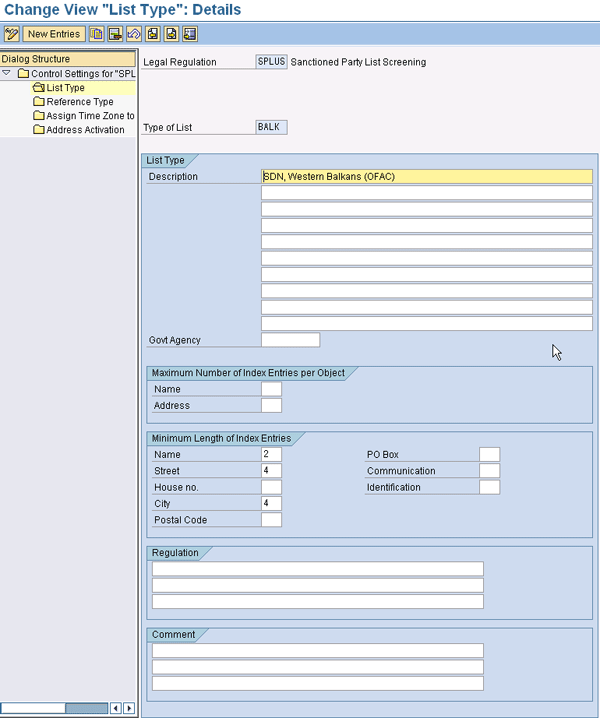
Figure 6
List types configuration: Settings
When you are in the control setting configuration step, click the Reference Type folder to bring up the details shown in Figure 7.

Figure 7
Reference types
Click the Assign Time Zone to Deadline Type folder to bring up the screen shown in Figure 8.
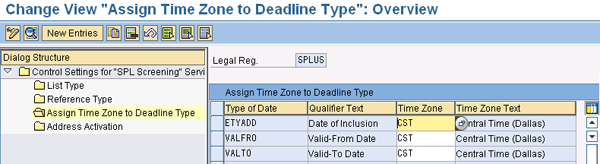
Figure 8
Date type assignment to the legal regulation
Click the Address Activation folder to bring up the details screen shown in Figure 9.
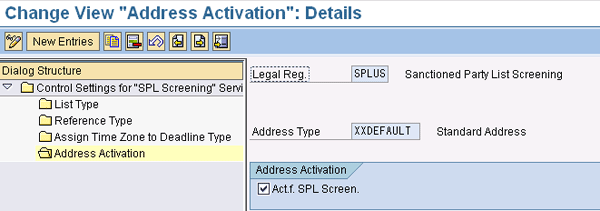
Figure 9
Activate address types
Follow menu path SAP Reference IMG > SAP Global Trade Services > SAP Compliance Management > Sanctioned Party List Screening Service > Activate Business Partner at Business Partner Function Level (Figure 10).
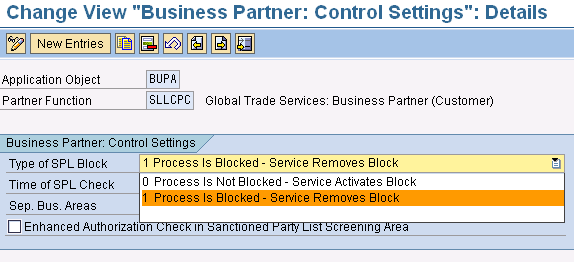
Figure 10
Type of SPL block
For SPL configuration, you follow the three basic steps for embargo services and then carry out two SPL-specific steps. The three basic activation steps for embargo services are:
- Set the determination procedure for active regulations
- Activate legal regulations
- Set the control settings for legal regulations
In addition to these steps, SPL settings have two more specific settings that are unique for its activation:
- Activate business partner at the business partner function level
- Define the control procedure for address comparison
Activate the Business Partner at the Business Partner Function Level
This involves setting up the application object control settings for business partners and their associated business partner functions. The control settings involve selecting the type of SPL block (default setting is titled 1 Process is Blocked – Service Removes Block), the time of the SPL check (Synchronous – When Object Is Updated) and the business area it falls under (Logistics, Financial Accounting, or Human Resources).
Follow menu path SAP Reference IMG > SAP Global Trade Services > SAP Compliance Management > Sanctioned Party List Screening Service > Activate Business Partner at Business Partner Function Level (Figure 11).
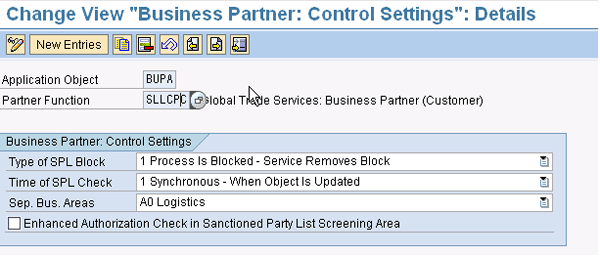
Figure 11
Business partner screening control settings
The default SPL block setting means that the system screens the business partner. If it finds a block based on the system parameter settings, it blocks this business partner. Users can then review the results and manually release the block or take appropriate action. For the Time of SPL Check field, I recommend that you use Synchronous — except during conversion or volume transfer, when you should set it to Asynchronous. Then revert back to Synchronous for ongoing or regular transfers.
The separation into business area (Sep. Bus. Areas) field ensures that blocked business partners and associated transactions fall under the appropriate view for operational effectiveness and reporting. Settings are pre-delivered for customers and vendors, but you must ensure that the entries for other business partner roles (e.g., contact person, employee, or bank) are maintained. To restrict the control of review of business partners by company codes within your organization, select the check box Enhanced Authorization Check in Sanctioned Party List Screening Area, and ensure that the security profile has the Foreign Trade Organization selected in it.
Determination Procedure
The default determination procedure uses the country as a key in determining the active legal regulation, which performs the service check. You can set the parameter for this determination, which can be country or a combination of country and country group (for example). For SPL, you should keep the standard determination procedure unless there is a business need to have a different one.
Activate Legal Regulation
Similar to embargo service checks, you need to activate the SPL legal regulation. You have five different choices from which to choose when doing this activation:
- Check: Dispatch (exclusively)
- Check: Export (exclusively)
- Check: Dispatch/Export (excluding domestic)
- Check: Dispatch/Export (including domestic)
- No check (no SPL service activation)
If you are obliged to screen your domestic partners as well, I recommend that you select option 4. Also, ensure that you are activating for both imports and exports based on the requirement.
Address Comparison
Figure 12 shows the control procedure mapping with the configuration step. Define the control procedure for address screening and then define the rules that state how the system performs SPL screening checks. Follow menu path SAP Reference IMG > SAP Global Trade Services > SAP Compliance Management > “Sanctioned Party List Screening” Services, then click Define Control Procedure for Address Comparison. Enter the control procedure name and description. These rules are used in performing the screening of the business partner address string against the DPL.
Define the Control Procedure for Address Comparison
Defining control procedures for address comparison is a two-step process:
- Define the control procedure
- Detail the control to screen business partner addresses
Define the Control Procedure
Defining the control procedure involves selecting the language for screening (English) and the basis of comparison for the search term origin. For the search term origin, you can choose either the SPL entry, or the business partner address (for index building and for comparison). If you choose the SPL entry, the system uses it as the basis for determining the percentage of match. For example, if there is an SPL entry with the name Terror, and you have a business partner by the name of Teror, your percentage would be the number of business partner characters that matches with the SPL entry — in this case, 5 — divided by the number of characters of the SPL entry — in this case, 6 — which would be 83%.
This percentage calculation reverses if you select both Basis for Comparison String from Partner Address and Basis for Comparison Parallel from Sanctioned Party List / Address. This calculates the number of business partner characters that match with the SPL, which reverses the percentage calculation and takes into account the best-case scenarios.
Detail the Control to Screen Business Partner Addresses
Define the business partner address fields that are relevant for SPL screening, as well as what logical operator you want to assign to these selected fields: AND or OR. You use the OR operation when you would like to search for a match that has one or more address elements. For example, if you have street, city, and country listed with OR operators, SPL searches return results for any business partner address that has any one of these fields as a match. On the other hand, you should use the AND operator if you want to capture individual address fields for match selection and result.
After the address object fields are identified for SPL screening and assigned an operator, you must configure the details behind the field selected. Follow the steps below:
- Check the Check Object if you want the Address field to be taken into consideration for SPL screening.
- The Search Term Origin field defaults from the comparison procedure definition. I recommend you keep the default settings.
- Within the Linking Operator field, select the operator OR or AND
- Within the Relational Operator field, you have two choices:
- A Comparison Index Contained in the Keyword from Address. With this option, the system searches for individual characters within the business partner addresses.
- B Comparison Index and Keyword from Address are Identical. With the second option, it considers only strings of characters. For closer hits, I recommend that you use this option.
- Within the Minimum Field, you have Search Term and Originating Features percentage to be maintained for the search criteria. You must update the percentage of search threshold. Search term percentage is calculated based on the number of character matches within the address as compared to the SPL content or address entry. The original form looks for the complete form or a word for match. Take a case where you have a business partner named Teror A Citizen and an SPL entry of Terror T Citizen. The system first searches the individual characters within the two business partner words, Teror and Citizen. In the case of Teror it is 5 out of 6 is a match, and in case of Citizen it is a complete match. So the first round of percentage threshold is the search term’s qualification, with Teror it is 83.33 % and with Citizen it is 100 %. There is no match for the middle name. So, if you had the search term less than 83.33%, then the search term results in a successful match. Once the search term is successful, the system moves on to the Originating Form. If the search is successful, the original terms are matched against each individual word of the business partner with the SPL entry. In this case, the Teror business partner address is matched against the Terror SPL entry, and the Citizen business partner address is matched with the Citizen SPL entry. In other words, the business partner Originating Form name Teror A Citizen has two of three words match against the SPL entry Terror T Citizen, so the percentage for the originating terms calculates to 66.66%. If you have percentage less than 66.66%, then only this name is found as a match.
- Select Allow Multiple Matches for Origin to consider repeated words as individual entities. Without this selection, duplicate address entries are considered as one. Avoid this option because it tends to raise the hit ratio and provide more false hits.
The Assign Address Fields list all the fields that you have selected to be used for SPL screening purposes. Figures 6 through 9 display the configuration settings for comparison procedures with the list of fields and details behind each field. You can also see the list of fields that are listed for SPL screening. For example, the Name field object might be maintained in different fields within SAP ERP Central Component (SAP ECC) (e.g., Name1 and Name2). You should list all the fields you are interested in subjecting to SPL screening.
Control Settings
You need to define unique control settings for every service within SAP BusinessObjects Global Trade Services. The control settings of SPL involve the setup of the following:
- List types
- Reference types
- Date types
- Address activation
To configure these control settings, use transaction SPRO or follow IMG menu path SAP Global Trade Services > SAP Compliance Management > “Sanctioned Party List Screening” Services > Control Settings for “Sanctioned Part List Screening” Services.
There are configurations that are associated with the control settings for SPL that are required for content maintenance. In the following sections, I’ll discuss the add-on setup for SPL control settings and service activation with reference to screens I showed you when going through the basic SPL control settings.
List Type
To allow the upload of content of the DPL, you must define these list types in the system. Many of the list types are pre-delivered. Contact the content provider to validate the lists and update the system with any missing list types.
Defining a list type involves the list type code, description, and minimum length of the index entries for the fields selected (e.g., Name, Street, and City). If you define the character as 4, the search terms only look for words that are four or more in length. I recommend that you keep the Name minimum index at 2 and the Street and City at 4, so that you get optimal results. Figure 6 displays the screenprint with the configuration set up for this.
Reference Types
The Reference Type field allows you to capture different names or aliases that represent the same person or entity. Some of the pre-delivered reference types are A.K.A. (also known as) and D.B.A. (doing business as). Figure 7 displays the configuration setup for the reference type, and you can add new entries by clicking the New Entries button.
Date Types
Figure 8 displays the date types that are associated with SPL screening, and valid-from and valid-to dates. In addition, you have the date when the SPL entry was maintained.
Address Activation
You can list here all the different addresses you might want the system to consider for screening, mailing, billing, and so on. Figure 9 displays the screenprint with the configuration step for address activation.
Control Settings Details
The details-level configuration specific to the control settings for SPL involves the assignment of control procedures that are defined for address comparison. With the document control, you must assign the partner group for import and the partner group for export. Within the groups, list all business partners from the feeder system document for which you want to perform SPL screening. Within Scope of Check, you need to update the following information:
- Validity: Keep the default selection, C: Include Both Valid From and Valid To Date.
- Check Logic for Docs: Keep the default setting, New Check of Changed Addresses. This ensures that the document partner addresses are screened when they are changed in the document. If the addresses are not changed, the system refers to the business partner master screen results.
- Search Strategy: Select the option A: SPL Entry Searches in Address and Vice Versa. This ensures that SPL screening is performed both by selecting the entry in the SPL and finding a match in the business partner list, and also by taking a business partner address and performing the screening against the SPL.
- Size of Check Package: Keep this size based on the performance testing and sizing. For volume transfer, I normally recommend keeping the size lower — say, between 5000 and 10000 — for performance reasons.
- Audit: Check the Write Entry to Audit file. This ensures that the SPL screening and release by system and manual are captured in the audit trail. During the initial transfer of a volume of business partners, I recommend that you turn it off because it slows down the business partner transfer.
- System Control: Select Store Summarized Comparison Index in Application Buffer and Stored Summarized Comparison Index in Cluster Table. The first selection ensures that the SPL index build are stored in the application buffer, and the second one in the cluster table. SAP BusinessObjects Global Trade Services provides this feature of indexing for faster retrieval and text screening.
- Time Initiated: Select For Change to SPL Data Basis. This ensures that any update to DPL content triggers SPL screening.
- In addition to the previous list items, you must also check the following options:
- Set Deletion Indicator According to Official Validity: This ensures that if you have a validity date assigned to the content, the SPL entry is marked for deletion and archive.
- Include Master Records Flagged for Deletion: This allows you to include the SPL records that are marked for deletion.
- Cross-Check Active: If checked, the SPL screening is performed with each field against one another — in other words, Name is screened against the Name field and other Address fields, such as Street and City.
- Take Past Check Results into Account: This allows you to use past screening results for current searches. In other words, if, in the past, you had a hit against the name Rajen and the business user found it to be false hit and released it, the system remembers this and does not list the business partner as blocked.
- Multiple Address Check Active: This allows you to perform SPL screening on multiple addresses (e.g., main address, billing address, and delivery address) if they are maintained in SAP BusinessObjects Global Trade Services.
Workflow
SPL configuration allows you to send a notification if documents are blocked due to SPL screening. Check the Send Mail When Doc. Blocked option if you want to send email when the document is blocked (Figure 12). Check the Send Mail When Business Partner Blocked option if you want to send a notification when the business partner is blocked.

Figure 12
Assign workflow to the SPL
Then set up the prerequisite steps that are part of the SAP BusinessObjects Global Trade Services front-end cockpit setup. Use transaction /SAPSLL/MENU_LEGAL, click System Communication/Workflow under the System Administratin section, and select Workflow. Then follow these two steps:
- Maintain user groups. These help you group the users to whom you would like to send the notification.
- Under Notification Control for Blocked Documents, maintain the foreign trade organization, legal regulation (e.g., SPLUS), and user groups you maintained in the previous step.
Comparison Terms
SPL master data requires you to set up the control settings for the configured search terms. You can do this by using transaction /SAPSLL/MENU_LEGAL or following menu path SAP GRC GTS Area Menu > SAP Compliance Management > Sanctioned Party List Screening > Master Data > Control Settings for Comparison Terms > General Settings (Figure 13).
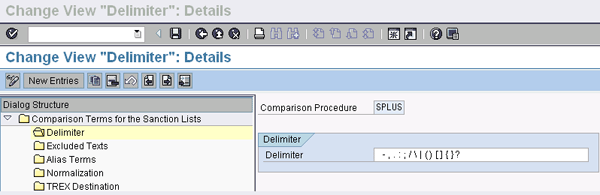
Figure 13
SAP BusinessObjects Global Trade Services general settings
One important master data setup for SPL is the maintenance of the business partner for the content load by setting the business partner role as a data provider. You can maintain this the same way you maintain regular business partners, by using transaction /SAPSLL/MENU_LEGAL or by following menu path SAP GRC GTS Area Menu > SAP Compliance Management > Sanctioned Party List Screening > Master Data > Business Partner > Edit Business Partners. You must configure the control settings before you can load the SPL or DPL content.
When you click General Settings under Control Settings for Comparison Terms, there are subfolders that contain the following fields:
- Delimiter: List all special characters, including numbers the content file might have (e.g., hyphens, commas, or quotes)
- Excluded Terms: List all the terms that you would like to exclude from the SPL screening. There are a few terms that are common across all addresses, names, and so on, and excluding them results in fewer false hits. For example, these could be words such as international, division, and PVT. SAP BusinessObjects Global Trade Services has some pre-delivered exclusions that you can review and add to the list.
- Alias Terms: This allows you to screen alias names. If you have a business partner named David who also goes by Dave, then maintaining the alias as Dave allows it to be used while searching the SPL.
- Normalization: Normalization allows you to replace certain characters or sets of characters with different characters for search purposes. For example, you could replace “psychology” with “sychology” because they sound similar. If you maintain normalization for PSY to SY, the system replaces PSY with SY for the SPL search. I recommend that you set up normalization after you have tried and understood the other settings, because having too many functional settings within control settings might make it difficult to interpret screening results.
- TREX Destination: With SAP BusinessObjects Global Trade Services 7.2, there is an SAP TREX function with SPL screening. If you plan on using it, you need to maintain the Remote Function Call (RFC) destination for the comparison procedure.
Figure 14 displays the SPL front-end data setup, which in turn enables the SPL services and business processes behind it.
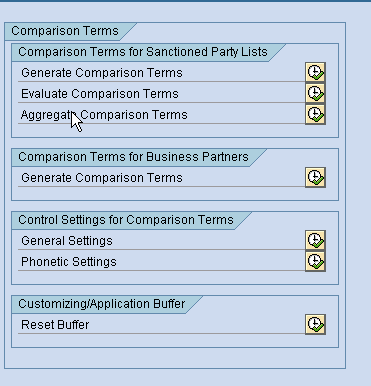
Figure 14
SPL cockpit or data setup within the front end
Rajen Iyer
Rajen Iyer is the cofounder and CTO at Krypt, Inc. Rajen has written several in-depth, best practice articles, white papers, patents, and best-selling books on SAP Logistics and SAP Global Trade Services, including Effective SAP SD and Implementing SAP BusinessObjects Global Trade Services. He is also an invited speaker at industry conferences.
You may contact the author at Rajen@kryptinc.com.
If you have comments about this article or publication, or would like to submit an article idea, please contact the editor.



 Premium