Value mapping in SAP NetWeaver Process Integration can take up a lot of processing time and lead to poor performance. Learn how memory is consumed in high-volume scenarios with a large number of value mapping groups, which key factors affect performance, and what to do to achieve the best performance when using value mapping functionality.
Key Concept
An interface field can have different representations in the sender system and receiver system, depending on the context in which it is used. Value mapping is a standard SAP NetWeaver Process Integration function to map different representations of an interface field to each other. The mapping rules (including context, agency, and schema for source values and target values) are stored on table XI_RUNVALMAPGR. The value mapping table contents can be edited by manual input using the user interface of the Integration Directory or replication from external data sources using a specialist interface. During run time, the target value is retrieved according to the mapping rules by Java mapping or message mapping, which calls the standard value mapping function.
Frequent access to databases via SQL to retrieve data causes performance issues. A cache is introduced to transparently store data in memory so that future requests for that data can be served faster. The consumption of memory also creates system performance issues due to the high volume of processing it requires. You can use value mapping functionality in SAP NetWeaver Process Integration (SAP NetWeaver PI) to map some functions to others in an interface field to reduce the processing time by its internal cache mechanism.
In this article, I’ll use a simple business scenario to explain the value mapping rules. I’ll use a postal code and area description. Each postal code can be mapped to an area description in more detail. In this integration scenario, legacy system A is the sender and SAP ERP Central Component (SAP ECC) system B is the receiver. The data from sender system A uses the postal code. The data is sent to system B via SAP NetWeaver PI. Using value mapping, the system can look up and map the area description using information provided by the postal code from the sender XML payload. The SAP ECC receiver system receives the data with the area description instead of the postal code.
I’ll start by showing how to maintain the value mapping groups. I’ll show you examples to demonstrate how the volume of the value mapping groups affects memory consumption and how the key factors affect the performance. In the end, I’ll explain how to customize the value mapping function to allow you to cache only a small number of your critical value mapping groups. This article is intended for SAP NetWeaver PI consultants, developers, and administrators.
Maintain Value Mapping Groups
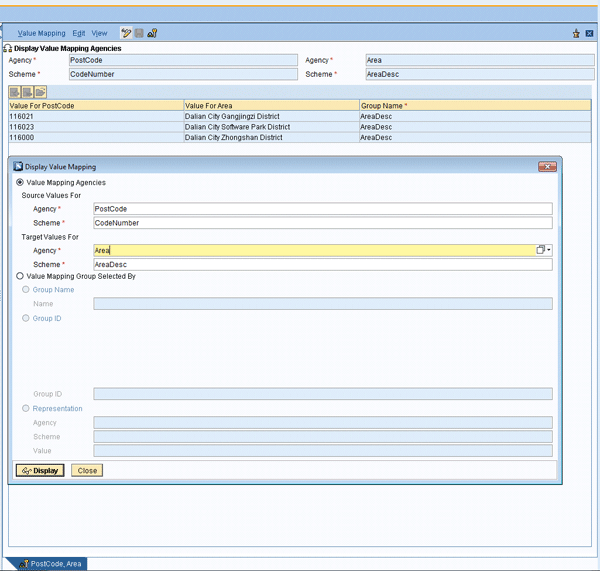
Log on the Integration Builder and from the menu select Tools > Value Mapping (Figure 1). This shows how the value mapping groups could look via the Integration Directory. It is more suitable as an alternative for low-volume scenarios because all value mapping groups are maintained manually, although it can work with high-volume scenarios with a little more effort. Input the Agency and Scheme and click Display.
Note
Before SAP NetWeaver PI 7.1, Integration Builder included Integration Directory and Integration Repository. Now, Integration Repository has moved to the Enterprise Service Repository.
In Figure 2, you can see how a value mapping group looks in the Mapping Runtime Cache.
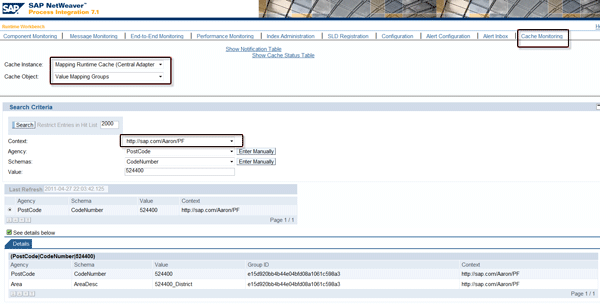
In this case, I’m using the ValueMappingReplication interface to maintain the value mapping groups with mass update because the data volume is large. I am using the context https://sap.com/Aaron/PF so I can identify it easily in my testing system. The context could be named anything other than https://sap.com/xi/XI. I need to have 5,600,000 records in the value mapping table. I’ll describe the major performance concerns together with testing results in the following sections. For more details about how to maintain the value mapping groups, as well as information about the ValueMappingReplication interface, refer to the SAP Help page Value Mapping.
Note
The context https://sap.com/xi/XI is reserved for value mapping groups created from the Integration Directory only. Value mapping groups created via the Replication Interface with this context are deleted during a Java mapping full cache refresh. To prevent value mapping content from vanishing by full Java cache refresh, use a context other than https://sap.com/xi/XI for those value mapping groups updated by the Replication Interface. Refer to SAP Note 1476480.
The Number of Value Mapping Groups vs. Java Heap Memory Usage
You can retrieve value mapping groups from the cache monitoring, so it is easy to assume that the maintained value mapping groups are loaded into the memory. Therefore, you may worry about the SAP Java heap memory consumption when there is a large number of value mapping groups that you need to maintain. Does this cause an OutOfMemory error?
The answer is no, because the assumption is not fully true. The maintained value mapping groups are stored on a database table. They are not loaded into the memory until they are called by the value mapping function. Value mapping groups maintained via the Integration Directory are replicated to the runtime table XI_RUNVALMAPGR with delta cache update when they are activated. Value mapping groups maintained via the Replication Interface are directly inserted or updated on table XI_RUNVALMAPGR.
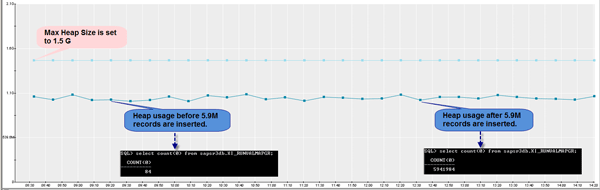
Figure 3 illustrates the heap usage before and after the 5,900,000 value mapping groups are maintained. You can see that the heap consumption does not change because of the large volume of maintained value mapping groups. They are not loaded into the memory until they are called by the value mapping function. The size is controlled by parameter com.sap.aii.ibrun.server.valuemapping.cachesize.
Key Factors Affect the Performance of the Value Mapping Function
Two key factors affect the performance of the value mapping function:
- The performance of the SQL statement
- The value mapping cache size and the different requested source values in the XML payload
The Performance of the SQL Statement
During the run time, the value mapping function accesses the value mapping table to get the target value based on the source value, whether it is via graphic mapping or Java mapping per your design. This means a database call is required when a target value is requested by the value mapping function.
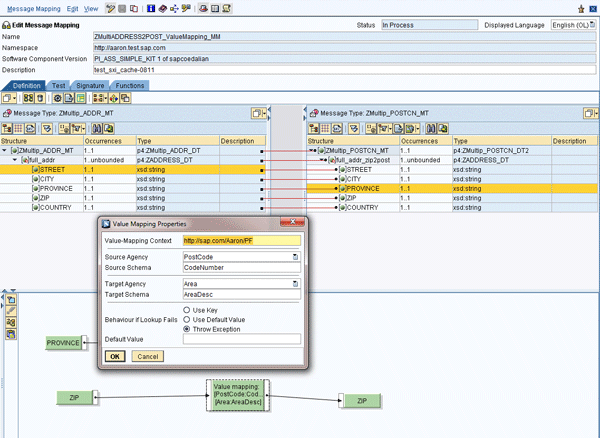
SAP has made optimal indexes for table XI_RUNVALMAPGR as standard functionality. The SQL query takes about 10 milliseconds on average even with about 5,900,000 entries in the table. You can see the value mapping configuration in the Enterprise Service Repository (ESR). Log on to ESR, go to your software component and namespace and click Message Mappings (Figure 4). You can use the value mapping function for your message mapping as shown in this screen. Click the Value mapping button at the bottom of the screen to map the fields. Input the Value-Mapping Context and the agency and schema information for the source and target. Choose a Behavior if Lookup Fails value and click the OK button.
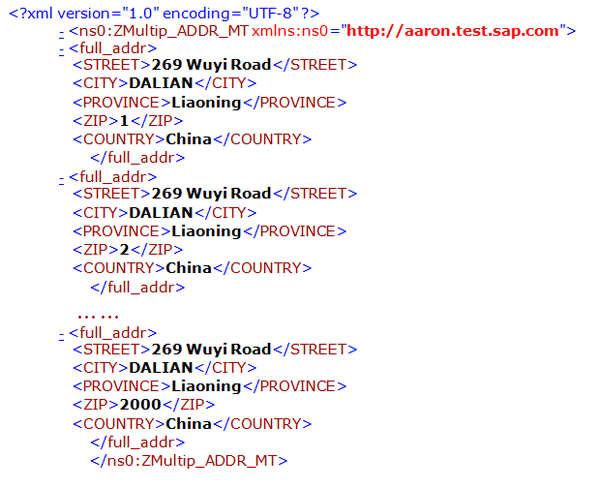
Now I am going to use an XML payload that contains 2,000 different source values (from 1 to 2000) for the testing (Figure 5). Later in this example, the corresponding SQL statements are executed 2,000 times.
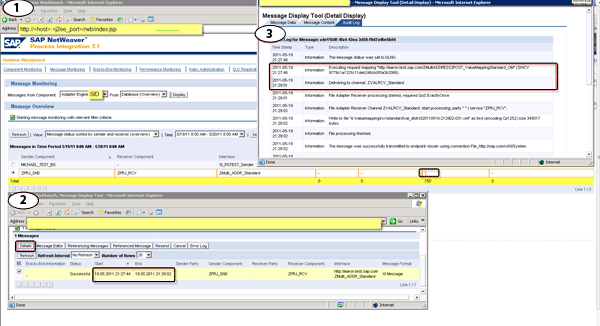
Log on to the SAP NetWeaver PI Runtime Workbench using the link https://<host>:<j2ee_port>/rwb/index.jsp (Figure 6). Select the corresponding component (here I am using Advance Adapter Engine, so I chose Adapter Engine > Database Overview, which is default). Click the message number and a list of the messages is shown in screen 2. From screen 2, by looking into the Start time and End time, you can tell the total processing time is 78 seconds (21:29:02-21:27:44). Select the message, click Details (as shown in screen 3), and you can see that the processing time of the mapping is 75 seconds (21:29:01-21:27:46). The majority of the time spent on the mapping step is taken up by the value mapping function.
With the standard functionality Open SQL Monitors via SAP NetWeaver Administrator and SAP DBA Cockpit, you can see how many times the SQL statements are called corresponding to the number of requested value mapping groups and how the indexes and tables are accessed by checking the explain plans. The explain plan displays the execution plans chosen by the database server optimizer for SELECT, UPDATE, INSERT, and DELETE statements, including accessed tables, indexes, data ordering, data sorting, and data aggregation information. For more, refer to this explain plan resource.
Note
For more information about SQL monitors, refer to SAP Notes 1256322 and 1261329.
To see the number of executions of the SQL statements, log on to SAP NetWeaver Administrator via https://<host>:<j2ee_port>/nwa and follow menu path Problem Management > Database > Open SQL Monitors > Open SQL Statistics (Figure 7). You can see the total count of the executeQuery is 2000, which equals the requested number of values from the XML payload.
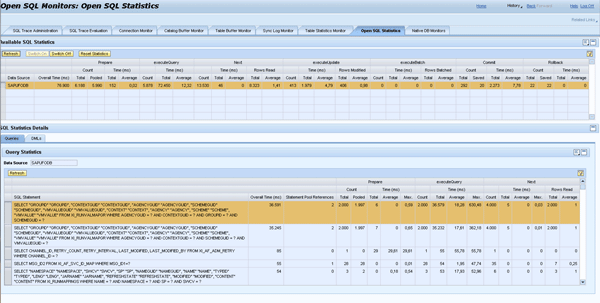
Figure 8 illustrates the captured SQL statements. In this test case, I use the DBA Cockpit of the ABAP stack on the integration server. Use transaction ST04 and go to Shared Cursor Cache. You can capture the SQL statements called by the value mapping function. The statements in Figures 9 and 10 are called.
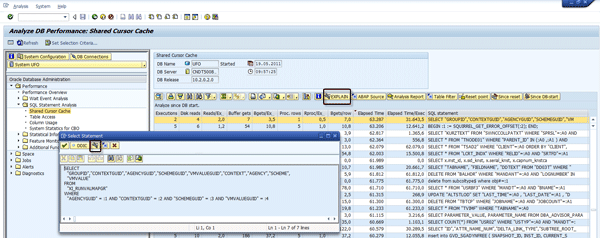
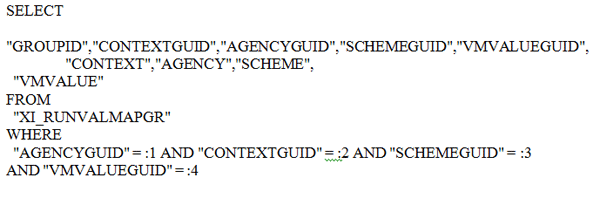
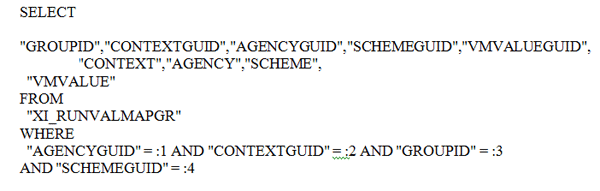
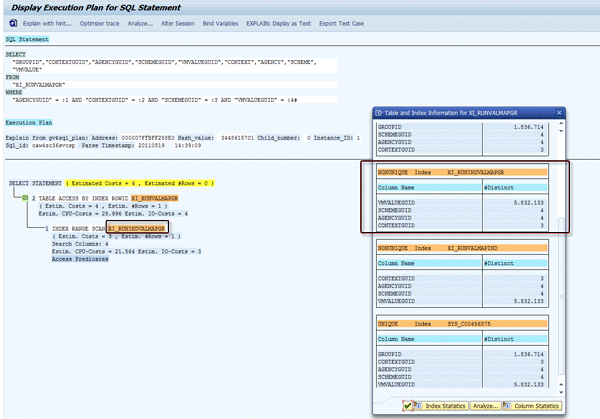
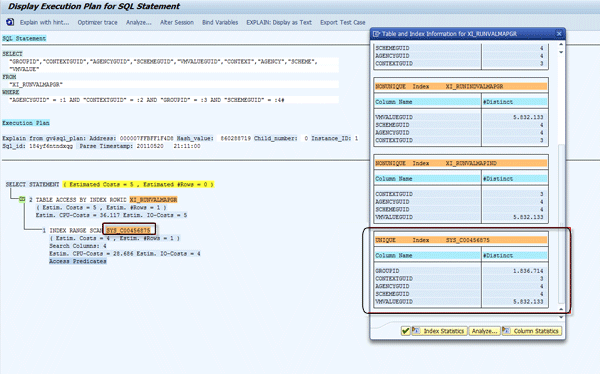
Click the EXPLAIN button highlighted in Figure 8 to bring up the screens shown in Figures 11 and 12. You can see the execution plan and used indexes of the captured SQL statements. In both cases, you can see that the right indexes are used and the columns of the indexes are very selective. From a database point of view, this is optimal and efficient because the index fields are the most selective.
The Value Mapping Cache Size and the Different Requested Source Values in the XML Payload
In the exchange profile, the parameter com.sap.aii.ibrun.server.valuemapping.cachesize under IntegrationServer defines the cache size (i.e., the number of cached objects) per value mapping cache (Figure 13). This parameter is read only once during the creation of the cache instance (after startup of the application). You can configure this via https://host:port/exchangeProfile. The default value is 10000.
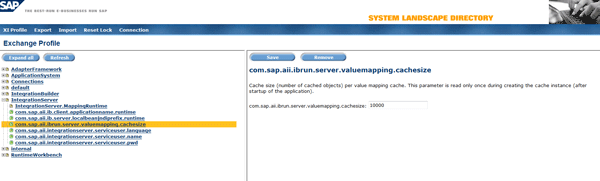
When a value mapping group is requested by the value mapping function in the mapping step for the first time, it is loaded from the database into the memory and occupies one position inside the Java cached object (LinkedHashMap). Bear in mind that the parameter com.sap.aii.ibrun.server.valuemapping.cachesize controls the size of the value mapping groups. If the size of the value mapping groups does not exceed the value defined in the exchange profile, the entry is just added into the value mapping cache. Otherwise, it removes the eldest entry each time a new one is added. This is useful if the map represents a cache: It allows the map to reduce memory consumption by deleting stale entries. For more, refer to the LinkedHashMap API.
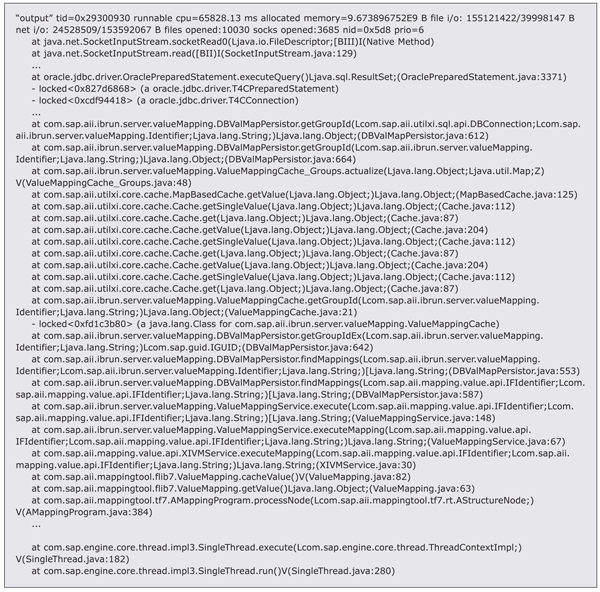
Figure 14 illustrates the important call stack of the value mapping function during run time.
In the following examples, I’ll show you how value mapping works.
Value Mapping Examples
I’ll take you through three examples. In example 1, I use 10,000 different postal codes for the value mapping. This fully occupies the value mapping cache as its size is 10,000 by default. In example 2, I use the exact same values of example 1, but with two sets. In example 3, I use postal codes from 1 to 10010 in three sets. This just slightly exceeds the size limit of the value mapping cache (10,010 > 10,000). I’ll show you how the execution behaviors are completely different. You can get to the screens about message processing and SQL calls via the same path as mentioned in Figures 6 and 7.
Example 1: 10,000 Postal Codes in One Set
In the first example, I’m processing a message with the postal codes from 1 to 10000. The XML payload is shown in Figure 15.
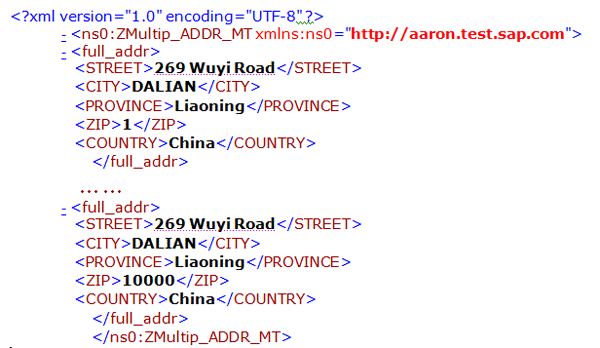
Figure 16 shows the processing time of this message. You can see that the total processing time is about 341 seconds (= 17:57:48 - 17:52:07), the majority of the time is on the mapping step (338 seconds = 17:57:48 - 17:52:10).
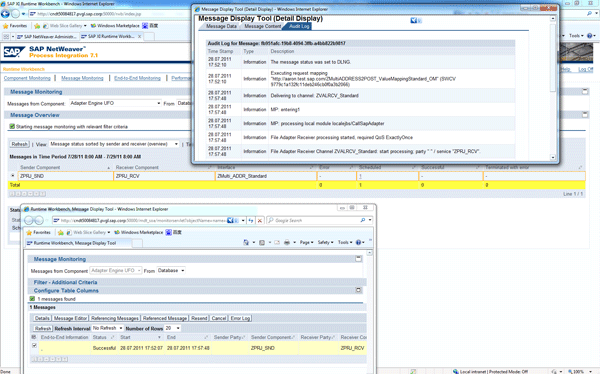
Figure 17 shows the total number (10,000) and the total time (331 seconds = 172,909 ms + 158,761 ms) of SQL executions.
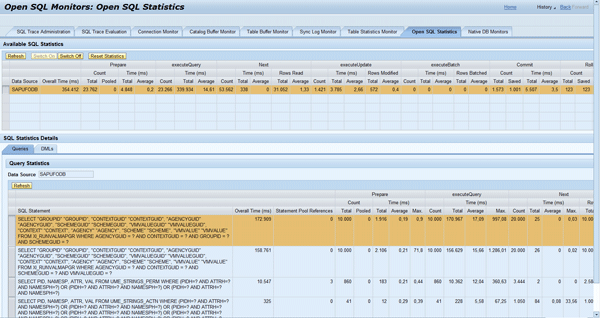
You can see that because it is the first time the values are loaded from the database into the cache memory, the processing time of this message is long. For each unique value mapping group, a SQL call is requested.
Example 2: 10,000 Postal Codes in Two Sets
In a second example, I process a message with postal codes from 1 to 10000, but in two sets. The XML payload is as shown in Figure 18.
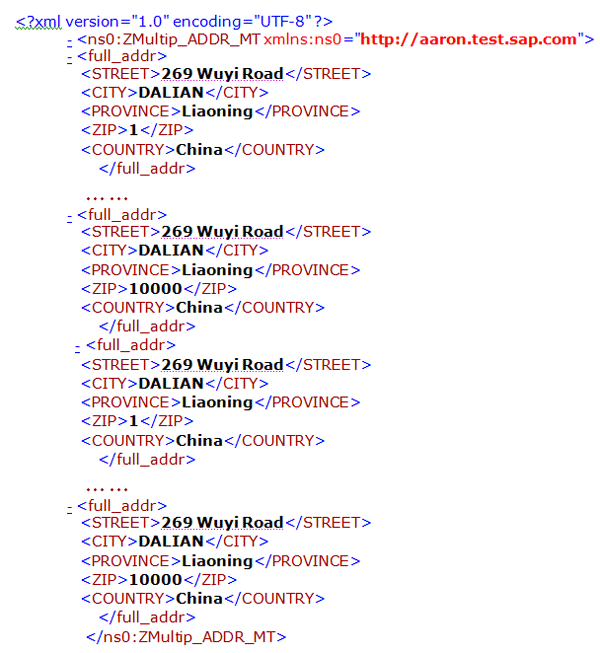
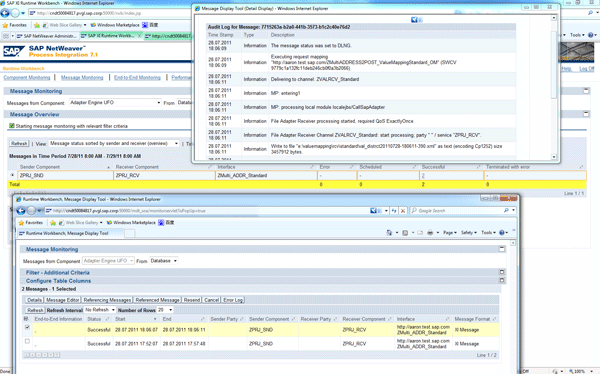
Figure 19 shows the processing time of this message. You can see that the total processing time is four seconds (= 18:06:11 - 18:06:07). The time spent on the mapping step is only two seconds (= 18:06:11 - 18:06:09).
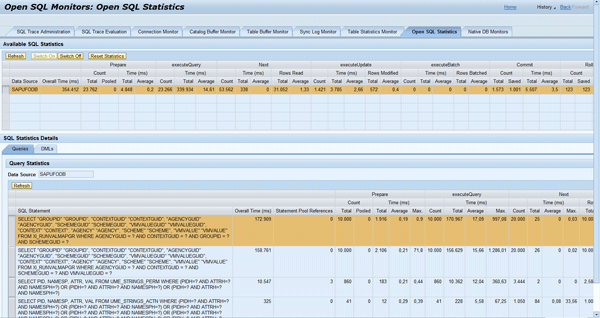
In the screen in Figure 20, there is no additional SQL statement executed as the total number and time remain unchanged. Because all value mapping groups (from 1 to 10000) are loaded from the database into the cache memory already in example 1, the processing time of this message is decreased significantly. No SQL call is requested.
Example 3: 10,010 Postal Codes in Three Sets
In example 3, I process a message with the postal codes from 1 to 10010 in three sets. The XML payload is shown in Figure 21.
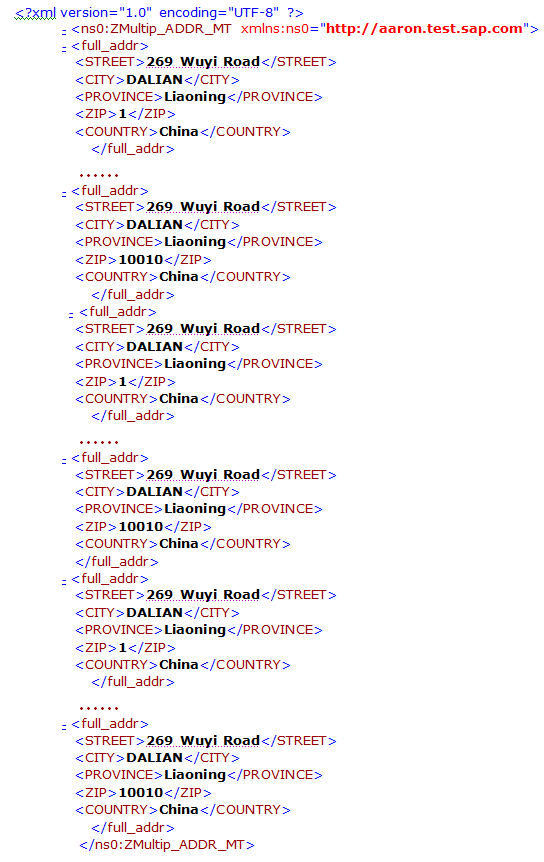
Figure 22 shows the processing time of this message. The total processing time is about 34 seconds (= 18:12:41 - 18:12:07). The time spent on the mapping step is about 30 seconds (= 18:12:41 - 18:12:11). Once again, the majority of the time is spent on the mapping step.
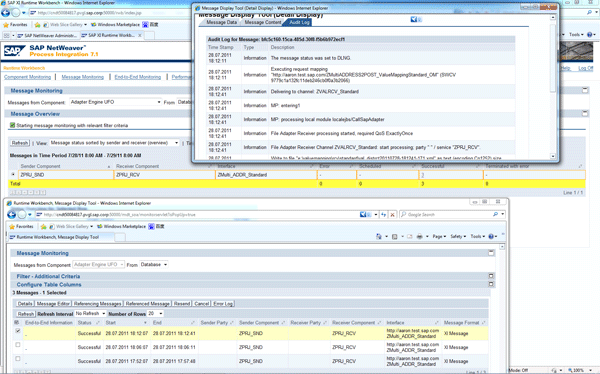
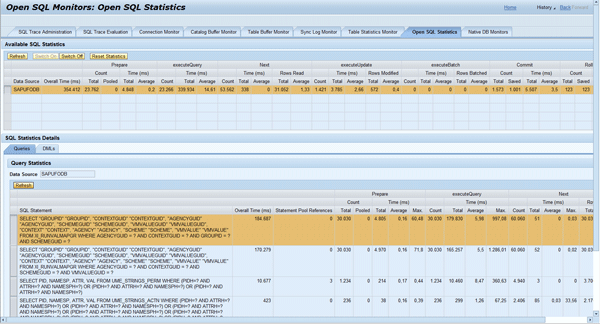
Figure 23 shows the new total number (30,030) and the total time (about 354 seconds = 184,687 ms + 170,279 ms) of SQL executions. Compared with the last snapshot, 20,030 (= 30,030 - 10,000) executions and 23 (= 354 - 331) seconds are added by this message processing.
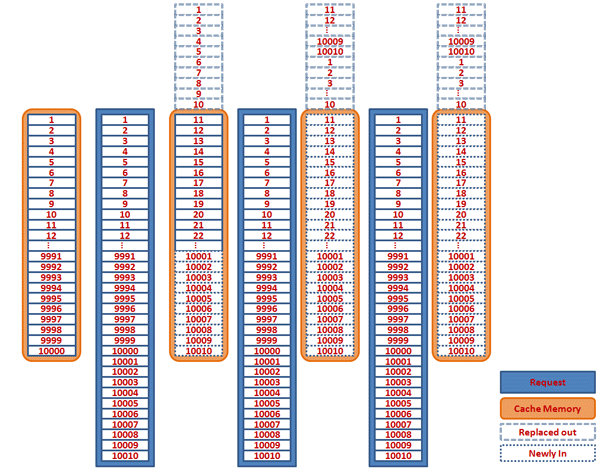
The different behaviors are due to the capacity (10,000) of the value mapping and the behavior of the LinkedHashMap Java class. As the value mapping groups from 1 to 10000 are already in the memory starting from example 1, in this case it is efficient to get all mapping values from the memory directly when requesting the first 10,000 values.
However, when requesting for 10,001, it is not in the memory, so you have to use a SQL call. As the capacity of the value mapping cache is 10,000, the eldest entry with 1 is removed from the memory and 10,001 is added into the memory; 10,002 substitutes for 2, and so on. Thus, at the end of the first set, values of 1 to 10,010 are mapped by the value mapping, 10 SQL calls are issued, and the value entries with 11 to 10,010 are loaded into the memory.
When the second set of 1 to 10,010 comes, the first requesting value is for 1. However, at that moment it is not in the memory. Therefore, a SQL call is issued and the eldest entry with 11 is removed and 1 is added in the memory; the value 2 substitutes for value 12, and so on. At the end of the value mapping of the second set of 1 to 10,010, 10,010 SQL calls are issued and the value entries with 11 to 10,010 are newly substituted into the memory. The same applies to the value mapping for the third set of 1 to 10,010. To complete the processing for this message, the total number of SQL calls is 20,030 (= 10 + 10,010 + 10,010). Figure 24 illustrates the processing logic of example 3.
Therefore, it really depends on com.sap.aii.ibrun.server.valuemapping.cachesize and the requested values for you to have the best performance when calling the value mapping function.
Sample Code to Cache Only Value Mapping Groups of Certain Context into Memory
Up to this point, you may think that it is easy to achieve the best performance for the value mapping function. You can just set the value of com.sap.aii.ibrun.server.valuemapping.cachesize in your exchange profile to the total number of your value mapping groups. In this case, I can set it to 5941984. Then all value mapping groups are in the memory after they are requested for the first time. Is this true?
Bear in mind, this parameter is read only once during the creation of the cache instance after startup of the application. If the number of value mapping groups keeps increasing and exceeds your defined value (as in the given example) you still may not be able to achieve the best performance. On the other hand, you should not set this value to be too large. Otherwise, you may encounter the OutOfMemory exception because too many value mapping groups are loaded into the memory. As a rule of thumb, 1,500,000 value mapping groups consume 650M Java heap memory. Even though you may increase the heap size to hold this, this may cause a Java garbage collection (GC) performance issue if the heap size is configured to be too large.
In the following sample code, you can cache only a small part of your value mapping groups of certain context for time critical scenarios. You do not consume too much memory and therefore can achieve the best performance. In this example, I only cache the values for my context https://sap.com/myCriticalContext, which contains several hundred value mapping groups. Compared with the default value mapping cache approach, this customized sample code is more flexible and has less memory consumption. It does not affect and is not affected by other value mapping groups maintained in the system.
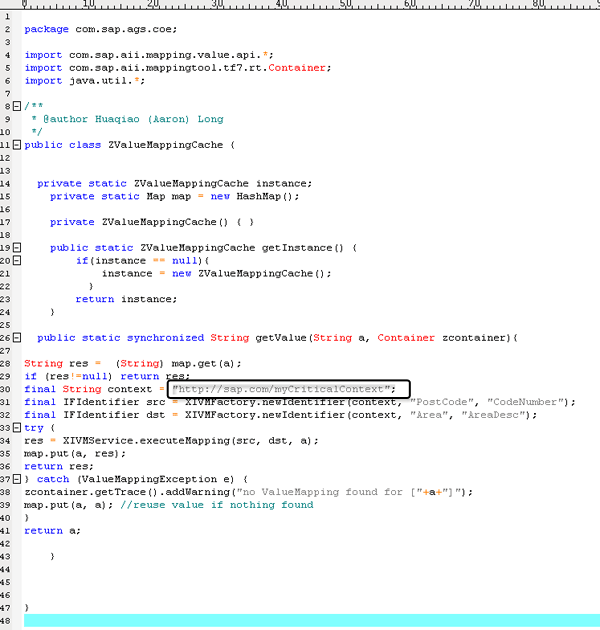
Figure 25 illustrates the source code of the customized value mapping cache Java class. Compile this class and add it to a zip file called ZValueMappingCache.zip. Then take the following steps to use it in your project.
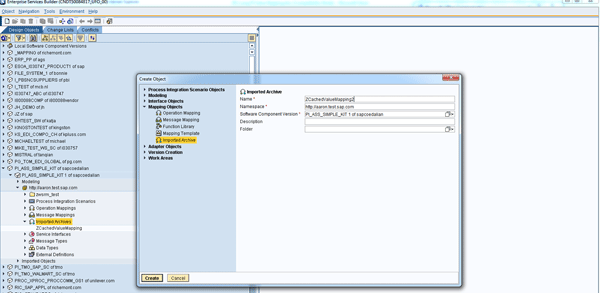
Step 1. Log on to your Enterprise Service Builder and right-click Imported Archives (Figure 26). Input the mandatory fields and click the Create button to continue.
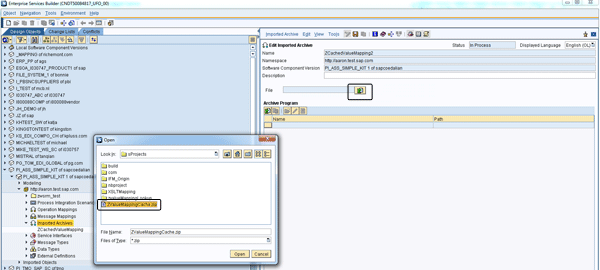
Step 2. Click the import archive icon for browsing the zip file you created (Figure 27). Select the file and click the Open button.
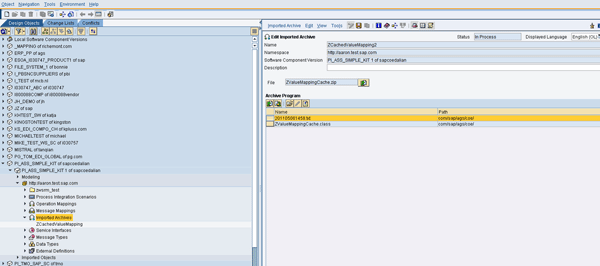
Step 3. Now you can see the Java class and its full path, com/sap/ags/coe, which is defined at the beginning of the class (Figure 28). Refer to Figure 25 for the class source code. Click the save icon and the Java class is imported successfully.
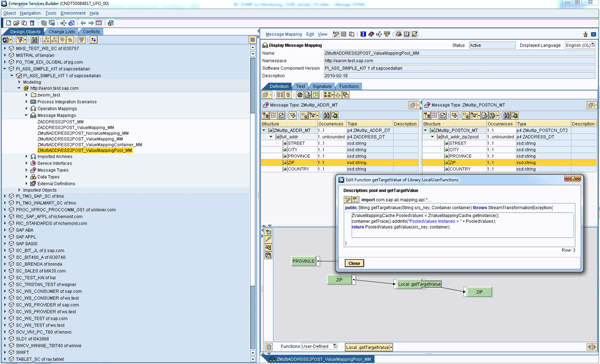
Step 4. In your message mapping, now you can customize a user-defined function called getTargetValue. In the getTargetValue function, you call the customized Java class to get your value mapping function group. Instead of the standard function ValueMapping, you use the user-defined function getTargetValue, which calls the same core as ValueMapping does, for your time-critical scenarios (Figure 29).
Huaqiao Aaron Long
Huaqiao (Aaron) Long is a senior SAP consultant specialist in SAP NetWeaver PI at SAP Active Global Support (SAP AGS). He is responsible for helping customers implement and operate their SAP solutions at their maximum potential and to manage their technical risks during solution implementation and operation. He has been with SAP AGS for seven years based at SAP China, with a three-year rotation working at SAP AG and one year working at SAP Americas.
You may contact the author at aa.long@sap.com.
If you have comments about this article or publication, or would like to submit an article idea, please contact the editor.